Why this choice between desktop and cloud PDFs actually matters
If your team spends 10 minutes a day wrestling PDFs, that is a week of work quietly disappearing every year.
Per person.
Most small businesses feel this pain as a background annoyance. Random errors. Slow uploads. That one teammate who has the magic tool on their laptop.
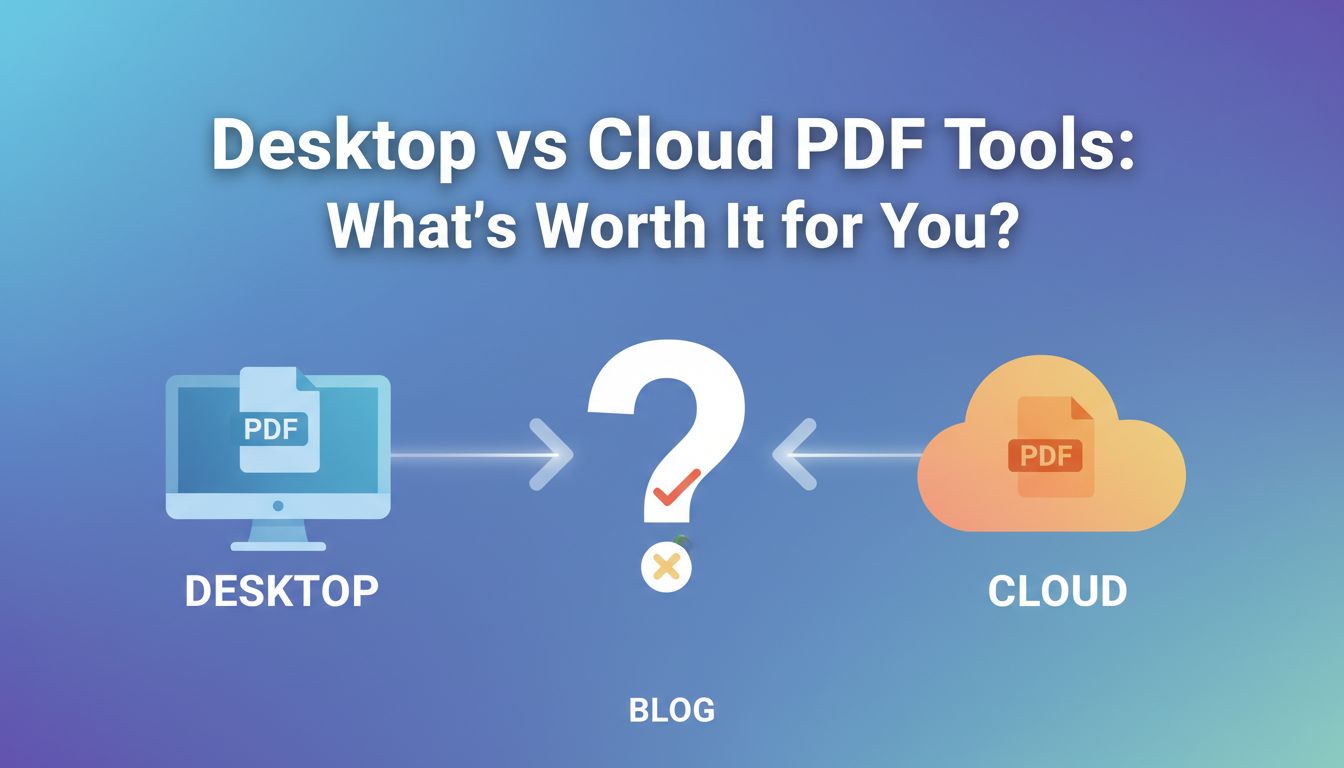
The choice between desktop vs cloud PDF tools is usually made accidentally. Someone installs a free app. Someone else signs up for a cloud service. Then, suddenly, this accidental setup is sitting in the middle of your invoicing, HR, sales quotes, and client reports.
It matters because PDFs are not “admin clutter.” They are where your work meets the outside world.
How PDFs quietly sit in the middle of your key workflows
Think about your week.
You probably touch PDFs when you:
- Send proposals or quotes as polished documents
- Merge receipts into a single file for bookkeeping
- Split a contract to send only the relevant section
- Turn image scans into PDFs for records or compliance
- Export reports as PDFs to share with clients or managers
None of those are “PDF projects.” They are sales, finance, HR, or operations tasks that just happen to rely on PDFs.
That is why the tooling matters. If PDF tasks feel clunky, every connected workflow feels heavier than it should.
What goes wrong when your PDF setup is an afterthought
When PDF tools are chosen on autopilot, you get things like:
- Only one person has the “good” desktop tool, so everyone else Slacks them with “can you merge these real quick?”
- Free online converters that suddenly slap watermarks on invoices or quietly cap file size the day you really need them
- Slow uploads when your internet is under pressure, while a client is on the phone waiting for a document
- No clear process for documents that should never leave your network, like HR records or internal financial reports
Individually, each of these is a small annoyance. Across a team, they turn into hidden drag.
The real question is not “should we use desktop or cloud”. It is “for the work we do, where should the heavy lifting happen?”
On your machines, or in someone else’s server.
Desktop vs cloud PDF tools in plain language
Let us drop the vendor jargon and talk like humans.
What people mean when they say “desktop PDF toolkit”
A desktop PDF toolkit is software you install on your computer. It lives on your machine, uses your machine’s power, and works even when the internet does not.
You open it, drop in a few files, click merge or split or convert, and it spits out a new PDF.
That is essentially what File Studio aims to be. A simple, fast, no-fuss set of tools that sit on your desktop, always ready.
Desktop toolkits usually shine when:
- You repeat the same few tasks all the time
- You care about speed and reliability more than fancy collaboration features
- You work with sensitive documents that you do not want pushed through random web services
Nothing mystical. Just a solid toolbox that lives on your own machine.
What changes when those same tasks move to the cloud
Cloud PDF tools live in your browser. You upload your files to a server somewhere, the server does the work, then you download the result.
Same idea. Different location.
This brings some upsides:
- You can use them from any device with a browser
- Your team can share links or collaborate on the same files
- No install required, IT friction is low
But you also introduce:
- Upload and download time, which gets painful with big scans or slow networks
- A reliance on someone else’s infrastructure and policies
- More questions around where data is stored and who has access
Cloud shines when collaboration and access from anywhere matter more than raw speed or privacy. Desktop wins when you value control, performance, and predictability for routine tasks.
The hidden costs small teams feel with the wrong setup
The wrong choice is rarely catastrophic. It is just annoyingly expensive in ways that do not show up as a line item.
Time drains from clunky merging, splitting, and conversions
Imagine this scenario.
You have a weekly routine. Take a bunch of receipt photos from a company card, convert them to PDF, merge them into one file, and send them to your bookkeeper.
With a clunky setup, it goes like this:
- Drag images into a browser tool
- Wait for uploads
- Hit a file size limit, compress locally, try again
- Download a merged PDF with a watermark
- Realize the pages are out of order, repeat the process
That is 10 to 15 minutes for something that should be under 2.
A desktop toolkit like File Studio cuts that down:
- Select all the images
- Right click or open them in the app
- Convert to PDF and merge locally, at your machine’s speed
No upload. No size limit. No waiting for a server.
Over a month, those micro delays add up. Especially once you have 3 or 4 people doing similar tasks.
[!TIP] If a “quick PDF task” routinely takes longer than making a coffee, your tools are slowing you down.
Security, internet reliance, and compliance trade offs
Not every document should touch the cloud.
Payroll PDFs. Employee performance reviews. Supplier contracts with margins and pricing. Anything related to confidential projects.
With a cloud tool, you are uploading those files to a third party. They might have great security. They might not. But either way, you have less control.
Desktop tools process files locally. The document never leaves your machine unless you send it.
Then there is internet reliance.
Cloud tools are useless without a connection. If your connection is slow, “just converting a few scans” turns into a progress bar you stare at for minutes.
Desktop tools keep working, even when:
- Your office internet is down
- You are on a train hotspot
- Someone is hogging bandwidth with video calls
For some businesses, that is a minor annoyance. For others, it is the difference between getting a signed PDF out to a client today or tomorrow.
How pricing plays out once you have a few employees
Pricing is where a lot of small teams get surprised.
On paper, cloud subscriptions look cheap. Ten or fifteen dollars per month per user feels fine when there are two of you.
Then you grow.
Here is a simplified view.
| Setup type | Team size | Pricing model | Typical result |
|---|---|---|---|
| Cloud PDF suite | 1 | Subscription per user | Affordable and flexible |
| Cloud PDF suite | 5 | Subscription per user | Adds up quickly, recurring forever |
| Desktop toolkit | 1 | One time license or low flat fee | Very cost effective over time |
| Desktop toolkit | 5 | One time per machine or bundle | Cheaper long term, predictable |
If your team mostly needs basic recurring tasks like merging, splitting, and image conversion, you can often equip everyone with a simple desktop toolkit for less than a single year of an all in one cloud suite.
Cloud still might be worth it, but at least you see the true cost. Not just this month’s invoice.
How to decide: a simple checklist for your day to day tasks
You do not need a master spreadsheet or RFP to make a good decision. You just need to be honest about what you actually do most days.
Questions to ask about your recurring PDF workflows
Ask yourself (or your team):
- What are the top 3 PDF tasks we repeat every week?
- Do those tasks usually involve just one person, or multiple people editing the same document?
- Are we mostly cleaning and packaging files that already exist, like images and reports, or are we collaboratively authoring content?
- How often do we work with documents that should never leave our own machines?
- Do slow uploads and downloads regularly annoy us?
If your answers sound like:
- “We mostly merge, split, and convert.”
- “It is usually one person finishing the document before we send it.”
- “Yes, we handle some sensitive files.”
Then a desktop toolkit is probably your natural default.
Red flags that your current PDF approach is holding you back
You might already feel the pain without having a name for it.
Look for signs like:
- The “PDF expert” bottleneck. One person who gets all the PDF requests because their software actually works.
- Repeated work. People re typing or re exporting documents because they cannot easily combine or convert them.
- Cloud roulette. Everyone uses a different free web tool. Results vary, quality varies, nobody is sure where files are going.
- Weird workarounds. Emailing files to a personal email “because the tool is on my home laptop”. That is a security and compliance headache waiting to happen.
If any of these feel familiar, your PDF setup is not neutral. It is actively dragging on your operations.
When a simple desktop toolkit is all you really need
There is a temptation to “future proof” by buying the biggest, most feature packed cloud suite.
Resist it, at least initially.
If your current reality is:
- Individual team members finish and package documents on their own
- Your most complex need is “take these 10 images and make a clean PDF”
- Collaboration mostly happens in tools like Google Docs or Office, and PDFs are just the final output
Then a straightforward desktop toolkit like File Studio is exactly what you need.
You get:
- Speed, because everything runs locally
- Simplicity, because you are not wading through 50 features you never use
- Predictable ownership, because the tools are on your machines, not tied to one person’s log in to some random site
You can always add cloud collaboration later. You do not need to start there.
Looking ahead: when you might grow beyond a desktop toolkit
Choosing desktop today is not a life sentence. It is a step that can actually make a later cloud setup cleaner.
Signs you are ready to add cloud collaboration on top
You might reach a point where your team genuinely needs cloud features. You will see patterns like:
- Multiple people editing or commenting on the same PDF at the same time
- External partners or clients needing to upload documents into a shared space
- A growing need for audit trails, approvals, or automated workflows tied to PDFs
- Frustration with sending the “latest version” back and forth as attachments
At that point, the story changes.
You are not just finishing documents. You are co creating and managing them over time.
That is when a good cloud PDF platform on top of your desktop toolkit starts to make sense. The desktop tools handle the quick, heavy lifting. The cloud handles shared access, tracking, and long running workflows.
[!NOTE] Desktop and cloud are not rivals. For most growing teams, the sweet spot is using each where it is strongest.
A phased approach so today’s choice does not box you in
Think of your PDF setup in phases.
Phase 1: Get your basics solid. Give everyone who regularly touches documents a dependable desktop toolkit like File Studio. Solve the daily grind of merging, splitting, and converting locally. Standardize on that, so you are not juggling twelve different tools.
Phase 2: Layer in cloud where collaboration truly matters. Once you see clear, repeatable collaboration needs, pick a cloud service that integrates cleanly with your existing storage, like OneDrive, Google Drive, or your file server. Use it intentionally, not as a default for everything.
Phase 3: Automate the boring stuff. Over time, you might automate intake and output. For example, invoices dropped in a folder get automatically merged and archived. At this point, both your desktop tools and your cloud workflows should feel like infrastructure, not experiments.
The goal is not to predict the next 5 years perfectly. It is to avoid painting yourself into a corner with a tool that is either overkill or underpowered for where you are now.
A practical next step
If you are still unsure, here is a simple exercise.
For one week, write down every time someone on your team:
- Merges PDFs
- Splits PDFs
- Converts images to PDFs or vice versa
Note how long it takes. Note how often they wait on uploads, chase someone else for help, or redo work because the tool output was not quite right.
At the end of the week, you will know whether your biggest gains are going to come from:
- A rock solid desktop toolkit that makes those repeatable tasks nearly instant, or
- A true collaboration platform because your main pain is shared editing and routing, not the file conversions themselves
If the first bucket is where most of the friction lives, start by standardizing on a desktop toolkit like File Studio.
Clean up the everyday work first. Then decide what, if anything, needs to live in the cloud.