First things first: what are we comparing exactly?
If you work with contracts, financials, HR records, or client deliverables, you already know this tension.
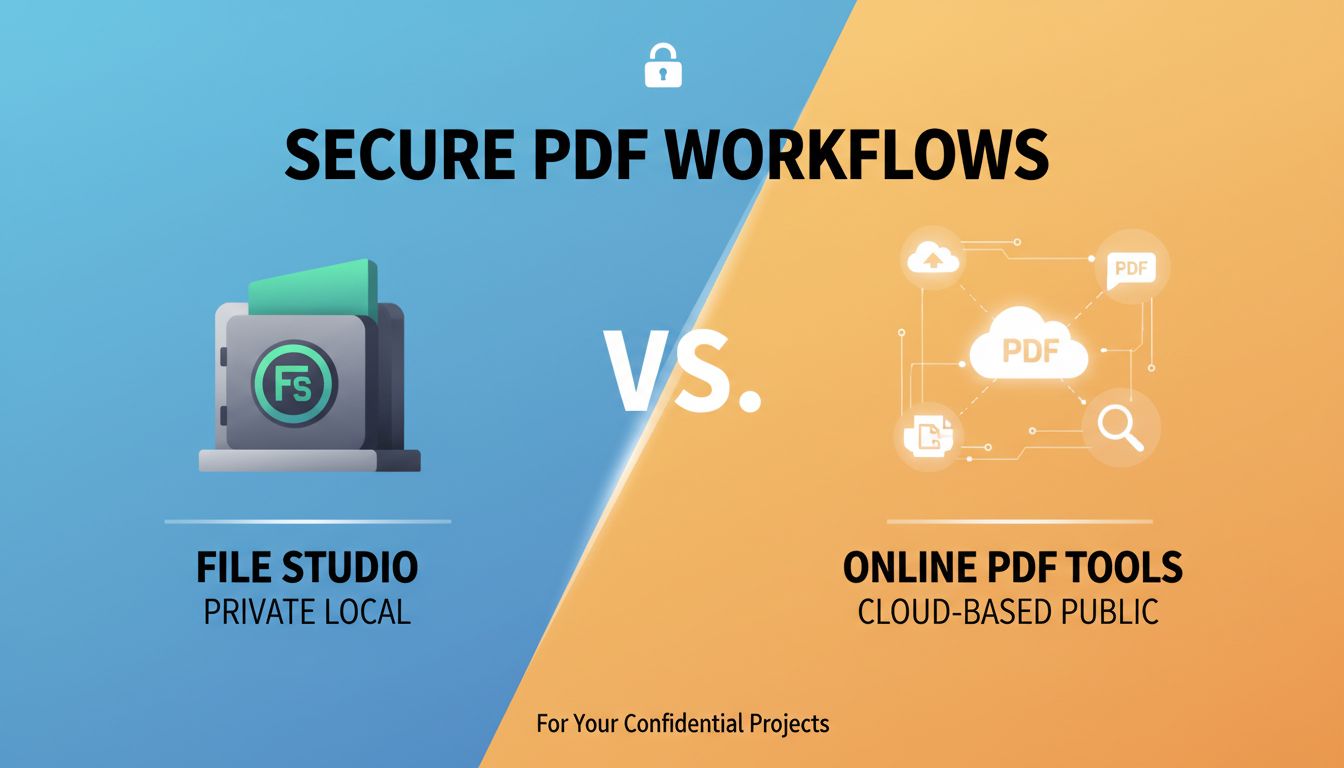
On one side, you have quick, convenient online PDF tools that promise "convert anything in seconds" as long as you upload your files. On the other, something like File Studio, which keeps all your PDF and image work offline on your own machine.
This is not just a feature comparison. It is a trust comparison. File Studio vs online PDF tools is really a question of where you want your sensitive data to live and who touches it along the way.
What File Studio does for PDFs and images offline
File Studio is a desktop tool for converting, compressing, and transforming PDFs and images without sending anything to a server.
Typical things people use it for:
- Turn scanned PDFs into text searchable files.
- Convert PDFs to images or images to PDFs.
- Split, merge, or reorganize PDF pages.
- Batch process large folders of files, including big reports or multi-hundred page documents.
All of that happens on your device. No uploads. No background syncing.
If you work in a restricted network, behind a strict firewall, or in an environment where uploading client content is explicitly banned, File Studio fits naturally into that world. You install it, point it at your files, and it works in the same security perimeter as the rest of your local tools.
What most online PDF tools actually do in the background
The online tools usually look simple. You drag and drop a file, a bar fills up, and you get a download.
Behind that simple UI, there is a lot going on.
Your file is:
- Uploaded to a third party server. Sometimes in another country and under a different legal jurisdiction.
- Processed on infrastructure you do not control. Possibly shared with other customers.
- Stored for some period of time. Sometimes minutes, sometimes hours, sometimes indefinitely "for quality and troubleshooting."
Some vendors are transparent. Others bury the details in vague privacy policies.
Common patterns:
- Files kept for 24 hours "to allow re-download."
- Files used to "improve services" or "train algorithms."
- Logs that include filenames, IP addresses, timestamps, and operation types.
None of this is evil by design. It is just how many SaaS tools work. The problem is that your PDF is rarely "just a PDF."
For a privacy conscious professional, that background process is exactly where the risk lives.
Why does privacy in PDF conversion matter so much?
If you are working with anything confidential, the act of converting a file can be as sensitive as sending it.
People tend to think "I am not sharing it with anyone, I am just converting it for formatting." From a risk perspective, that distinction does not exist. The file still leaves your environment.
How sensitive data quietly leaks through online tools
Imagine a few real scenarios.
You are a lawyer reviewing a complex M&A agreement. You need to merge a few exhibits into a single PDF for a partner review. You quickly upload them into an online "merge PDF" tool because it is what you used at your last job.
You are a consultant building a slide deck for a client. The base content is a long PDF report with client financials. You need some pages as images for a visual layout. You grab an online "PDF to JPG" converter, because it is the first Google result.
You are in healthcare admin. You scan patient forms and want to compress the giant PDFs before archiving. Your colleague sends you a link to a free web compressor.
In each case, you might think:
- "I am not emailing it. I am just converting."
- "It is probably fine. Everyone uses these tools."
- "It is only for a second."
Yet the file has:
- Left your local environment.
- Landed on a server you do not manage.
- Potentially been logged or cached for "support" or "debugging."
[!NOTE] Data breaches often do not come from dramatic hacks. They come from "small" decisions that bypass normal controls, like dropping a confidential PDF into a random online converter.
Once a file has been uploaded, you cannot realistically track its lifecycle. You might delete your copy, but you cannot delete their backups, logs, or machine learning training sets.
Compliance, NDAs, and client trust on the line
Now connect that to your real constraints.
If you work under:
- NDA with a client
- GDPR, HIPAA, PCI, SOC 2 controls
- Internal policies that restrict data residency or vendor usage
Then online PDF tools are not just a convenience. They are a compliance surface.
Picture an audit. The auditor asks:
"List all third party services where client documents may have been processed."
If your answer is "We do not process client documents through third party services. Everything is handled on approved offline tools like File Studio," that is clean.
If your answer is "Technically some staff sometimes use free online tools when they need a quick conversion," you now have:
- Shadow IT.
- Unapproved data flows.
- A gap between policy and practice.
Client trust works the same way. If a client asks, "Where does our data go when you convert or manipulate PDFs," it is a different story to say:
"We use on device tools, nothing goes to external servers," vs "We use a few online tools but they say they delete after 24 hours."
One sounds like control. The other sounds like hope.
The hidden cost of relying on online PDF tools
There is another layer here. Even if you ignore privacy for a second, web tools are not always as smooth as they look.
Latency, upload limits, and format surprises
Online PDF tools look instantaneous in marketing screenshots. In practice, you are at the mercy of your bandwidth and their infrastructure.
Common friction points:
- Huge files crawling their way through an upload bar.
- "File too large" errors on multi hundred page documents.
- Browser timeouts if your connection is flaky or if you are on a VPN.
- Output files that look subtly wrong. Fonts changed, layout nudged, images slightly degraded.
Now look at your real workflow.
If you are converting one three page file occasionally, this might be tolerable. If you routinely work with:
- 200 page reports
- 600 DPI scans from copiers
- Entire folders of mixed PDFs, TIFFs, and JPEGs
Then upload latency and unpredictable output become a tax on your day.
With File Studio, the bottleneck is your machine, not a remote server and network. You drag a folder in, define the operation, and watch it process locally. No waiting for round trips. No playing "will it accept this file size."
Vendor lock in, account sprawl, and policy changes
Online tools also come with long term friction that is easy to miss at first.
You start with a free tool, no account required. Then one day they introduce a login wall.
Next, they cap free usage and nudge you into a subscription. Then they change file retention policies. Or update their terms so they can "use anonymized content to improve models."
You spread across three or four different tools because each one changed something. Now you have:
- Multiple accounts across random vendors.
- Data scattered in various services.
- No single, predictable way your team is supposed to handle PDFs.
Vendors might also decide to:
- Geo restrict services.
- Deprioritize the features you actually rely on.
- Pivot toward AI workflows that expect to store and index your content.
None of this is hypothetical. It is exactly how a lot of "simple" PDF tools evolve.
[!IMPORTANT] Every time a cloud vendor changes their pricing or data policy, your risk profile changes. If your tools are offline, your risk profile is stable.
With File Studio, there is no account sprawl and no surprise cloud pivot. You install it once, you control when it updates, and your files never depend on a remote policy change.
How File Studio keeps everything offline and under your control
File Studio is not "privacy friendly" because of a promise. It is privacy friendly because of its architecture.
Everything important happens on your machine.
On device processing: what actually stays on your machine
When you use File Studio for PDF or image work, three things are true:
- Files never leave local storage for processing.
- No background upload happens in order to "enhance" features.
- No account is required to convert, compress, split, or batch process.
Your data flow looks like this:
Your disk → File Studio process → Your disk.
There is no "Your disk → Vendor cloud → Vendor processing → Your disk."
That means:
- If your workstation is compliant, your conversions are compliant.
- If your network is air gapped, File Studio still works.
- If your policy says "No client documents may be sent to third party services," you can honestly say you comply.
For professionals under strict NDAs, this simplicity is a feature. It is much easier to justify one offline tool in an approval process than a rotating cast of cloud services.
Speed, batch workflows, and handling large or complex files
Performance is not just about raw speed. It is about predictability.
Online tools often fail right at the moment you are in a rush:
- The day you have a 300 MB scanned contract.
- The day your network is under load.
- The day your VPN adds an extra 300 ms latency to every request.
File Studio uses your CPU, your memory, and your storage. If you have a reasonably modern machine, this is usually faster than shuttling data to a server and back.
More importantly, it scales with your workload.
Picture this:
You have a folder with 500 scanned invoices, mixed resolutions, mixed orientations, several hundred megabytes total. Your job is to:
- Convert them all to searchable PDFs.
- Normalize their resolution.
- Compress them below a given size for archiving.
With most web tools, you would be:
- Uploading them in clumps.
- Babysitting progress.
- Hoping the site does not rate limit you or log you out.
With File Studio, you set up a batch operation, point it at the folder, and let it run locally. If you close your browser, nothing breaks. If your internet drops, nothing breaks.
Practical security wins: air gapped work, audits, and approvals
There are some very real, very practical security scenarios where offline tools make the difference between "approved" and "absolutely not."
Air gapped workstations If some of your work has to happen on machines that are not connected to the internet at all, online tools are simply off the table. File Studio still works. You install it once, then operate fully offline.
Security audits During an audit, you can show that PDF and image processing happens within your environment, using a known, documented tool. That is far stronger than "we use paid plan X from vendor Y, and they say they are secure."
Procurement and legal approvals Approving one offline tool often requires a single vendor questionnaire and one-time review. Approving multiple online tools can involve DPIAs, data residency questions, third party risk reviews, and back and forth with legal.
For teams who constantly live under "Can we justify this to audit and legal," File Studio is appealing because it reduces the number of conversations.
[!TIP] If your policy already restricts data sharing with cloud services, positioning File Studio as "our standard offline PDF and image tool" gives staff a safe default and reduces the temptation to use random web converters.
So which should you choose, and what should you do next?
Both options have a place. The critical question is: in your world, which trade offs are acceptable?
A simple checklist to decide: File Studio vs online tools
Use this table as a reality check, not as marketing fluff. Where you land will be pretty clear.
| Question | If you mostly answer "yes" | Better fit |
|---|---|---|
| Do your PDFs often contain confidential or regulated data? | Yes, almost always | File Studio |
| Are you under NDAs, compliance frameworks, or legal scrutiny? | Yes, and we get audited | File Studio |
| Is your network locked down or partly air gapped? | Yes, or heavily firewalled | File Studio |
| Do you work with large or complex documents on a regular basis? | Yes, big scans, long reports, batches | File Studio |
| Is convenience for one off, non sensitive files your main need? | Yes, I just need a quick occasional conversion | Online tools can be fine |
| Are you comfortable with your files being briefly stored on third party servers that might change policy later? | Yes, for low risk documents | Online tools |
Or, framed differently:
- If your files are mostly marketing PDFs and non confidential assets, online tools might be enough.
- If your files are mostly contracts, financials, deals, patient data, or anything that makes you pause before attaching it to an email, File Studio is the safer and, over time, smoother default.
Low risk ways to trial File Studio in your existing workflow
You do not have to flip a switch overnight.
A smart pattern many teams follow:
Pick one workflow to move offline For example, "All contract related PDFs must be converted or merged only with File Studio." Keep everything else as is for a couple of weeks.
Mirror an existing process Take a typical online task, like "compress PDF" or "PDF to images," and do it in File Studio side by side for a week. Check: Are the results comparable or better? Is it faster on your network? Does anyone miss the web tools?
Collect edge cases Have your team note any case where an online tool seems easier or does something File Studio does not, then review those cases. In many situations, it is just a matter of configuring batch options or learning a feature once.
Formalize the boundary Once you are confident, write a short internal guideline. For example:
- "Use File Studio for all client PDFs and image conversions."
- "Online tools allowed only for public marketing assets or test data."
You will know it is working when:
- No one has to ask, "Is it safe to upload this?"
- You spend less time hunting for a converter website that still does what you want.
- Your security and compliance folks stop worrying about rogue web tools.
If you are already leaning toward offline tools, the next step is simple. Install File Studio, run it on one real workflow this week, and see how it feels when your PDFs never have to leave your machine.