Why an offline PDF compression checklist actually matters
If you work in a small business, you probably have at least one bloated PDF that refuses to send, breaks an online form, or crashes someone’s inbox.
The temptation is to grab whatever free online tool shows up in search results. Compress here, merge there, convert somewhere else. It feels faster in the moment. It is not.
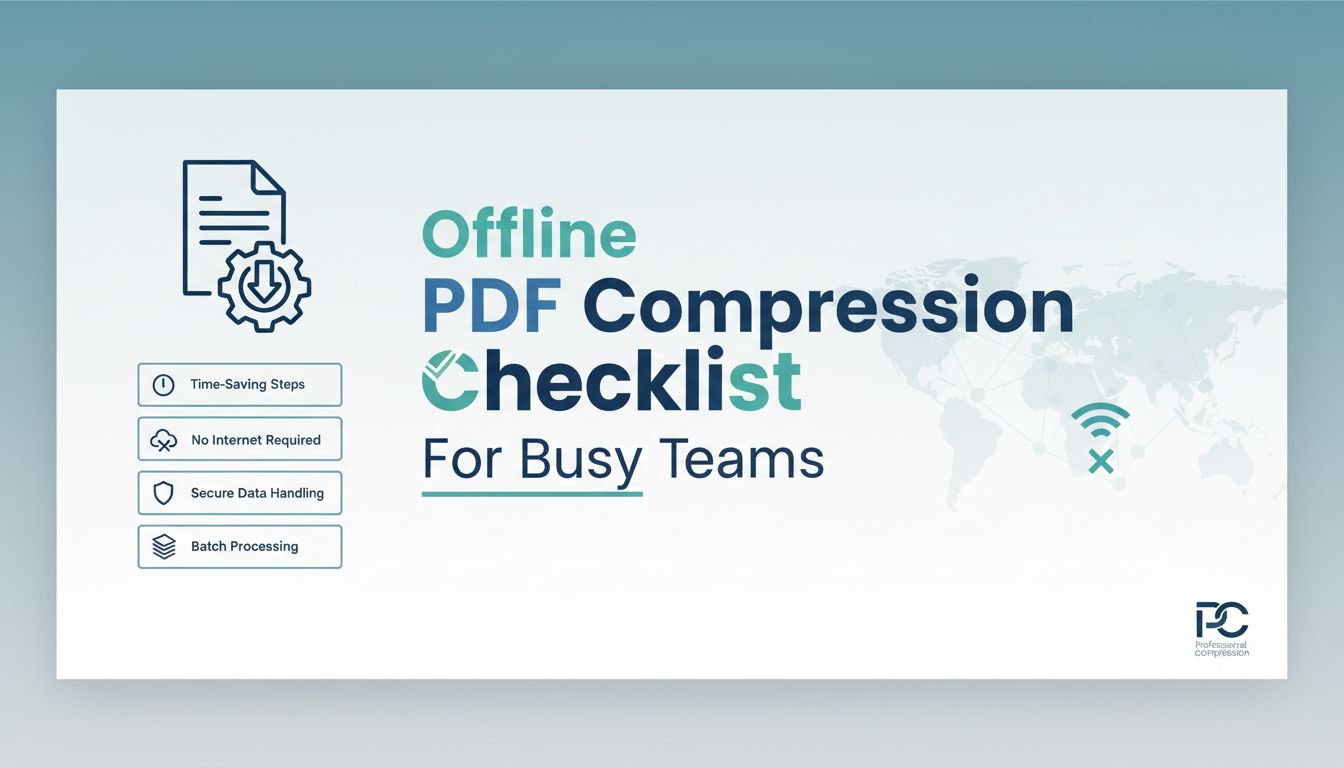
A simple offline PDF compression checklist is like having a standard playbook for your documents. Same steps, same tool, predictable results. Your team stops guessing, your PDFs stop causing drama, and your workflows finally behave.
Let’s walk through what that actually looks like in practice.
The hidden risks of ad‑hoc PDF tools for small teams
Most small teams grow into PDF chaos slowly.
One person uses a browser tool to merge files. Someone else downloads a free converter on their laptop. Marketing finds a design plugin. Operations uses something built into their scanner.
Nothing is technically broken. Until:
- Sensitive documents get uploaded to random websites you do not control.
- Results are inconsistent. Some files are too blurry. Others stay huge.
- No one remembers what they used last time, so every task starts from scratch.
You do not just lose time. You also lose control.
With an offline desktop toolkit, you define the rules once. Then your checklist keeps everyone on the rails. Same tool, same settings, same outcome. That consistency is worth more than most teams realize.
How a simple checklist saves time every single week
Think of the documents your team touches every week.
Sales proposals. Contracts. Supplier agreements. Client reports. Internal forms.
Most of these need the same 3 or 4 actions on repeat. Merge a few PDFs. Compress to under a certain size. Maybe convert images to PDF or extract pages for a specific person.
Without a checklist, each task is an improvised mini project.
With a checklist, it becomes a repeatable routine:
- Open your offline tool.
- Run your preset compression setting.
- Use the same merge or split steps.
- Save with a consistent file naming and folder structure.
It sounds almost too basic. That is the point. The less thinking your team has to do about the mechanics, the more they can think about the content.
An offline tool like File Studio makes this even smoother. You can keep all the recurring tasks, merge, split, compress, convert, in one place so your checklist matches one single app, not five half remembered websites.
The hidden cost of oversized and messy PDFs
Oversized, messy PDFs do not usually trigger alarms. They just quietly slow everything down.
The file still opens. It still looks like a document. So it feels low priority.
That is how they become a hidden cost center. They steal minutes and attention from dozens of people. Every day.
Slow sharing, support tickets, and compliance headaches
Here is what bloated PDFs look like on the ground.
A 40 MB proposal that fails to send through a client’s email gateway. A scanned contract that is so large your CRM refuses to attach it. A training manual that stalls a support rep’s remote connection.
Each one creates a tiny fire:
- Someone asks IT why the file will not send.
- Someone uploads the PDF to a random sharing site with dubious security.
- Someone screenshots pages and sends them as images.
Now add compliance.
If you work with HR records, health information, financial data, or anything remotely confidential, those workarounds start to look risky. Uploading to unvetted online tools is often a direct violation of internal or regulatory rules.
[!IMPORTANT] If your team handles confidential PDFs, you must be able to say exactly where those files go when they are processed. "Some website we found" is not an answer.
Offline compression neatly avoids that. Files never leave your machine or internal network. That alone resolves a whole category of tickets and awkward questions from compliance or clients.
How bloated PDFs break your workflows and automations
Modern workflows depend on PDFs behaving predictably.
Your CRM might auto attach contracts under a certain size. Your document management system might index PDFs for search. Your automation might route invoices based on content and metadata.
Bloated or messy PDFs quietly sabotage that.
Examples:
- A 300 dpi scanned invoice with no OCR cannot be searched or routed correctly.
- A giant catalog PDF over your system’s size limit will be skipped by automations.
- Inconsistent compression makes some PDFs sharp and others unreadable on mobile, so sales or field staff cannot rely on them.
The result is human patching.
People re upload, manually route, or re compress on the fly. Every exception burns time and breaks trust in the system.
A proper offline toolkit with a clear checklist flips that around. You create standard profiles. For example:
- "CRM attachable" profile: under 5 MB, text searchable, medium image quality.
- "Email friendly" profile: under 10 MB, optimized for fast opening.
- "Archive" profile: smaller size, still legible, suitable for long term storage.
Then you teach your team to pick the right profile every time. Suddenly, your automations start working like they were supposed to from the beginning.
What to look for in an offline PDF compression toolkit
Not all desktop PDF tools are created equal. Plenty can "compress a PDF" but fall short when you need real-world reliability.
You are not just buying compression. You are buying fewer headaches.
Core features beyond compression: merge, split, convert
If you handle documents regularly, compression is rarely alone.
You will almost always need:
- Merge multiple PDFs and images into a single, clean document.
- Split by page range, bookmark, or document sections for different stakeholders.
- Convert images (JPG, PNG, TIFF) to and from PDF.
A surprisingly common scenario:
You receive 10 scanned pages as separate images. You need to merge them into one PDF, compress it for email, then split out 2 pages for a partner.
If your toolkit cannot handle that entire flow, your team will jump between apps again.
Tools like File Studio are designed exactly for these recurring flows. Merge, split, compress, convert, all from one desktop interface. That is what you want to standardize your checklist around.
Quality controls: image settings, fonts, and batch handling
Good compression is not just "make it smaller."
You want control over how the size reduction happens, especially for documents that are client facing.
Look for:
- Image settings. Ability to adjust resolution (dpi), JPEG quality, and color mode. You might use higher quality for brochures and lower for internal forms.
- Font handling. Proper font embedding avoids weird display issues when clients open the file on their devices.
- Batch processing. The ability to apply the same compression profile to entire folders or a stack of files so you are not repeating the same actions one by one.
Imagine end of month when finance needs to compress and archive hundreds of invoices. Manual one by one compression is not an option.
Your offline toolkit should let you select an entire folder, pick a preset, and run it in one go. That is where a checklist paired with batch handling can reclaim serious time.
Security and offline requirements small businesses should insist on
If you only remember one thing from this section, make it this.
Your compression workflow should never force you to upload confidential PDFs to third party servers.
Look for:
- True offline processing. All operations happen locally, without sending files to a cloud service.
- No forced account signups for basic features. You do not want staff scattering business documents across random tool accounts.
- Clear data policies if there is any optional online component.
For some teams, offline desktop tools like File Studio are not just a preference. They are a compliance requirement.
[!TIP] Ask vendors directly: "Does your software send any part of my PDFs or their contents to your servers for processing or analytics?" The answer should be a clear "no" for an offline toolkit.
Your practical offline PDF compression checklist
Here is where this gets real.
The goal is not a theoretical best practice document that lives in a forgotten folder. You want a short, repeatable checklist your team can actually use.
You can adapt the following to your own tools and needs.
Daily tasks: quick steps for recurring merge, split, and convert jobs
These are the actions your team takes all the time.
A practical daily checklist might look like this:
Open your standard desktop tool Always use the same app, for example File Studio, instead of random online sites.
Choose the right profile For example "Email friendly", "CRM attachable", or "High quality client PDF".
Run core tasks in one session Merge, split, convert images, then compress. Do it all in one go so you do not create multiple versions scattered around.
Name files consistently Use a naming pattern like
ClientName_DocumentType_Date_v1.pdf. This makes later clean up and automation more reliable.Spot check before sending Quickly scroll through on screen and, if possible, open on a second device. Is text readable? Are images clear enough?
This entire routine should take under 2 minutes for a typical document. If it does not, your tool or your presets need adjusting.
Weekly checks: file size targets, quality spot checks, and cleanup
Once a week, someone in the team should wear the "PDF hygiene" hat for 15 to 30 minutes.
Here is a simple weekly checklist:
Look at shared folders for problem files Sort by size. Anything way larger than expected? Recompress with the correct profile.
Check if file size targets are being met For example, customer facing PDFs under 10 MB, internal forms under 2 MB, invoices under 1 MB.
Do a quick quality sampling Open 5 to 10 recent PDFs on different screens. Laptop. Tablet. Phone. Make sure compression settings are not making your brand look cheap.
Clean up duplicates and drafts Remove temporary versions or clearly mark them as archive. This reduces confusion and accidental sending of the wrong file.
File Studio and similar tools make some of this easier by allowing bulk operations, so your weekly review can fix issues quickly instead of one file at a time.
Quarterly review: is your current desktop tool still the best fit?
Tools that worked when you had 3 employees might strain when you have 15.
A short quarterly review keeps you ahead of that curve.
Ask:
- Are there recurring complaints about slow processing, clunky interface, or missing features like batch compression or better split logic?
- Are your security or compliance requirements changing? For example, stricter data handling rules from a key customer?
- Are you using multiple tools where one could realistically cover everything?
If you find that people are still sneaking off to online sites because "our tool is too painful," that is your signal.
Quarterly is also a good time to revisit presets. Maybe you created an aggressive compression profile months ago that is making new marketing materials look bad. Tune and reset your defaults so your checklist stays relevant.
How to compare and shortlist desktop tools with confidence
At some point, you will be staring at 3 to 5 browser tabs, each for a different PDF tool, all promising miracles.
The danger here is focusing on surface features. "Supports PDFs." "Fast compression." "User friendly."
You want a structured way to compare, so you do not end up choosing based on whichever site had the nicest homepage.
A simple scorecard to evaluate 3, 5 options side by side
Create a basic comparison table and score each tool from 1 to 5 on criteria that actually matter to your workflow.
Here is a sample you can adapt:
| Criteria | Weight | Tool A | Tool B | Tool C |
|---|---|---|---|---|
| True offline processing only | High | |||
| Compression quality and control | High | |||
| Merge / split / convert in one app | High | |||
| Batch processing support | Medium | |||
| Ease of use for non technical staff | High | |||
| Presets / profiles for common tasks | Medium | |||
| Licensing simplicity and cost | Medium | |||
| Vendor trust and support quality | Medium | |||
| Platform compatibility (Windows / Mac) | Medium |
A few tips:
- Mark any "must haves" first. For many small businesses, "offline only" and "merge/split/convert" are non negotiable.
- Test real workflows, not just one file. Have someone from your team run a typical daily task in each tool and rate how it felt.
- Pay attention to friction. If something feels clumsy in a short test, it will feel unbearable when done 20 times a week.
File Studio, for instance, tends to score well on the "one app for all basic PDF tasks" and "offline processing" criteria, which is exactly what many small teams need.
Red flags that mean you should walk away from a PDF tool
You can save yourself a lot of trouble by spotting early warning signs.
Walk away if:
- The tool requires you to upload PDFs to their servers for compression or conversion.
- There is no clear explanation of how your data is handled or stored.
- Batch processing is missing but your team handles more than a handful of PDFs per day.
- The interface looks like it was built for engineers, not regular staff, you will pay for that in training and mistakes.
- Critical features are hidden behind confusing pricing tiers or require separate add ons.
[!NOTE] "We support offline use" is not the same as "we process everything locally." Ask the vendor exactly which features rely on their servers.
If you hit multiple red flags, trust your gut and pick a tool that respects your workflow and your data.
A good offline PDF compression checklist is not about perfection. It is about predictability.
You pick a solid desktop tool, set a few smart presets, and teach your team a short routine they can follow without thinking too hard. Over time, your PDFs stop being a constant source of minor issues and simply become part of how you work.
If you are evaluating options now, choose one real document workflow from your business, then test it in two or three tools side by side. Include a dedicated offline toolkit like File Studio in that mix and see which one lets your team complete the job fastest and cleanest.
Your next step: write a one page version of your own checklist based on the sections above, share it with your team, and choose a single desktop tool to standardize on for the next 3 months. Then watch how many little PDF problems quietly disappear.