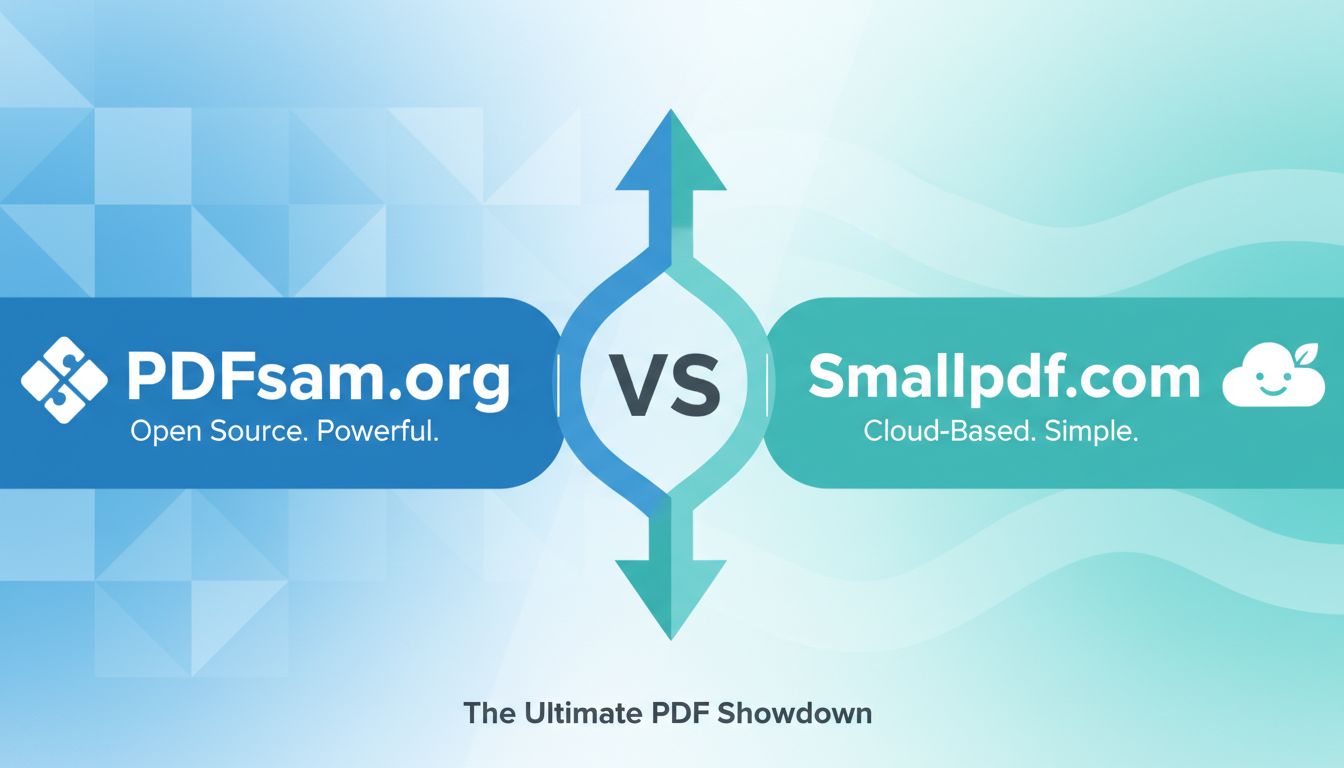

File Studio vs smallpdf.com comes down to one big question: Do you want fast, cloud-based convenience, or private, offline control over sensitive files?
Everything else is secondary to that.
1. Quick comparison: File Studio vs smallpdf.com
| Factor | File Studio | smallpdf.com |
|---|---|---|
| Where it runs | Offline app for macOS & Windows | Web-based, plus mobile & desktop apps |
| Internet required | No, fully offline | Yes for web; desktop app still linked to cloud account |
| Privacy model | Files stay on your device | Files uploaded to servers for processing |
| Best for | Sensitive docs (IDs, contracts, passports) | Everyday document tasks, sharing, e-signing |
| Core tools | Convert, merge, split, reorder, unlock, resize, compress PDFs & images | Convert, merge, split, compress, e-sign, share, store |
| Control over output | Fine-grained formats, resolution, compression | Simpler, presets optimized for typical use |
| Collaboration & sharing | None built in | Strong: sharing links, comments, some workflows |
| Platform support | macOS, Windows | Browser on any OS, plus apps |
| Pricing approach | One-time / license style (no upload costs) | Freemium + subscription (limits without Pro) |
| Ideal user | Privacy-focused professionals, lawyers, finance, in-house teams | General users, small teams, schools, freelancers |
Now, how do those differences feel in real use?
2. Where smallpdf.com works well
If you need quick results from anywhere with an internet connection, smallpdf.com is very hard to beat.
2.1 Frictionless for casual and occasional use
For most people who say "I just need to compress this PDF" or "turn this image into a PDF," smallpdf.com:
- Opens in the browser, no install.
- Has a minimal interface.
- Gets a basic task done in a few clicks.
If your work is mostly sending slide decks, proposals, or school documents, that simplicity is a real advantage.
2.2 Great when you move between devices
Because smallpdf.com is web-based, you can:
- Start a task on your work PC.
- Finish it later on a home laptop or tablet.
- Use it on devices where you cannot install software, like locked-down corporate laptops or school computers.
This multi-device flexibility is one of the main reasons people start with cloud tools.
2.3 Collaboration and sharing
File Studio is a pure toolkit. It focuses entirely on manipulating files on your device.
smallpdf.com, on the other hand, leans into workflows:
- Share files via links instead of attachments.
- Integrate e-signing into your process.
- Store certain documents in the cloud for easy access.
If you are working with clients who expect to sign online, or if you constantly send PDFs back and forth, these features are practical and time saving.
2.4 Good default settings
While File Studio gives you detailed control over resolution and compression, smallpdf.com tends to be:
- Opinionated about output quality.
- Tuned for "good enough" results for non-technical users.
For example, if a teacher wants to compress a handout for email, they probably do not care about exact DPI or the difference between JPEG quality 65 vs 80. smallpdf.com is designed for those people.
3. Where File Studio pulls ahead
File Studio is built for a very different mental model: your files are yours, and your computer is your workspace. Nothing leaves your machine unless you decide to send it.
That matters in more situations than you might think.
3.1 Privacy: sensitive documents never leave your device
If you handle:
- Passports and IDs
- Employment contracts and NDAs
- Legal agreements
- Bank or tax statements
- Medical or HR records
then sending those files to a third-party server, even briefly, is often a risk or a policy violation.
With File Studio:
- Everything runs locally on macOS or Windows.
- There are no uploads.
- There is no dependency on a vendor server to "forget" your data.
You stay on the right side of internal security policies and client expectations.
For many regulated industries, this is not just a preference. It is non-negotiable.
3.2 Predictability and control over output
File Studio focuses on giving you knobs to turn, not hiding them.
You can:
- Choose exact output formats (PDF, specific image formats).
- Tune image resolution in a controlled way.
- Adjust compression levels explicitly, instead of "Strong / Recommended / Less."
This is especially useful if you:
- Need to fit under strict upload limits without destroying readability.
- Prepare documents for printing where DPI matters.
- Work with scanned IDs that must remain clearly legible.
With smallpdf.com you typically accept a preset level of compression or conversion quality. With File Studio, you decide where to draw the line between file size and clarity.
3.3 Reliability in offline or locked-down environments
If you travel a lot, or work in corporate environments where the web is partially blocked, cloud tools quickly show their limits.
File Studio lets you:
- Process large batches of files entirely offline.
- Avoid VPN latency and file transfer bottlenecks.
- Keep working even in secure facilities or on air-gapped machines.
If you have ever tried to upload a 300 MB scanned contract on a shaky hotel Wi-Fi connection, you already know why local tools matter.
3.4 Performance with large or many files
Server-based tools often have:
- Upload limits.
- Timeouts on large files.
- Throttling for free or lower-tier accounts.
File Studio turns your local machine into the engine. That means:
- Processing scales with your CPU and disk speed.
- No waiting for uploads and downloads for every change.
- Batch tasks are smoother and repeatable.
If you routinely merge dozens or hundreds of pages, or compress large project bundles, File Studio will usually feel faster and more dependable.
3.5 Cost structure that favors frequent use
smallpdf.com uses a freemium / subscription model. If you only need a few operations here and there, you might get away with free usage, but:
- There are caps on tasks per day.
- Some features require Pro.
- You are paying for ongoing cloud infrastructure and online features.
File Studio tends to work better for people who:
- Do file operations daily or weekly.
- Want a tool that will not lock tasks behind a server-side paywall later.
- Prefer a one-time or license-based cost over forever subscriptions.
If your workday includes "cleaning up PDFs" as a regular job, File Studio usually pays for itself quickly.
4. Real scenarios: when each one is the right choice
To make this concrete, here are some realistic situations.
Scenario 1: HR team handling IDs and contracts
You are in HR, regularly dealing with:
- New hire passports and IDs.
- Signed offers and contracts.
- Performance and compensation documents.
You often need to join scans, redact or re-order pages, compress for internal systems, and email copies.
smallpdf.com
- Easy to use if you just need to quickly convert a candidate's CV or compress a generic PDF.
- But uploading passports and signed compensation documents to a third-party cloud is often against policy.
- Harder to justify from a compliance perspective.
File Studio
- Everything happens on local workstations.
- No cloud transfers, so your security team is calmer.
- Fine-grained control lets you optimize for internal HR systems that might be picky about file size and format.
If HR is serious about privacy, File Studio is the safer long-term platform.
Scenario 2: Freelancer or student with mixed devices
You work from:
- A Windows PC at home.
- A MacBook on the go.
- Occasionally a borrowed machine or tablet.
Your work involves:
- Sending proposals or assignments as PDFs.
- Compressing files for email.
- Occasionally signing something.
smallpdf.com
- Perfect for this lifestyle.
- You can log in from any browser and get the same tools.
- Great if you do not want to install anything on certain devices.
- Built-in e-signing saves you from juggling another tool.
File Studio
- Great on your main Mac or PC, but does not help you on borrowed or locked-down machines.
- Overkill if your documents are not particularly sensitive and you just need quick fixes.
If your priority is "I must be able to do this from anywhere," smallpdf.com wins here.
Scenario 3: Law firm or legal department
You handle:
- Evidence bundles.
- Contracts under NDA.
- Court filings and pleadings.
Privacy is critical, and some matters are extremely sensitive.
smallpdf.com
- Fast for ad hoc tasks but each upload is another potential risk.
- Many firms are wary of sending case material to a third-party cloud.
File Studio
- Lets you manage everything inside your own environment.
- Works well on secure or offline machines.
- Makes it easier for IT to approve, because data stays local.
If reputation and compliance matter more than convenience, File Studio is a better strategic choice.
Scenario 4: Marketing or sales teams sending large decks
You often need to:
- Compress slide decks or brochures.
- Merge PDFs for pitches.
- Share docs with clients who are non-technical.
smallpdf.com
- Ideal for sharing: generate links, keep things in the cloud, simple to access.
- Good if your clients are used to clicking a "View document" link rather than dealing with attachments.
- Light e-sign and collaboration features help with approvals.
File Studio
- Great at preparing the files: right size, right quality, branded PDFs.
- But does not help with sending, tracking, or collecting signatures.
- You would still need extra tools for sharing and signing.
If your focus is on external communication and client friendliness, smallpdf.com fits better.
Scenario 5: Internal operations team converting and cleaning docs all day
You are the "file person" who gets every:
- "Can you shrink this PDF?"
- "Can you join these 5 scans?"
- "Can you fix the order of these pages?"
Dozens of times per week.
smallpdf.com
- Very approachable but limited if you hit task caps.
- Upload latency adds up when you are doing this all day.
- Subscription makes sense, but you are still dependent on connectivity and server availability.
File Studio
- Installed on your machine, low friction for repeated work.
- Batch operations and local processing save you minutes on every task.
- Costs are predictable and do not scale with volume.
For this role, File Studio often becomes the "power tool" that lives in your dock or taskbar.
5. Choose smallpdf.com if… / Choose File Studio if…
Choose smallpdf.com if:
- You value convenience and access from any device more than strict privacy.
- Your documents are not especially sensitive: school work, marketing materials, general business docs.
- You need built-in e-signing and simple sharing links.
- You use shared or locked-down computers where installing software is not an option.
- You are fine with a recurring subscription in exchange for website-based tools.
Choose File Studio if:
- You handle sensitive information: IDs, passports, legal agreements, financial or HR data.
- Your company has policies against uploading certain documents to external servers.
- You want detailed control over output format, resolution, and compression, not just presets.
- You work in environments that are offline, behind strict firewalls, or sometimes have poor connectivity.
- You process PDFs and images regularly and want a fast, dependable desktop toolkit, not a cloud dependency.
6. The verdict
"file studio vs smallpdf.com" is not really about which product is more powerful in the abstract. Both can convert, merge, split, and compress PDFs reasonably well.
The real decision is about where the work happens and how much control you want.
- If you live in a browser, switch devices constantly, and mostly work with non-sensitive documents, smallpdf.com is an excellent, polished, cloud-first choice.
- If you care deeply about privacy, reliability, and precise output control, and you are primarily on macOS or Windows, File Studio is the better long-term tool. It treats your computer as the workspace and your documents as data that never has to leave it.
Next step: List the 3 most common PDF or image tasks you actually do in a week. If they involve sensitive docs or heavy repeat work on one computer, try File Studio first. If they are light, occasional, and spread across different devices, start with smallpdf.com and see if the cloud model fits you.