pdfsam.org vs smallpdf.com: which fits your workflow?
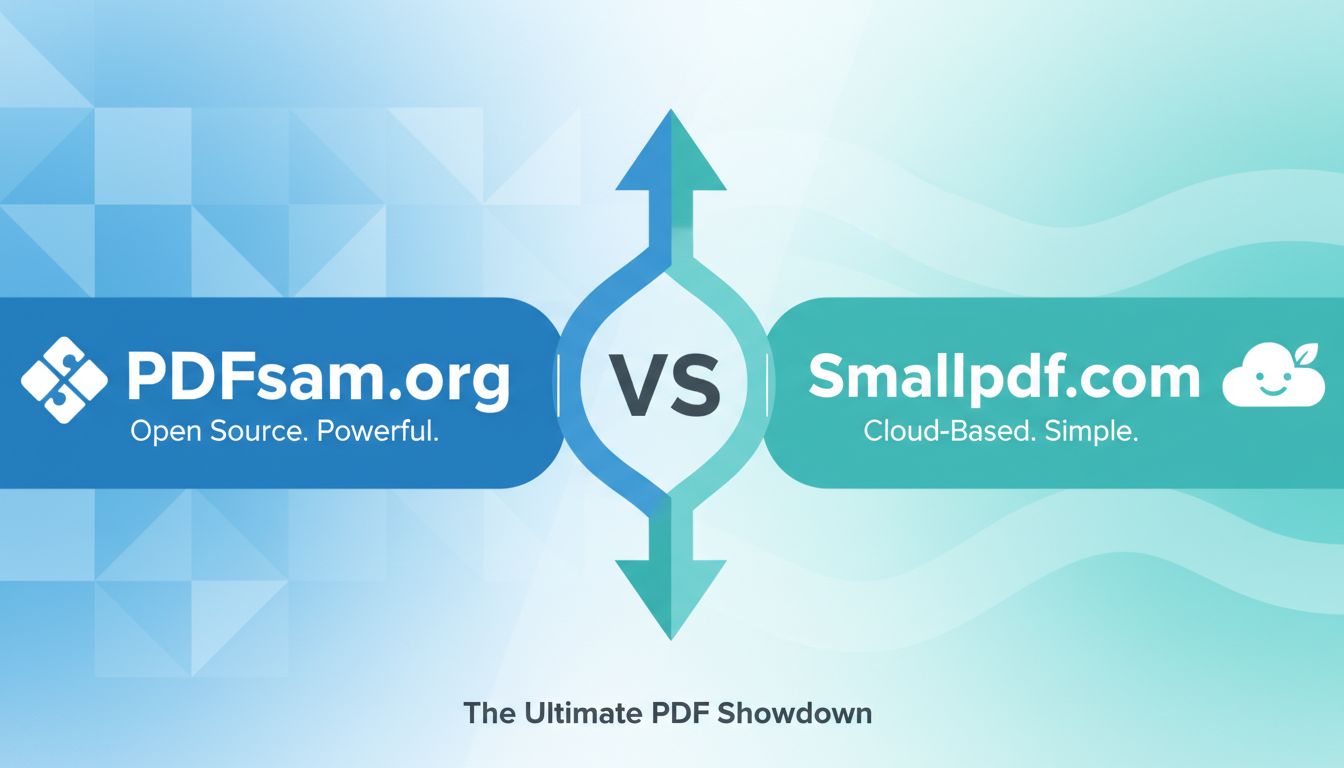
When people search for PDF tools, pdfsam.org vs smallpdf.com comes up a lot. They are both well known, but they solve problems in very different ways. There are also quieter options in this space, like File Studio, that are worth knowing about if you care a lot about privacy or working fully offline.
This comparison focuses on how these tools actually feel to use in real situations, not just checklists of features.
Quick comparison: pdfsam.org vs smallpdf.com (plus a third option)
| Tool | Type | Best for | Key strengths | Key tradeoffs |
|---|---|---|---|---|
| pdfsam.org | Desktop (Java app) | Tech‑comfortable users needing bulk split / merge | Free tier, offline, good batch operations | Old‑school UI, focused mostly on core PDF tasks |
| smallpdf.com | Web app + desktop/mobile | Casual and team users who live in the browser | Very easy UI, many tools, sharing & e‑sign features | Heavier cloud dependence, usage limits, ongoing cost |
| File Studio | Native desktop (macOS/Win) | Privacy‑sensitive offline workflows | Fully offline, fine control over output & compression | No web access, more like a pro toolbox than a website |
Now, let’s walk through how they differ in practice.
1. Overall approach and philosophy
pdfsam.org: classic desktop utility mindset
pdfsam.org (PDF Split and Merge) comes from the world of classic utilities. You download a Java‑based desktop app, pick a specific operation like "Split" or "Merge," configure a few options, hit run, and it processes everything locally.
Its design says: "You know you have a pile of PDFs. You want to cut, combine, or reorder them. I will not get in your way."
That makes it:
- Attractive for people who batch process documents.
- Comfortable for users who like desktop tools and are not scared of a more utilitarian interface.
- Less ideal for someone who only edits a PDF twice a year and expects a super polished, guided flow.
There is also a "Basic" free edition and a "PDFsam Enhanced" commercial product by a partner vendor, which adds more PDF editing features. But the heart of pdfsam.org is still split, merge, rotate, mix, and extract pages.
smallpdf.com: web‑first, user‑friendly service
Smallpdf started as a browser‑based PDF compressor and converter, then grew into a full suite: combine, split, e‑sign, edit, protect, unlock, and more, all from a web interface. There is also a desktop app and mobile apps, but the browser experience is the core.
Its philosophy: "Upload any PDF, get a simple workflow, finish the task in a couple of clicks."
That has clear benefits:
- Super low friction for occasional users.
- No install needed, works from any device with a browser.
- Easy for distributed teams who just share links and use the same interface from anywhere.
The tradeoff is that your documents typically go through their servers, and you live inside their usage model and subscription tiers.
Where File Studio fits into that picture
This is exactly where File Studio takes a different approach. It is also a toolkit, but fully offline and native for macOS and Windows. It focuses on operations like convert, merge, split, rearrange, unlock, resize, and compress, with a lot of control over resolution, file size, and formats.
If your first question is "Will my passport scan ever leave this laptop?" File Studio’s answer is simply no, because it does not upload to the cloud at all.
2. Features and depth of tools
All three aim at similar core needs, but with different depth and emphasis.
pdfsam.org: deep on page‑level manipulation
Where pdfsam.org shines:
Splitting PDFs
- Split by page ranges
- Split by size or by bookmarks (in some editions)
- Good when you get a giant "all in one" contract or report and need to break it into clean files.
Merging PDFs
- Combine many files at once.
- Control the order and structure.
- Particularly useful if you routinely assemble document packs: e.g., monthly statements, case files, or training manuals.
Reordering, rotating, extracting
- Classic "page plumbing" tasks.
- Less focused on design, more on giving you the controls.
What you do not get in the core pdfsam.org experience:
- Built‑in OCR or text editing of PDFs.
- E‑sign workflows.
- Collaboration tooling, sharing links, or cloud storage.
If you just want to manipulate pages and run everything locally, it covers those bases well.
smallpdf.com: broad tool set, lighter control
Smallpdf plays the "we do almost everything" card:
- Convert to and from PDF (Word, PowerPoint, Excel, image formats).
- Compress with a couple of quality/size presets.
- Edit PDFs (add text, shapes, comments in the browser).
- E‑sign and request signatures.
- Protect and unlock PDFs (within legal and technical limits).
- Merge, split, and rearrange pages.
Most tools are one or two steps deep. For example, compression typically gives you presets like "strong compression" vs "less compression" instead of a technical graph of DPI, format, and quantization.
That is a plus for non‑technical teams. HR, sales, and operations people often just want "make it small enough to email" and feel more comfortable in a simple, guided dialog.
It can feel a bit shallow if you care about precise output. For instance:
- You want to reduce a 20 MB scanned contract to under 3 MB without it becoming unreadable on print.
- You want exact control of image DPI or specific output formats across many files.
This is where more offline, power‑user‑oriented tools, including PDF‑centric apps and products like File Studio, tend to invest in more knobs and batch settings.
File Studio: wide but precise, for offline use
File Studio’s angle is a bit different from both:
- It covers the familiar set of PDF operations: merge, split, rearrange, compress, unlock.
- It also works across other document and image types, not just PDFs.
- Where it focuses is in fine‑grained output control: resolution, formats, compression levels, automation for repetitive workflows.
Think of it as a toolbox for people who regularly process sensitive documents and care about file size, quality, and formats more than cloud sharing or built‑in collaboration.
3. Online vs offline, and privacy tradeoffs
This is often the deciding factor for teams handling sensitive data.
pdfsam.org: local processing by default
With pdfsam.org, your files stay on your machine while you are working with them. The classic desktop app runs entirely offline once installed.
Good fits:
- Legal firms redacting or splitting court filings.
- Accountants breaking down multi‑document statements.
- Anyone sitting behind a corporate firewall with strict data policies.
Main consideration:
- It is a Java app, so IT departments may care about how it is deployed and kept updated.
smallpdf.com: cloud‑centric with some offline options
By design, smallpdf runs mostly in the browser and sends your files to their servers for processing. They describe retention and deletion policies and offer encryption for data in transit and at rest, and they have security certifications.
For many people, that is enough. For example:
- A marketing manager compressing a product brochure to send to partners.
- A student combining lecture slides into one PDF.
- A remote‑first team scattered across time zones that just needs everyone to be able to access the same PDF editing tools from anywhere.
But for some workflows, even a compliant cloud is not acceptable:
- Government IDs for KYC procedures.
- HR files with social security numbers.
- Internal financials for a company still in stealth.
In those cases, "data never leaves the device" is simpler to reason about than retention policies or access models.
That is exactly where File Studio lives: no uploads, all processing on your Mac or Windows PC, tuned for passports, IDs, and agreements. If privacy is a hard line, this kind of offline toolkit starts to look much more attractive than a cloud workflow.
4. User experience and learning curve
pdfsam.org: utilitarian, slightly technical
The pdfsam.org interface is functional:
- You pick a "module" like Merge, Split, Rotate.
- Choose input files or folders.
- Configure options.
- Run and watch a progress bar.
If you enjoy applications like file managers, backup tools, or other utilities, it will feel straightforward. But there is a bit of a learning curve, especially if you do not live in the world of page ranges, bookmarks, or batch settings.
Example scenario:
A paralegal has to split a 500‑page multi‑case PDF into separate case files every week. With pdfsam.org, they can set up a repeatable split rule and run it whenever a new file arrives.
For a one‑time user who just wants to combine two PDFs, the UI may feel heavier than necessary, but it is efficient once you know your way around.
smallpdf.com: friendly and guided
Smallpdf’s UX is heavily oriented toward clarity and low friction:
- Big drag‑and‑drop targets.
- Clear verbs: "Split PDF," "Merge PDF," "Compress PDF."
- Step‑by‑step flows that show a preview and buttons like "Next" and "Download."
This style is perfect when:
- You send a link to a non‑technical colleague and say: "Use this to sign the contract."
- Your team in different time zones just follows the same screenshot instructions.
- You only use PDF tools a few times per month and forget how everything works in between.
The downside is that if you want to optimize complex workflows, the UI may feel constrained. It is designed for mainstream tasks, not for deep customization.
File Studio: desktop‑style interface for people who do this a lot
File Studio, as a native app, sits closer to the pdfsam.org side of the spectrum, but with a more modern desktop UI. You install it, then:
- Drag files into a workspace.
- Pick operations like merge, split, convert, compress.
- Configure quality and format settings.
It is built for people who run similar document workflows over and over, not one‑off visitors. If you are comfortable with desktop apps and care about precise control, this style tends to age better than pure web flows.
5. Pricing and usage limits
The exact numbers can change, but the pricing models are consistent.
pdfsam.org
- Pdfsam Basic: available for free, funded by donations and optional paid versions.
- Commercial editions: more advanced features (like broader editing) are sold under different SKUs, usually as a one‑time or subscription license.
The main idea: core operations like split and merge can be done with little or no cost, especially for single users.
smallpdf.com
- Free tier: limited number of tasks per day, with feature restrictions.
- Paid plans: personal, pro, and business tiers that unlock unlimited tasks, advanced tools, e‑sign, and team management.
This model suits:
- Individuals who are fine paying a monthly fee to never think about limits.
- Organizations that want centralized billing and user management.
But if you hate ongoing subscriptions for basic utilities, or you mainly do heavy PDF work in bursts a few times per year, you may feel like you are paying more for convenience than you actually use.
Offline toolkits like File Studio
Offline desktop tools generally follow a different pattern:
- Pay once (or occasionally for major upgrades).
- Use as much as you want, fully offline.
- No usage caps or per‑document pricing.
If your workflow is: "every tax season we process thousands of documents in a short period," a one‑time desktop license often works out cheaper and more predictable than a continuous SaaS subscription.
6. Team and collaboration scenarios
PDF tools are rarely used in isolation. How they fit into team workflows matters.
Scenario 1: Distributed team in multiple time zones
You have sales reps across the US and Europe, each needing to:
- Merge quotes and terms into a single PDF.
- Get customer signatures.
- Share final documents internally.
smallpdf.com fits this scenario well:
- Everyone can log in from any device.
- Shared account or team plan keeps tools consistent.
- E‑sign features can reduce the need for separate signature platforms.
pdfsam.org is not built for this. It is a local utility. You could standardize on it, but you would also need separate tools for signatures and sharing, and IT would have to push installs out to everyone.
Scenario 2: In‑office team with strict data policies
A law firm or medical practice that:
- Operates mostly from desktops in controlled offices.
- Is not allowed to use cloud services for client files.
- Regularly splits, merges, and compresses large PDF case files.
Here, pdfsam.org is a much better match than a purely web‑based tool:
- Everything stays inside the network.
- High‑volume operations are faster, since they run locally.
- No user accounts or SaaS contracts to manage.
Smallpdf becomes harder to justify if every upload needs a risk assessment.
This is also where File Studio is worth considering as an alternative or companion:
- Same "never leaves the device" privacy story.
- Broader set of file types and finer control over output.
- Suitable for IDs, passports, and financial agreements that cannot touch the cloud at all.
Scenario 3: Solo professional juggling different types of work
Imagine a freelance consultant who:
- Sometimes needs to edit a few pages of a proposal.
- Sometimes needs to heavily compress scanned receipts.
- Occasionally needs client signatures, often across borders.
Here, there is a real tradeoff:
- smallpdf.com: attractive for one‑click signing, sharing, and light editing. You live in the browser and do not worry about installing anything.
- pdfsam.org: better when you get a single monstrous PDF from a client and need to tame it locally, but less helpful for signing workflows.
In practice, many people in this category end up using a mix of tools. They might use a web app for e‑sign and a local app for sensitive splits and compressions.
7. Who should choose what?
Putting it all together, here is a practical way to decide.
Choose pdfsam.org if:
- You mostly need to split, merge, rotate, or extract pages.
- You work with large or numerous PDFs and care about batch speed.
- You or your IT team prefer local processing with minimal cloud exposure.
- You are comfortable with a slightly more technical interface.
Typical users: paralegals, operations staff handling large reports, technically inclined individuals who like having a reliable desktop tool in their toolkit.
Choose smallpdf.com if:
- You want a simple, friendly interface that works in any modern browser.
- You rarely use PDF tools, but when you do, you want it to be painless.
- You need e‑signatures, collaboration, and sharing more than deep control over file formats or compression parameters.
- Your organization is already comfortable using cloud services and SaaS subscriptions.
Typical users: freelancers, students, HR teams, sales teams, and distributed teams that value convenience and accessibility over strict data locality.
Consider File Studio if:
- You handle privacy‑sensitive documents such as passports, IDs, contracts, HR files, or internal financials.
- Company policy or personal preference says no cloud uploads for certain files.
- You want fine‑grained control over output: compression level, resolution, and formats across PDFs and images.
- You prefer a native desktop toolkit that you can rely on for heavy or repeated workflows.
Typical users: compliance‑minded teams, consultants dealing with regulated data, small firms that want the control of offline tools with a modern interface.
Final thoughts
pdfsam.org and smallpdf.com both have strong, legitimate places in the PDF ecosystem. One leans into local, utility‑style processing. The other leans into accessible, cloud‑based workflows and collaboration.
If you read this and think "I am okay uploading things and just want it to be easy," smallpdf.com will feel great. If you think "I do a lot of structured page manipulation and prefer offline tools," pdfsam.org is more your style.
If your reality sits somewhere in between, especially with sensitive IDs and agreements, it can be worth looking at offline toolkits like File Studio alongside those two. Different tools for different jobs, and the best setup often mixes them rather than betting everything on a single solution.