Why privacy-conscious pros should rethink online PDF converters
You probably treat online PDF converters as office background noise. Need a quick PDF from a PowerPoint or a JPG? Drag, drop, download, done.
If you work with contracts, client data, internal strategy docs, or anything remotely sensitive, that habit is a quiet liability.
This is where alternatives to online pdf converters for privacy become more than a niche concern. They are the difference between "we control our documents" and "we hope that random startup did the right thing with our files."
What really happens when you upload a file?
Imagine you email a stranger your contract, ask them to "convert it," then hope they delete it. You would never do that in real life.
Online converters are that stranger. Just wrapped in a nice UI.
When you upload a file to a web converter, at minimum, this happens:
- Your document leaves your device.
- It is stored somewhere on a server.
- It is processed by software you do not control.
- A new file is generated and sent back.
That "somewhere" is where the real story lives. Storage buckets, temporary folders, logging systems, backups. Each is another place your file might linger.
Even if the site promises auto deletion in "2 hours," that applies to the main copy. It says nothing about:
- Cached versions in processing queues
- System logs that reference your file
- Backups that include the storage location
- Monitoring tools that snapshot activity
[!NOTE] If you did not configure the system, you are betting on someone else's threat model. And their risk tolerance is probably lower than yours.
Common misconceptions about “secure” web tools
Most privacy-conscious pros fall into the same three misconceptions.
Misconception 1: "They use HTTPS, so it is secure." HTTPS protects the file in transit. It says nothing about what happens once it lands on the server. That is where most of the risk lives.
Misconception 2: "They say they delete files automatically, so we are fine." Deletion policies are often aspirational. Files may be deleted from the application, but not necessarily from backups or logs. And "delete after 2 hours" is useless if a breach happens 10 minutes after you upload.
Misconception 3: "We are too small for anyone to care." You are not the target. The platform is. If that platform gets compromised, your documents are just part of the fallout. Attackers do not need to know who you are first.
The more often you use random online converters, the more places your content ends up. That surface area is the problem.
The hidden cost of convenience: risks you don’t see
Online converters feel free. You pay in attention and a few clicks, and the job is done.
The real cost shows up later, when a regulator, client, or auditor asks a simple question: "Where exactly did this file go?"
Data retention, logging, and unseen copies of your docs
Even "simple" tools generate complex data trails.
Here is a typical journey for a single uploaded file:
- Stored in a temporary bucket for processing
- Copied to a worker node for conversion
- Mentioned in application logs (filename, timestamp, user info)
- Possibly included in error logs if something goes wrong
- Backed up as part of automated backup routines
You might never think about this. But your compliance team does.
One PDF turns into multiple traces. Across disks, logs, snapshots, and sometimes third-party analytics tools.
Now multiply that by:
- Every NDA you convert
- Every client report layout you tweak
- Every invoice or purchase agreement you batch through a web tool
That is a quiet archive of sensitive information spread across companies you do not control.
[!IMPORTANT] The risk is not only "someone steals our document." It is also "someone proves we mishandled documents we promised to protect."
Regulatory and contractual trouble you could walk into
If you work in law, finance, healthcare, SaaS, or any client-facing business, you already have constraints.
Upload a client contract to an unknown web tool and you may be:
- Violating NDAs that restrict data sharing
- Violating DPAs that limit subprocessors
- Violating internal data handling policies
- Violating regulations like GDPR, HIPAA, or sector rules
Here is how this shows up in real life:
Scenario 1: The curious auditor Your company is mid-audit. The auditor spots a clause saying all third-party processors must be approved vendors.
They ask, "What tools do you use to handle PDFs?" If your answer is "pretty much anything that Google shows on page one," that is a problem.
Scenario 2: The tough client Your enterprise client asks if you ever transfer their documents to unvetted third parties. You say no, because you are thinking of big vendors.
Then they produce web logs showing someone on your team used "freepdfsomething.com" from your corporate network. Now your "no" looks like either ignorance or dishonesty.
Scenario 3: The security incident A public breach hits a converter site your team uses. Your legal team has to figure out if any regulated or confidential data passed through that service in the last two years. That investigation alone burns weeks.
You can avoid all of this with one principle. Convert files locally first, use the cloud only when you absolutely must and with tools you chose intentionally.
What to look for in an offline converter you can actually trust
Not every offline tool is automatically safe. "Offline" just means "runs on your machine."
You still need to care about how it handles your files and what it connects to.
Security, transparency, and local-only processing
If you want a converter you can trust, look for three things.
1. Local-only processing by default The tool should clearly state that:
- All conversions happen on your machine
- No documents are sent to remote servers for "advanced" features
- Any cloud features are opt in, not hidden defaults
If the app "phones home" for every operation, it is not really offline.
2. Clear, boring security posture "Boring" is good here. You want:
- Regular updates and security patches
- A transparent privacy policy that actually mentions processing behavior
- No bundleware or sneaky installers
If installing the tool feels like disarming a marketing trap, look elsewhere.
3. Inspectable or reputable You do not need every tool to be open source, but transparency helps.
Good signs:
- Open source, or at least a strong user community that inspects it
- Known vendor with a track record, not a random brand with a throwaway domain
- Clear documentation on where temporary files are stored and when they are deleted
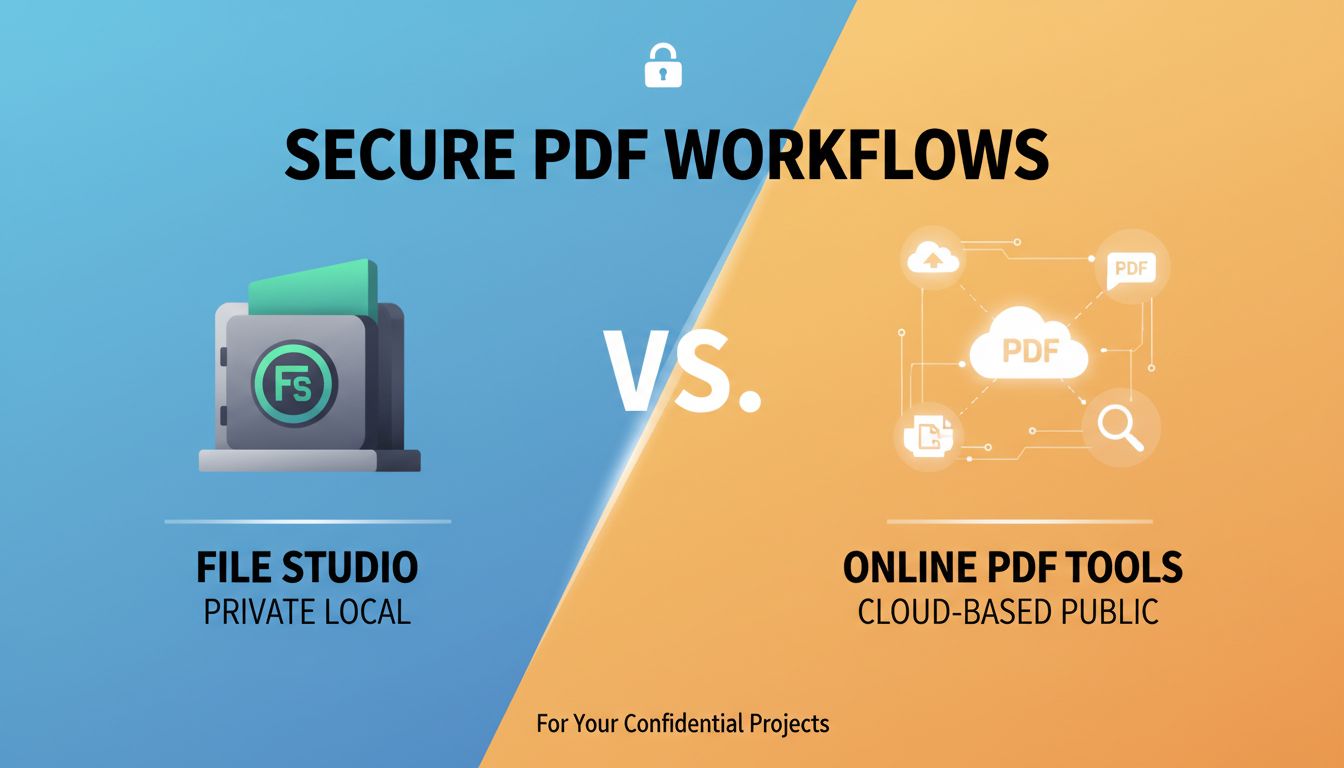
File Studio, for instance, is built with this mindset. Conversions happen locally, privacy is a design requirement, not a tagline, and the focus is on giving you control of your own files.
[!TIP] Ask one question about any tool: "If this product vanished tomorrow, where would my documents still exist?" If the answer includes "their servers," choose something else.
Usability trade-offs: speed, formats, and automation
Offline tools are not inherently less convenient. They are just a bit more honest about trade-offs.
A few to consider.
Speed vs setup The first time you install and configure a desktop converter, it feels slower than using a browser tab.
After that, the speed wins are huge. Drag a folder onto the app icon, convert hundreds of files at once, and no upload time.
Format coverage vs bloat Online tools often support every odd format under the sun. But you probably use:
- Office files (Word, Excel, PowerPoint)
- Images (PNG, JPG, TIFF)
Pick tools that cover your real use cases well, not every possible extension.
Automation vs control Some offline tools integrate with:
- Watch folders
- Scripts
- Command-line workflows
- Office plugins
This is where the power is. You can build consistent, auditable workflows. If a tool gives you this without needing cloud hooks, it is a good candidate.
Practical alternatives to online PDF converters that keep files local
Let us get to what you can actually use.
Below is not an exhaustive list. It is a practical toolkit, with scenarios where each type of solution shines.
Desktop applications for PDFs, images, and office docs
These are your "workhorse" tools. Install once. Use constantly.
Scenario: Legal or compliance-heavy teams You handle contracts daily. Redlines, scanned signatures, bundles of exhibits.
You want:
- Reliable PDF creation from Word and email
- OCR for scanned documents
- Page reordering, merging, and redaction
- No document leaving your network
Good fits:
- PDF-XChange Editor / Pro. Feature rich, strong OCR, runs fully local.
- Foxit PDF Editor. A solid Adobe alternative, widely used in enterprises.
- LibreOffice. Great at converting Office formats to PDF, works entirely offline.
Scenario: Marketing, design, and content teams
You work with:
- Images
- Presentation decks
- Exporting designs from Figma or similar tools into polished PDFs
Good fits:
- Affinity Publisher / Designer / Photo. Strong export controls to PDF, CMYK, and more, all local.
- Adobe Acrobat Pro (desktop). If you already have Creative Cloud and can lock it down, the desktop app can be configured for local workflows, though you must check your cloud sync settings.
Scenario: General business users
Most staff just need reliable "Save to PDF" and basic combine/split.
Good fits:
- File Studio desktop. Convert images, office files, and more to and from PDF locally with a clean UI and simple workflows. Ideal when you want privacy without training everyone on ten different tools.
- Built-in PDF printers that show up as "Print to PDF" in your print dialog, which many offline utilities and OS-level features provide.
Use a dedicated, local "PDF station" application as your team's default. Make random web tools the rare exception, not the habit.
Built-in OS tools, office suites, and command-line options
Most teams already own 70 percent of what they need. They just do not use it fully.
Built-in OS tools
On modern operating systems, you often get:
- "Print to PDF" from any app
- Built-in Preview or Photo utilities to export and resize
- Basic annotation tools
Examples:
- macOS Preview: Combine PDFs, reorder pages, export images as PDFs, add annotations.
- Windows 10/11: "Microsoft Print to PDF" plus the Photos app for image tweaks.
- Linux: Tools like Okular, Evince, and built‑in print to file, along with simple PDF utilities in most distributions.
Office suites
If your organization pays for Microsoft 365 or uses LibreOffice, you already have offline conversion power.
- Export any document, spreadsheet, or deck to PDF locally.
- Control quality, tagging, and accessibility metadata.
- Combine automation via macros or scripts with local storage.
Command-line options
This is where power users and IT teams shine. You can set up automated, auditable workflows.
Common tools:
- Ghostscript. Compress and transform PDFs scriptably.
- ImageMagick. Convert images to and from PDFs with precise control.
- pdftk or qpdf. Split, merge, rotate, and manipulate PDFs.
- LibreOffice headless mode. Batch-convert Office documents to PDF on a local server.
Here is why this matters. You can create a "conversion server" inside your own network, with strict logging and access controls. Everything is local, but everyone can use it.
[!TIP] If your team shares a file server, you can pair command-line tools with "watch folders." Drop a file in, get a converted version out. No one touches a browser.
Hybrid workflows: when offline still needs a tiny bit of cloud
Sometimes you really do need a cloud step. For example:
- Collaborating on documents with external partners
- Using a highly specialized conversion (CAD to PDF, rare formats)
- Mobile users on the road with limited local tools
The answer is not "never use the cloud." The answer is "use the cloud with intent and boundaries."
A healthy hybrid model looks like this:
- Default to offline tools for daily conversions, bulk processing, and anything sensitive.
- Use vetted cloud platforms that are already in your vendor list, such as your document management system or chosen eSignature provider, for edge cases.
- Wrap the exception in policy. For example, "Client contracts may only touch approved platforms A, B, or C. No other web tools."
File Studio can also be part of a hybrid approach. Run it on endpoints for individual users. Or host it on an internal server as a shared tool that never sends content outside your firewall.
Building a privacy-first document workflow from here
You do not need a multi-month project to fix your PDF habits. You need a few clear decisions and some muscle memory.
Simple steps to transition off online converters
Start with a quick, honest inventory.
Ask your team "What websites or tools do you use to convert PDFs and documents?" Expect a messy list. That is fine. You need visibility first.
Pick your offline defaults Choose one or two tools for each category:
- Everyday PDF creation and joining
- Office to PDF
- Image to PDF and back File Studio can cover a lot of this in one place, which reduces cognitive load and shadow IT.
Make them easy to reach
- Pin them to taskbars and docks
- Add them to right-click menus where possible
- Create shared shortcuts and a simple "How to convert X to Y" cheat sheet
Block or discourage risky sites
- Add the worst offender converter sites to URL filtering or DNS blocks
- Update policy docs to say "no unapproved web converters for client or internal docs"
Handle the edge cases on purpose For the rare format that truly needs a unique online converter, pick one, vet it once, document the conditions where it is allowed.
This is not about perfection. It is about making the safe path the easy path.
Training your team to stop dragging files into random sites
Tools are half the story. Habits are the rest.
Your colleagues do not wake up wanting to break privacy rules. They just want to get work done without friction.
So give them a story they can remember.
Try something like this in a team session:
"Uploading a contract to a random converter is like photocopying it at a street copy shop, leaving the original on the glass, and walking away. You might get your copy, but you do not know who else will see it."
Then anchor three simple rules:
- If it is client-related, keep it local.
- If you would not email it to a stranger, do not upload it to a stranger's website.
- If in doubt, use our approved tool first. Ask questions later.
Back it up with:
- A short internal page: "How we handle PDFs and conversions"
- Screenshots or a 2 minute screen recording showing your chosen offline tools in action
- Clear contacts: "If this tool cannot do what you need, ask IT or security before experimenting"
File Studio fits well here, because you can standardize on one privacy-first tool for most everyday conversions. That alone kills a lot of random web usage.
If you remember one thing, let it be this.
Online PDF converters are convenient because someone else owns the risk. Offline tools return that control to you.
Your next step is simple. Pick one offline converter you trust, install it on your main machine, and commit to using it for a week instead of any web tool. Notice which tasks feel smoother, and which still feel rough.
From there, scale what works to your team. One small habit change at a time, you can build a document workflow that respects both your time and your privacy.