Why your growing PDF pile is quietly costing you
If you run a small business, there is a good chance your computer is quietly turning into a PDF graveyard. Invoices. Contracts. Quotes. Scans from the printer. Photos turned into documents.
You feel it every time you think, "Where did I save that?" or "Which version did I send the client?"
When you manage business pdf documents on desktop with no real system, the problem is not that you lack tools. It is that every tiny task steals a few minutes and a bit of mental energy. Multiply that by months, and it adds up to real money and real risk.
The invisible minutes lost on every small PDF task
The time cost is rarely the big fire. It is the slow leak.
You just need to email a client "one clean PDF" with the signed contract plus updated terms. What happens?
- You open three separate PDFs.
- You look for that online tool you used last time.
- You drag, drop, wait, download, rename, and then realize you forgot one page.
Now it is 11 minutes later and you still have not replied to the client.
On their own, each task is nothing. Five minutes here, seven there. But if your team touches PDFs all day, those minutes silently turn into hours every week.
[!NOTE] The problem is not that you use PDFs. The problem is that you treat every repeat task like it is the first time you ever did it.
How messy files turn into real client and cash-flow risks
Messy PDFs are not just an annoyance. They create risk in three predictable ways.
First, client confusion. You send "Contract_final_v3_REAL_final.pdf" instead of the actual signed version. The client spots a mismatch, hesitates to sign, and your deal drags for another week.
Second, payment delays. Your bookkeeper cannot find the approved quote when invoicing. Or the purchase order is buried in a random folder. Invoices go out late. Payments come in late. Cash flow slips, and it all started with a document you could not find quickly.
Third, compliance and trust. If you deal with regulated industries or sensitive data, inconsistent document handling looks unprofessional and can be risky. You do not want a client asking, "Which version is the correct one?" and you are not entirely sure.
Messy PDFs are like a messy stockroom. You can still run the business, but you are working harder than you need to, and eventually something important gets lost.
What a simple desktop PDF toolkit actually looks like
You do not need a full-blown document management system to regain control. Most small businesses just need a solid, local toolkit that makes the boring stuff predictable.
Think less "enterprise software", more "practical toolbox on your desk".
The core jobs most small businesses do with PDFs
If you strip away the noise, most small teams use PDFs for the same repeating jobs:
- Merging documents. Quotes plus terms, invoice plus timesheet, scan plus cover page.
- Splitting documents. Extracting a single signed page, splitting a bulk scan into individual client files, separating a long proposal by section.
- Converting images to PDFs. Turning photos from a phone, scanner outputs, or design exports into a clean, shareable PDF.
- Reordering or rotating pages. That upside down scan or the page that ended up in the wrong spot.
- Compressing or optimizing. Making sure the PDF is small enough to email or upload.
If your tools make all of those jobs quick and predictable on your desktop, your team will feel the difference in a week.
Desktop vs. cloud tools: when local wins
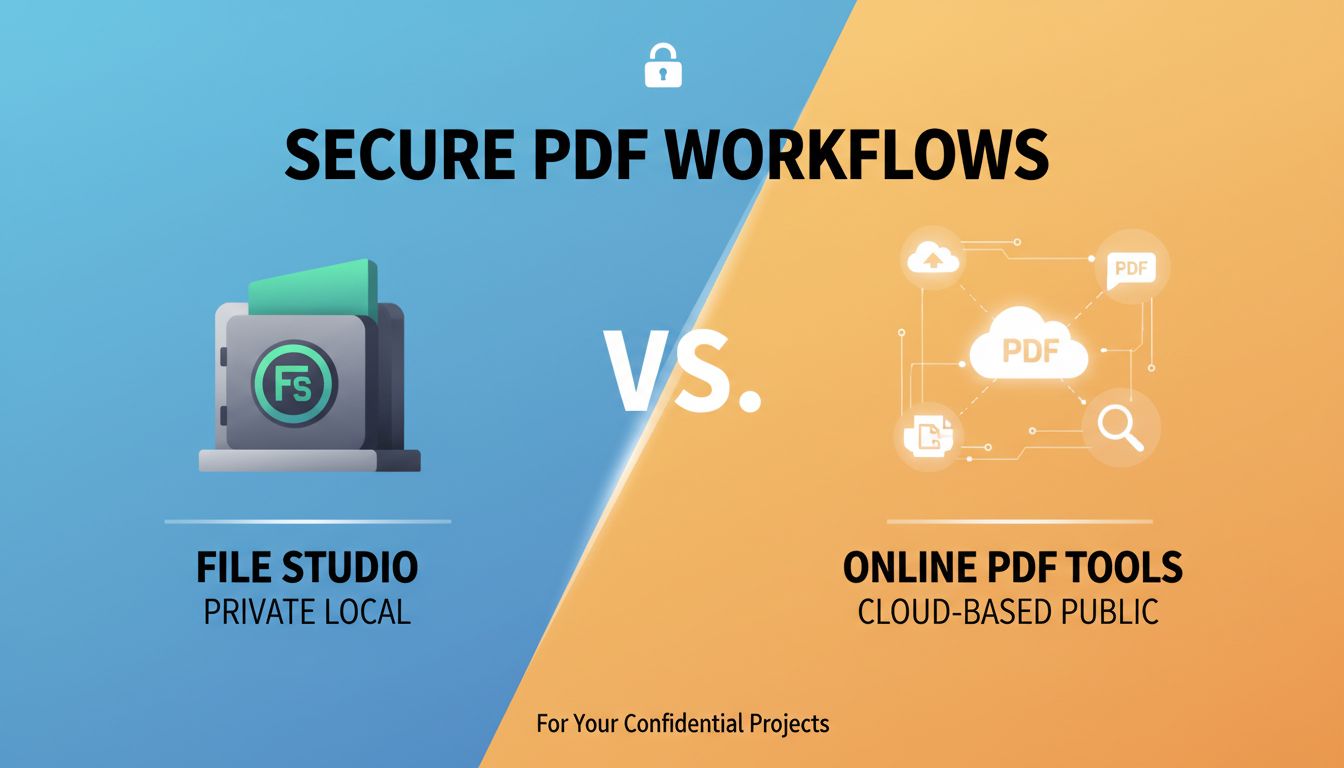
Cloud PDF tools are convenient. You paste a link, upload a file, and magic happens. But for many businesses, a desktop-first approach is both safer and faster.
Here is how the trade-off usually looks:
| Question | Desktop tools (like File Studio) | Cloud web tools |
|---|---|---|
| Data privacy | Files stay on your machine | Files sent to external servers |
| Speed for repeat tasks | Very fast once set up | Slower, repeated uploads and downloads |
| Offline work | Works even without internet | Requires stable connection |
| Control and consistency | Same tools, same workflows across the team | Depends on website changes and availability |
| Cost predictability | Often a one-time or simple license | Often subscription or usage based |
If your PDFs contain client data, financials, or contracts, sending every file to a random web service can feel uncomfortable. A desktop toolkit like File Studio keeps everything local, which is easier to explain to clients and auditors.
[!IMPORTANT] A good rule of thumb. If you would not paste the content into a public chat, you probably should not upload it to a random PDF website either.
Practical ways to tame merging, splitting, and image conversion
You do not manage PDFs for fun. You do it to get contracts signed, invoices paid, and clients updated without friction.
Let us make the three most common jobs, merging, splitting, and image conversion, as painless as possible.
Turn recurring merge tasks into a predictable routine
If you often send the same types of merged PDFs, treat them like mini workflows, not one-off tasks.
Imagine you run a small agency. Every new client gets a package. Cover letter, proposal, terms, and onboarding form, all in one PDF.
Instead of manually hunting for these each time:
- Create a "Templates" folder with a subfolder called "Client Pack".
- Save your standard PDFs there in the right order.
- Use a desktop tool like File Studio to define a merge profile that always pulls those base documents together.
- When a new client arrives, duplicate that folder, tweak the proposal, then hit merge.
Two minutes instead of ten. No forgotten pages. No shuffling windows.
You can do the same for:
- Supplier onboarding packs
- HR hiring documents
- Project kick-off packs
- Loan or funding applications
If the structure is the same 80 percent of the time, build around that pattern and let your tool handle the grunt work.
Split large documents so your team finds what they need faster
Large, multi-page documents usually start with good intentions. You scan a stack of signed agreements into one file and think, "I will split them later." Spoiler: later never comes.
The result. One 60-page PDF that one person understands and nobody else can navigate.
Instead, think about splitting as a way to make documents usable by your future self and your team.
With a tool like File Studio, you can:
- Split by page range. For example, pages 1 to 4 as "Client A", 5 to 8 as "Client B".
- Split by fixed intervals. For example, every 3 pages becomes a new PDF.
- Split by bookmarks, if your scanner or creator software adds them.
Put a simple rule in place. If a PDF contains more than one client, project, or month, it gets split.
Then standardize where those split files go. For example:
Shared Drive > Clients > [Client Name] > Contracts
Shared Drive > Finance > 2025 > Invoices
Instead of people scrolling and guessing, they click once and open exactly what they need.
Convert scans and images into clean, shareable PDFs
Your team probably uses phones and office scanners more than you realize. Receipts, signed forms, whiteboard photos, handwritten notes, delivered goods, all end up as images.
The danger is that those images float around in email threads and chat apps instead of becoming part of your actual records.
A good desktop PDF tool lets you:
- Drag in a bunch of JPG or PNG files
- Reorder them
- Turn them into a single, clean PDF with a couple of clicks
That means:
- Delivery photos become a formal proof-of-delivery PDF
- Whiteboard photos become a project summary PDF for the client
- Receipt snaps become a monthly expense report PDF
[!TIP] Create a shared "To convert" folder. Staff drop images there, and once a week someone runs a quick batch conversion in File Studio and files the resulting PDFs properly.
The more you turn loose images into structured PDFs, the easier your bookkeeping, audits, and client communication become.
How to set up a low-maintenance PDF workflow for your team
You do not need a big policy document. You need a simple, boring way of doing things that everyone can follow.
The goal is not perfection. It is predictability.
Simple folder structures that prevent version chaos
Most PDF pain shows up as "version chaos". "Is this the final version?" "Why do we have seven copies of the same document?"
A good folder structure does not have to be clever. It has to be obvious.
Here is a simple pattern that works for many small teams:
- Top level by function, like "Clients", "Finance", "HR", "Operations".
- Within "Clients", one folder per client.
- Within each client, subfolders like "Contracts", "Proposals", "Invoices", "Reports".
To control versions, you can either:
Use a clear naming convention, for example
ClientName_Proposal_2025-01-15_v1.pdfClientName_Proposal_2025-01-18_signed.pdfOr for living documents, keep only one "current" version in the live folder, and archive older ones to an "Old" subfolder.
The test is simple. If someone joins your business tomorrow, can they understand where a document lives without asking you? If the answer is yes, you are close.
Who does what: assigning PDF tasks without bottlenecks
PDF tasks often end up on one "tech-savvy" person, which creates a bottleneck. Instead, spread the work with clear roles.
A simple approach:
- Creators. People who create content, like proposals or reports. They are responsible for saving to the right folder and using the naming convention.
- Compilers. People who regularly merge or split PDFs, for example admin staff or project coordinators. They get trained on File Studio or your chosen tool.
- Reviewers. People who approve documents before sending, typically managers or owners. They do not have to do the merging, but they should know how to quickly open and check PDFs.
Document this in one page. Nothing fancy. "Sales team creates proposals here. Admin merges final pack here. Manager reviews and signs off."
Then give the compilers a reliable desktop tool. File Studio is a strong option if you want everything local and consistent. Once 2 or 3 people know how to do the main workflows, they can train others in minutes.
Looking ahead: turning PDFs into a real business asset
When you manage PDFs well, they stop being random files and start acting like a memory for your business. You can quickly answer questions like:
- "What did we quote that client last year?"
- "When did they sign this agreement?"
- "Which supplier terms did we agree to?"
That is when documents shift from overhead to asset.
When to upgrade from basic tools to automated workflows
You do not need automation on day one. But there are signs that it might be time to step up.
Watch for:
- The same PDF tasks happening more than a few times a day
- One person spending hours a week just cleaning up, merging, and filing documents
- Frequent mistakes, like sending incomplete packs or misfiled contracts
That is when it makes sense to:
- Use batch processing. For example, merge all monthly invoices in one go, or convert an entire folder of scans at once. File Studio is built for this kind of repeatable desktop work.
- Set standard "recipes". For example, a preset that always combines "Quote + Terms + Cover letter" for a given client type.
- Integrate lightly. Even without full-blown automation, you can align your CRM or accounting workflows so documents always land in the right place.
[!NOTE] Automation should come after clarity. Get your basic structure and habits right first, then automate the repeatable stuff. Otherwise you just automate the chaos.
Keeping documents secure, searchable, and client-ready
A final thought. Good PDF management is not only about speed. It is also about confidence.
Three practical upgrades to aim for:
Security basics Use a desktop tool that does not spray sensitive documents across the internet. Limit who can access HR and finance folders. For highly sensitive PDFs, consider password protection or encrypted storage.
Searchability Scans are often just images, so you cannot search inside them. Using OCR (optical character recognition) transforms those into searchable PDFs. That means you can hit Ctrl + F and find "Clause 7" instead of scrolling for 10 minutes.
Client-ready presentation Clean, merged, correctly rotated, and logically ordered PDFs send a subtle message. "We are organized. We know what we are doing." Sloppy documents do the opposite.
As your business grows, the volume of PDFs will only go one way. Up. The choice is whether that pile becomes a drag on your time or a well organized archive that backs you up every single day.
If you are feeling the pain of scattered files and repetitive merging, start small. Pick one recurring PDF job in your business, set up a simple folder structure for it, and use a desktop toolkit like File Studio to make it painless.
Once you feel how much smoother that one process becomes, you will know exactly where to clean up next.