Offline PDF Toolkit for Private, Stress-Free Workflows
You probably have a browser tab open right now with some random "Free PDF Converter" you found on page two of Google.
You uploaded a client contract or a scanned ID, waited for a spinning loader, then downloaded the file and moved on with your day.
Where did that document actually go?
If your answer is "I don't really know," you are exactly who this article is for.
An offline PDF toolkit is what you reach for when you care about privacy, control and not fighting with your tools every time you need to convert or clean up a document. It is boring in the best possible way. Reliable, local and predictable.
Let's unpack what that actually means in real life.
Why an offline PDF toolkit matters more than you think
Most people treat PDFs like digital paper. Static. Harmless. Forgettable.
But if you work with client documents, internal reports, scanned IDs, NDAs or anything remotely sensitive, your PDFs are the closest thing your business has to its bloodstream.
Putting that into random web-based tools is the digital equivalent of photocopying confidential files at a busy copy shop, then walking away without checking the trash.
Where your documents actually go with online tools
When you click "Upload," multiple things happen that you never see.
Your file is copied from your device to a server you do not control. It might be in your country. It might not. It might be processed once. Or copied to multiple machines for "performance" or "AI improvements."
Even if the service promises deletion after a few hours, they rarely explain:
- How many copies are made
- Whether logs retain file names or metadata
- If staff or contractors can access them
- What happens to backups that already captured your file
And if the tool is "free," the product is almost always data, patterns or both.
No one runs huge file-processing servers out of pure kindness.
[!NOTE] The risk is not that a hacker is targeting you personally. The risk is that your documents are mixed into large data sets where one breach or one sloppy vendor affects everyone.
The quiet risks for client trust and compliance
If you handle client work, trust is not just a feeling. It is a liability.
Imagine a client asks, "Where do you process our documents?" and your honest answer is "A selection of free websites I found while in a rush."
For many professions, that is not just awkward. It is a problem:
- Lawyers face confidentiality rules that assume you take reasonable precautions
- Healthcare and HR touch sensitive personal data that falls under strict regulation
- Consultants and agencies promise discretion as part of their brand
The scary part is that nothing visibly goes wrong. There is no big alarm. You just gradually normalize pumping sensitive files into random tools.
An offline PDF toolkit flips the default. Files never leave your device unless you intentionally send them somewhere. That single constraint quietly solves a lot of risk.
The hidden costs of relying on web-based PDF converters
The privacy angle gets most of the attention, but there is another cost you feel daily. It just hides in small annoyances that steal your focus.
Think about how many times you have done this dance:
- Search for "pdf to jpg"
- Click a converter
- Upload the file
- Wait
- Get an error, a weird output or a paywall
That is not a workflow. That is a scavenger hunt.
Security and privacy trade-offs you rarely see disclosed
Most online PDF tools throw some comforting words on the homepage. "We respect your privacy." "We delete your files after one hour."
Those statements are often so vague they are basically decoration.
Relevant questions you rarely see clearly answered:
- Are files encrypted at rest on their servers?
- Where are the servers physically located?
- Are workers allowed to access files for "debugging"?
- Are models being trained on uploaded documents?
If you work with regulated data, you might also need to know:
- Is there a Data Processing Agreement?
- Can they sign your organization's security addendum?
- Do they comply with region-specific rules?
For most quick converters, the answer is simply, "We are not built for that level of scrutiny."
Offline tools are simpler to reason about. Data on your device is governed by your existing policies, your jurisdiction and your backup strategy. There are fewer layers of "maybe."
Productivity friction: uploads, timeouts and format surprises
Online tools cost you more than privacy. They cost you momentum.
You upload a 50-page contract. The connection hiccups at 72 percent. Try again. The service throttles large files unless you create an account. The converted file downloads as a zip, but you are on mobile and cannot easily unpack it.
Or worse, the "PDF to Word" result looks clean at first, then you discover:
- Headings became random font sizes
- Tables misaligned
- Footers duplicated on every page in weird ways
All of that is context switching. Tiny cuts to your focus.
With a solid offline PDF toolkit, your workflow becomes muscle memory. Drag, drop, convert, done. No logins. No captchas. No guessing what dark pattern is hiding behind the next button.
[!TIP] If you find yourself saying, "It is just two minutes," multiply that by how often you do it in a week. Lost time sneaks in through tiny, repeated tasks.
What an offline PDF toolkit looks like in real life
Let us ground this. "Offline PDF toolkit" sounds abstract until you see what it replaces.
At its core, it is simply a set of local tools that cover the things you do with documents every day, but without sending anything to the internet.
Core capabilities that cover 90% of daily document work
For most professionals, an offline PDF toolkit should comfortably handle:
Conversion PDF to Word, PowerPoint, images and back again. Including batch conversions so you can handle entire folders at once.
Merging and splitting Combine multiple PDFs into one. Separate one long PDF into specific sections. Useful for client packets, proposals, case files and financial statements.
Compression and optimization Reduce file size while keeping quality good enough for print or screen. Great for email limits or internal portals with size caps.
OCR (Optical Character Recognition) Turn scanned PDFs or images into searchable, selectable text, all locally. Essential if you regularly receive scans, faxes or photos.
Annotation and basic editing Add comments, highlight, redact, fill forms and sign. You do not always need a full layout editor, but you do need to mark things up quickly.
Image tasks Convert PNG or JPG to PDF, extract images from PDF, turn a folder of images into a single PDF.
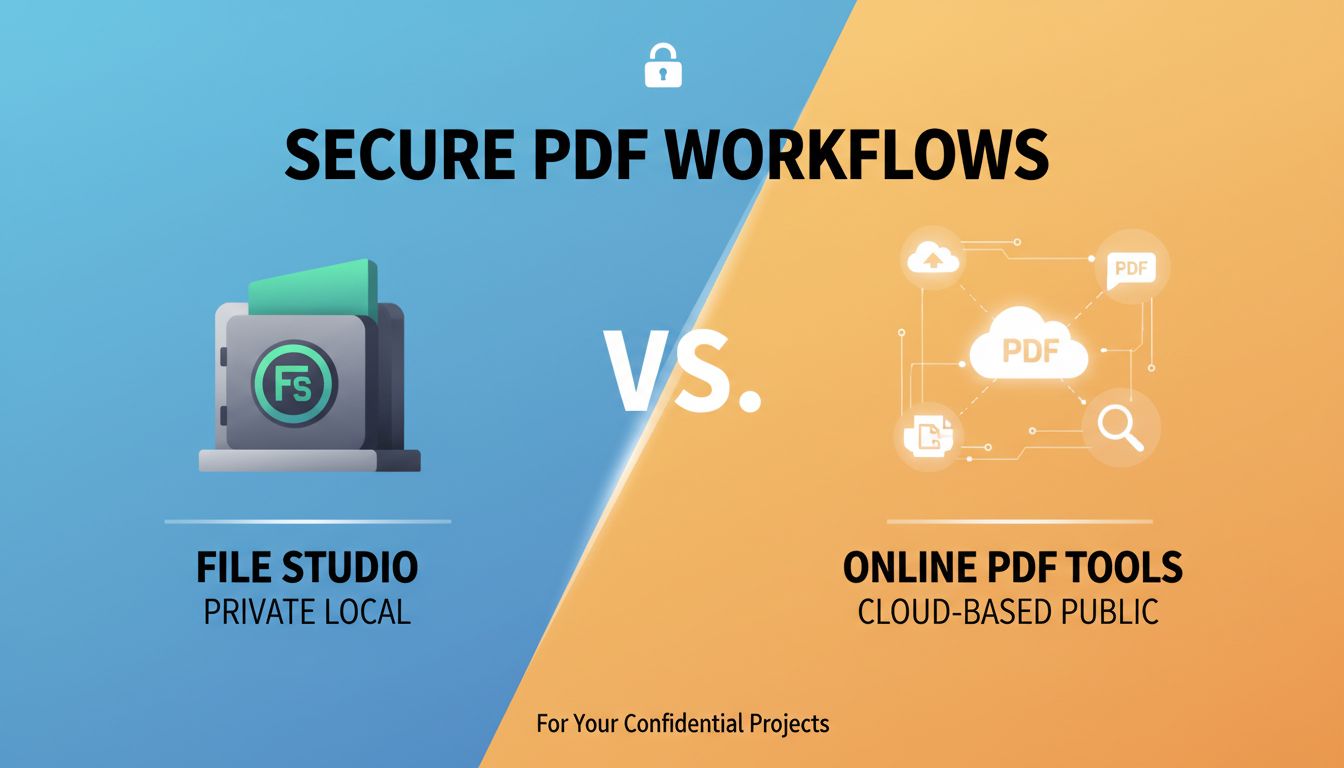
A tool like File Studio can sit at the center of this, especially when you want a single, local place to handle documents and images together instead of juggling ten disconnected utilities.
[!IMPORTANT] The goal is not to have "all the features." The goal is to have the few capabilities you use constantly, available instantly, without a network connection.
Examples of privacy-first workflows for common professions
This is where it gets interesting. An offline toolkit changes how your day feels.
For a lawyer or legal ops team
You receive a set of scanned contracts from a client. Instead of uploading them to an OCR site, you:
- Drop the scans into your local OCR tool
- Create a single searchable PDF, with bookmarks for each contract
- Compress it for easy sharing with the client or colleagues
Everything happens on your encrypted laptop. No third-party server. You can honestly say, "Your documents never leave our controlled environment."
For a consultant or agency
You are preparing a proposal that combines:
- A PDF brief from the client
- Screenshots from your research
- Slides exported from PowerPoint
With an offline PDF toolkit, you:
- Convert the PowerPoint to PDF locally
- Convert the screenshots to PDF and merge into an appendix
- Compress the final pack and strip metadata before sending
You present a slick, unified document and keep your own notes and revisions safely local.
For HR, recruiting or internal operations
You handle:
- ID documents
- Employment contracts
- Policy PDFs
- Training materials
Instead of using web tools to "fix one thing quickly," you:
- Normalize all incoming documents to PDF
- OCR them locally so they are searchable within your internal system
- Split and merge as needed for onboarding packets, reviews and audits
No surprise leaks from old "test uploads" that never really got deleted.
For designers and marketing
You frequently need:
- Client logos converted to high quality PDF
- Proofs exported from Figma or other tools and adjusted
- PDF portfolios or brand guidelines assembled from many sources
An offline toolkit lets you:
- Convert high-res images to well-compressed PDFs
- Extract single pages from huge brand books
- Batch convert PDFs to images for quick previews or social mockups
Your creative assets stay private until they are ready for the world.
How to choose an offline PDF toolkit you can actually trust
Not every offline tool is automatically safe or pleasant to use. "Local" is necessary. It is not sufficient.
You want a toolkit that respects your time, your data and your future.
Practical checks for security, usability and longevity
Here is a quick scan you can do when evaluating candidates like File Studio or any other offline solution.
| Area | What to check | Green flag example |
|---|---|---|
| Security | Local-only processing | Works fully offline after install |
| Privacy | Telemetry and analytics | Clear option to disable all tracking |
| Platform | OS support | Native builds for your actual devices |
| Updates | Maintenance and release history | Recent updates and clear changelog |
| Vendor | Company transparency | Named team, contact details, clear policies |
| Data use | AI or cloud features | Explicit opt-in, not silently enabled |
| Simplicity | Install size and complexity | No extra services or random background processes |
Red flags:
- Requires an account just to convert a file locally
- Installs a browser extension "for convenience" without need
- Hides pricing or shows aggressive upgrade prompts for basic tasks
- Connects to the internet during simple local conversions for no clear reason
[!TIP] Open your system's network monitor during a test. If a "fully offline" tool is chattering to dozens of external domains while you convert a file, treat that as a data point.
Balancing advanced features with a clean, local-first setup
There is a trap here. It is easy to chase features until your toolkit feels like a cockpit.
Ask yourself:
- What are the 5 things I do with documents every single week?
- Which parts actually need to be offline and private?
- Which "nice to have" features I can accept in a separate, possibly online tool?
A balanced stack might look like:
- A privacy-first offline toolkit such as File Studio for everyday conversions, OCR, splitting, merging and image handling
- A dedicated editor for complex layout work, when you truly need it
- A separate, clearly scoped online service for rare edge cases, used only with non-sensitive files
The key idea: your default should be local. Online tools become exceptions, not your main pipeline.
Where you can go next with a solid offline document stack
Once you trust your core tools, you can start to build systems, not just one-off fixes. This is where an offline stack starts compounding in value.
Connecting your toolkit to backups and local automation
Offline does not mean isolated. It means you decide how things connect.
Some practical next steps:
Structured storage Decide where converted files go. For example, a "Processed" folder within each client directory. Your toolkit can default to those paths so you do not lose files in "Downloads" purgatory.
Backups you control Since your tools are offline, your documents live on your own drives and servers. Tie your document folders into your existing backup plan, whether that is encrypted external drives, local NAS or a trusted sync tool.
Lightweight automation Use folder-based workflows. For example, drop scans into a "To OCR" folder. Your machine runs a small script that invokes your offline toolkit to OCR and move the finished PDFs to "Ready." Tools like File Studio can often integrate with such scripts or at least be invoked in consistent ways.
Suddenly you are not "managing documents." You are curating flows.
Raising your privacy bar without slowing your team down
Privacy has a reputation for being the enemy of convenience. That is true if you bolt it on at the end.
If you shift your default to "offline first," your workflows often get faster.
Teams that get this right tend to:
- Agree on a short list of approved tools and keep them installed on all relevant machines
- Document 3 to 5 common workflows in plain language, like "How we turn client scans into searchable PDFs"
- Make it easy for people to do the right thing by making the offline path the easiest one
You do not need a massive governance project. You need a clear standard: sensitive documents stay in our environment, and our tools respect that.
[!NOTE] The best privacy practices feel almost boring. If everyone on your team handles PDFs the same simple way, you have already outperformed most organizations.
A natural next step
If your current workflow is a mix of "whatever converter Google gives me today," that is not a personal failure. It is how most people start.
Your next step is simple.
Pick one offline PDF toolkit, install it on your main work device and route your next three document tasks through it. Notice what changes.
If a tool like File Studio lets you handle PDFs and images locally, consistently and without a browser tab full of mystery services, you will feel it in your stress levels before you see it on a security audit.
You do not need to redesign your whole stack this week. You just need to change what happens the next time you reach for a "Free PDF converter" link.