The Best smallpdf.com Alternatives: Privacy‑First And Actually Pleasant To Use
If you are searching for smallpdf.com alternatives, you are not alone.
Plenty of people start with smallpdf because it is easy, popular, and shows up first in search. Then over time, a pattern emerges:
- You hit paywalls or daily limits at the worst possible moment.
- Uploading sensitive documents starts to feel risky or non‑compliant.
- The web interface feels slow or clunky if you process a lot of files.
If that sounds familiar, you are in the right place. You do not need to hate smallpdf.com to admit it is not always the best fit. Especially if you work with passports, IDs, contracts, HR files, or anything your legal team side‑eyes when it goes to the cloud.
This guide walks through why people switch, what to look for in a replacement, and the best smallpdf.com alternatives, with File Studio as the standout choice if you want offline, private, and fine‑grained control.
Use it as a shortlist you can act on, not just another list of logos.
1. Why people switch from smallpdf.com
Most people do not wake up and say, “I need to replace smallpdf.com.” They hit the same frictions again and again until it becomes obvious.
Here are the common reasons.
1. You are uncomfortable uploading sensitive documents
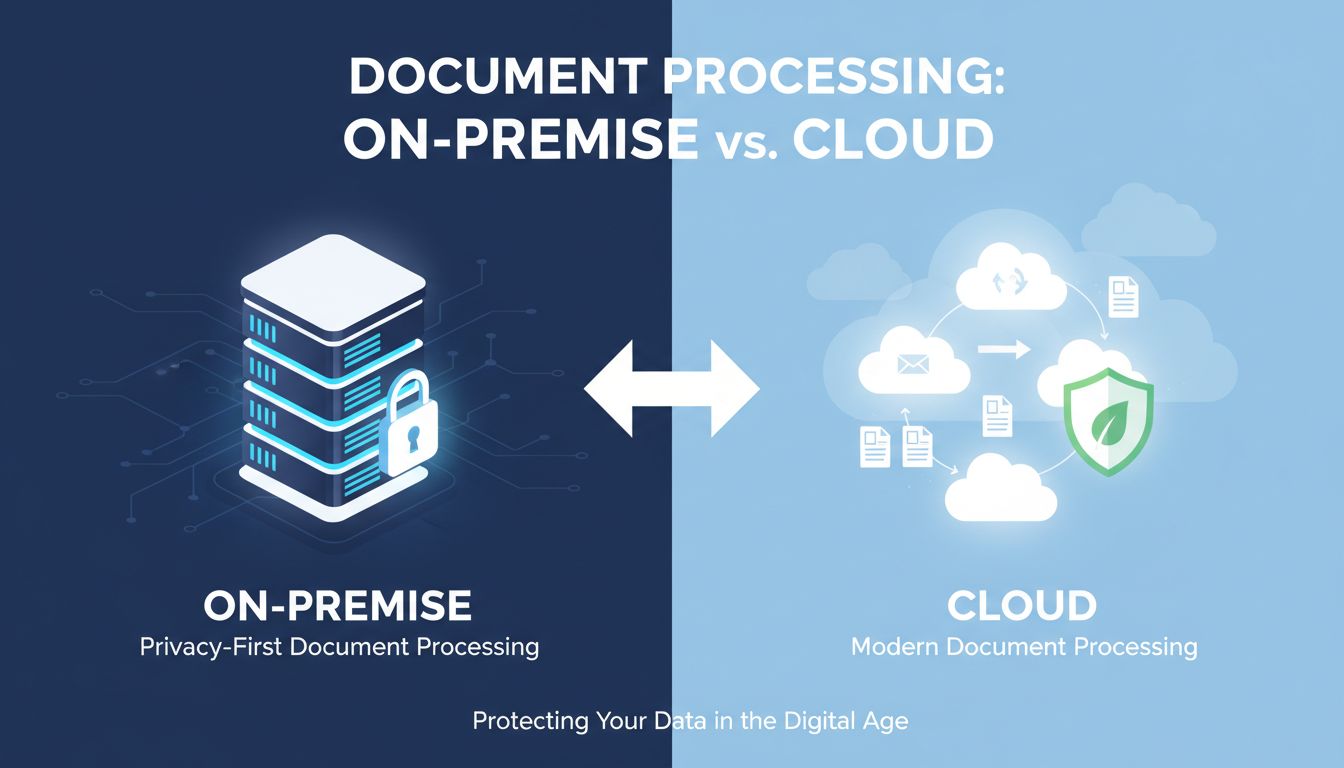
Smallpdf.com is a cloud service. To do anything, you upload your files to their servers.
For a quick school assignment or a one‑off form, that is fine. For:
- Passports and IDs for KYC
- Employment contracts and offer letters
- NDAs and customer agreements
- Medical or financial records
it suddenly feels different.
Even if a vendor is secure, many companies now have policies that restrict uploading confidential documents to third‑party web tools. If you have ever hesitated over the “Upload PDF” button, that is a strong sign you may need an offline alternative.
2. Hit‑or‑miss limits and pricing
Smallpdf’s free tier has daily limits. When you only occasionally merge a PDF, it is no big deal. But if you are:
- On a deadline sending out a batch of contracts
- Converting dozens of scanned invoices
- Working through a backlog of archived PDFs
running into usage limits or upsell screens in the middle of the job is frustrating. The subscription might be worth it, but once you are paying, you should at least feel you are getting full control and speed.
3. Web tools are slower for heavy or repeated workflows
Everything on smallpdf.com runs in the browser, backed by their servers.
For one or two files, that is fine. For:
- Hundreds of pages
- Large scans that need compression
- Repetitive daily tasks
waiting for uploads and downloads becomes a drag. You are limited by your network connection, not your computer.
An installed app that runs locally uses your CPU and disk directly. That is a meaningful difference in day‑to‑day speed.
4. Limited control over output quality and formats
smallpdf.com covers the basics:
- Merge, split, convert to Word/Excel/PowerPoint
- Compress, rotate, sign
But if you care about the details, you may feel boxed in:
- Want to control DPI or image compression levels?
- Need to keep text selectable while compressing?
- Want consistent output settings across a batch of files?
The “one big button” style is simple, but it does not always give you the knobs and dials you need.
2. What to look for in a smallpdf.com alternative
Before you chase the next PDF website, it helps to clarify what “better” actually looks like for you.
Here are the key criteria to evaluate.
1. Privacy and data control
Questions to ask:
- Do files stay on your device, or are they uploaded to the cloud?
- Is there an offline mode, or is internet required?
- Are there clear data retention policies if files are uploaded?
If you handle anything sensitive, a genuinely offline tool is the safest default. It also makes security reviews and compliance conversations much easier.
2. Core tasks you actually perform
List what you actually do with PDFs and files:
- Merge and split
- Convert between formats (PDF ↔ images, PDF ↔ Office, etc.)
- Compress for email or portal uploads
- Rearrange pages or rotate/fix scans
- Unlock or remove passwords on files you own
Then make sure any alternative does those well. A smaller, focused toolkit that nails your top 5 actions is more valuable than a bloated suite full of features you never touch.
3. Control over quality, size, and formats
Look for:
- Adjustable compression levels and DPI
- Output presets (e.g., “Email‑ready,” “Print quality”)
- Support for your real‑world formats (JPG, PNG, TIFF, HEIC, etc.)
- Options to keep text where possible, not just flatten to images
This is what separates “I hope this works” from “I know exactly what I am going to get.”
4. Offline performance and reliability
Especially if you:
- Travel frequently
- Work on restricted networks
- Process a lot of files in one go
you want a native app that runs locally and keeps working even when the Wi‑Fi does not.
5. Platform and team fit
Consider:
- Does it run on your OS (macOS, Windows, both)?
- Do you need something for individual use, or team deployment?
- Will IT be okay installing it on many machines?
Now let us look at specific tools that match these requirements.
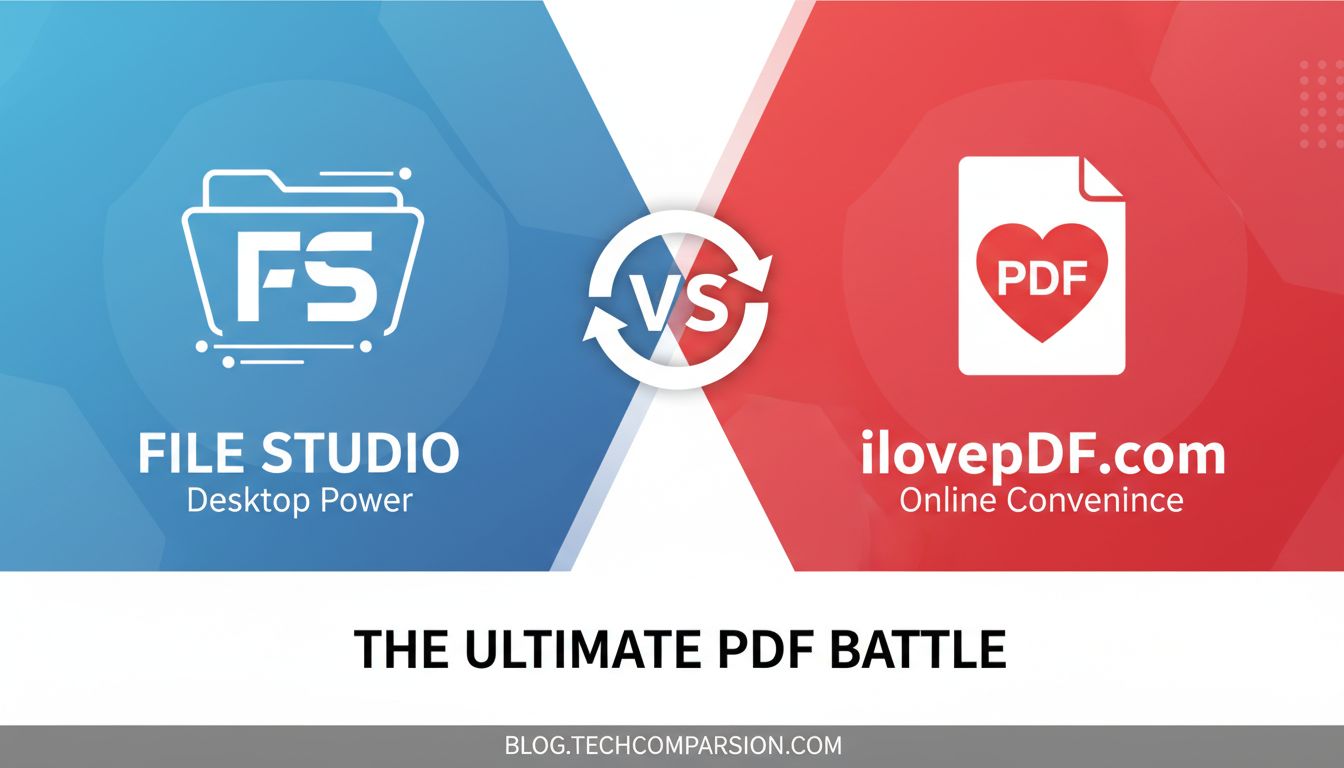
3. File Studio: The standout smallpdf.com alternative for privacy‑sensitive work
If your biggest concern is privacy and local control, File Studio should be at the top of your list.
You can think of it as a powerful, offline version of smallpdf.com that runs on both macOS and Windows.
What File Studio does
File Studio is a file and PDF toolkit that lets you:
- Convert files
- PDF to images and images to PDF
- Handle common formats like JPG, PNG, TIFF and others
- Merge and split PDFs
- Rearrange and rotate pages
- Unlock files you own
- Resize and compress documents and images
All of this happens directly on your device. No uploads, no cloud processing.
Why it works so well as a smallpdf.com alternative
Here is how File Studio addresses the pain points people have with smallpdf.com.
1. True offline processing for sensitive documents
With File Studio, your documents never leave your computer.
This matters when you are working with:
- Passports and IDs for customer onboarding
- HR files and internal agreements
- Legal documents under NDA
- Financial statements or medical paperwork
You can confidently say “we do not upload these to any third‑party web service” because everything runs locally.
For many teams, that single fact is enough to justify switching.
2. No arbitrary daily limits or surprise walls
Once File Studio is installed, you are not fighting with daily quotas or page caps.
If you need to compress 200 scanned contracts or split a hundred multi‑page PDFs into individual pages, you just do it. Your only limit is your computer’s performance, not a web form.
That is a huge upgrade if your workflow is “bursty” and deadline‑driven.
3. Fine‑grained control over output
File Studio gives you real control over things like:
- Resolution / DPI
- Compression strength and type
- Output format selection
Concrete examples:
- Compressing scanned passports so each file is under a portal’s upload limit, without making them unreadable.
- Creating image‑only PDFs at a lower DPI for fast emailing, and higher DPI versions for internal archiving.
- Standardizing scan output for a team so all PDFs meet the same quality and size standards.
Instead of hoping a web slider gets you “small but not too blurry,” you can be intentional.
4. Faster, smoother for repeated workflows
Because File Studio runs locally on macOS and Windows, it can:
- Use your CPU and disk directly
- Avoid upload and download delays
- Keep working even if your internet is slow or offline
If you regularly process many files, the speed difference is immediately noticeable. Particularly for large high‑resolution images or long PDFs.
5. Fits privacy‑sensitive, regulated, or cautious teams
File Studio is especially strong for:
- Legal teams processing case files and agreements
- Finance and accounting departments managing statements and invoices
- HR teams onboarding employees and handling IDs
- Compliance‑driven organizations that do not allow random cloud uploads
If you recognize yourself in any of those categories, an offline tool is not a “nice to have.” It is the only realistic option.
4. Other smallpdf.com alternatives worth considering
Not everyone has the same requirements. Here are a few other options, depending on what matters most to you.
1. Adobe Acrobat Pro
Best for: Power users who need advanced PDF editing and already live in the Adobe ecosystem.
Why you might choose it:
- Very strong feature set: edit text directly in PDFs, advanced forms, OCR, redaction, and more.
- Integrates with other Adobe tools and cloud storage.
- Good if your work involves heavy editing or complex forms, not just conversions and compression.
Trade‑offs:
- Subscription pricing can be high for occasional use.
- Interface can feel complex for simple tasks like “merge and compress.”
- Some workflows lean on Adobe’s cloud services, which may not fit strict privacy policies.
When it makes sense:
- Legal or publishing teams that need rich editing and markup.
- Designers and content teams already paying for Adobe Creative Cloud.
- Anyone who needs very advanced, document‑centric workflows.
2. PDFsam (Basic)
Best for: Free, offline splitting and merging with a straightforward interface.
Why you might choose it:
- Free and open source in its basic edition.
- Runs locally, so no file uploads are required.
- Handles merging, splitting, rotating, and reordering pages well.
Trade‑offs:
- Focused mostly on split/merge style operations, not broad file conversions.
- Interface is functional rather than polished.
- Advanced features require the paid “Enhanced” version.
When it makes sense:
- You mainly split and merge PDFs and want something free and offline.
- You are comfortable with a more utilitarian interface.
- Budget is a primary concern.
3. ILovePDF or PDF Candy (cloud‑based alternatives)
Best for: Users who like the “web tool” model but want a different flavor than smallpdf.com.
Why you might choose one of these:
- Similar feature coverage to smallpdf.com: merge, split, convert, compress, sign.
- Browser‑based, so they work on virtually any device without installation.
- Some combine PDF tools with e‑signature or simple workflow features.
Trade‑offs:
- Still involve uploading files to a third‑party service.
- Free tiers often come with limits and ads or watermarks.
- Performance depends on your network connection.
When it makes sense:
- You are fine with cloud services and rarely handle very sensitive documents.
- You need a quick, one‑off alternative without installing software.
- You want a familiar web interface and do not require deep customization.
5. Quick comparison table: smallpdf.com vs top alternatives
Below is a high‑level comparison focused on what most people care about when they move away from smallpdf.com.
| Tool | Cloud or Offline | Platforms | Best For | Key Strengths | Main Trade‑offs |
|---|---|---|---|---|---|
| smallpdf.com | Cloud | Any browser | Occasional online users | Simple interface, popular, easy to start | Requires uploads, usage limits, less control |
| File Studio | Offline | macOS, Windows | Privacy‑sensitive, frequent workflows | Files never leave device, fine‑grained controls, fast | Desktop only, focused on file/PDF toolkit use cases |
| Adobe Acrobat Pro | Mixed (local + cloud) | Windows, macOS | Power users needing advanced editing and forms | Deep editing, OCR, forms, strong ecosystem | More complex UI, higher ongoing cost |
| PDFsam (Basic) | Offline | Windows, macOS, Linux | Simple split/merge tasks | Free, local, straightforward for page operations | Limited conversions, more utilitarian interface |
| ILovePDF / PDF Candy | Cloud | Any browser | Light, occasional web‑based PDF work | Familiar web model, solid feature coverage | Still upload‑based, free tiers with limits |
If your top priorities are privacy, offline processing, and control, File Studio stands out as the most direct smallpdf.com alternative. If you primarily need advanced editing, Acrobat Pro might be worth the subscription. If cost is the main constraint, PDFsam is a strong free option.
6. Making the switch from smallpdf.com
Switching from smallpdf.com does not have to be a big project. Here is a simple way to approach it.
Step 1: Identify your core workflows
Take ten minutes and list the top 3 to 5 things you regularly do on smallpdf.com. For example:
- Merge multiple contracts into a single PDF
- Compress scanned IDs to stay under email or portal limits
- Convert image files from scanners into PDFs
- Split large PDFs into smaller, logical documents
Keep that list visible as you evaluate alternatives.
Step 2: Match those workflows to the right tool
Using the examples:
- If privacy and offline processing are important, and you do a mix of merge/split/convert/compress for sensitive files, File Studio is a strong fit.
- If you primarily need to edit PDF text, add annotations, or build complex form workflows, look closely at Acrobat Pro.
- If almost everything you do is “take this huge PDF and split it into parts,” and budget is tight, PDFsam might cover 90% of your needs.
The goal is not to find the “most powerful” tool. It is to find the one that makes your real‑world work smooth and safe.
Step 3: Test your real files in a trial or pilot
Whatever you pick, do not just click around sample documents. Use:
- Actual passports and IDs (with privacy in mind)
- Real contracts, agreements, or HR packets
- Typical image scans from your scanners or phone
Check that:
- Output quality meets your standards
- File sizes are where they need to be
- The process feels quicker and less frustrating than smallpdf.com
This is where File Studio’s offline, on‑device model becomes very obvious. You skip the upload/download cycle entirely.
Step 4: Roll it out to your team, if relevant
If you are not the only person using smallpdf.com:
- Document 2 or 3 “standard flows” in your new tool, with screenshots.
- Show how to handle the most common tasks.
- Make it clear which tool to use for sensitive files versus low‑risk ones.
Many teams adopt a simple guideline:
- Everyday, low‑risk PDFs: any web tool is fine.
- Anything containing IDs, contracts, or private data: use an offline toolkit like File Studio.
That kind of clarity takes pressure off individuals and satisfies security and compliance.
Final encouragement
If you have been frustrated by smallpdf.com’s limits, worried about uploading sensitive files, or just tired of waiting on your network to process big PDFs, it is completely reasonable to look for something better.
You are not being picky. You are aligning your tools with the level of privacy, speed, and control your work actually deserves.
File Studio exists for exactly that use case. It keeps your documents on your own devices, gives you precise control over how they are converted and compressed, and removes the daily‑limit anxiety from your workflow.
If you are evaluating smallpdf.com alternatives, it is absolutely worth trying File Studio with your real documents and seeing how much smoother your day‑to‑day work can be.