

PDF compressor
PDF to Compressed PDF - Make heavy PDFs lightweight - without sacrificing clarity.
File Studio lets you dial in compression so PDFs upload faster, email more reliably, and still look great on high‑resolution screens.
Free trial · No account required · Files stay on your device
All conversions happen locally on your computer. No uploads, no subscriptions, and no background syncing.
PDF → Compressed PDF
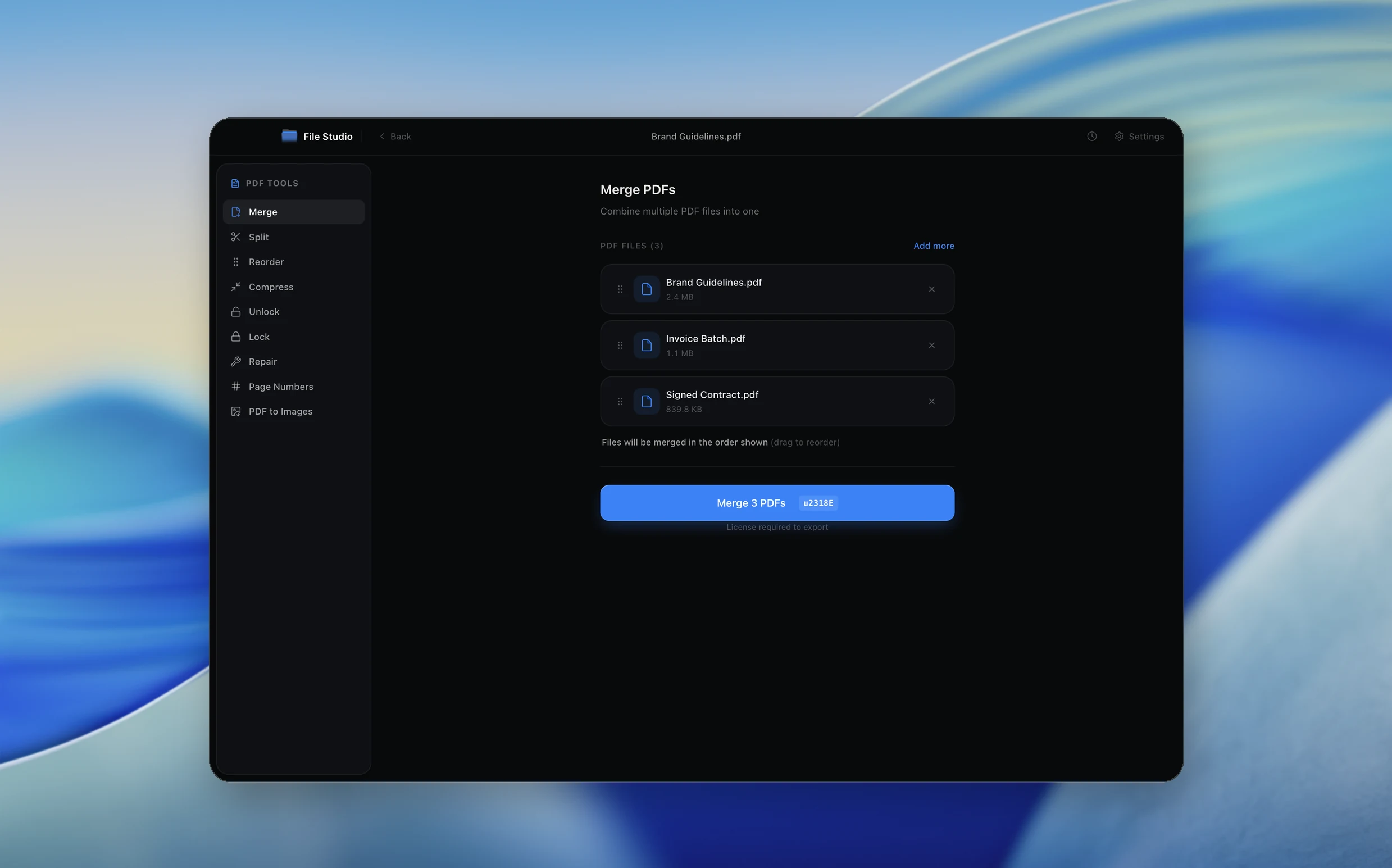
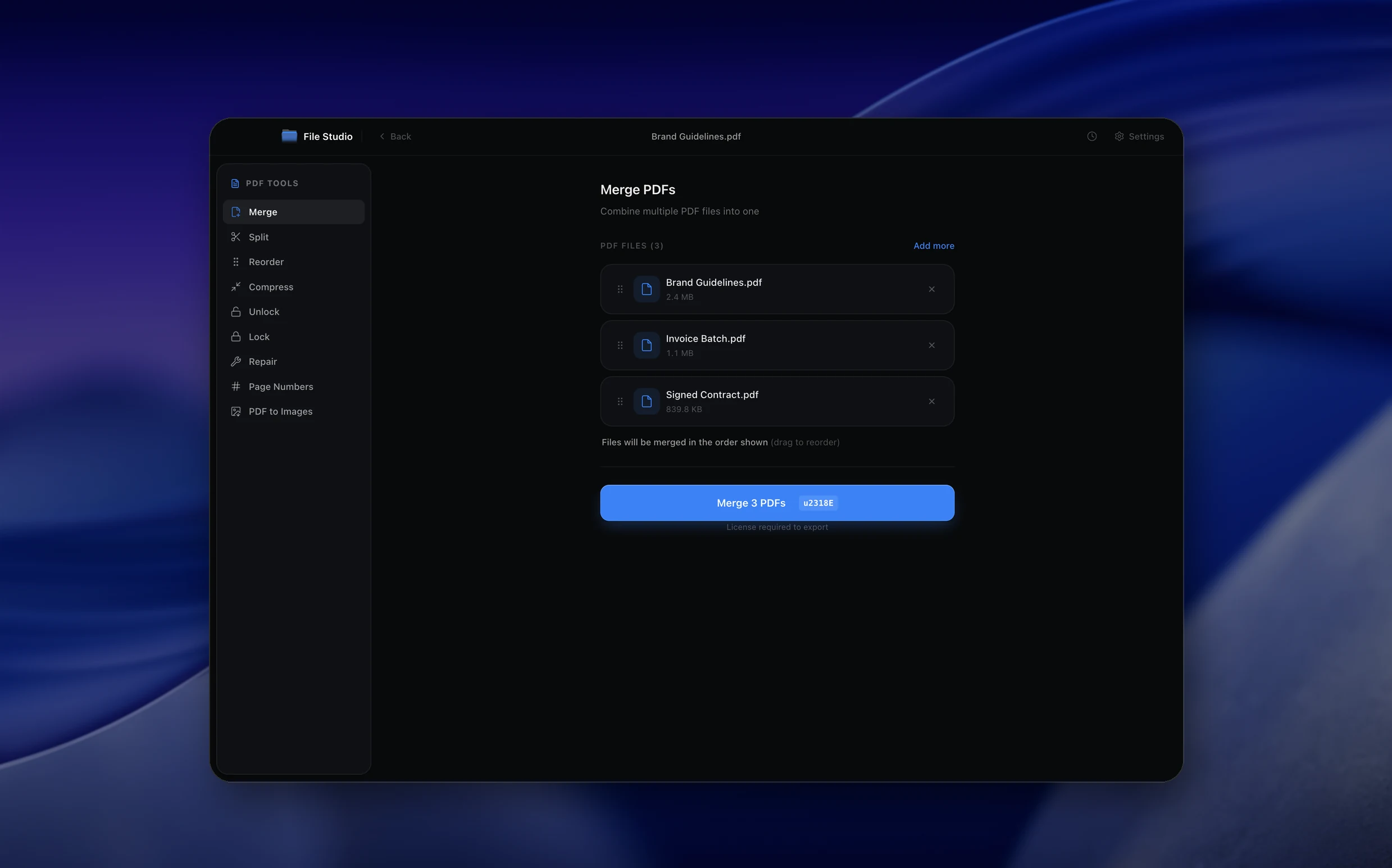
Real File Studio interface, shown in light and dark mode.
Understanding PDF compression
PDF compression reduces the file size of a PDF document by optimizing its internal resources. A PDF can contain multiple types of data including raster images, vector graphics, embedded fonts, metadata, and structural information. Each of these components can be compressed using different techniques, and the overall file size depends heavily on which types of content dominate the document.
Image-heavy PDFs (scanned documents, photo books, brochures) benefit the most from compression because raster images typically account for 90% or more of the file size. Compression can re-encode images at lower quality, reduce their resolution, or convert them to more efficient formats internally. Text-heavy PDFs with few images may only shrink marginally because text and vector data are already compact.
Modern PDF compressors can also remove duplicate resources, subset embedded fonts (keeping only the characters actually used), strip unused metadata, and linearize the file for faster web loading. These optimizations can reduce file size by 10-90% depending on the source material, with scanned documents seeing the largest gains.
How it works
Convert PDF to Compressed PDF in four simple steps.
The flow mirrors the main File Studio experience: install the app, drop in your files, pick the right tool, and export clean, ready-to-share output. All without sending anything to the cloud.
Install File Studio
Download the app, move it to Applications, and open it. No sign-ups or accounts required.
Add your PDF files
Drag-and-drop your pdf files into the window or click to browse from disk.
Choose PDF → Compressed PDF
Pick the dedicated tool, then adjust resolution, quality, and page range until the preview feels right.
Export & keep working
Select an output folder and run the conversion. Your originals stay untouched on your device.
Best practices for cleaner results
- ·Group related files into folders before converting so your output stays organized and easy to archive.
- ·Use higher resolution presets when you know the result will be printed, zoomed in, or reused in design tools.
- ·Keep an unedited copy of your original PDF files for audits, record-keeping, or compliance workflows.
- ·Combine this tool with other File Studio actions like compress, merge, or split to streamline entire document pipelines.
Why File Studio
Built for trustworthy, everyday PDF to Compressed PDF work.
You get precise control over the output, predictable file names, and a private workflow that keeps sensitive documents on your own machine.
Features tuned for this conversion
- ·Choose between light, balanced, and aggressive compression profiles.
- ·Downsample embedded images while preserving text as vectors.
- ·Preview estimated output size before committing to the export.
Why use File Studio for this conversion?
- ·Target file sizes for email, portals, or shared drives.
- ·Compress images while preserving vector text and logos.
- ·Run multiple PDFs through the same preset for consistent results.
Real-world ways people use it
- ·Send large scanned contracts as small, fast‑loading PDFs.
- ·Upload project reports to portals with strict size limits.
- ·Clean up and compress archived PDFs to reclaim disk space.
Settings guide
Understanding your conversion options
Compression Level
Most tools offer presets like Low (minimal compression, best quality), Medium (good balance), and High (maximum compression, some quality loss). Medium is suitable for most business documents. High compression works well for email attachments where size matters more than print quality.
Image Quality
Controls how aggressively embedded images are re-compressed. A setting around 150 DPI and medium JPEG quality reduces file size dramatically while keeping text readable on screen. For documents that will be printed, maintain at least 300 DPI.
Font Optimization
Font subsetting removes unused glyphs from embedded fonts, reducing their contribution to file size. This is safe for final documents but should be skipped if the PDF will be edited later, as the missing glyphs would prevent adding new text in those fonts.
Remove Metadata
Stripping author names, creation dates, comments, and editing history can reduce file size slightly and also protects privacy. Keep metadata if it is needed for document management or compliance tracking.
Linearization (Fast Web View)
Linearizing a PDF rearranges its internal structure so that web browsers can display the first page before the entire file has downloaded. This does not reduce file size but improves perceived loading speed for PDFs hosted online.
Industry standards and requirements
Email servers typically limit attachment size to 10-25 MB. Government portals and court filing systems often impose even stricter limits (5-10 MB). Compressing PDFs to fit within these limits is a daily necessity in legal, healthcare, and administrative work. A well-compressed business document should be under 5 MB for reliable email delivery.
The PDF/A archival standard (ISO 19005) has specific rules about compression. PDF/A-1b allows JPEG and JPEG2000 compression for images but requires all fonts to be embedded. When compressing PDF/A files, ensure the output still conforms to the standard by using a PDF/A-aware compressor. Breaking compliance could cause problems during long-term archival or legal discovery.
In web publishing, Google PageSpeed Insights penalizes pages that serve unoptimized PDFs for download. Linearized, compressed PDFs load faster and consume less bandwidth. For PDFs embedded as inline viewers on web pages, keeping file size under 2 MB ensures a smooth scrolling experience on mobile connections.
Troubleshooting
Common issues and how to fix them
Compressed PDF is barely smaller than the original→
The PDF likely contains mostly text and vector graphics, which are already compact. Compression is most effective on image-heavy documents. Check if the PDF was already compressed by a previous tool.
Text is no longer selectable after compression→
Some aggressive compression tools rasterize pages (convert them to images), which destroys selectable text. Use a compressor that preserves the PDF structure and only optimizes embedded resources without flattening content.
Embedded links or form fields stopped working→
Certain compression processes strip interactive elements. Ensure your compressor is configured to preserve annotations, hyperlinks, and form fields. Test the output by clicking through all links and filling in form fields.
Images look blocky or heavily artifacted→
The image quality setting is too aggressive. Increase the image quality or DPI in the compression settings. For documents with detailed charts or diagrams, use medium compression rather than high.
Pricing
Simple, fair pricing.
All tools included. No hidden fees. Processing stays on your device.
Yearly
For short-term projects.
- 1 year of updates
- Image, PDF, SVG, and spreadsheet tools
- Works on Mac & Windows
- All processing done on device
Lifetime
One purchase. Keep it forever.
- Unlimited conversions forever
- 1 year of major updates
- Image, PDF, SVG, and spreadsheet tools
- Watch Folders & Automation
- macOS Notch Drop Zone
- Works on Mac & Windows
Team & Bulk Pricing
Lifetime seats with volume discounts. More seats, bigger discount.
15
lifetime seats
You save
$60
15% off the individual price
Enterprise
50+ seats with custom pricing, centralized license management, and priority support.
FAQ
Frequently asked questions
Will compression make my PDF unreadable?→
You can preview compression levels and choose a preset that keeps text sharp and images clear while still shrinking file size.
Can I undo compression later?→
Compression is not reversible, so File Studio always keeps your original PDF separate from the compressed version.
How small can I make a PDF without ruining quality?→
That depends on the content, but the balanced profile is a great starting point. You can experiment with more aggressive modes while checking a quick preview first.
Does compressing a PDF remove searchable text?→
No. File Studio keeps text layers and vector shapes intact wherever possible, only targeting images and embedded assets for compression.
Is there a recommended preset for emailing PDFs?→
Yes. The balanced profile is designed for emailing PDFs: it keeps text and key graphics clear while dramatically reducing file size.
Can I see how much smaller my PDF will be before saving?→
File Studio shows an estimated output size so you can tweak compression settings until they meet your limits.
Looking for something else? Explore more offline conversions with File Studio: