

PNG to PDF converter
PNG to PDF - Turn PNG images into professional PDF documents.
Convert screenshots, graphics, and PNG images into polished PDFs perfect for sharing, printing, or archiving - all without cloud uploads.
Free trial · No account required · Files stay on your device
All conversions happen locally on your computer. No uploads, no subscriptions, and no background syncing.
PNG → PDF
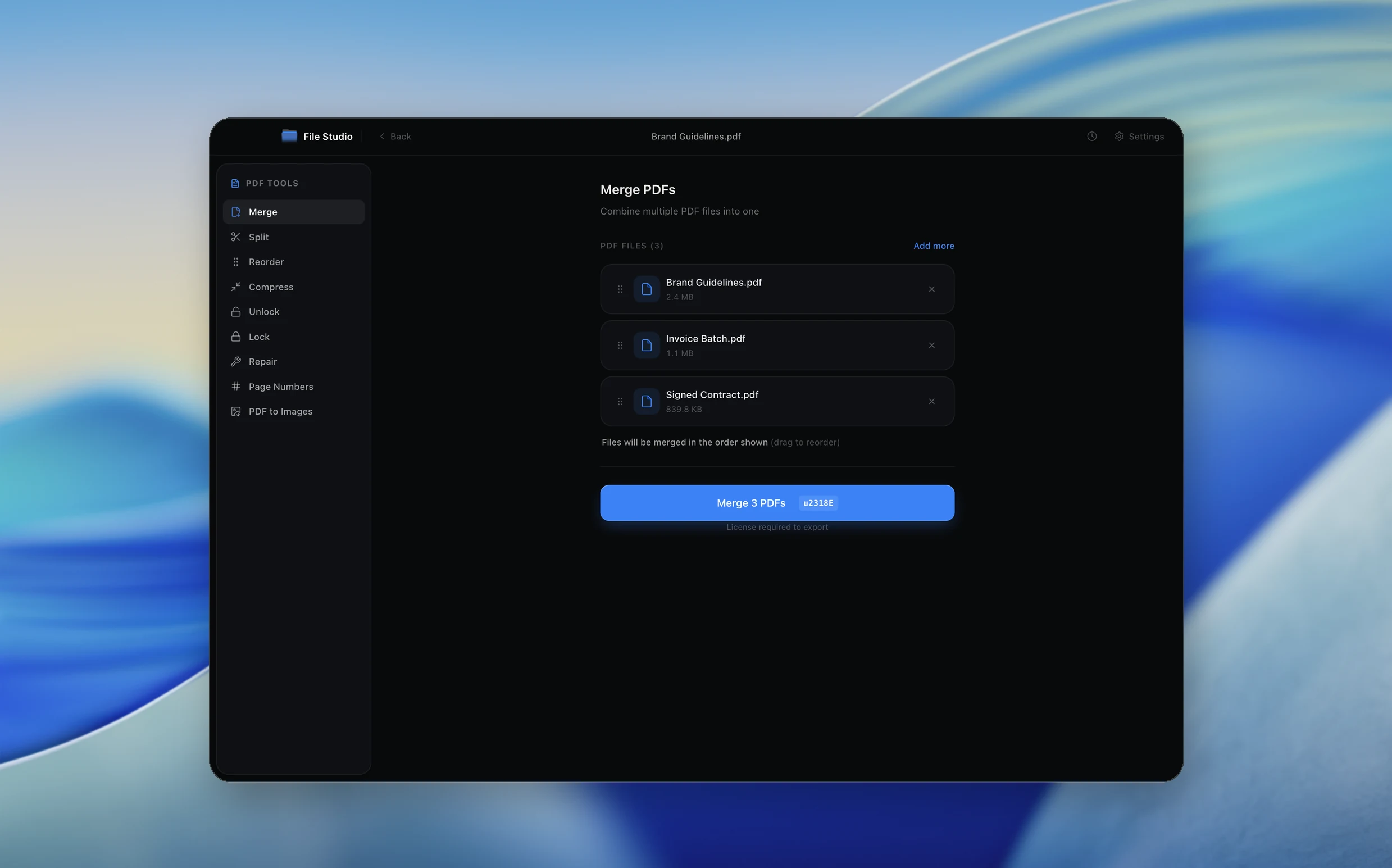
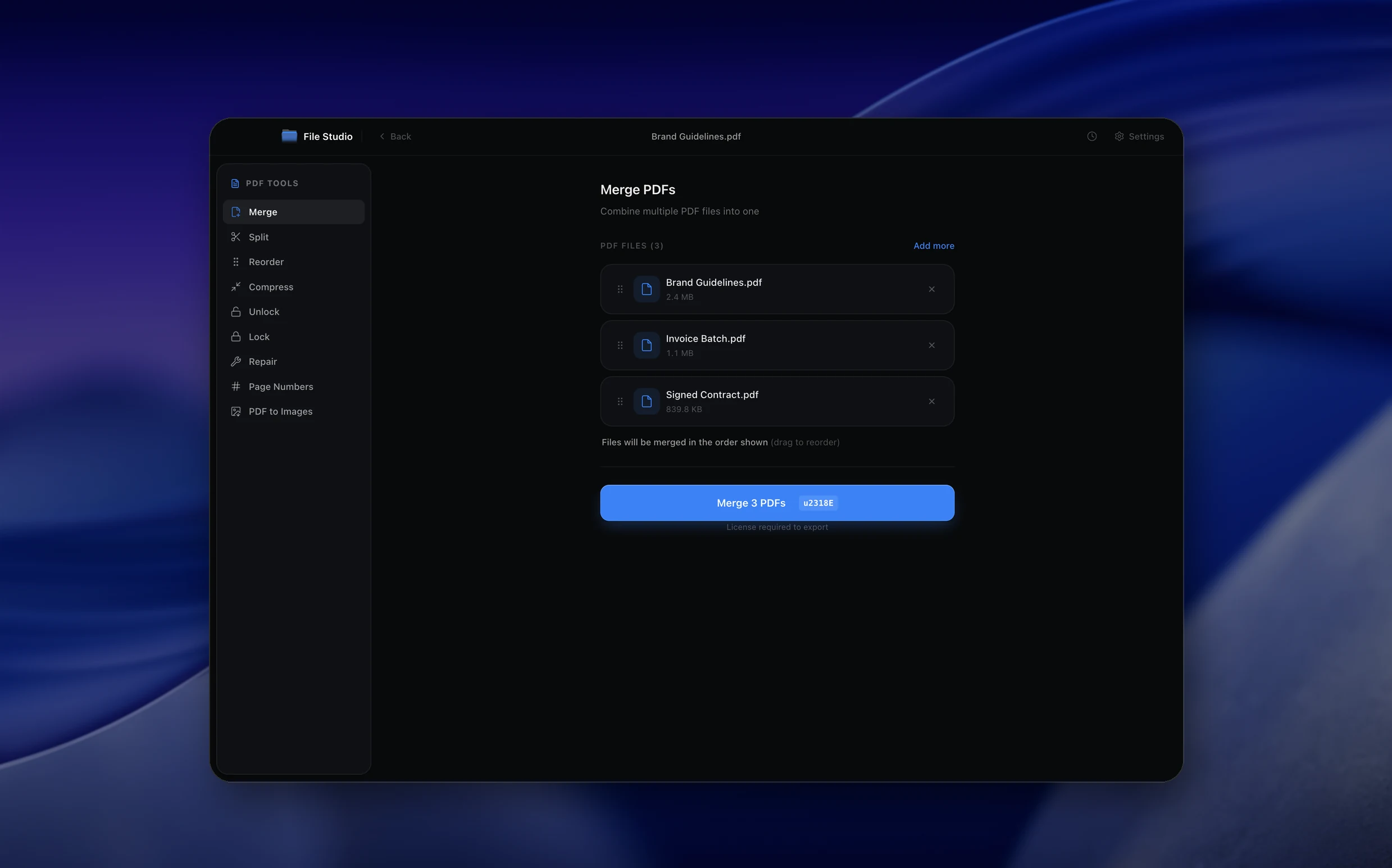
Real File Studio interface, shown in light and dark mode.
Understanding the PDF format for image input
PDF (Portable Document Format) was introduced by Adobe in 1993 and standardized as ISO 32000 in 2008. It is a page description format built on a subset of PostScript, capable of embedding raster images, vector graphics, fonts, and metadata into a single file that renders identically across operating systems and devices. When PNG files are placed into a PDF, the resulting document acts as a fixed layout container that preserves the exact pixel dimensions and color values of each source image.
PDF supports several image compression schemes inside its content streams, including DCTDecode (JPEG), FlateDecode (the same DEFLATE algorithm PNG uses), JBIG2 for bilevel images, and JPEG2000. When converting PNG to PDF, FlateDecode is the natural choice because it preserves the lossless data already present in the PNG without re-encoding. PDF also stores transparency through soft masks, so the alpha channel from a 32-bit PNG can be retained inside the document.
Common reasons to convert PNG to PDF include batching screenshots into a single deliverable, preparing a portfolio of digital artwork for email distribution, archiving annotated diagrams alongside text reports, and producing print-ready proofs that exactly match the source bitmap. PDF is universally accepted by document management systems, e-signature platforms, and print service providers, which makes it the safest container when a single PNG must be reviewed, signed, or printed by a third party.
How it works
Convert PNG to PDF in four simple steps.
The flow mirrors the main File Studio experience: install the app, drop in your files, pick the right tool, and export clean, ready-to-share output. All without sending anything to the cloud.
Install File Studio
Download the app, move it to Applications, and open it. No sign-ups or accounts required.
Add your PNG files
Drag-and-drop your png files into the window or click to browse from disk.
Choose PNG → PDF
Pick the dedicated tool, then adjust resolution, quality, and page range until the preview feels right.
Export & keep working
Select an output folder and run the conversion. Your originals stay untouched on your device.
Best practices for cleaner results
- ·Group related files into folders before converting so your output stays organized and easy to archive.
- ·Use higher resolution presets when you know the result will be printed, zoomed in, or reused in design tools.
- ·Keep an unedited copy of your original PNG files for audits, record-keeping, or compliance workflows.
- ·Combine this tool with other File Studio actions like compress, merge, or split to streamline entire document pipelines.
Why File Studio
Built for trustworthy, everyday PNG to PDF work.
You get precise control over the output, predictable file names, and a private workflow that keeps sensitive documents on your own machine.
Features tuned for this conversion
- ·Multiple PNGs become multi-page PDFs.
- ·Choose page size and orientation.
- ·Reorder pages before exporting.
Why use File Studio for this conversion?
- ·Convert single or multiple PNGs to one PDF.
- ·Preserve image quality in the PDF output.
- ·Arrange page order with drag-and-drop.
Real-world ways people use it
- ·Compile screenshots into documentation PDFs.
- ·Create printable portfolios from PNG artwork.
- ·Bundle graphics into single shareable documents.
Settings guide
Understanding your conversion options
Page Size and Orientation
Choose between fitting each PNG to a standard page size (A4, US Letter, A3) or generating a custom page that exactly matches the pixel dimensions of the image. Custom pages avoid white margins around screenshots, while standard sizes are required for printing on physical paper.
Image Compression
FlateDecode keeps the PNG completely lossless and is the right choice for screenshots, line art, and text-heavy images. DCTDecode (JPEG) at quality 85 produces a much smaller file but introduces compression artifacts and discards the alpha channel. Pick lossless for archival output and lossy only when file size is the dominant constraint.
DPI Mapping
PNG files do not always carry an accurate physical resolution tag. Set the target DPI explicitly (typically 72 for web, 150 for office printing, 300 for commercial print) so the converter calculates the correct page dimensions in inches or millimeters from the image pixel count.
Margins and Fit Mode
Fit mode controls how each image is placed on the page. Stretch fills the entire page and may distort the aspect ratio. Fit centers the image with letterboxing to preserve proportions. Actual size places the image at its native pixel dimensions, which is useful when 1:1 reproduction matters.
Multi-image Layout
When combining multiple PNGs into one PDF, decide whether each image gets its own page or several images are tiled onto a single page (2-up, 4-up, contact sheet). Per-page output is best for sequential review, while tiled output is efficient for browsing thumbnails.
Industry standards and requirements
For commercial print production, PNG-derived PDFs should target 300 DPI at the final trim size and use a CMYK color space when the press requires it. Sending RGB PNGs to a print provider without color conversion can cause noticeable hue shifts, especially in saturated reds and greens. Print shops generally prefer PDF/X-1a (ISO 15930) or PDF/X-4 (ISO 15930-7) compliant files for predictable color reproduction.
For long-term archival, PDF/A (ISO 19005) is the recognized standard. PDF/A-2 and PDF/A-3 both permit JPEG2000 and lossless image streams, so PNG content can be preserved without quality loss. Archivists typically embed XMP metadata describing the source image, capture device, and creation date alongside the page content to satisfy records management requirements.
Web and mobile workflows tolerate much smaller, more compressed PDFs. A typical guideline is to keep document downloads under 1 MB per page, which means screenshot-heavy PDFs may benefit from selective JPEG compression on photographic regions while keeping text overlays in lossless FlateDecode form. Linearized (web-optimized) PDFs allow the first page to render before the entire file finishes downloading.
Troubleshooting
Common issues and how to fix them
Transparent areas appear black in the resulting PDF→
Some PDF viewers do not render soft masks correctly. Either flatten transparency against a white background before conversion or enable the explicit alpha channel option so the converter writes a proper SMask object that compliant viewers will composite against the page background.
Output PDF is much larger than the source PNG→
This usually means the converter re-encoded the image using an inefficient stream or padded the page with extra whitespace. Use FlateDecode compression with no recompression of the bitmap, and disable any embedded preview thumbnails that some libraries add by default.
Image looks tiny on the printed page→
The converter assumed a high DPI (often 300 or 600) when calculating page size. Lower the DPI assumption to 72 or 96, or switch to a fixed page size with fit-to-page enabled so the image scales up to fill the printable area.
Text inside the screenshot looks blurry after conversion→
Make sure no resampling occurred during conversion. The original PNG pixels should be embedded as is. If the converter offers a downsample threshold, set it above the source resolution so no pixel reduction takes place.
Pricing
Simple, fair pricing.
All tools included. No hidden fees. Processing stays on your device.
Yearly
For short-term projects.
- 1 year of updates
- Image, PDF, SVG, and spreadsheet tools
- Works on Mac & Windows
- All processing done on device
Lifetime
One purchase. Keep it forever.
- Unlimited conversions forever
- 1 year of major updates
- Image, PDF, SVG, and spreadsheet tools
- Watch Folders & Automation
- macOS Notch Drop Zone
- Works on Mac & Windows
Team & Bulk Pricing
Lifetime seats with volume discounts. More seats, bigger discount.
15
lifetime seats
You save
$60
15% off the individual price
Enterprise
50+ seats with custom pricing, centralized license management, and priority support.
FAQ
Frequently asked questions
Can I combine multiple PNGs into one PDF?→
Yes. Drag in multiple PNG files and they become pages in a single PDF document.
Is image quality preserved in the PDF?→
Yes. File Studio embeds PNGs at full quality. You can optionally compress for smaller file sizes.
Can I control the page size?→
Yes. Choose from standard sizes like A4, Letter, or fit pages to image dimensions.
Can I reorder images before creating the PDF?→
Absolutely. Drag and drop to arrange images in your preferred page order.
Will transparent PNG areas stay transparent in PDF?→
PDF supports transparency, so transparent areas in your PNGs are preserved.
Can I add multiple PNGs per page?→
The converter places one image per page. For multiple images per page, use the collage tool first.
Looking for something else? Explore more offline conversions with File Studio: