

Merge PDF
Multiple PDFs to Single PDF - Stack, reorder, and merge PDFs into one polished document.
Drop contracts, appendices, and scans into File Studio, then rearrange pages before exporting a single, cohesive PDF.
Free trial · No account required · Files stay on your device
All conversions happen locally on your computer. No uploads, no subscriptions, and no background syncing.
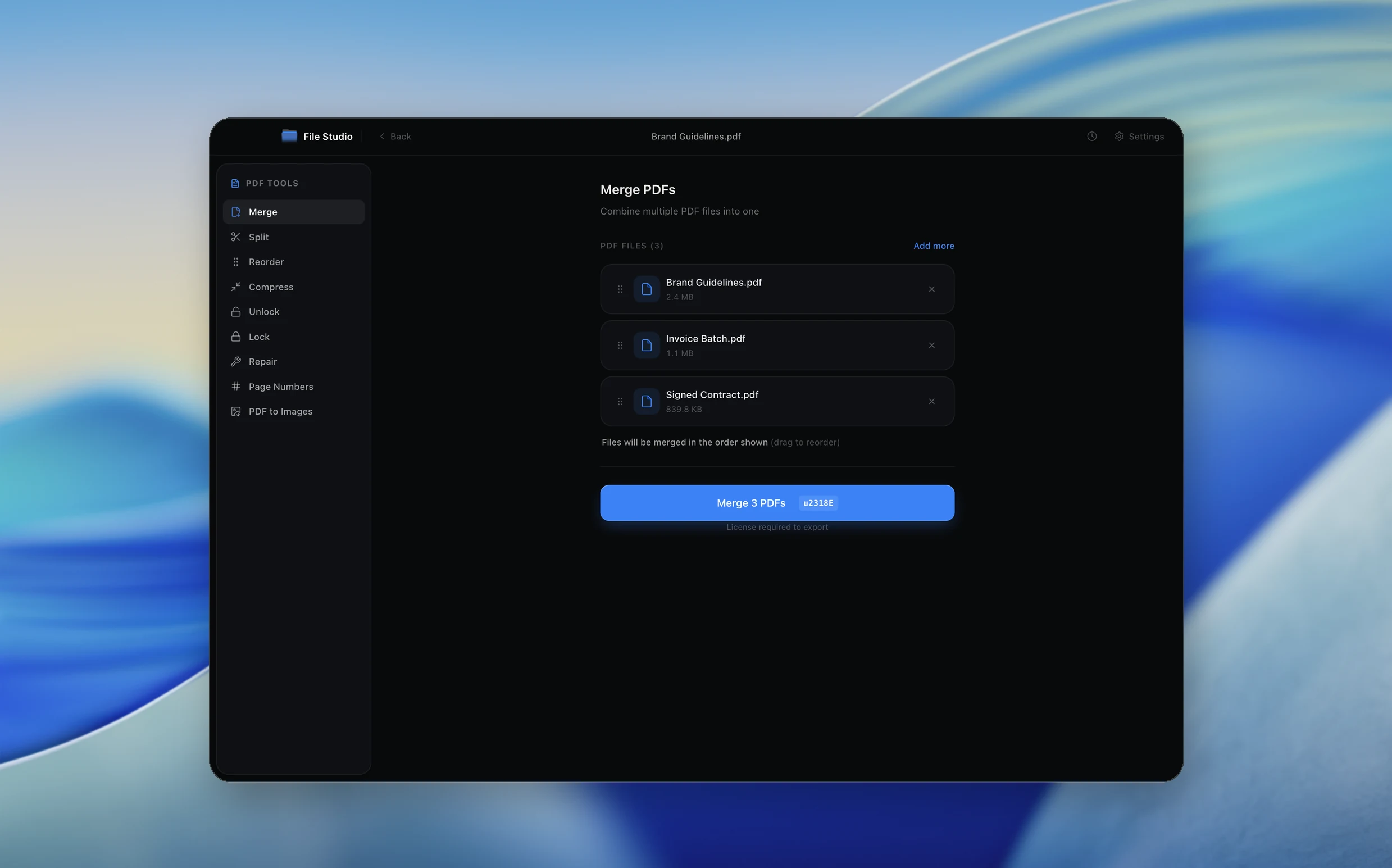
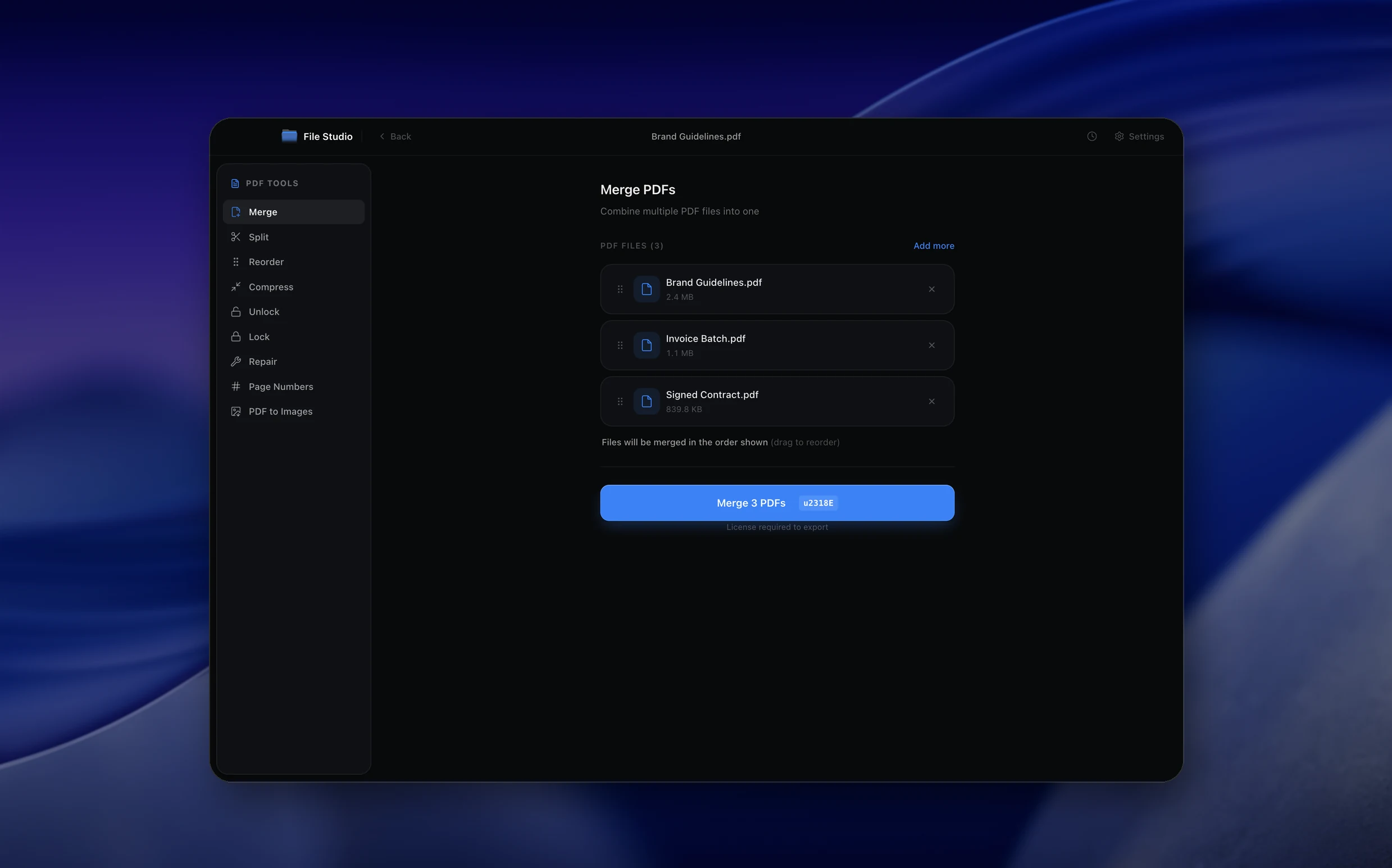
Multiple PDFs → Single PDF
Real File Studio interface, shown in light and dark mode.
Understanding PDF merging
PDF merging combines two or more PDF files into a single document. The operation preserves the content, formatting, and interactive elements of each source file while concatenating their pages in the specified order. The resulting merged PDF can be navigated, searched, and printed as a unified document.
Internally, a PDF merge tool copies the page trees and resources from each input file into a new PDF container. Well-designed merge tools also handle conflicting resources like font names, resolve cross-references, and maintain bookmarks, hyperlinks, and form fields from the originals. Simpler tools may drop some of these elements, so the choice of merge tool matters for complex documents.
Merging is commonly used to assemble multi-part reports, combine signed documents with their attachments, consolidate invoices for batch processing, or create single-file submissions from separately scanned pages. Unlike zipping multiple PDFs into an archive, a merged PDF lets recipients view all content without extracting individual files.
How it works
Convert Multiple PDFs to Single PDF in four simple steps.
The flow mirrors the main File Studio experience: install the app, drop in your files, pick the right tool, and export clean, ready-to-share output. All without sending anything to the cloud.
Install File Studio
Download the app, move it to Applications, and open it. No sign-ups or accounts required.
Add your Multiple PDFs files
Drag-and-drop your multiple pdfs files into the window or click to browse from disk.
Choose Multiple PDFs → Single PDF
Pick the dedicated tool, then adjust resolution, quality, and page range until the preview feels right.
Export & keep working
Select an output folder and run the conversion. Your originals stay untouched on your device.
Best practices for cleaner results
- ·Group related files into folders before converting so your output stays organized and easy to archive.
- ·Use higher resolution presets when you know the result will be printed, zoomed in, or reused in design tools.
- ·Keep an unedited copy of your original Multiple PDFs files for audits, record-keeping, or compliance workflows.
- ·Combine this tool with other File Studio actions like compress, merge, or split to streamline entire document pipelines.
Why File Studio
Built for trustworthy, everyday Multiple PDFs to Single PDF work.
You get precise control over the output, predictable file names, and a private workflow that keeps sensitive documents on your own machine.
Features tuned for this conversion
- ·Drag to reorder entire documents or individual pages.
- ·Visually inspect pages before merging to avoid duplicates.
- ·Normalize metadata like title and author across the merged file.
Why use File Studio for this conversion?
- ·Merge PDFs from different sources into one file.
- ·Drag‑and‑drop to reorder or remove pages before export.
- ·Standardize metadata so merged documents stay searchable.
Real-world ways people use it
- ·Assemble a full client packet from multiple PDFs.
- ·Bundle all project documents into a single archive.
- ·Combine multiple scan batches into one continuous file.
Settings guide
Understanding your conversion options
File Order
Drag and drop files to arrange them in the desired order before merging. The first file's pages appear first in the output, followed by the second file's pages, and so on. Getting the order right before merging avoids time-consuming page rearrangement later.
Page Selection
Some merge tools allow you to include only specific pages from each file. For example, you might want pages 1-3 from document A and pages 5-10 from document B. This combines merging and splitting into a single step.
Bookmark Handling
You can choose to keep each source file's bookmarks as nested sections in the merged document, or discard bookmarks entirely. Adding a top-level bookmark for each file helps readers navigate long merged documents.
Output Compression
Merging multiple PDFs can produce a large file, especially if each source embeds the same fonts separately. Enable output compression to remove duplicate resources and reduce the merged file's size.
Industry standards and requirements
In legal practice, assembled exhibit packages often consist of dozens of merged PDFs with Bates-numbered pages. Federal court e-filing systems (e.g., CM/ECF) impose size limits (typically 35 MB per filing) that require careful management of merged document size. Lawyers frequently merge depositions, contracts, and evidence into a single exhibit PDF for case management.
Corporate finance teams merge quarterly reports, auditor letters, and supplementary schedules into unified board packages. SEC filings sometimes require specific document ordering and bookmarking. Using a merge tool that preserves PDF/A compliance ensures the assembled document meets regulatory archival requirements.
In education, teachers merge assignment instructions, rubrics, and reference materials into a single PDF for distribution through learning management systems. Students merge research papers with appendices and bibliography pages. Maintaining consistent page numbering across merged sections is important for academic citations.
Troubleshooting
Common issues and how to fix them
Merged PDF is much larger than the sum of the source files→
Each source PDF may embed the same fonts independently, duplicating data. Run the merged file through a PDF compressor with font deduplication enabled, or use a merge tool that optimizes shared resources automatically.
Bookmarks or table of contents disappeared→
Some basic merge tools strip bookmarks during concatenation. Use a tool that explicitly supports bookmark preservation, and verify the output by checking the bookmark panel in your PDF viewer.
Form fields from different files conflict→
If two source PDFs have form fields with the same internal names, they may overwrite each other in the merged output. Rename conflicting fields before merging, or use a merge tool that automatically appends unique suffixes.
Pricing
Simple, fair pricing.
All tools included. No hidden fees. Processing stays on your device.
Yearly
For short-term projects.
- 1 year of updates
- Image, PDF, SVG, and spreadsheet tools
- Works on Mac & Windows
- All processing done on device
Lifetime
One purchase. Keep it forever.
- Unlimited conversions forever
- 1 year of major updates
- Image, PDF, SVG, and spreadsheet tools
- Watch Folders & Automation
- macOS Notch Drop Zone
- Works on Mac & Windows
Team & Bulk Pricing
Lifetime seats with volume discounts. More seats, bigger discount.
15
lifetime seats
You save
$60
15% off the individual price
Enterprise
50+ seats with custom pricing, centralized license management, and priority support.
FAQ
Frequently asked questions
Does merging PDFs change my original files?→
No. File Studio leaves your source PDFs as‑is and writes the merged result as a new document.
Can I merge password‑protected PDFs?→
You can merge PDFs you have access to. If a file is locked, unlock it first using your password, then add it to the merge queue.
Can I see a page preview before I merge?→
Yes. File Studio lets you visually scan through pages, reorder them, and remove any you don’t want before committing to the merge.
Can I merge PDFs with different page sizes and orientations?→
You can. File Studio keeps the original page sizes and rotations so nothing is stretched or cropped unexpectedly in the merged file.
Is there a limit to how many PDFs I can merge?→
You can merge large sets of PDFs as long as you have enough memory and disk space. File Studio is optimized for big document bundles.
Can I clean up titles and author information on the merged PDF?→
Yes. You can set consistent metadata on the merged document so exported files look professional and are easy to search.
Looking for something else? Explore more offline conversions with File Studio: