

CombinePDF alternative
Merge PDFs offline, plus get splitting, compression, and image tools.
CombinePDF does one thing well: it merges PDFs in a browser. But it requires uploading your files, and that is the only tool it offers. File Studio merges PDFs locally on your device and also handles splitting, compression, conversion, and a full set of image tools.
Works 100% offline on both Windows and Mac.
CombinePDF
Requires internet and file uploads to work.
Why people use CombinePDF
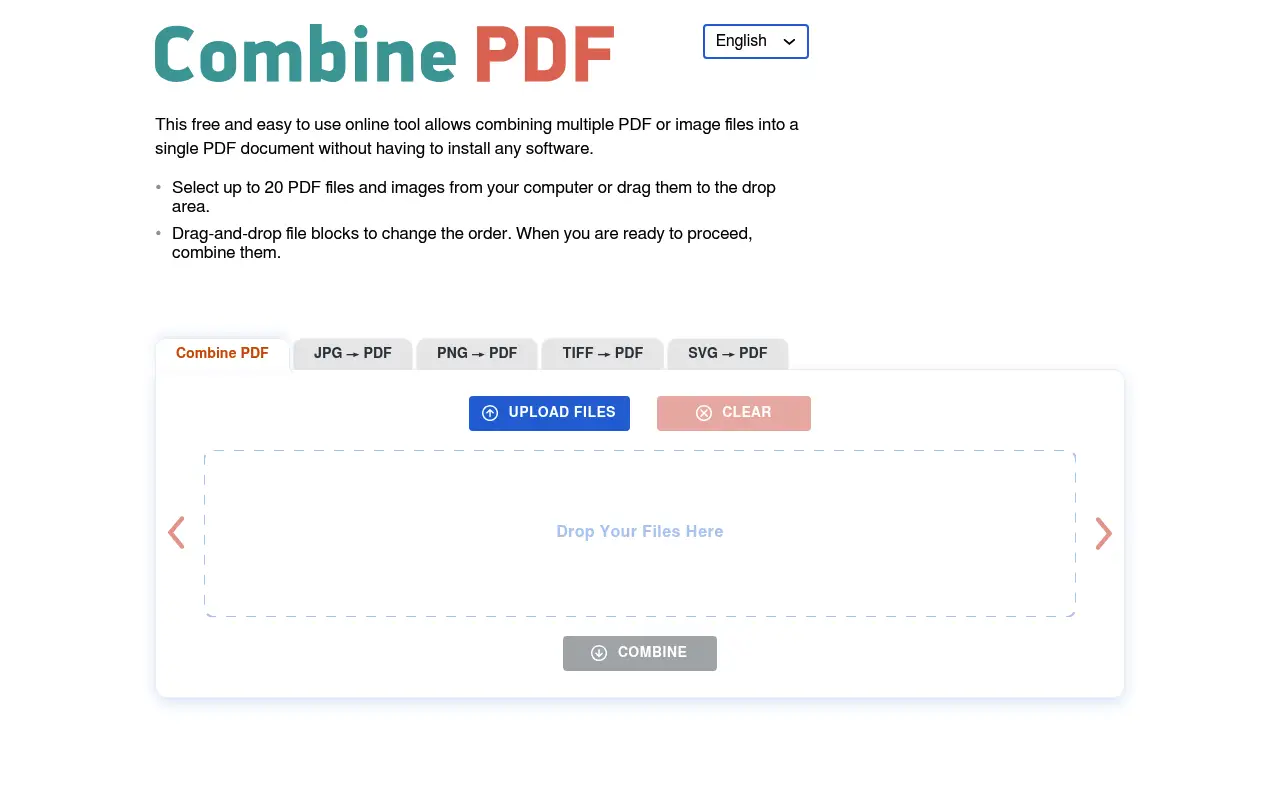
CombinePDF is a single-purpose website that does exactly one thing: it merges PDF files. You visit combinepdf.com, upload your PDFs, arrange them in the desired order, and download a single combined document. There is no account creation, no subscription, no ads, and no cost. It is one of the cleanest, most focused web tools available for any task, and that simplicity is precisely what makes it popular.
The service is used by students combining assignment pages, office workers assembling meeting packets, and anyone who needs to merge two or more PDFs without installing software or figuring out a complex tool. CombinePDF ranks well in search results for terms like 'merge PDFs' and 'combine PDFs online,' which brings a steady stream of users who need a quick solution to a specific problem. For that specific problem, CombinePDF solves it efficiently.
CombinePDF's limitation is also its defining characteristic: it only merges PDFs. There is no splitting, no compressing, no converting, no image tools, and no editing of any kind. If you need any PDF operation other than combining files, you need a different tool. This is perfectly fine for users who genuinely only need to merge files, but most people who work with PDFs regularly encounter other needs as well.
The privacy consideration is the standard one for any online tool. Files must be uploaded to CombinePDF's servers for merging. The site does not publish detailed information about its server infrastructure or file retention policies. For non-sensitive documents, this is a reasonable tradeoff for free, instant merging. For anyone working with confidential materials, the upload requirement is a concern. File Studio merges PDFs locally with no upload, and also includes the splitting, compression, conversion, and image tools that CombinePDF does not offer.
It is worth recognizing what CombinePDF does well. By focusing on a single task, the tool achieves an exceptional level of simplicity. There is no confusion about what it does or how to use it. The site loads quickly, the interface is uncluttered, and the merge operation works reliably. This is a valid design philosophy, and for users who genuinely only need to merge PDFs occasionally and are not concerned about file privacy, CombinePDF is a perfectly good tool. The question is whether merging is truly your only need, or whether you will eventually find yourself searching for additional tools for splitting, compressing, or converting.
Side-by-side comparison
File Studio vs CombinePDF
| Feature | CombinePDF | File Studio |
|---|---|---|
| Works offline | No, web-based only | Yes, fully offline |
| File privacy | Files uploaded to CombinePDF servers | Files never leave your device |
| Merge PDFs | Yes (primary and only feature) | Yes, with drag-and-drop reordering |
| Split PDFs | No | Yes |
| Compress PDFs | No | Yes |
| Convert PDFs | No | Yes (PDF to JPG, PNG, and more) |
| Image tools | No | Yes: convert, resize, compress, watermark, collage |
| Price | Free | $29 one-time or $15/year |
Why switch
What you get with File Studio instead
Merge PDFs without uploading them to a server, keeping sensitive documents completely private.
Get splitting, compression, conversion, and image tools alongside merging in a single app.
No internet required. Merge PDFs on a plane, in a meeting room, or anywhere without Wi-Fi.
Reorder pages visually before merging, giving you precise control over the final document.
Batch process large numbers of files without the upload and download overhead.
Pricing
CombinePDF is free, which is its biggest advantage. If you only need to merge a few PDFs occasionally and privacy is not a concern, CombinePDF works fine. File Studio costs $29 but provides a complete PDF and image toolkit. The investment makes sense if you need more than just merging or if you work with confidential documents.
In-depth look
Feature breakdown: CombinePDF vs File Studio
PDF tools comparison
CombinePDF offers one PDF operation: merging. You can upload multiple PDF files and combine them into a single document. The interface lets you reorder files before merging. The output is a clean, properly formatted PDF. For this single task, CombinePDF is effective and reliable.
File Studio includes merging with the same drag-and-drop simplicity, plus splitting by page range, compressing to reduce file size, converting between PDF and image formats, and removing passwords from protected PDFs. The merge tool in File Studio supports visual page reordering and preview, giving you the same merge experience as CombinePDF with additional control and no file upload.
The comparison is straightforward: CombinePDF does one thing for free online, while File Studio does many things for $29 offline. If merging is your only PDF need and privacy is not a concern, CombinePDF works. If you have broader PDF needs or work with sensitive files, File Studio is the more complete solution.
It is also worth noting that PDF merging often leads to related needs. After merging documents, you might realize the combined file is too large for email and needs compression. Or you might need to extract specific pages from the merged document. Or you might need to convert the merged PDF to images for a presentation. CombinePDF cannot help with any of these follow-up steps. File Studio handles the entire chain of operations, from initial merge through compression, splitting, and conversion, without needing to switch to a different tool for each step.
Image handling
CombinePDF includes no image tools whatsoever. It is a PDF merger and nothing else. There is no image conversion, compression, resizing, or any other image capability.
File Studio includes a comprehensive image toolkit: format conversion between JPG, PNG, WebP, HEIC, and others; image compression with quality controls; batch resizing; cropping; watermarking; and collage creation. For users who work with images alongside PDFs, File Studio replaces what would otherwise require multiple separate tools or web services.
The image tools become particularly relevant when you consider common workflows that start with merging. A project manager might combine several section PDFs into a master document and also need to compress product photos for the same project. A student might merge assignment pages and also need to convert iPhone photos for a lab report. In practice, PDF merging rarely exists in isolation from other file tasks. CombinePDF serves the merging step well, but everything else requires finding additional tools. File Studio handles the full workflow.
Privacy and data handling
CombinePDF processes files on their servers. The site uses HTTPS for file transfers, but detailed information about server location, data retention, and security practices is limited compared to larger competitors. For merging non-sensitive documents, the privacy risk is low. The files are combined and delivered, and the operation is straightforward.
For merging confidential documents such as contracts, financial reports, legal filings, or medical records, uploading to any third-party server introduces unnecessary risk. CombinePDF is a small, independent service, which may actually mean fewer internal controls and less infrastructure security than larger platforms.
File Studio merges PDFs locally on your machine with no network involvement. There is no upload, no external server, and no question about what happens to your files after processing. For anyone merging files that contain sensitive information, local processing is the more prudent approach.
Honest take
What you give up by switching
- *CombinePDF is completely free with no payment required, while File Studio costs $29.
- *CombinePDF requires no installation and works from any browser, making it ideal for quick, one-off merges on any device.
- *CombinePDF has zero learning curve: the entire interface is a single page with a clear purpose.
- *For users who genuinely only need to merge PDFs and nothing else, CombinePDF is the simpler choice.
- *CombinePDF works on mobile devices and tablets, while File Studio is desktop-only.
- *CombinePDF does not require any account creation or personal information, making it the lowest-friction option for anonymous, one-off PDF merging.
Decision guide
Which tool is right for you?
You need to merge two PDFs once and are on a borrowed or shared computer
Use CombinePDF. For a single, non-sensitive merge on a device where you cannot install software, it is the fastest option.
You regularly merge, split, compress, or convert PDFs as part of your work
Use File Studio. It covers the full range of common PDF operations, not just merging, and processes everything locally.
You need to merge confidential documents like contracts or financial reports
Use File Studio. Local processing ensures sensitive documents never leave your device, which CombinePDF's server-based approach cannot guarantee.
You need a free tool and only ever merge PDFs
CombinePDF is a perfectly good choice if merging is your only need and the files are not sensitive. It costs nothing and works well.
You need to merge PDFs and also split, compress, or convert them as part of the same workflow
Use File Studio. CombinePDF only handles merging, so any additional PDF operation requires a separate tool. File Studio covers the complete set of common operations.
Pricing
Simple, fair pricing.
All tools included. No hidden fees. Processing stays on your device.
Yearly
For short-term projects.
- 1 year of updates
- Image, PDF, SVG, and spreadsheet tools
- Works on Mac & Windows
- All processing done on device
Lifetime
One purchase. Keep it forever.
- Unlimited conversions forever
- 1 year of major updates
- Image, PDF, SVG, and spreadsheet tools
- Watch Folders & Automation
- macOS Notch Drop Zone
- Works on Mac & Windows
Team & Bulk Pricing
Lifetime seats with volume discounts. More seats, bigger discount.
15
lifetime seats
You save
$60
15% off the individual price
Enterprise
50+ seats with custom pricing, centralized license management, and priority support.
FAQ
Frequently asked questions
CombinePDF is free. Why should I pay for File Studio?→
CombinePDF is a great free tool for occasional PDF merging. But if you need splitting, compression, conversion, or image tools, or if you work with confidential files that should not be uploaded, File Studio is worth the $29 investment.
Does File Studio merge PDFs as easily as CombinePDF?→
Yes. Drag and drop your PDF files into File Studio, arrange them in the order you want, and merge. The process is just as simple as CombinePDF, but without the upload step.
Can I merge large PDFs with File Studio?→
Yes. File Studio has no file size limits, so you can merge large PDFs that might be too big for CombinePDF's upload limit.
Does CombinePDF keep my files safe?→
CombinePDF states that uploaded files are deleted after processing. However, files do travel over the internet during the process. For sensitive legal, medical, or financial documents, local merging with File Studio eliminates that risk.
Can I merge images into a PDF with File Studio?→
Yes. File Studio can convert images to PDF and merge multiple images into a single PDF document, which is something CombinePDF does not offer.
@ayysoni · February 6, 2026
Related File Studio tools you might find useful:
Compare File Studio with other tools: