

Remove PDF Password
Protected PDF to Unlocked PDF - Unlock password-protected PDFs you already have access to.
If you know the password, File Studio can remove it permanently so you can open, print, and share the PDF freely - all without sending it to the cloud.
Free trial · No account required · Files stay on your device
All conversions happen locally on your computer. No uploads, no subscriptions, and no background syncing.
Protected PDF → Unlocked PDF
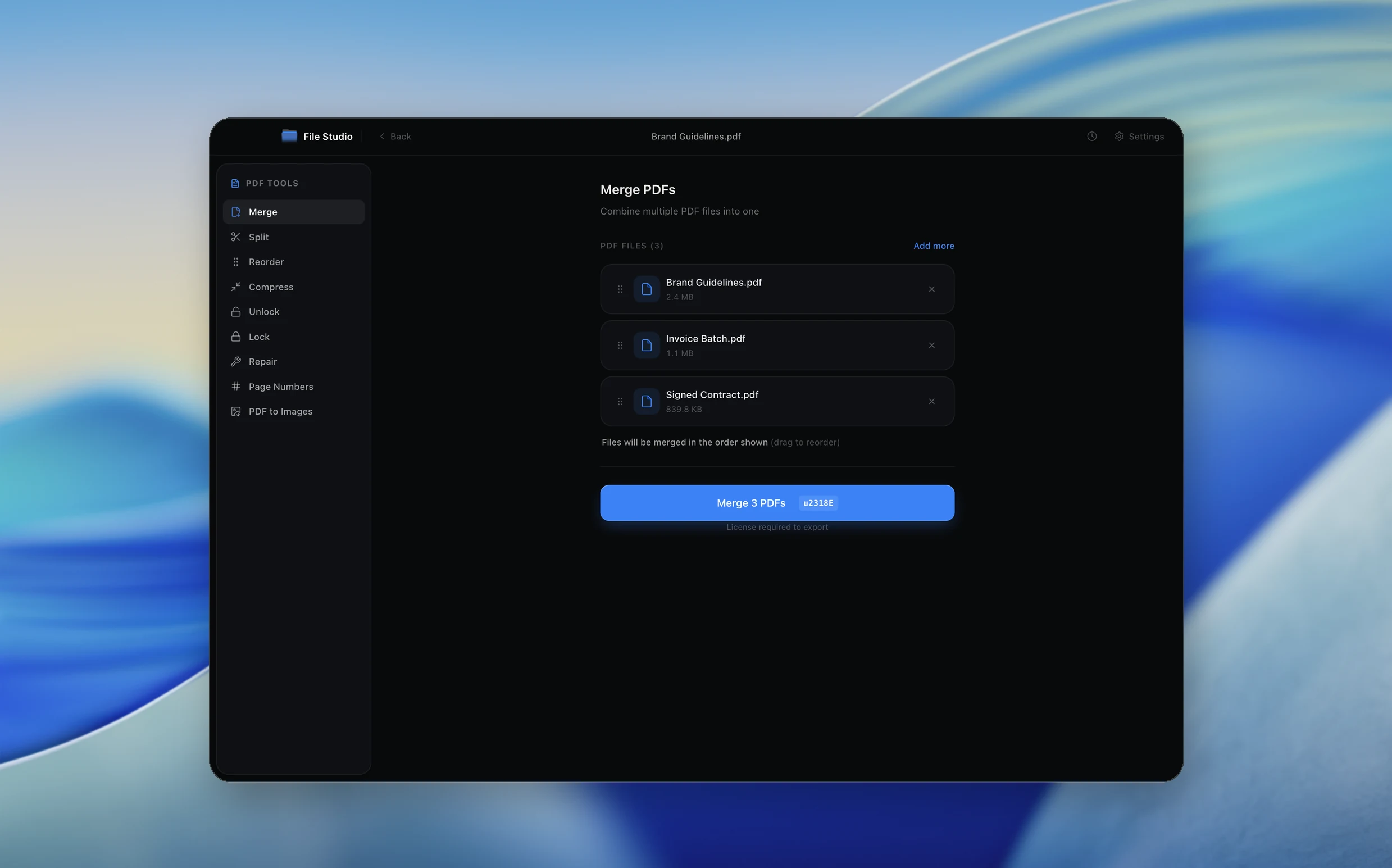
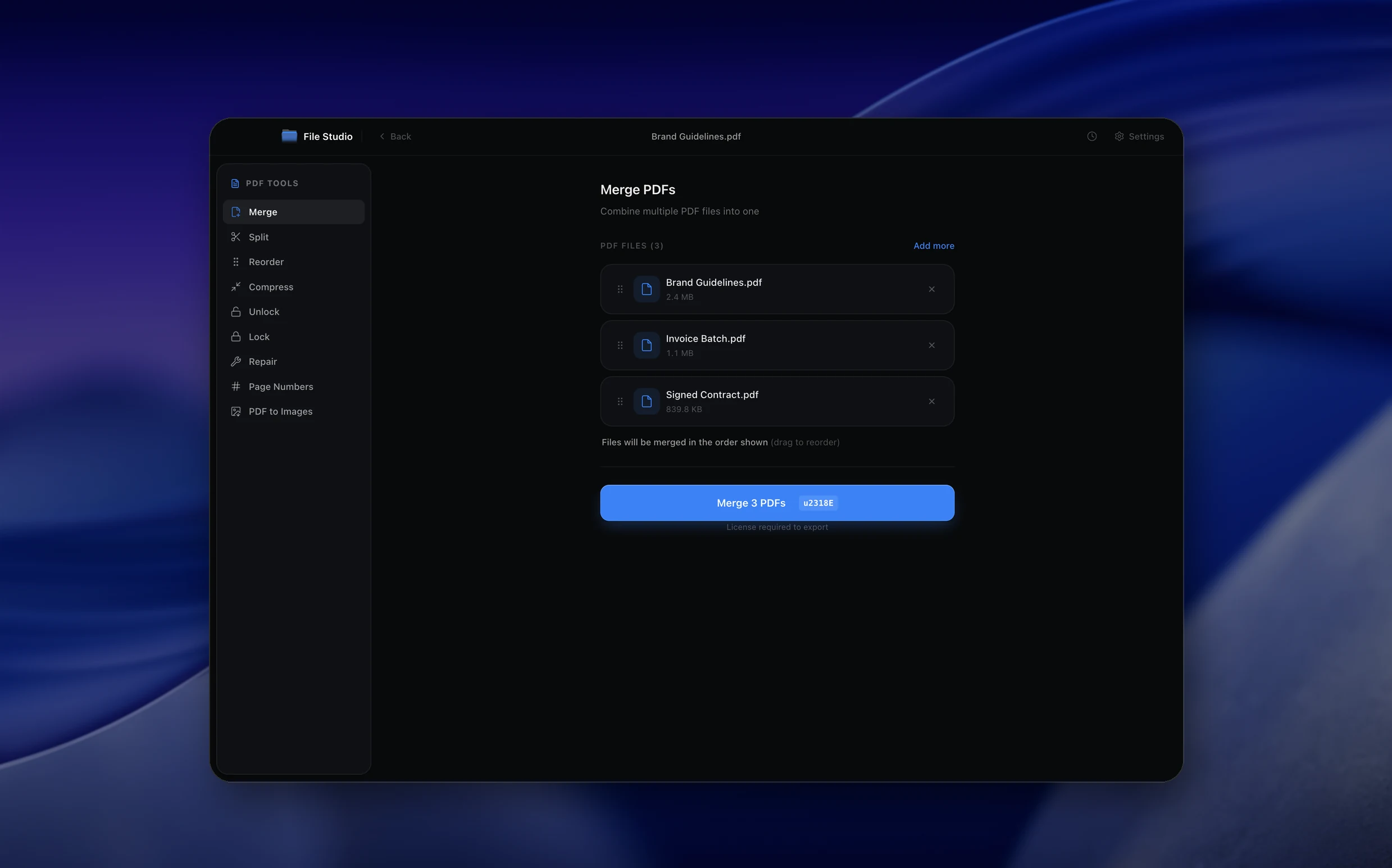
Real File Studio interface, shown in light and dark mode.
Understanding PDF password protection
PDF files support two types of password protection. An 'open' password (also called a user password) prevents anyone from viewing the document without entering the correct password. A 'permissions' password (also called an owner password) allows viewing but restricts actions like printing, copying text, editing, and form filling. A PDF can have one or both types of password applied.
PDF encryption has evolved through several standards. The older 40-bit and 128-bit RC4 encryption methods are considered weak by modern standards and can be bypassed relatively quickly. AES-128 and AES-256 encryption (used in PDF 1.6 and later) are significantly more secure. The encryption method determines how resistant the PDF is to unauthorized access.
Removing a password from a PDF requires knowing the password first. This is not a hacking tool; it is a convenience feature for removing protection from documents you own or have authorized access to. Common reasons include removing the permissions password from a bank statement so you can annotate it, or unlocking a PDF you encrypted yourself and no longer need protected.
How it works
Convert Protected PDF to Unlocked PDF in four simple steps.
The flow mirrors the main File Studio experience: install the app, drop in your files, pick the right tool, and export clean, ready-to-share output. All without sending anything to the cloud.
Install File Studio
Download the app, move it to Applications, and open it. No sign-ups or accounts required.
Add your Protected PDF files
Drag-and-drop your protected pdf files into the window or click to browse from disk.
Choose Protected PDF → Unlocked PDF
Pick the dedicated tool, then adjust resolution, quality, and page range until the preview feels right.
Export & keep working
Select an output folder and run the conversion. Your originals stay untouched on your device.
Best practices for cleaner results
- ·Group related files into folders before converting so your output stays organized and easy to archive.
- ·Use higher resolution presets when you know the result will be printed, zoomed in, or reused in design tools.
- ·Keep an unedited copy of your original Protected PDF files for audits, record-keeping, or compliance workflows.
- ·Combine this tool with other File Studio actions like compress, merge, or split to streamline entire document pipelines.
Why File Studio
Built for trustworthy, everyday Protected PDF to Unlocked PDF work.
You get precise control over the output, predictable file names, and a private workflow that keeps sensitive documents on your own machine.
Features tuned for this conversion
- ·Support for both user passwords and owner restrictions.
- ·Batch unlock multiple PDFs with the same password.
- ·Preview locked PDF pages before unlocking.
Why use File Studio for this conversion?
- ·Remove owner and user passwords from PDFs.
- ·Unlock printing, copying, and editing restrictions.
- ·Process sensitive documents entirely on your device.
Real-world ways people use it
- ·Unlock old bank statements or tax documents for archiving.
- ·Remove restrictions from contracts you've received.
- ·Make protected research papers easier to annotate.
Settings guide
Understanding your conversion options
Password Entry
Enter the document's password to decrypt and unlock it. If the PDF has both an open password and a permissions password, entering either one may be sufficient depending on the tool, though the owner password grants full access.
Restriction Removal
Choose which restrictions to remove: printing, text copying, editing, form filling, or all of them. Some workflows require removing only specific restrictions while maintaining others.
Re-encryption
After removing the password, you can optionally apply a new password with different settings. This is useful when you want to change the password rather than remove protection entirely.
Batch Unlock
If you have multiple PDFs encrypted with the same password (common for bank statements and payroll documents), batch processing can unlock them all at once with a single password entry.
Industry standards and requirements
Financial institutions routinely password-protect statements and tax documents sent via email. The passwords are typically the last four digits of an account number or the recipient's date of birth. Removing these passwords for personal filing is legitimate; redistributing decrypted financial documents may violate terms of service.
In corporate environments, document management systems often apply permissions passwords to control who can print or edit certain documents. These restrictions are part of an information governance strategy. Removing them should follow your organization's policies and may require manager approval.
The PDF specification (ISO 32000-2) defines the encryption algorithms and permission flags in detail. Compliance auditors may check that sensitive documents are encrypted at rest and that decrypted versions are not stored in unprotected locations. When removing passwords for workflow purposes, ensure the unprotected file is stored securely.
Troubleshooting
Common issues and how to fix them
Cannot unlock the PDF because the password is unknown→
Without the correct password, AES-256 encrypted PDFs cannot be decrypted through brute force in any practical timeframe. Contact the document's creator or your IT department to retrieve the password. For older RC4-encrypted PDFs, some recovery tools may be able to help, but this is not guaranteed.
PDF opens but printing and copying are still restricted→
The PDF has a permissions password separate from the open password. You need to enter the owner (permissions) password to remove these restrictions. Simply being able to open and view the document does not grant full access.
Unlocked PDF cannot be opened in some viewers→
The decryption process may have produced a file that a particular viewer cannot parse correctly. Try opening it in a different viewer (Adobe Acrobat, Preview, Chrome's built-in viewer) to isolate whether the issue is with the file or the viewer.
Pricing
Simple, fair pricing.
All tools included. No hidden fees. Processing stays on your device.
Yearly
For short-term projects.
- 1 year of updates
- Image, PDF, SVG, and spreadsheet tools
- Works on Mac & Windows
- All processing done on device
Lifetime
One purchase. Keep it forever.
- Unlimited conversions forever
- 1 year of major updates
- Image, PDF, SVG, and spreadsheet tools
- Watch Folders & Automation
- macOS Notch Drop Zone
- Works on Mac & Windows
Team & Bulk Pricing
Lifetime seats with volume discounts. More seats, bigger discount.
15
lifetime seats
You save
$60
15% off the individual price
Enterprise
50+ seats with custom pricing, centralized license management, and priority support.
FAQ
Frequently asked questions
Can I unlock a PDF if I don't know the password?→
No. File Studio requires you to enter the correct password. It's designed to help you manage documents you already have legitimate access to.
What's the difference between user and owner passwords?→
A user password prevents opening the file. An owner password restricts actions like printing or editing. File Studio can remove both if you know them.
Will removing the password change anything else in my PDF?→
No. File Studio only removes the password protection. All content, formatting, and metadata remain exactly as they were.
Is it legal to remove PDF passwords?→
Removing passwords from documents you own or have permission to access is generally fine. Always respect copyright and access rights.
Can I batch unlock multiple PDFs at once?→
Yes. If multiple PDFs share the same password, you can unlock them all in one operation.
Does the unlocked PDF stay on my device?→
Absolutely. File Studio works 100% offline. Your protected documents never leave your computer.
Looking for something else? Explore more offline conversions with File Studio: