

Split PDF
PDF to Multiple PDFs - Cut big PDFs down to the exact sections you actually need.
Whether you’re sharing just a chapter, a signed page, or a handful of slides, File Studio makes it effortless to split PDFs without risk to your original.
Free trial · No account required · Files stay on your device
All conversions happen locally on your computer. No uploads, no subscriptions, and no background syncing.
PDF → Multiple PDFs
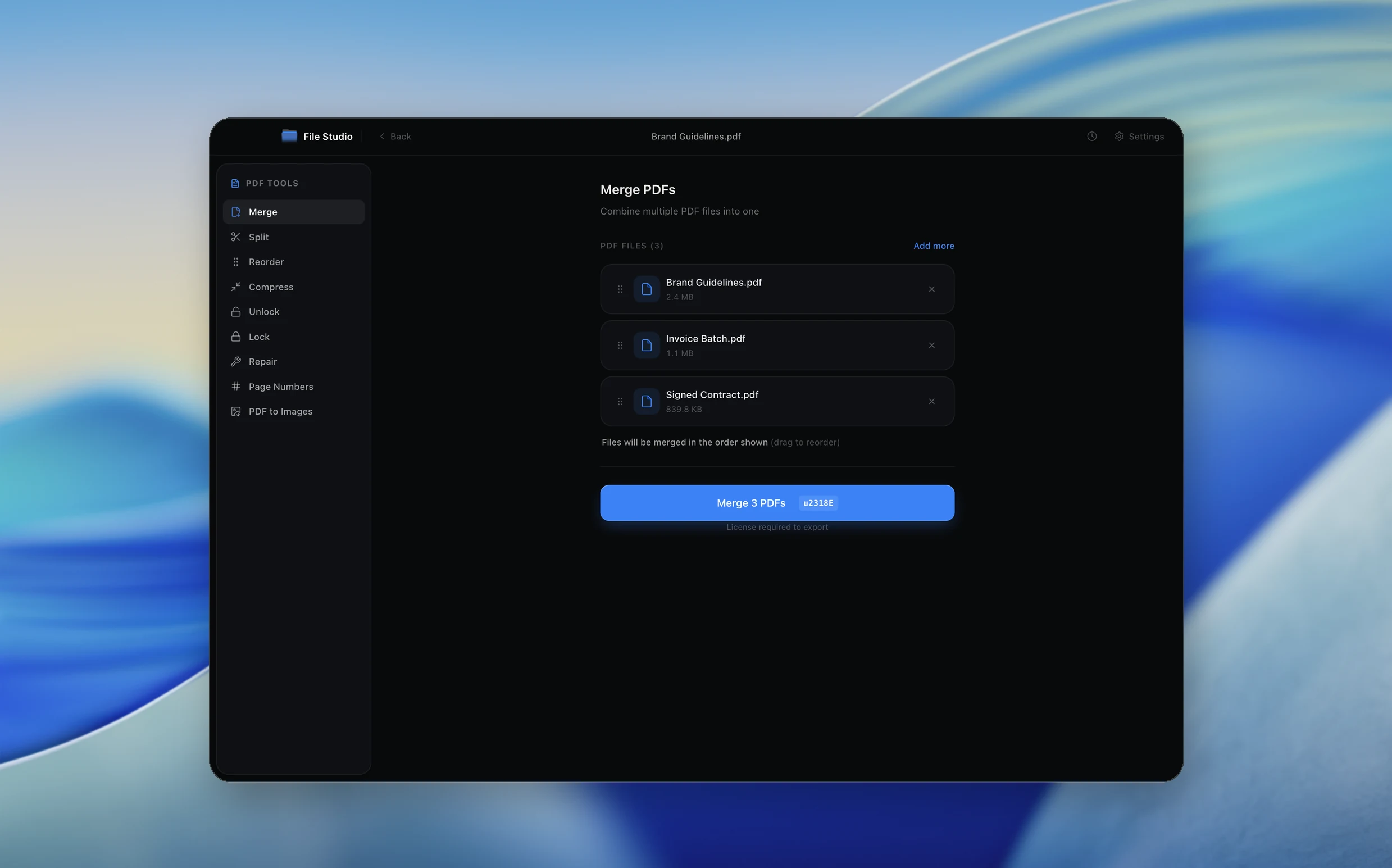
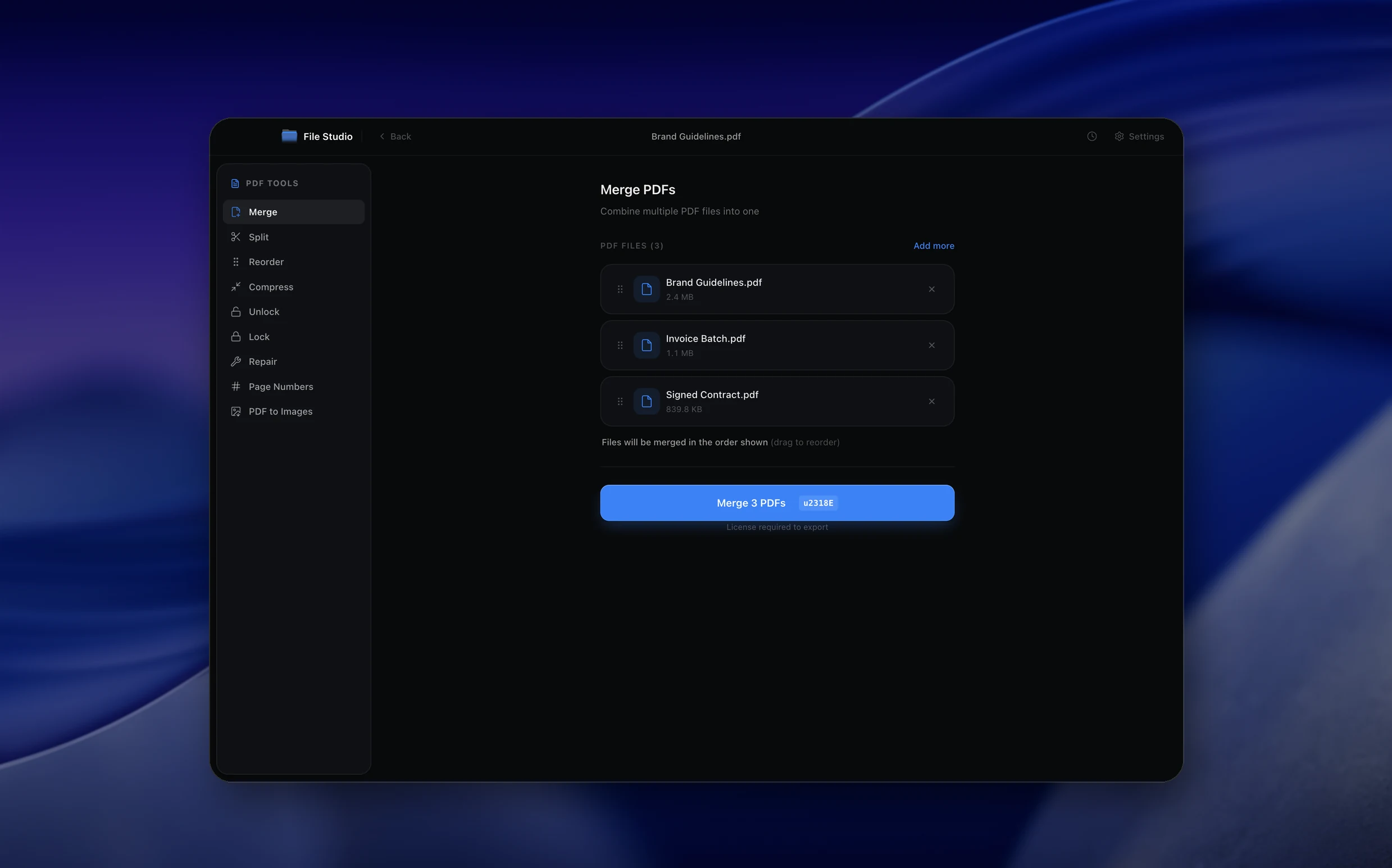
Real File Studio interface, shown in light and dark mode.
Understanding PDF splitting
PDF splitting divides a multi-page PDF into smaller files, either by extracting individual pages, splitting at specific intervals, or separating at bookmark boundaries. The operation creates new PDF files that each contain a subset of the original pages, preserving the visual appearance and interactive elements of the extracted content.
There are several splitting strategies. Single-page extraction creates one PDF per page. Range-based splitting lets you define custom ranges (e.g., pages 1-5 as one file, 6-10 as another). Interval splitting divides the document every N pages. Bookmark-based splitting creates separate files at each top-level bookmark, which is useful for documents with clearly defined chapters or sections.
Splitting is the complement of merging and is equally common in document workflows. Typical use cases include extracting a signature page from a contract, isolating individual chapters from a textbook, separating a batch-scanned stack into individual documents, and pulling specific pages for translation or review.
How it works
Convert PDF to Multiple PDFs in four simple steps.
The flow mirrors the main File Studio experience: install the app, drop in your files, pick the right tool, and export clean, ready-to-share output. All without sending anything to the cloud.
Install File Studio
Download the app, move it to Applications, and open it. No sign-ups or accounts required.
Add your PDF files
Drag-and-drop your pdf files into the window or click to browse from disk.
Choose PDF → Multiple PDFs
Pick the dedicated tool, then adjust resolution, quality, and page range until the preview feels right.
Export & keep working
Select an output folder and run the conversion. Your originals stay untouched on your device.
Best practices for cleaner results
- ·Group related files into folders before converting so your output stays organized and easy to archive.
- ·Use higher resolution presets when you know the result will be printed, zoomed in, or reused in design tools.
- ·Keep an unedited copy of your original PDF files for audits, record-keeping, or compliance workflows.
- ·Combine this tool with other File Studio actions like compress, merge, or split to streamline entire document pipelines.
Why File Studio
Built for trustworthy, everyday PDF to Multiple PDFs work.
You get precise control over the output, predictable file names, and a private workflow that keeps sensitive documents on your own machine.
Features tuned for this conversion
- ·Split by fixed page ranges, bookmarks, or hand‑picked selections.
- ·Name output files using patterns that include page numbers.
- ·Keep a log of which sections were exported for compliance.
Why use File Studio for this conversion?
- ·Split PDFs by fixed ranges or custom page selections.
- ·Create new documents for each chapter, section, or topic.
- ·Keep your source file untouched while exporting clean splits.
Real-world ways people use it
- ·Share a single section of a large report with collaborators.
- ·Send only the signed pages of a contract to a partner.
- ·Break long manuals into focused, easier‑to‑navigate PDFs.
Settings guide
Understanding your conversion options
Split Mode
Choose between extracting specific pages, splitting every N pages, splitting by file size, or splitting at bookmark boundaries. The right mode depends on whether you know exactly which pages you need or want automatic segmentation.
Page Ranges
Specify ranges using standard notation: '1-5, 8, 12-15' extracts those pages into separate files or a single file, depending on the mode. Reverse ranges (e.g., '15-12') are typically not supported; list pages in ascending order.
Output Naming
Configure how output files are named. Common patterns include the original filename plus a page range suffix (e.g., report_pages_1-5.pdf), sequential numbering (part_01.pdf, part_02.pdf), or bookmark titles for bookmark-based splits.
Preserve Metadata
Decide whether each split file inherits the original document's metadata (author, title, creation date) or receives clean metadata. Inheriting metadata keeps context; clearing it is useful when the split files will be treated as independent documents.
Industry standards and requirements
Law firms routinely split large deposition transcripts and discovery packages into manageable sections for review by different attorneys. E-discovery platforms often ingest documents page-by-page, making single-page splitting a common pre-processing step. Maintaining original page numbering in the split files helps maintain accurate cross-references during litigation.
In publishing, book manuscripts are often split by chapter for separate editing, translation, or typesetting. Each chapter file must maintain consistent formatting and font embedding. Publishers sometimes use bookmark-based splitting to automate this process from a single master PDF.
Government agencies that handle large regulatory filings split submissions into sections to route them to different reviewers. Splitting by file size (e.g., under 10 MB each) ensures each section can be emailed individually. The page numbering in each split section should clearly indicate its position within the original document.
Troubleshooting
Common issues and how to fix them
Split files are larger than expected relative to the original→
Each split PDF may embed all fonts from the original document, even if a given page only uses a subset. Run split files through a compressor to remove unused embedded resources.
Hyperlinks between pages break after splitting→
Internal links that point to pages now in a different split file will stop working because the target page no longer exists in the same document. This is an inherent limitation of splitting; convert cross-file links to external URLs if needed.
Blank pages appear in the split output→
The original PDF may contain intentional blank pages (common in print-ready documents for duplex printing). Review the source document to confirm which pages are blank and adjust your page ranges to exclude them if desired.
Pricing
Simple, fair pricing.
All tools included. No hidden fees. Processing stays on your device.
Yearly
For short-term projects.
- 1 year of updates
- Image, PDF, SVG, and spreadsheet tools
- Works on Mac & Windows
- All processing done on device
Lifetime
One purchase. Keep it forever.
- Unlimited conversions forever
- 1 year of major updates
- Image, PDF, SVG, and spreadsheet tools
- Watch Folders & Automation
- macOS Notch Drop Zone
- Works on Mac & Windows
Team & Bulk Pricing
Lifetime seats with volume discounts. More seats, bigger discount.
15
lifetime seats
You save
$60
15% off the individual price
Enterprise
50+ seats with custom pricing, centralized license management, and priority support.
FAQ
Frequently asked questions
Does splitting a PDF copy or remove pages?→
Splitting always creates new PDFs; it never deletes pages from your original document.
Can I split into both small groups and single pages?→
Yes. You can define multiple ranges and export them together so you get exactly the files you need.
Can I name the split files in a consistent way?→
Yes. You can use naming patterns that include page numbers or range labels so each exported PDF is easy to identify.
Is there a limit to how many parts I can split a PDF into?→
You can split very large PDFs into many separate documents. The practical limit is usually your disk space rather than File Studio itself.
Can I split a PDF by chapter or section automatically?→
If your PDF uses bookmarks or clear ranges, you can split by those boundaries to create chapter‑level documents in one pass.
Will my original PDF be changed after splitting?→
No. The split operation always works on a copy and leaves your original file intact so you can repeat or adjust splits later.
Looking for something else? Explore more offline conversions with File Studio: