

Batch Operations
Multiple Images to Processed Images - Process hundreds of images with a single workflow.
File Studio's batch processing lets you apply the same conversion, resize, or compression settings to entire folders - saving hours of manual work.
Free trial · No account required · Files stay on your device
All conversions happen locally on your computer. No uploads, no subscriptions, and no background syncing.
Multiple Images → Processed Images
Real File Studio interface, shown in light and dark mode.
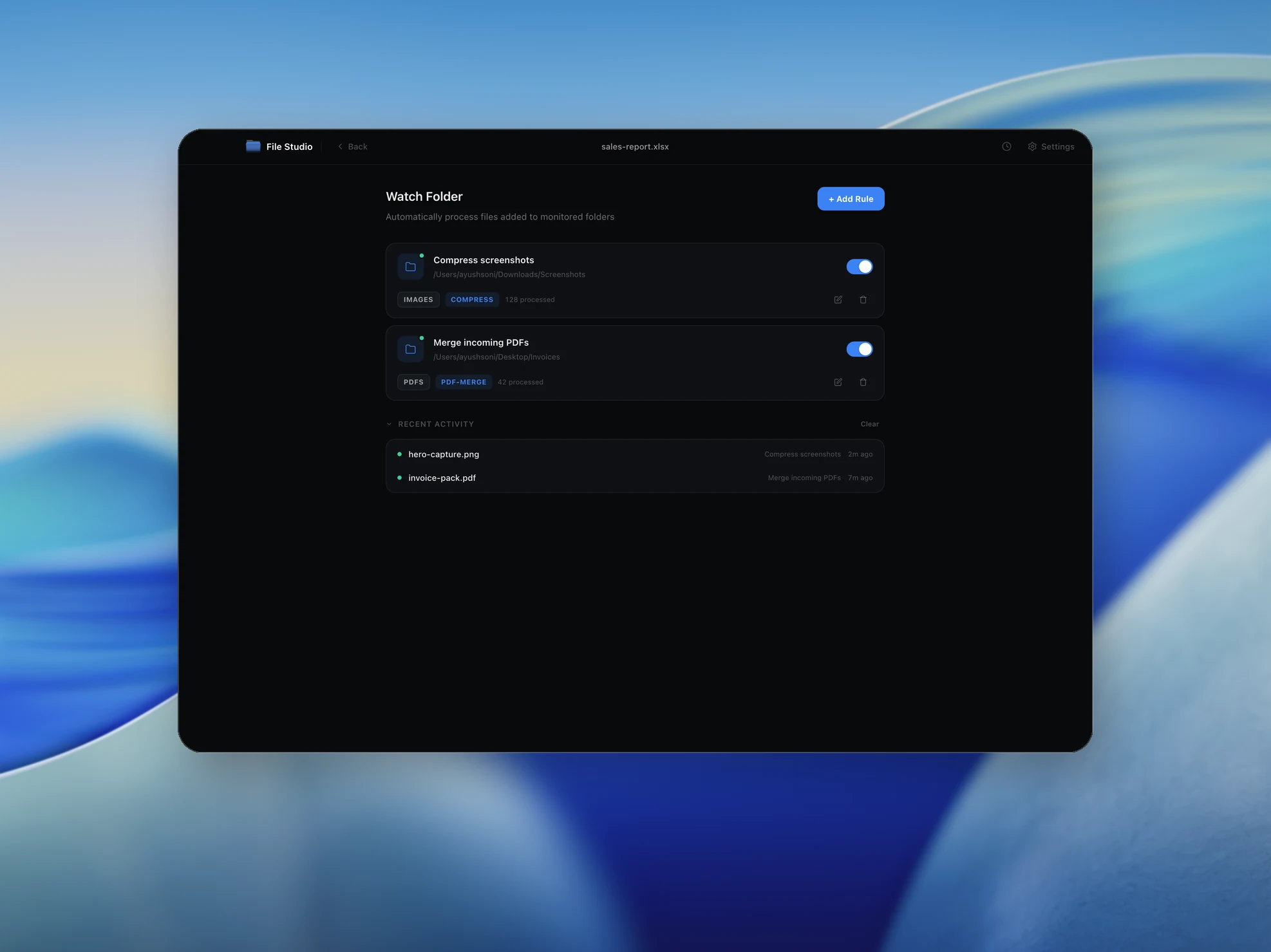
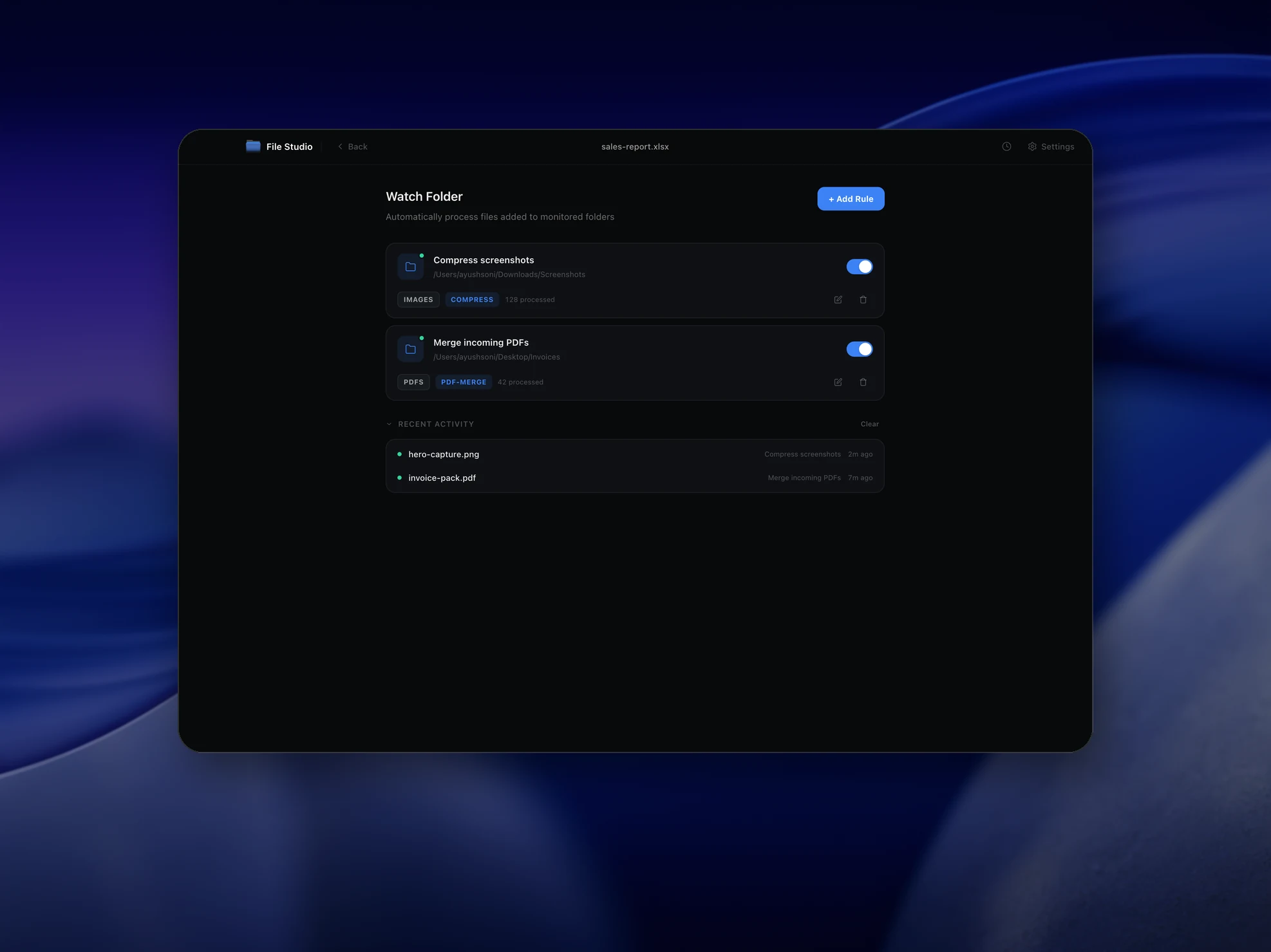
Understanding batch operations
Batch processing is the practice of applying the same operation to a collection of files in a single run rather than processing them one at a time. The concept dates to the earliest mainframe computers, which queued punch card jobs into batches to maximize CPU utilization. Modern desktop batch tools follow the same principle: define an operation, point it at a list of files, and let the computer work through them while the user does something else.
Effective batch processing depends on three things: parallelism, error isolation, and progress reporting. Parallelism means running multiple operations simultaneously to use all available CPU cores; a 10-core machine can process 10 files in parallel and finish a batch in roughly one tenth of the time of serial processing. Error isolation means a single failed file does not abort the entire batch; failures are recorded and the remaining files continue processing. Progress reporting tells the user how many files are done, how many remain, and the estimated time to completion.
Batch operations on local hardware are usually I/O bound rather than CPU bound, especially for image and PDF conversions. Reading and writing files is slow compared to the computation, so the optimal level of parallelism is usually equal to the number of CPU cores or slightly higher. Going beyond that does not improve throughput because the disk becomes saturated. SSDs handle parallel I/O much better than spinning disks, which is why batch performance on modern Macs and PCs has improved dramatically since the SSD transition.
How it works
Convert Multiple Images to Processed Images in four simple steps.
The flow mirrors the main File Studio experience: install the app, drop in your files, pick the right tool, and export clean, ready-to-share output. All without sending anything to the cloud.
Install File Studio
Download the app, move it to Applications, and open it. No sign-ups or accounts required.
Add your Multiple Images files
Drag-and-drop your multiple images files into the window or click to browse from disk.
Choose Multiple Images → Processed Images
Pick the dedicated tool, then adjust resolution, quality, and page range until the preview feels right.
Export & keep working
Select an output folder and run the conversion. Your originals stay untouched on your device.
Best practices for cleaner results
- ·Group related files into folders before converting so your output stays organized and easy to archive.
- ·Use higher resolution presets when you know the result will be printed, zoomed in, or reused in design tools.
- ·Keep an unedited copy of your original Multiple Images files for audits, record-keeping, or compliance workflows.
- ·Combine this tool with other File Studio actions like compress, merge, or split to streamline entire document pipelines.
Why File Studio
Built for trustworthy, everyday Multiple Images to Processed Images work.
You get precise control over the output, predictable file names, and a private workflow that keeps sensitive documents on your own machine.
Features tuned for this conversion
- ·Queue multiple operations to run sequentially.
- ·Progress tracking with estimated completion time.
- ·Automatic file naming with customizable patterns.
Why use File Studio for this conversion?
- ·Convert entire folders between formats in one click.
- ·Batch resize with consistent dimensions or ratios.
- ·Compress all images with the same quality settings.
Real-world ways people use it
- ·Convert a folder of HEIC photos to JPG for sharing.
- ·Resize an entire product catalog to web-ready dimensions.
- ·Compress event photos before uploading to galleries.
Settings guide
Understanding your conversion options
Concurrency Level
How many files to process in parallel. The default is usually the number of CPU cores. Increase for I/O-bound operations on fast SSDs; decrease if the system becomes unresponsive or runs out of memory. A 10-core machine with 32 GB RAM can typically handle 10 to 20 concurrent operations on small files.
Source Selection
Choose files explicitly, drag a folder, or use a glob pattern to match files by name and extension. Recursive selection includes subfolders, which is useful for batch-converting an entire photo library. Filters by date or size further narrow the set.
Output Naming
Pattern-based names control how output files are named. Common tokens are {name} (original filename without extension), {ext} (new extension), {n} (sequence number), {date}, and {parent} (parent folder name). Example: '{parent}-{n}.jpg' produces 'vacation-001.jpg', 'vacation-002.jpg'.
Error Handling
Choose between stop-on-first-error (abort the batch if any file fails), skip-and-continue (record the error and move on), or retry-with-backoff (try again after a short delay). Skip-and-continue is the most common for batches of dozens or hundreds of files, with a final report listing failures.
Output Location
Same folder as source (suffix added to avoid collision), a sibling folder, or a completely separate destination. Same-folder output is convenient but risks cluttering. Separate destinations keep originals untouched and produce a clean output directory ready for delivery.
Industry standards and requirements
Photography workflows commonly batch process hundreds or thousands of images at a time. Lightroom, Capture One, and similar applications use batch operations as the core productivity feature: import, develop, export. Wedding photographers routinely run overnight batches to convert RAW files into client-ready JPEGs, applying consistent color grading, watermarks, and resizing in a single pass.
ETL (Extract, Transform, Load) pipelines in data engineering operate on the same batch principle but with structured data instead of files. Tools like Apache Airflow, Prefect, and dbt schedule daily or hourly batches that read source data, transform it, and load it into a warehouse. The same primitives (parallelism, error isolation, retry, progress reporting) apply at scale, processing terabytes of data per run.
Print and packaging production lines use batch processing for prepress operations. A typical commercial printer receives hundreds of customer files per day and runs them through preflight checks, color conversion to CMYK, imposition, and proofing. Standards like PDF/X-4 (ISO 15930) define the exact output format, and the batch process must validate every file against the standard before forwarding to plate-making.
Troubleshooting
Common issues and how to fix them
Batch slows the entire computer to a crawl→
Concurrency is too high or memory is exhausted. Reduce the number of parallel operations to half the CPU core count. Close other applications. For very large files (multi-hundred-MB images or 4K video), drop concurrency to 2 or 3 even on high-core-count machines.
Some files fail and the batch stops→
Switch error handling to skip-and-continue mode so failures do not abort processing. Review the error report after the batch completes to identify which files failed and why. Common causes are corrupt source files, unreadable permissions, or unsupported variants of the input format.
Output files have unexpected names→
Check the naming pattern. Tokens are case-sensitive and must match exactly. Test with a small subset of files first to verify the pattern produces the desired names before running the full batch. Avoid patterns that can produce duplicate names, which cause overwrites.
Batch finishes faster than expected with no output→
The file pattern may have matched zero files, or the output directory was set to a path that does not exist. Check the source selection log and verify the output destination is writable. Most tools display a count of files processed; if the count is zero, the input filter is wrong.
Pricing
Simple, fair pricing.
All tools included. No hidden fees. Processing stays on your device.
Yearly
For short-term projects.
- 1 year of updates
- Image, PDF, SVG, and spreadsheet tools
- Works on Mac & Windows
- All processing done on device
Lifetime
One purchase. Keep it forever.
- Unlimited conversions forever
- 1 year of major updates
- Image, PDF, SVG, and spreadsheet tools
- Watch Folders & Automation
- macOS Notch Drop Zone
- Works on Mac & Windows
Team & Bulk Pricing
Lifetime seats with volume discounts. More seats, bigger discount.
15
lifetime seats
You save
$60
15% off the individual price
Enterprise
50+ seats with custom pricing, centralized license management, and priority support.
FAQ
Frequently asked questions
How many images can I batch process at once?→
There's no hard limit - process hundreds or thousands of images depending on your computer's resources.
Can I combine multiple operations in one batch?→
Yes. You can convert format, resize, and compress all in a single batch run for maximum efficiency.
How are output files named?→
Choose from original names, sequential numbering, or custom patterns with prefixes and suffixes.
Can I pause or cancel a batch operation?→
Yes. You can pause, resume, or cancel batch processing at any time. Completed files are preserved.
Does batch processing maintain folder structure?→
You can choose to maintain the original folder structure or flatten all output into a single directory.
Are batch operations faster than processing individually?→
Much faster. File Studio optimizes batch processing to handle multiple images efficiently with minimal overhead.
Looking for something else? Explore more offline conversions with File Studio: