

Online Batch Converters alternative
Batch convert images on your desktop, not in a browser tab.
Online batch converters let you convert multiple images at once, but they still require uploading every file, waiting for server processing, and downloading the results. For large batches, this is painfully slow. File Studio handles batch image conversion locally, processing hundreds of files in the time it would take to upload a fraction of them.
Works 100% offline on both Windows and Mac.
Online Batch Converters
Requires internet and file uploads to work.
Why people use Online Batch Converters
Online batch image converters address a specific workflow need: converting multiple images from one format to another in a single operation. Services like Convertio, Online-Convert.com, FreeConvert, and various others let you upload a batch of images, select a target format, and download the converted files as a ZIP archive. For users who need to convert more than one or two images at a time, batch capability is a meaningful upgrade over one-at-a-time converters.
The typical users of batch image converters include web developers preparing image assets for deployment, photographers converting between file types for different clients or platforms, e-commerce teams processing product photos for online stores, and content creators who need images in specific formats for different social media platforms. The common thread is a need to process multiple files efficiently rather than one at a time.
The practical limitations of online batch converters center on volume and speed. Free tiers typically limit batches to 10 to 50 files per session. Uploading a batch of high-resolution images takes time proportional to their total size and your internet connection speed. Server-side processing adds its own delay. Downloading the converted results takes additional time. For a batch of 100 large images, the entire upload, convert, download cycle can take 20 to 30 minutes or more, during which you are dependent on your internet connection and the service's server capacity.
File Studio processes batch conversions locally on your computer, which fundamentally changes the speed equation. There is no upload time because files do not leave your device. Processing uses your local CPU, which for modern hardware is faster than most online services. There is no download step because results are written directly to your disk. A batch that takes 30 minutes through an online service can complete in 2 to 3 minutes locally. Combined with no batch size limits, no file size restrictions, and complete privacy for your images, local batch conversion is a significant upgrade over the online approach.
The economics of online batch conversion also favor a local tool for regular users. Premium plans at $5 to $15 per month add up to $60 to $180 per year. File Studio's one-time $29 price provides unlimited batch conversions for life. Even users who only process a few batches per month will recoup the cost within a few months compared to a premium online service. For photographers, designers, and e-commerce teams who process batches weekly or daily, the savings are immediate and substantial.
Side-by-side comparison
File Studio vs Online Batch Converters
| Feature | Online Batch Converters | File Studio |
|---|---|---|
| Works offline | No, web-based | Yes, fully offline |
| File privacy | All images uploaded to third-party servers | Images never leave your device |
| Batch size limits | Typically 10-50 files per batch on free tiers | No batch size limits |
| Processing speed | Bottlenecked by upload speed and server queue | Full local speed; limited only by your hardware |
| Format support | Varies; usually JPG, PNG, WebP | JPG, PNG, WebP, HEIC, PDF, SVG, and more |
| Output customization | Limited quality and size controls | Full control over quality, resolution, and naming |
| Watch folders | Not available | Auto-convert files dropped into watched folders |
| Price | Free with limits; premium $5-15/month | $29 one-time or $15/year |
Why switch
What you get with File Studio instead
Process hundreds of images in minutes instead of spending time on uploads and downloads.
No batch size limits. Convert 10 images or 10,000 in a single operation.
Watch folder feature automatically converts new files as they are added to a specific directory.
Full control over output quality, resolution, naming conventions, and destination folders.
Your images stay on your device throughout the entire process.
Convert between formats that online tools often overlook, like HEIC-to-WebP or PNG-to-JPG with custom quality settings.
Pricing
Online batch converters typically offer 10 to 50 free conversions per session, with premium plans at $5 to $15 per month for higher limits. File Studio's one-time $29 price includes unlimited batch conversions with no per-file or per-session caps. For photographers, designers, and web developers who convert images regularly, the savings are immediate.
In-depth look
Feature breakdown: Online Batch Converters vs File Studio
PDF tools comparison
Online batch image converters are focused on image formats and generally do not include PDF manipulation tools. Some, like Convertio and Online-Convert, support converting images to PDF as one of the output format options, but dedicated PDF operations like merging, splitting, and compressing are outside their scope.
File Studio includes PDF tools as a core part of the application. Merging, splitting, compressing, converting between PDF and image formats, and password removal are all available alongside the image conversion tools. For users whose workflow involves both image batch conversion and PDF operations, having everything in one application eliminates the need to switch between different services.
This is a meaningful practical advantage. A web developer who converts a batch of PNG files to WebP for a website launch may also need to merge a set of PDF invoices or compress a large PDF report. File Studio handles both types of tasks in the same application.
Image handling
Online batch converters typically support conversion between common image formats: JPG, PNG, GIF, BMP, TIFF, and sometimes WebP and SVG. The conversion settings are usually limited to basic quality sliders and output resolution fields. Some services offer additional options like resizing and cropping during conversion, though these tend to be basic compared to dedicated image editing tools.
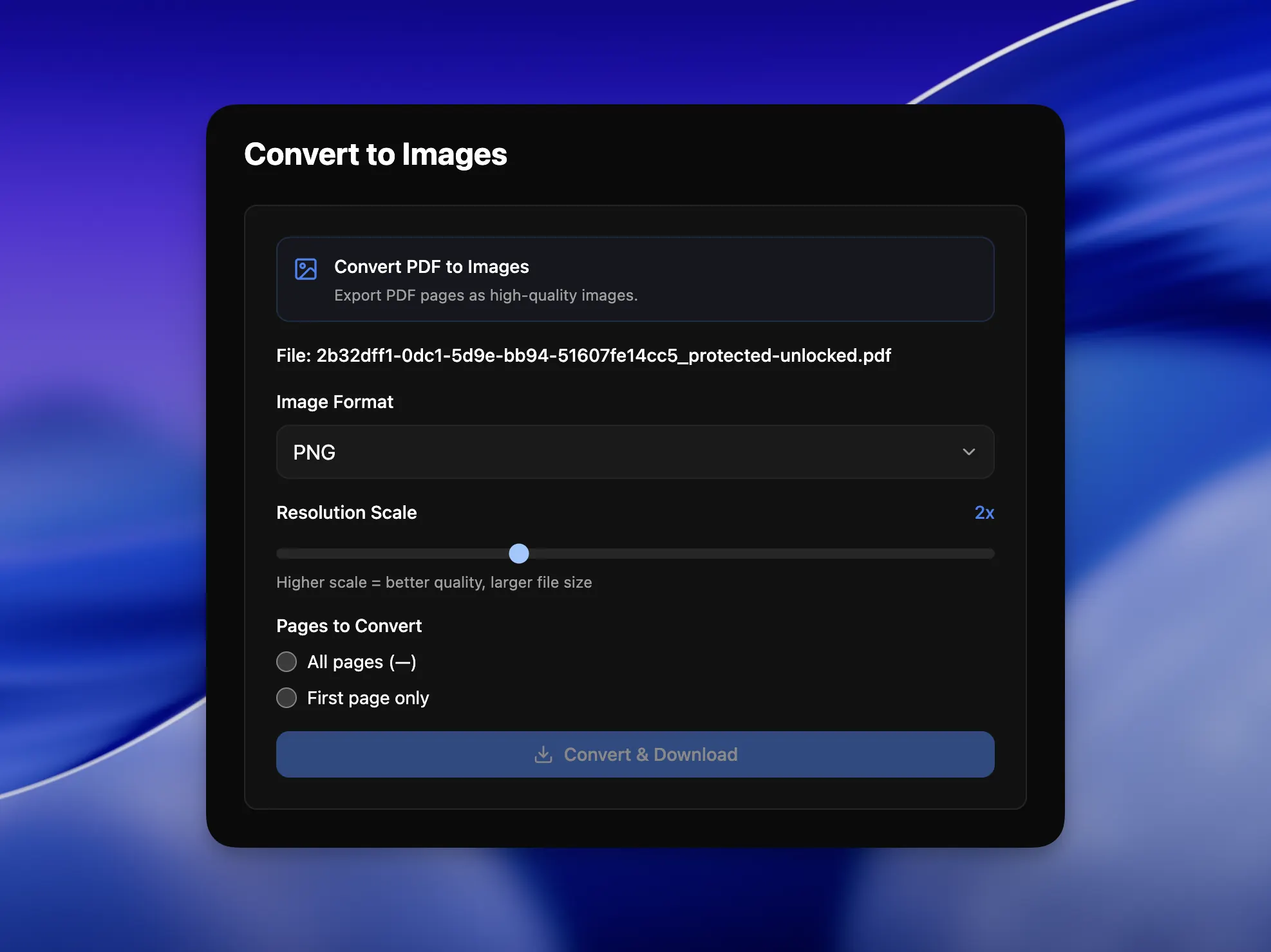
File Studio's batch conversion supports JPG, PNG, WebP, HEIC, PDF, SVG, and other formats with comprehensive controls over output quality, resolution, and naming. Beyond format conversion, File Studio also provides batch resizing with aspect ratio controls, image compression with target quality settings, cropping, watermarking, and collage creation. The watch folder feature can automatically convert new files as they are added to a designated directory, which is useful for photography workflows and content pipelines.
The depth of File Studio's image tools goes well beyond what online batch converters offer. The combination of conversion, resizing, compression, and watermarking in a single batch workflow means you can prepare fully optimized, watermarked images in the exact dimensions and format you need, all in one operation rather than running images through multiple separate tools.
The watch folder feature in File Studio deserves particular attention for batch workflows. You can designate a folder on your computer as a monitored directory. When new images are added to that folder, File Studio automatically converts them to your specified format and settings. This is powerful for photography workflows where images are imported from a camera or phone, for content pipelines where assets arrive in one format and need to be delivered in another, and for any scenario where manual batch initiation is a bottleneck. No online batch converter can replicate this automated, local workflow.
Output naming and organization is another area where File Studio excels in batch scenarios. You can configure naming patterns for converted files, including sequential numbers, prefixes, suffixes, and directory structures. When converting 200 product images, having them automatically named and sorted into the right folders saves significant manual organizing work compared to downloading a ZIP from an online converter and renaming everything by hand.
Privacy and data handling
Online batch converters require uploading all images in the batch to their servers. For a batch of 50 images, that is 50 files traveling over the internet and sitting on third-party infrastructure during processing. The total data exposure increases linearly with batch size. Services vary in their data retention policies, with some deleting files after a few hours and others retaining them longer.
For batches that include product photos, client work, or any images with confidentiality requirements, the upload of an entire batch amplifies the privacy concern compared to uploading a single file. A data breach that exposes a batch of 100 product photos is worse than one that exposes a single image. The batch use case makes privacy practices more important, not less.
File Studio processes all batch operations locally. Whether you are converting 10 images or 10,000, nothing leaves your computer. The files move from their source directory to the output directory without any network involvement. This is the most secure approach possible for batch image processing, and it also happens to be the fastest.
Honest take
What you give up by switching
- *Online batch converters require no installation and work from any device with a web browser.
- *Some online converters support format pairs and specialized formats that File Studio may not handle.
- *Online batch converters offer free tiers for small batches, which may be sufficient for occasional light use.
- *Online converters are accessible from mobile devices and tablets where File Studio cannot run.
- *File Studio requires a $29 purchase, while occasional users may get by with free online tools.
Decision guide
Which tool is right for you?
You need to convert a small batch of non-sensitive images quickly and have no software available
An online batch converter works for occasional small batches where privacy is not a concern and time is not critical.
You regularly convert large batches of images and need fast, unlimited processing
Use File Studio. Local processing is dramatically faster than upload/convert/download cycles, and there are no batch size limits.
You need a watch folder that automatically converts images as they arrive
Use File Studio. Its watch folder feature monitors a directory and converts new files automatically, which online converters cannot replicate.
You process product photos, client work, or any images that should stay confidential
Use File Studio. Batch-uploading confidential images to a third-party server multiplies the privacy risk. Local processing eliminates it entirely.
Pricing
Simple, fair pricing.
All tools included. No hidden fees. Processing stays on your device.
Yearly
For short-term projects.
- 1 year of updates
- Image, PDF, SVG, and spreadsheet tools
- Works on Mac & Windows
- All processing done on device
Lifetime
One purchase. Keep it forever.
- Unlimited conversions forever
- 1 year of major updates
- Image, PDF, SVG, and spreadsheet tools
- Watch Folders & Automation
- macOS Notch Drop Zone
- Works on Mac & Windows
Team & Bulk Pricing
Lifetime seats with volume discounts. More seats, bigger discount.
15
lifetime seats
You save
$60
15% off the individual price
Enterprise
50+ seats with custom pricing, centralized license management, and priority support.
FAQ
Frequently asked questions
How fast is batch conversion in File Studio?→
Speed depends on your computer's processor and the size of the images, but local processing is consistently faster than upload-convert-download workflows. A modern Mac or Windows PC can convert hundreds of images in a few minutes.
What is the watch folder feature?→
You can designate a folder on your computer as a watch folder. When new images are added to that folder, File Studio automatically converts them to your chosen format. This is useful for photography workflows, automated imports, and content pipelines.
Can I convert images and resize them at the same time?→
Yes. File Studio can batch convert formats and resize images in the same operation. You can set target dimensions, maintain aspect ratios, and apply consistent sizing across all files in the batch.
Does File Studio rename files during batch conversion?→
Yes. You can configure naming rules for batch output, including sequential numbering, prefix/suffix additions, and more. This keeps your converted files organized.
Can File Studio convert RAW camera files?→
File Studio focuses on standard image formats like JPG, PNG, WebP, and HEIC. For RAW file conversion from cameras, a dedicated RAW processor like Adobe Lightroom or Capture One is more suitable.
Is there a limit on how many files I can convert at once?→
There is no software-imposed limit. The practical limit depends on your computer's memory and storage. Users routinely batch-convert thousands of files in a single session.
@ayysoni · March 13, 2026
Related File Studio tools you might find useful:
Compare File Studio with other tools: