

PDF to JPG converter
PDF to JPG - Export crisp JPG images from any PDF document, 100% offline.
Convert single pages or entire documents into ready‑to‑share JPGs without uploading anything to the cloud. Ideal for identity documents, receipts, and annotated PDFs you need as images.
Free trial · No account required · Files stay on your device
All conversions happen locally on your computer. No uploads, no subscriptions, and no background syncing.
PDF → JPG
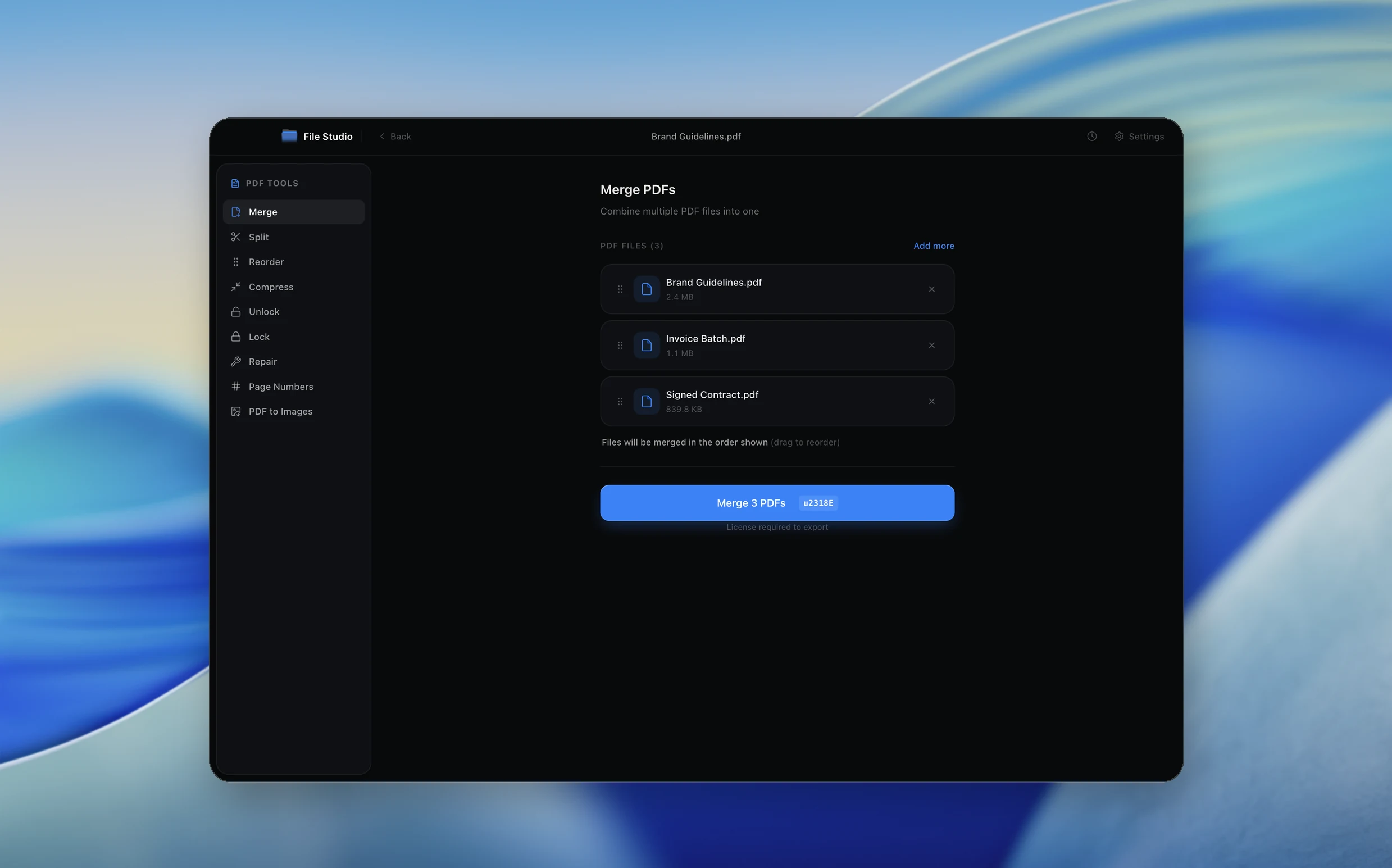
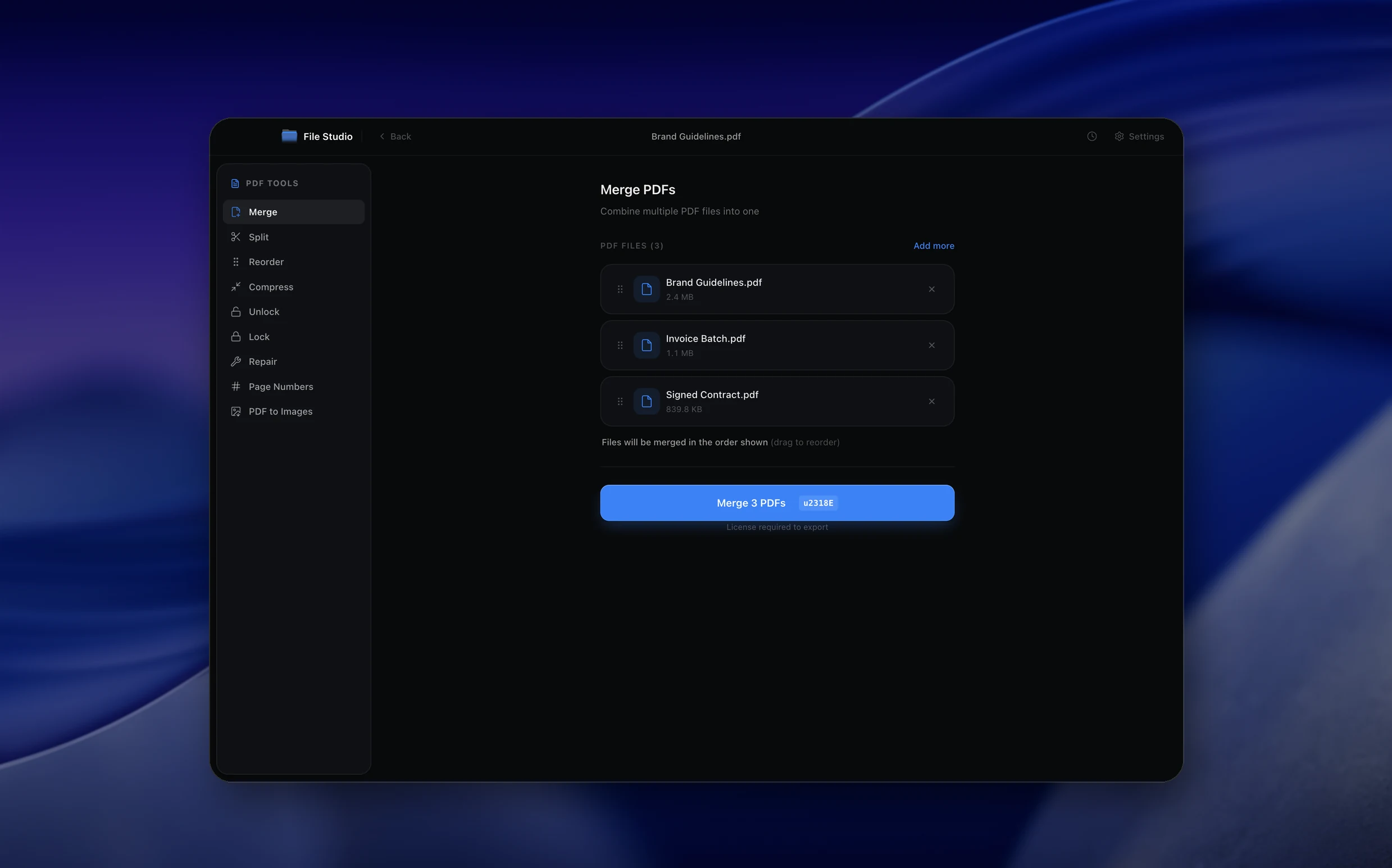
Real File Studio interface, shown in light and dark mode.
Understanding the JPG format
JPG (also written JPEG) is the most widely used lossy image format on the web and across consumer devices. It was developed by the Joint Photographic Experts Group and standardized in 1992 as a way to compress photographic images to a fraction of their original size while preserving acceptable visual quality. JPG supports 24-bit color (roughly 16.7 million colors) and uses a discrete cosine transform (DCT) compression algorithm that discards fine details the human eye is less likely to notice.
One important limitation of JPG is that it does not support transparency. Any transparent regions in a source PDF will be composited against a solid background, typically white, during conversion. JPG also does not support multiple pages in a single file, so each page of a PDF becomes a separate JPG image. Despite these constraints, JPG remains the default choice when file size and universal compatibility matter more than pixel-perfect fidelity.
JPG files are supported by every major operating system, web browser, email client, and social media platform. This near-universal compatibility makes PDF-to-JPG conversion one of the most common document workflows, whether you need to embed a page in a presentation, upload a receipt to a web form, or share a signed contract preview over chat.
How it works
Convert PDF to JPG in four simple steps.
The flow mirrors the main File Studio experience: install the app, drop in your files, pick the right tool, and export clean, ready-to-share output. All without sending anything to the cloud.
Install File Studio
Download the app, move it to Applications, and open it. No sign-ups or accounts required.
Add your PDF files
Drag-and-drop your pdf files into the window or click to browse from disk.
Choose PDF → JPG
Pick the dedicated tool, then adjust resolution, quality, and page range until the preview feels right.
Export & keep working
Select an output folder and run the conversion. Your originals stay untouched on your device.
Best practices for cleaner results
- ·Group related files into folders before converting so your output stays organized and easy to archive.
- ·Use higher resolution presets when you know the result will be printed, zoomed in, or reused in design tools.
- ·Keep an unedited copy of your original PDF files for audits, record-keeping, or compliance workflows.
- ·Combine this tool with other File Studio actions like compress, merge, or split to streamline entire document pipelines.
Why File Studio
Built for trustworthy, everyday PDF to JPG work.
You get precise control over the output, predictable file names, and a private workflow that keeps sensitive documents on your own machine.
Features tuned for this conversion
- ·Adjust output resolution and DPI for crystal‑clear printed JPGs.
- ·Export every page as its own image or flatten the full spread.
- ·Preserve page order with predictable, numbered filenames.
Why use File Studio for this conversion?
- ·Choose specific pages or export entire PDFs as a batch of JPGs.
- ·Fine‑tune resolution and compression so images stay sharp but lightweight.
- ·Keeps original PDF on your device - nothing is ever uploaded.
Real-world ways people use it
- ·Turn a signed contract into JPGs for quick previews or embeds.
- ·Export passport or ID scans as images for online forms.
- ·Share specific PDF pages as screenshots without manually cropping.
Settings guide
Understanding your conversion options
Resolution (DPI)
DPI (dots per inch) controls how many pixels represent each inch of the PDF page. For on-screen viewing and web use, 150 DPI is usually sufficient. For printing, choose 300 DPI. For large-format printing or archival scans, 600 DPI produces the sharpest results but significantly increases file size.
Quality / Compression
JPG quality is typically expressed on a scale from 0 to 100. A setting of 85 provides an excellent balance between sharp visuals and small file size. Values above 95 yield diminishing returns and large files. Values below 60 introduce visible artifacts, especially around text and sharp edges.
Page Range
When converting a multi-page PDF, you can export all pages, a specific range (e.g., pages 3 to 7), or individual pages. Each selected page becomes its own JPG file. Exporting only the pages you need saves time and disk space.
Background Color
Because JPG does not support transparency, any transparent areas in the PDF are filled with a background color. White is the default and works well for most documents. You can choose a different color if the images will be placed on a colored background.
Color Space
Most screens display RGB color, which is the default output. If your source PDF uses CMYK (common in print-ready files), the converter maps colors to RGB. Be aware that some vivid print colors may shift slightly during this conversion.
Industry standards and requirements
In professional printing, JPGs exported from PDFs should be at least 300 DPI at the final print size to avoid visible pixelation. Many print shops accept JPG proofs but require the original PDF for final production. When submitting JPG proofs, use quality 90 or above to avoid introducing compression artifacts that might be mistaken for design flaws.
For web publishing, Google and other search engines recommend images under 200 KB when possible to keep page load times fast. A quality setting of 80-85 at 72-150 DPI typically meets this guideline for document-page images. Using descriptive file names (e.g., invoice-page-1.jpg rather than output-001.jpg) helps with search engine indexing.
In regulated industries such as healthcare and legal, JPG is generally not recommended for archival because each re-save introduces additional quality loss. If the workflow requires a lossy format for distribution, keep the original PDF as the authoritative record and treat the JPGs as derived copies.
Troubleshooting
Common issues and how to fix them
Exported JPGs look blurry or pixelated→
Increase the DPI setting. The default 72 DPI is too low for documents with small text. Use at least 150 DPI for screen viewing and 300 DPI for print-quality output.
File sizes are too large→
Lower the quality slider to around 80-85. Also check whether the DPI is set higher than necessary for your use case. Reducing DPI from 600 to 300 can cut file size by roughly 75% with minimal visible difference on screen.
Colors appear different from the original PDF→
This usually happens when the PDF uses a CMYK color space and the output is RGB. Ensure the conversion respects embedded ICC color profiles. If colors still look off, open the PDF in a viewer that supports color management to confirm the original appearance.
Transparent backgrounds turn black instead of white→
Some converters default to a black matte when no background is specified. Set the background color explicitly to white (or another preferred color) before exporting.
Pricing
Simple, fair pricing.
All tools included. No hidden fees. Processing stays on your device.
Yearly
For short-term projects.
- 1 year of updates
- Image, PDF, SVG, and spreadsheet tools
- Works on Mac & Windows
- All processing done on device
Lifetime
One purchase. Keep it forever.
- Unlimited conversions forever
- 1 year of major updates
- Image, PDF, SVG, and spreadsheet tools
- Watch Folders & Automation
- macOS Notch Drop Zone
- Works on Mac & Windows
Team & Bulk Pricing
Lifetime seats with volume discounts. More seats, bigger discount.
15
lifetime seats
You save
$60
15% off the individual price
Enterprise
50+ seats with custom pricing, centralized license management, and priority support.
FAQ
Frequently asked questions
Does converting a PDF to JPG change the original file?→
No. File Studio always leaves your source PDF untouched and writes converted JPGs to a separate output folder.
Can I convert only a few pages instead of the whole PDF?→
Yes. You can pick specific page ranges or individual pages before you start the conversion.
Will the JPGs be good enough to print?→
You can export at high DPI specifically for print. Choosing a higher resolution preset will produce JPGs that look clean on paper as well as on screen.
Can I keep transparent backgrounds when converting PDFs to JPG?→
JPG does not support transparency, so transparent areas will be filled with a solid background color. If you need transparency, consider the PDF to PNG tool instead.
Is the PDF to JPG converter completely offline?→
Yes. All PDF to JPG processing happens locally inside File Studio on your Mac or Windows PC, so sensitive contracts or IDs never leave your device.
Can I batch convert multiple PDFs to JPG at once?→
You can drop in multiple PDFs and let File Studio export page‑level JPGs for each document in one run, using the same resolution and naming rules.
Looking for something else? Explore more offline conversions with File Studio: