

BMP to PDF converter
BMP to PDF - Package uncompressed BMP images into portable PDF documents offline.
BMP files are common in legacy systems and older Windows workflows, but they are bulky and hard to share. File Studio wraps your BMPs into compact PDF documents while preserving every pixel, all without any internet connection.
Free trial · No account required · Files stay on your device
All conversions happen locally on your computer. No uploads, no subscriptions, and no background syncing.
BMP → PDF
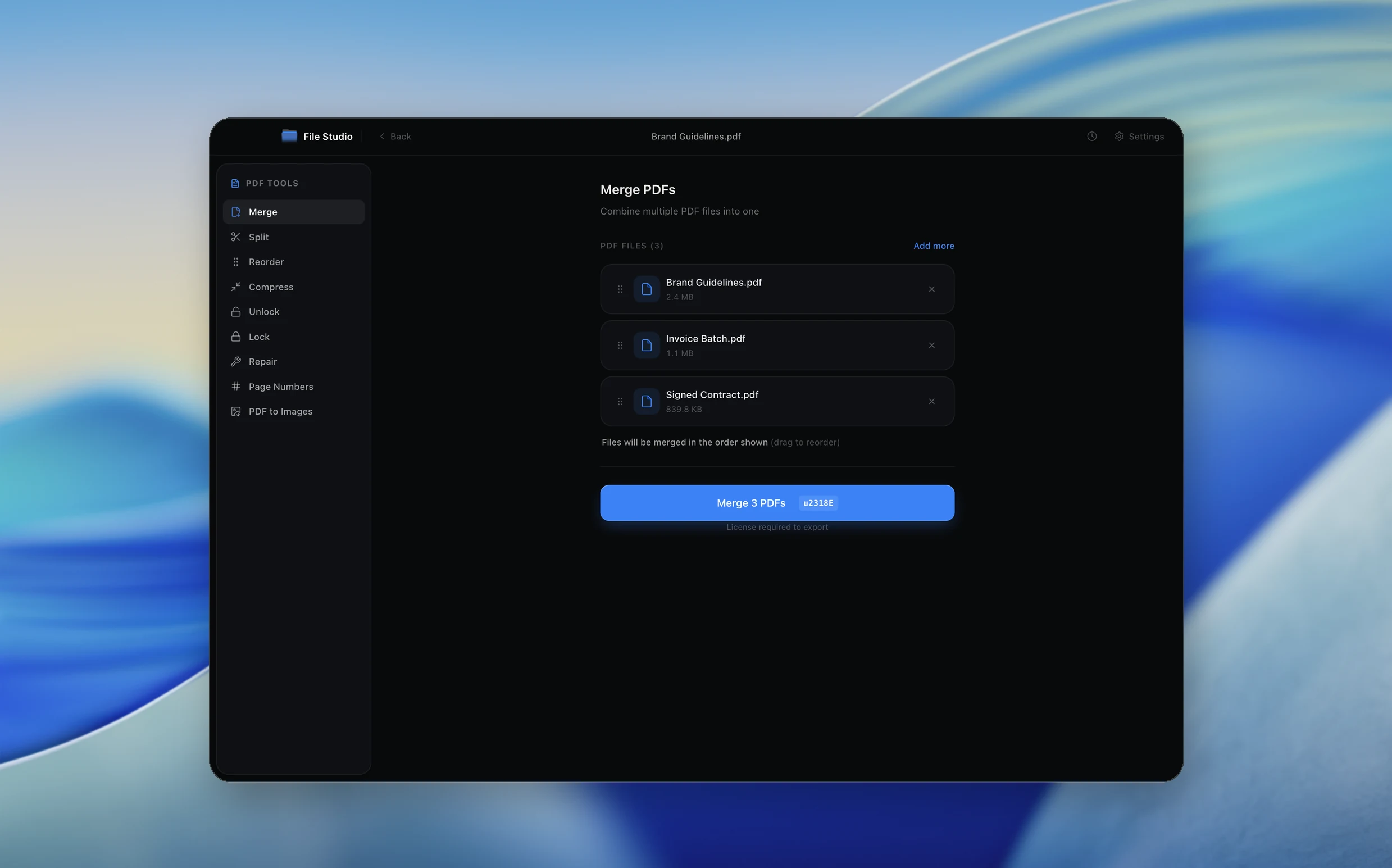
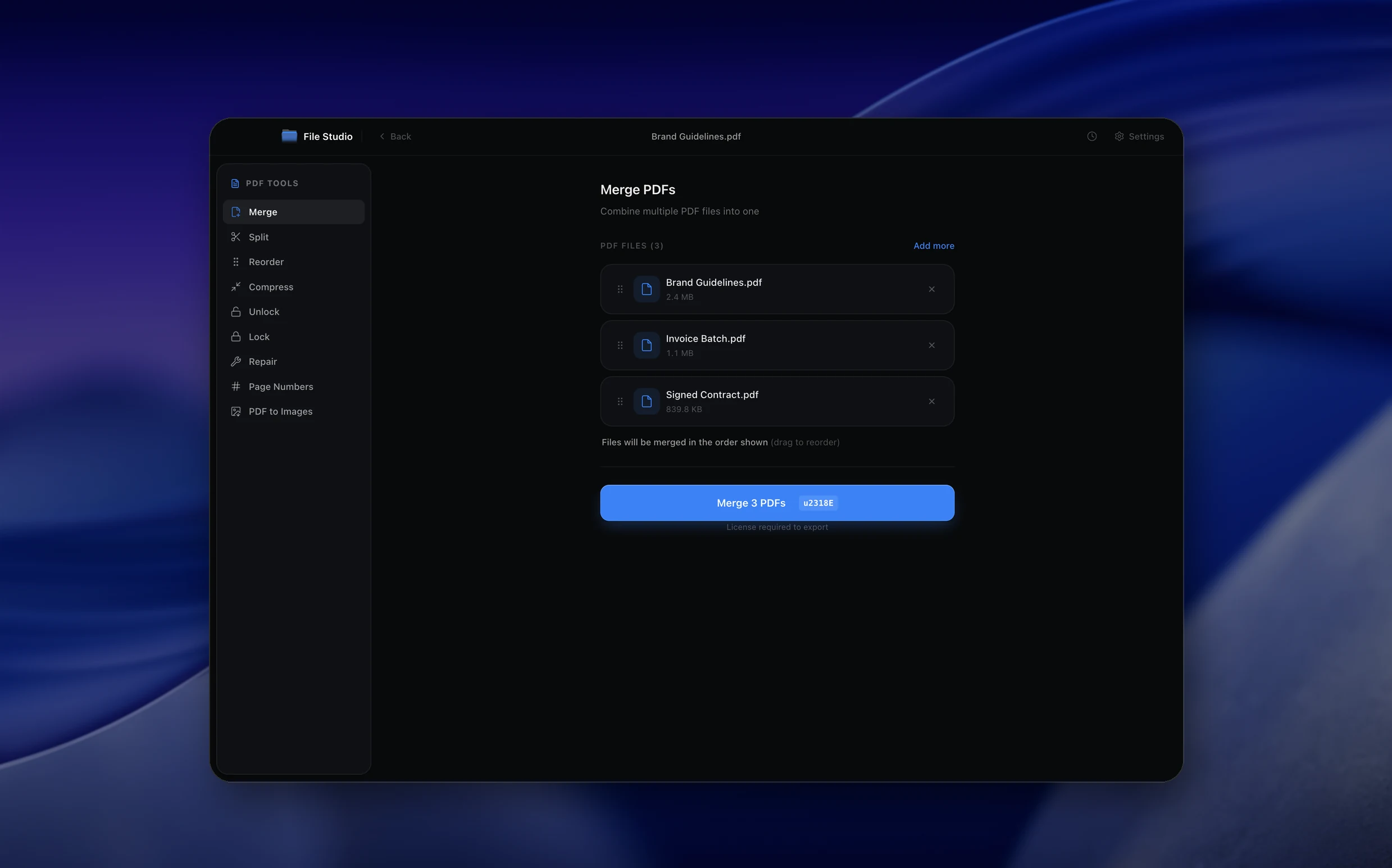
Real File Studio interface, shown in light and dark mode.
Understanding the PDF format for BMP input
PDF (ISO 32000) provides a standardized container that can embed BMP content using the FlateDecode compression filter, which uses the same DEFLATE algorithm familiar from PNG and ZIP. Because BMP itself is essentially uncompressed, embedding it in a PDF with FlateDecode often reduces file size by an order of magnitude while preserving every original pixel. The PDF wrapper also adds page metadata, font embedding options, and the ability to combine multiple BMP files into a single navigable document.
BMP-to-PDF conversion is most often used to consolidate output from legacy Windows software (older scanners, industrial cameras, custom imaging applications) into a portable format that can be emailed, printed, or archived. The process involves reading the BMP file header, decoding the pixel buffer (handling the bottom-up row order and BGR channel ordering), and writing the resulting bitmap as a PDF image XObject. Since BMP supports several bit depths (1, 4, 8, 16, 24, 32), the converter must select an appropriate PDF color space for each.
Common scenarios include compiling industrial inspection BMPs into a single quality control report, archiving Windows-era screenshots as a searchable PDF, converting medical device output to a format that works in modern PACS systems, and preparing BMP product photos for inclusion in supplier catalogs. PDF is accepted by every modern application stack, while BMP support has been quietly deprecated in many newer tools.
How it works
Convert BMP to PDF in four simple steps.
The flow mirrors the main File Studio experience: install the app, drop in your files, pick the right tool, and export clean, ready-to-share output. All without sending anything to the cloud.
Install File Studio
Download the app, move it to Applications, and open it. No sign-ups or accounts required.
Add your BMP files
Drag-and-drop your bmp files into the window or click to browse from disk.
Choose BMP → PDF
Pick the dedicated tool, then adjust resolution, quality, and page range until the preview feels right.
Export & keep working
Select an output folder and run the conversion. Your originals stay untouched on your device.
Best practices for cleaner results
- ·Group related files into folders before converting so your output stays organized and easy to archive.
- ·Use higher resolution presets when you know the result will be printed, zoomed in, or reused in design tools.
- ·Keep an unedited copy of your original BMP files for audits, record-keeping, or compliance workflows.
- ·Combine this tool with other File Studio actions like compress, merge, or split to streamline entire document pipelines.
Why File Studio
Built for trustworthy, everyday BMP to PDF work.
You get precise control over the output, predictable file names, and a private workflow that keeps sensitive documents on your own machine.
Features tuned for this conversion
- ·Support for 1-bit, 8-bit, 16-bit, 24-bit, and 32-bit BMP variants.
- ·Automatic page sizing based on BMP dimensions and target DPI.
- ·Combine multiple BMP files into one paginated PDF in a single operation.
Why use File Studio for this conversion?
- ·Convert bulky BMP files into compact, shareable PDF documents.
- ·Preserve full pixel fidelity from the original uncompressed bitmap.
- ·Works offline on air-gapped machines for sensitive legacy data.
Real-world ways people use it
- ·Archive BMP screenshots from legacy industrial software as PDF reports.
- ·Convert BMP scans from older flatbed scanners into modern PDF documents.
- ·Bundle BMP training materials into a single PDF manual for distribution.
Settings guide
Understanding your conversion options
Compression Filter
FlateDecode is the right choice for BMP input because it is lossless and matches the way BMP stores raw pixel data. DCTDecode (JPEG) reduces file size further but introduces irreversible artifacts. Use FlateDecode for archival and DCTDecode only when file size dominates and the source is photographic.
Color Space Mapping
1-bit BMP maps to PDF's DeviceGray with bitsPerComponent 1. 8-bit indexed BMP becomes Indexed DeviceRGB with the palette embedded. 24-bit RGB BMP becomes DeviceRGB. 32-bit BMP can map to DeviceRGB with the alpha channel ignored or to DeviceRGB with an SMask if transparency must be preserved.
Page Size and DPI
BMP files rarely store accurate physical resolution data. Set the target DPI explicitly: 96 DPI for screenshots, 150 DPI for office documents, 300 DPI for print. The converter uses this value to compute the page size in inches from the BMP pixel dimensions.
Row Order Handling
BMP files default to bottom-up row order. The converter must flip the rows when writing the PDF image data so the page renders right-side up. Verify that the converter handles negative biHeight values (top-down BMP) correctly to avoid mirroring or flipping.
Multi-image Combination
When converting multiple BMP files, decide whether each becomes a separate page or several are tiled per page. Per-page output is best for sequential review. Tiled (2-up, 4-up) output is best for compact reporting. Sort the input list by filename, capture date, or manual order before conversion.
Industry standards and requirements
BMP is rarely cited in modern industry standards because PNG and TIFF have largely replaced it. However, in legacy industrial inspection (semiconductor wafer imaging, PCB quality control, automotive paint inspection), BMP remains common because the capture software predates widespread PNG adoption. Converting these BMPs to PDF/A-1b or PDF/A-2b preserves them in a format that satisfies ISO 9001 quality management documentation requirements.
For Windows software development and legacy application maintenance, BMPs embedded in resource files (.rc) are sometimes extracted and converted to PDF for documentation purposes (user manuals, training material, support knowledge bases). The standard practice is to use FlateDecode compression and embed the original BMP as an attached file in the PDF/A-3 container so the source remains accessible.
In medical imaging outside DICOM (which has its own format), older endoscopy and microscopy systems that wrote BMP files often need their output consolidated into PDFs for inclusion in patient charts. HIPAA does not specify a format, but most healthcare organizations require PDF/A-1b for archival and apply encryption at the storage layer rather than embedding it in the document itself.
Troubleshooting
Common issues and how to fix them
Output PDF is upside down or mirrored→
The converter mishandled BMP's bottom-up row ordering. Use a converter built on a robust BMP library (libbmp, GDI+, ImageMagick) that automatically flips rows. As a workaround, pre-process the BMP with a tool that rewrites it in top-down form.
Colors look wrong (red and blue swapped)→
BMP stores 24-bit pixels in BGR order, not RGB. A naive converter may copy bytes directly into the PDF stream without swapping channels. Use a converter that explicitly handles BMP byte order, or pre-convert the BMP to PNG which uses RGB ordering natively.
Indexed BMP loses its color palette→
The converter must read the BMP color table and write it as a PDF Indexed color space. If the resulting PDF appears black and white or grayscale, the palette was discarded. Verify the converter supports indexed BMPs explicitly.
PDF file size barely smaller than the BMP→
FlateDecode compression is probably disabled, leaving the bitmap embedded as raw bytes. Enable FlateDecode in the converter settings. For photographic BMP content, switch to DCTDecode (JPEG) compression for far better ratios at acceptable visual quality.
Pricing
Simple, fair pricing.
All tools included. No hidden fees. Processing stays on your device.
Yearly
For short-term projects.
- 1 year of updates
- Image, PDF, SVG, and spreadsheet tools
- Works on Mac & Windows
- All processing done on device
Lifetime
One purchase. Keep it forever.
- Unlimited conversions forever
- 1 year of major updates
- Image, PDF, SVG, and spreadsheet tools
- Watch Folders & Automation
- macOS Notch Drop Zone
- Works on Mac & Windows
Team & Bulk Pricing
Lifetime seats with volume discounts. More seats, bigger discount.
15
lifetime seats
You save
$60
15% off the individual price
Enterprise
50+ seats with custom pricing, centralized license management, and priority support.
FAQ
Frequently asked questions
Why would I convert BMP to PDF?→
BMP files are large and not universally viewable on all platforms. Converting to PDF makes them portable, smaller (thanks to PDF's internal compression), and easy to share via email or document management systems.
Does the conversion compress my BMP data?→
The PDF container can apply internal compression to reduce file size, but this is lossless by default. Your original pixel data is fully preserved in the output.
Can I combine many BMPs into one PDF?→
Yes. Drag in as many BMP files as you need. File Studio creates one PDF with each BMP on its own page, in the order you specify.
What BMP color depths are supported?→
File Studio handles all standard BMP bit depths including 1-bit monochrome, 8-bit indexed color, 24-bit true color, and 32-bit RGBA bitmaps.
Is this fully offline?→
Yes. File Studio runs all BMP to PDF conversions on your local Mac or Windows machine. Nothing is sent to the cloud, making it safe for confidential legacy data.
Looking for something else? Explore more offline conversions with File Studio: