

WebP to TIFF converter
WebP to TIFF - Convert web-optimized WebP images to archival TIFF format on your desktop.
WebP is built for the web, but print shops and archival systems often require TIFF. File Studio bridges the gap by converting your WebP images into high-fidelity TIFF files with support for multiple compression modes, all processed locally.
Free trial · No account required · Files stay on your device
All conversions happen locally on your computer. No uploads, no subscriptions, and no background syncing.
WebP → TIFF
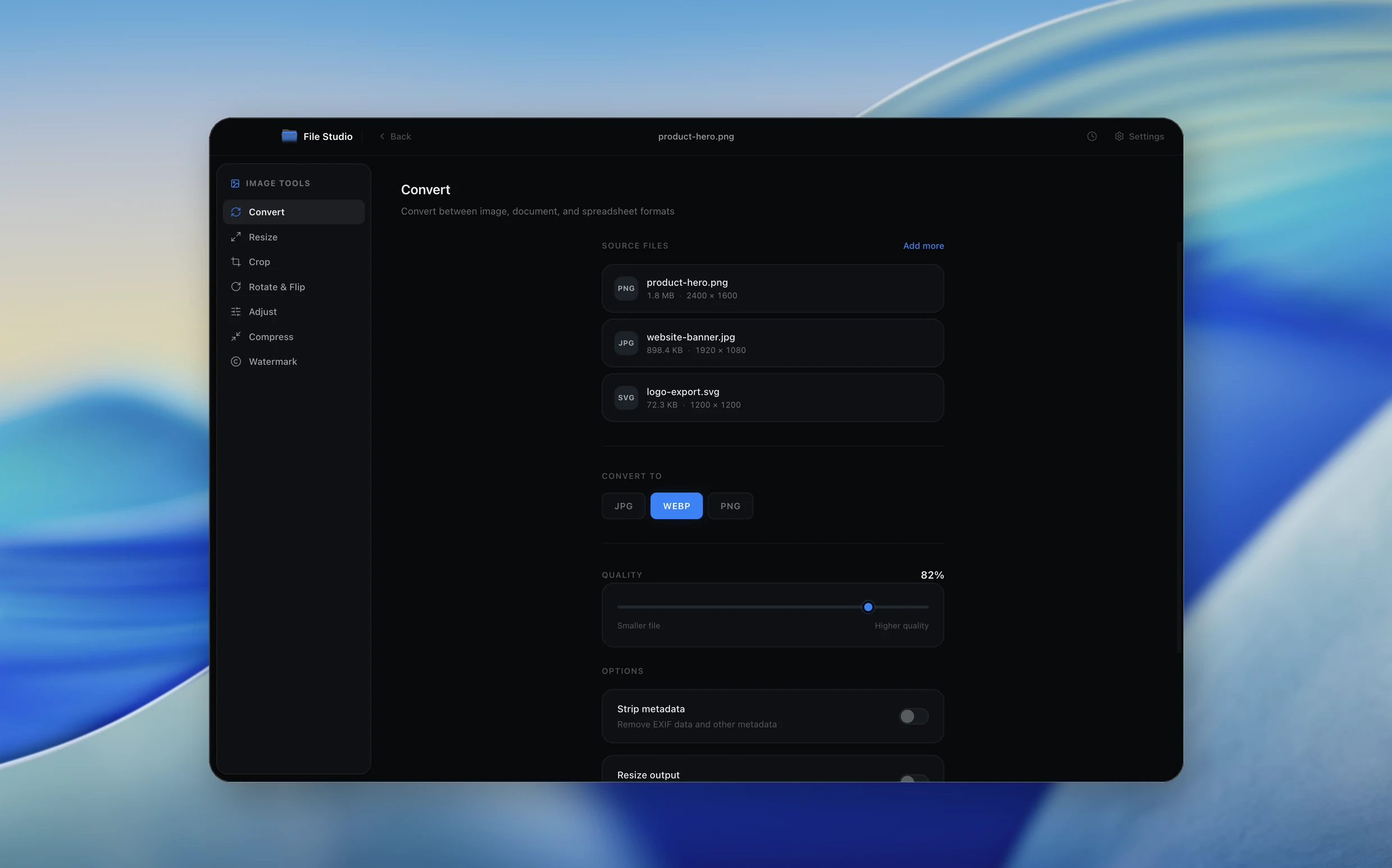
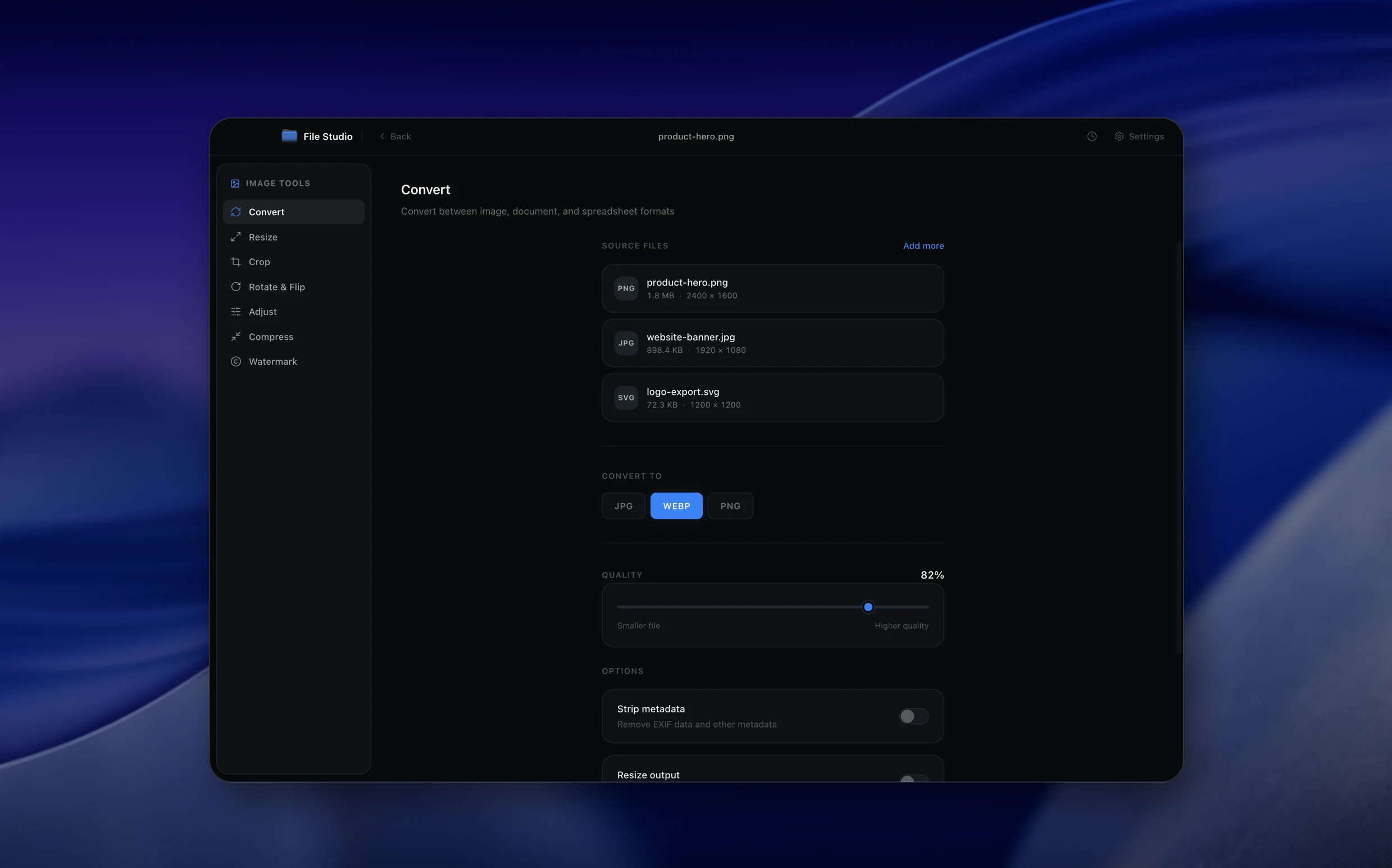
Real File Studio interface, shown in light and dark mode.
Understanding the TIFF format
TIFF (Tagged Image File Format) is a flexible raster container originally developed by Aldus in 1986 and now maintained by Adobe. It is standardized in part by ISO 12639 (the TIFF/IT subset for prepress) and ISO 12234 (TIFF/EP for digital photography). TIFF stores image data along with a directory of tags that describe resolution, color space, compression, bit depth, and arbitrary metadata. It supports 1 to 32 bits per channel, multi-page documents, alpha channels, layers, and a choice of compression schemes including LZW, ZIP (DEFLATE), JPEG, PackBits, and uncompressed storage.
WebP is a modern web format from Google that offers both lossless and lossy compression based on the VP8 codec family. It is well suited to web delivery but not widely accepted in professional print, archival, or scientific imaging pipelines. Converting WebP to TIFF transforms a delivery format into an interchange format suited to those professional workflows. The conversion is lossless if the source WebP is lossless and the TIFF is written with LZW or ZIP compression.
TIFF's flexibility makes it the default format for scanned documents, medical imaging, satellite imagery, and high-end print production. A WebP downloaded from the web can be converted to TIFF for ingest into a digital asset management system, a prepress workflow, or a long-term archive that mandates TIFF as the preservation format.
How it works
Convert WebP to TIFF in four simple steps.
The flow mirrors the main File Studio experience: install the app, drop in your files, pick the right tool, and export clean, ready-to-share output. All without sending anything to the cloud.
Install File Studio
Download the app, move it to Applications, and open it. No sign-ups or accounts required.
Add your WebP files
Drag-and-drop your webp files into the window or click to browse from disk.
Choose WebP → TIFF
Pick the dedicated tool, then adjust resolution, quality, and page range until the preview feels right.
Export & keep working
Select an output folder and run the conversion. Your originals stay untouched on your device.
Best practices for cleaner results
- ·Group related files into folders before converting so your output stays organized and easy to archive.
- ·Use higher resolution presets when you know the result will be printed, zoomed in, or reused in design tools.
- ·Keep an unedited copy of your original WebP files for audits, record-keeping, or compliance workflows.
- ·Combine this tool with other File Studio actions like compress, merge, or split to streamline entire document pipelines.
Why File Studio
Built for trustworthy, everyday WebP to TIFF work.
You get precise control over the output, predictable file names, and a private workflow that keeps sensitive documents on your own machine.
Features tuned for this conversion
- ·Selectable TIFF compression: uncompressed, LZW, or ZIP/Deflate.
- ·Preserve alpha transparency from WebP in the TIFF output.
- ·Configurable color space and bit depth for the output TIFF.
Why use File Studio for this conversion?
- ·Move from web-oriented WebP to archival-quality TIFF format.
- ·Choose TIFF compression (LZW, ZIP, or uncompressed) for your output.
- ·Entirely offline, keeping your image assets private and secure.
Real-world ways people use it
- ·Prepare web-downloaded product images as TIFF files for print catalogs.
- ·Archive WebP screenshots in TIFF for long-term institutional storage.
- ·Convert WebP assets to TIFF for import into professional design software.
Settings guide
Understanding your conversion options
Compression
TIFF supports several compression schemes. LZW is lossless and widely compatible. ZIP (DEFLATE) is also lossless and often produces smaller files for natural images. PackBits is fast but inefficient. Uncompressed TIFF is the most compatible but produces very large files. Avoid JPEG compression inside TIFF unless file size is critical, because it sacrifices the lossless guarantee.
Bit Depth
WebP stores 8 bits per channel. TIFF supports up to 16 or 32 bits. Converting to 16-bit does not add new information but allows downstream editing without quantization loss. For straight format conversion, 8-bit is sufficient and produces smaller files.
Color Profile
Embed the source ICC profile (typically sRGB for web WebPs) in the TIFF. Print and archival workflows often require an explicit profile so that color managed software can render the image correctly without assumption.
Alpha Channel
If the WebP contains transparency, preserve it as a TIFF extra sample. TIFF supports both associated (premultiplied) and unassociated alpha. Unassociated is the default and matches the WebP encoding model.
Resolution Tags
Set XResolution and YResolution tags to match the intended print size. WebP carries no DPI metadata, so this value must be specified during conversion. 300 DPI is standard for print, 72 or 96 DPI for screen reference.
Industry standards and requirements
Library and archive standards such as the Federal Agencies Digital Guidelines Initiative (FADGI) recommend uncompressed or LZW-compressed TIFF as the preservation master format for digitized still images. Converting WebP sources to TIFF brings them into compliance with these guidelines for long-term storage.
Prepress and commercial print workflows ingest TIFF as a standard input alongside PDF and EPS. ISO 12639 defines TIFF/IT as a constrained TIFF profile for prepress data exchange. Files destined for offset printing should use CMYK or grayscale color spaces with embedded profiles and 300 DPI minimum resolution.
Scientific and medical imaging often mandates TIFF because of its support for high bit depths, uncompressed storage, and extensive metadata tags. WebP is rarely accepted in these domains, so a TIFF conversion is required before the image can be ingested into PACS systems, GIS software, or microscopy analysis tools.
Troubleshooting
Common issues and how to fix them
TIFF file is enormous compared to the WebP→
WebP achieves much higher compression ratios than any TIFF scheme. Switch from uncompressed to LZW or ZIP compression. Reduce bit depth to 8 if the source is 8-bit. Expect a 5 to 20 times size increase even with compression because TIFF cannot match VP8.
Software cannot open the TIFF→
Some older or specialized tools only support uncompressed or PackBits TIFF. Re-export with a more compatible compression scheme. LZW is the safest broadly supported lossless option.
Colors shift after conversion→
Ensure the WebP's color profile is read correctly and embedded in the output TIFF. Stripping or substituting the profile causes color managed software to interpret the pixels in the wrong color space.
Animated WebP loses all but the first frame→
Standard TIFF supports multiple pages but not animation timing. Each WebP frame can be written as a separate TIFF page, but most viewers will display only the first. For animation, keep the source WebP or convert to APNG or GIF instead.
Pricing
Simple, fair pricing.
All tools included. No hidden fees. Processing stays on your device.
Yearly
For short-term projects.
- 1 year of updates
- Image, PDF, SVG, and spreadsheet tools
- Works on Mac & Windows
- All processing done on device
Lifetime
One purchase. Keep it forever.
- Unlimited conversions forever
- 1 year of major updates
- Image, PDF, SVG, and spreadsheet tools
- Watch Folders & Automation
- macOS Notch Drop Zone
- Works on Mac & Windows
Team & Bulk Pricing
Lifetime seats with volume discounts. More seats, bigger discount.
15
lifetime seats
You save
$60
15% off the individual price
Enterprise
50+ seats with custom pricing, centralized license management, and priority support.
FAQ
Frequently asked questions
Why convert WebP to TIFF?→
TIFF is the standard format for print production, archival storage, and professional imaging workflows. If you have images in WebP that need to enter these pipelines, converting to TIFF ensures compatibility.
Will the conversion be lossless?→
The conversion from decoded WebP pixel data to TIFF is lossless. However, if the original WebP was lossy-compressed, that compression is already baked into the pixel data and cannot be reversed.
Does this handle WebP transparency?→
Yes. WebP images with alpha transparency are converted to TIFF with a corresponding alpha channel, preserving transparent regions.
Can I batch convert WebP files?→
Yes. Drop in a folder of WebP images and File Studio converts them all to TIFF with consistent compression and color settings.
Is this offline?→
Yes. All decoding and encoding runs locally on your Mac or Windows PC. No files are sent to any cloud service.
Looking for something else? Explore more offline conversions with File Studio: