

PNG to JPG converter
PNG to JPG - Convert PNG images to compact JPGs for easier sharing.
PNG files can be large. File Studio converts them to optimized JPGs that are perfect for web, email, and anywhere file size matters - all without uploading.
Free trial · No account required · Files stay on your device
All conversions happen locally on your computer. No uploads, no subscriptions, and no background syncing.
PNG → JPG
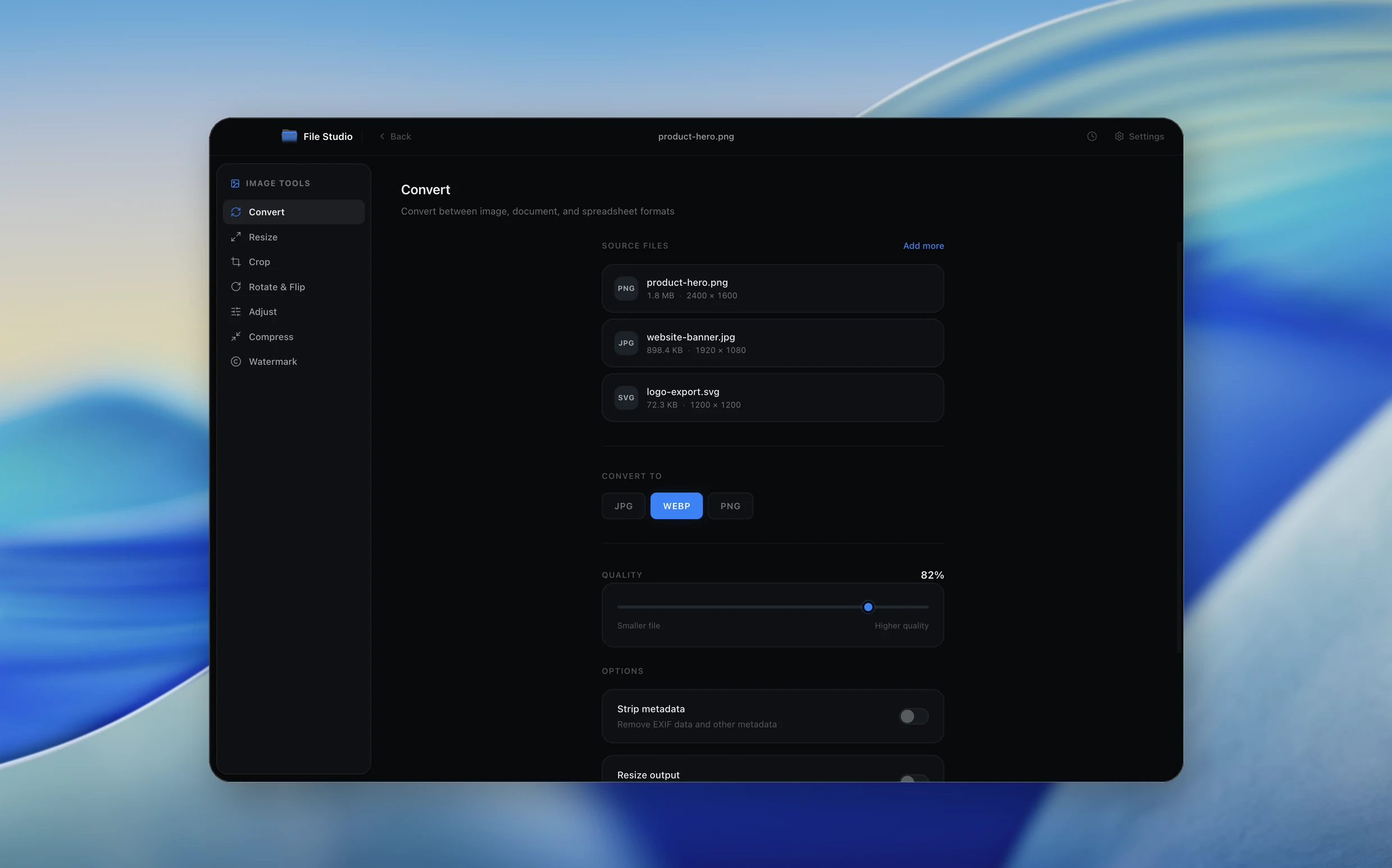
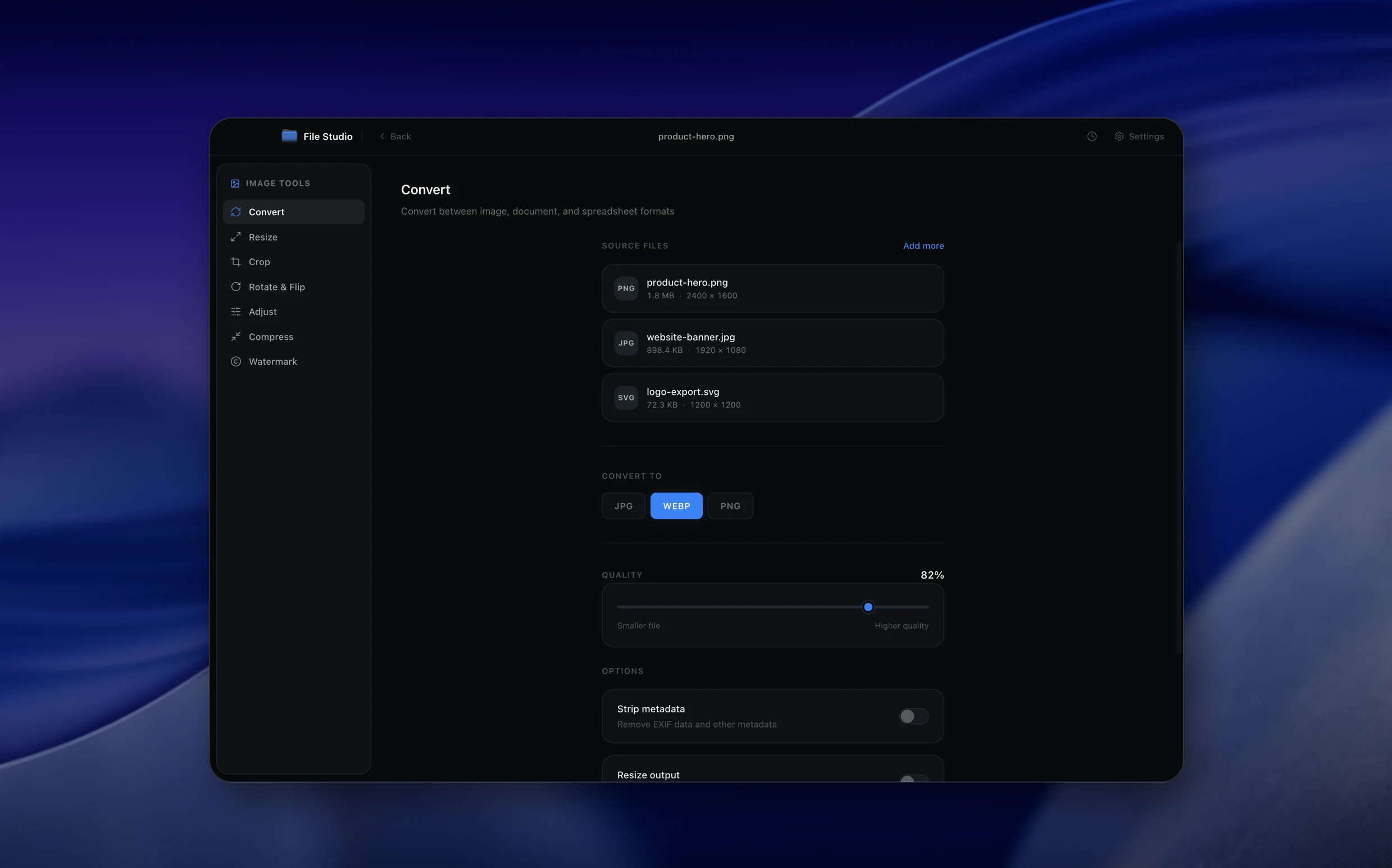
Real File Studio interface, shown in light and dark mode.
Understanding the JPG format
JPG (also written JPEG) is a lossy raster image format developed by the Joint Photographic Experts Group and standardized in 1992 as ISO/IEC 10918. It uses a discrete cosine transform (DCT) to convert 8x8 blocks of pixels into frequency coefficients, then quantizes those coefficients aggressively in higher frequency bands where the human visual system is least sensitive. The result is a substantial reduction in file size at the cost of some fidelity, with quality controlled by a quantization table typically expressed on a 0 to 100 scale.
Converting from PNG to JPG is a deliberate trade. PNG is a lossless format that preserves every pixel exactly as authored, including a full alpha channel for transparency. JPG discards both. Any transparent areas in the source PNG must be composited against a solid background color (typically white) before encoding, and any subtle gradients or sharp edges may show ringing or blocking artifacts after DCT quantization. In return, photographic content typically shrinks by a factor of five to twenty.
JPG remains the universal exchange format for photographs across browsers, email clients, content management systems, and cameras. It is the right destination when the source PNG is a photograph or screenshot of photographic material, when you need to upload to a platform that has size limits, or when transparency is not required. It is the wrong destination when the source contains crisp text, line art, UI elements, or any image that will be re-edited downstream.
How it works
Convert PNG to JPG in four simple steps.
The flow mirrors the main File Studio experience: install the app, drop in your files, pick the right tool, and export clean, ready-to-share output. All without sending anything to the cloud.
Install File Studio
Download the app, move it to Applications, and open it. No sign-ups or accounts required.
Add your PNG files
Drag-and-drop your png files into the window or click to browse from disk.
Choose PNG → JPG
Pick the dedicated tool, then adjust resolution, quality, and page range until the preview feels right.
Export & keep working
Select an output folder and run the conversion. Your originals stay untouched on your device.
Best practices for cleaner results
- ·Group related files into folders before converting so your output stays organized and easy to archive.
- ·Use higher resolution presets when you know the result will be printed, zoomed in, or reused in design tools.
- ·Keep an unedited copy of your original PNG files for audits, record-keeping, or compliance workflows.
- ·Combine this tool with other File Studio actions like compress, merge, or split to streamline entire document pipelines.
Why File Studio
Built for trustworthy, everyday PNG to JPG work.
You get precise control over the output, predictable file names, and a private workflow that keeps sensitive documents on your own machine.
Features tuned for this conversion
- ·Quality slider from 0-100 for precise control.
- ·Optional background color fill for transparent PNGs.
- ·Preserve or strip metadata during conversion.
Why use File Studio for this conversion?
- ·Convert PNG to JPG with adjustable quality settings.
- ·Significantly reduce file sizes for web and email.
- ·Batch convert entire folders of PNG images.
Real-world ways people use it
- ·Convert screenshots to JPG for smaller email attachments.
- ·Optimize PNG graphics for faster website loading.
- ·Prepare images for platforms that prefer JPG format.
Settings guide
Understanding your conversion options
Quality factor
JPG quality typically ranges from 0 to 100. A value of 85 is the practical sweet spot for most photographic content: visible artifacts are rare and file size is roughly one fifth of the equivalent PNG. Values above 95 produce diminishing returns and balloon file size. Values below 70 introduce visible blocking around edges and color banding in smooth gradients.
Background color for transparency
JPG cannot store an alpha channel, so any transparent or semi-transparent pixels in the source PNG must be flattened against a fill color. White is the safe default for documents and product photography. Choose black for dark themes or a specific brand color when the target context is known. Mismatched backgrounds produce visible halos around anti-aliased edges.
Chroma subsampling
Subsampling (commonly 4:4:4, 4:2:2, or 4:2:0) reduces color resolution while keeping luminance detail. 4:2:0 cuts file size meaningfully and is invisible on most photographs, but it softens saturated red text and fine colored line art. Use 4:4:4 when the PNG contains colored UI elements or text that must stay sharp.
Progressive encoding
A progressive JPG stores data in multiple scans so browsers can render a low-resolution preview before the full image arrives. It typically saves 2 to 8 percent on file size and improves perceived load time on slow connections. Baseline JPGs decode top to bottom and are slightly faster on very small images.
Metadata preservation
PNG can carry tEXt, iTXt, and zTXt chunks with authoring information. JPG stores metadata in EXIF, IPTC, and XMP segments. Decide whether to copy color profile (ICC), camera EXIF, and copyright tags into the output. Stripping metadata reduces file size and removes potentially private information before publishing.
Industry standards and requirements
Web publishing guidelines from Google's Core Web Vitals program recommend that hero images stay under 200 KB and that photographic content use JPG quality between 75 and 85 with progressive encoding. Image CDNs such as Cloudinary and Imgix default to quality 80 with 4:2:0 subsampling for the same reason: it produces the smallest file that survives casual visual inspection.
E-commerce platforms enforce specific JPG requirements. Amazon Seller Central requires product images to be at least 1000 pixels on the longest side, sRGB color, and JPG or TIFF format. Shopify accepts PNG and JPG but recompresses uploads internally, so submitting at quality 90 gives the platform headroom. eBay caps single images at 12 MB and recommends 1600 pixels on the longest edge.
For print, PNG-to-JPG conversion should be avoided when possible because the lossy step happens before color separation. If a print shop requires JPG, use quality 100 with 4:4:4 subsampling and embed the CMYK or sRGB ICC profile. For archival of photographs, retain the original PNG or a TIFF master and treat JPG strictly as a distribution format.
Troubleshooting
Common issues and how to fix them
Transparent areas turned white or black→
JPG has no alpha channel, so transparency is always flattened. Set the background color explicitly before exporting. If the PNG has anti-aliased edges over transparency, use a background color that matches the destination page to avoid visible halos.
Text and line art look blurry or show colored fringes→
DCT compression and chroma subsampling are unfriendly to high contrast edges. Raise quality to 95, switch chroma subsampling to 4:4:4, and consider whether JPG is the right destination at all. PNG or WebP lossless will preserve text edges with smaller files in many cases.
Output JPG is larger than the source PNG→
This happens when the PNG is mostly flat color or text, which DEFLATE compresses extremely well, while DCT cannot. Either keep the PNG, lower the JPG quality to 75-80, or use WebP which handles both content types efficiently.
Colors appear washed out or shifted→
Embed the source ICC profile in the output rather than discarding it. If the PNG used a wide-gamut profile such as Display P3 or Adobe RGB, exporting without the profile causes browsers to assume sRGB and render colors incorrectly.
Pricing
Simple, fair pricing.
All tools included. No hidden fees. Processing stays on your device.
Yearly
For short-term projects.
- 1 year of updates
- Image, PDF, SVG, and spreadsheet tools
- Works on Mac & Windows
- All processing done on device
Lifetime
One purchase. Keep it forever.
- Unlimited conversions forever
- 1 year of major updates
- Image, PDF, SVG, and spreadsheet tools
- Watch Folders & Automation
- macOS Notch Drop Zone
- Works on Mac & Windows
Team & Bulk Pricing
Lifetime seats with volume discounts. More seats, bigger discount.
15
lifetime seats
You save
$60
15% off the individual price
Enterprise
50+ seats with custom pricing, centralized license management, and priority support.
FAQ
Frequently asked questions
What happens to transparent areas in PNG when converting to JPG?→
JPG doesn't support transparency. Transparent areas are filled with a background color (white by default, or your choice).
How much smaller will my JPG files be?→
Typically 50-90% smaller than PNG, depending on image content and quality settings you choose.
Will I lose quality converting PNG to JPG?→
JPG uses lossy compression, so there's some quality reduction. Higher quality settings minimize this while still reducing file size.
Can I convert PNG to JPG without changing dimensions?→
Yes. The conversion preserves your original dimensions - only the format and compression change.
Should I use PNG or JPG for photos?→
JPG is better for photos due to smaller file sizes. PNG is better for graphics, screenshots, and images needing transparency.
Can I batch convert many PNG files to JPG?→
Yes. Drop in an entire folder and File Studio converts all PNG files using your chosen quality settings.
Looking for something else? Explore more offline conversions with File Studio: