

AI integrations
Let your AI agent handle files, locally
File Studio ships a filestudio command line tool and a local MCP server, so Claude, Cursor, Codex, VS Code, and Windsurf can merge, compress, convert, and edit your PDFs, images, and spreadsheets. Everything runs on your computer. Files never leave your machine.

What it is
MCP (Model Context Protocol) is the standard way AI apps call outside tools. File Studio's MCP server exposes its PDF, image, SVG, and spreadsheet tools to your AI app. When you ask Claude to compress a folder of PDFs, Claude calls File Studio, File Studio does the work on your disk, and Claude reports back. No cloud converter, no upload step.
The filestudio CLI exposes the same tools as terminal commands, for agents that work in a shell and for your own scripts.
Set it up in one click
- 1
Download File Studio from filestudio.app
AI integrations are part of the direct download version for Mac and Windows.
- 2
Open AI integrations
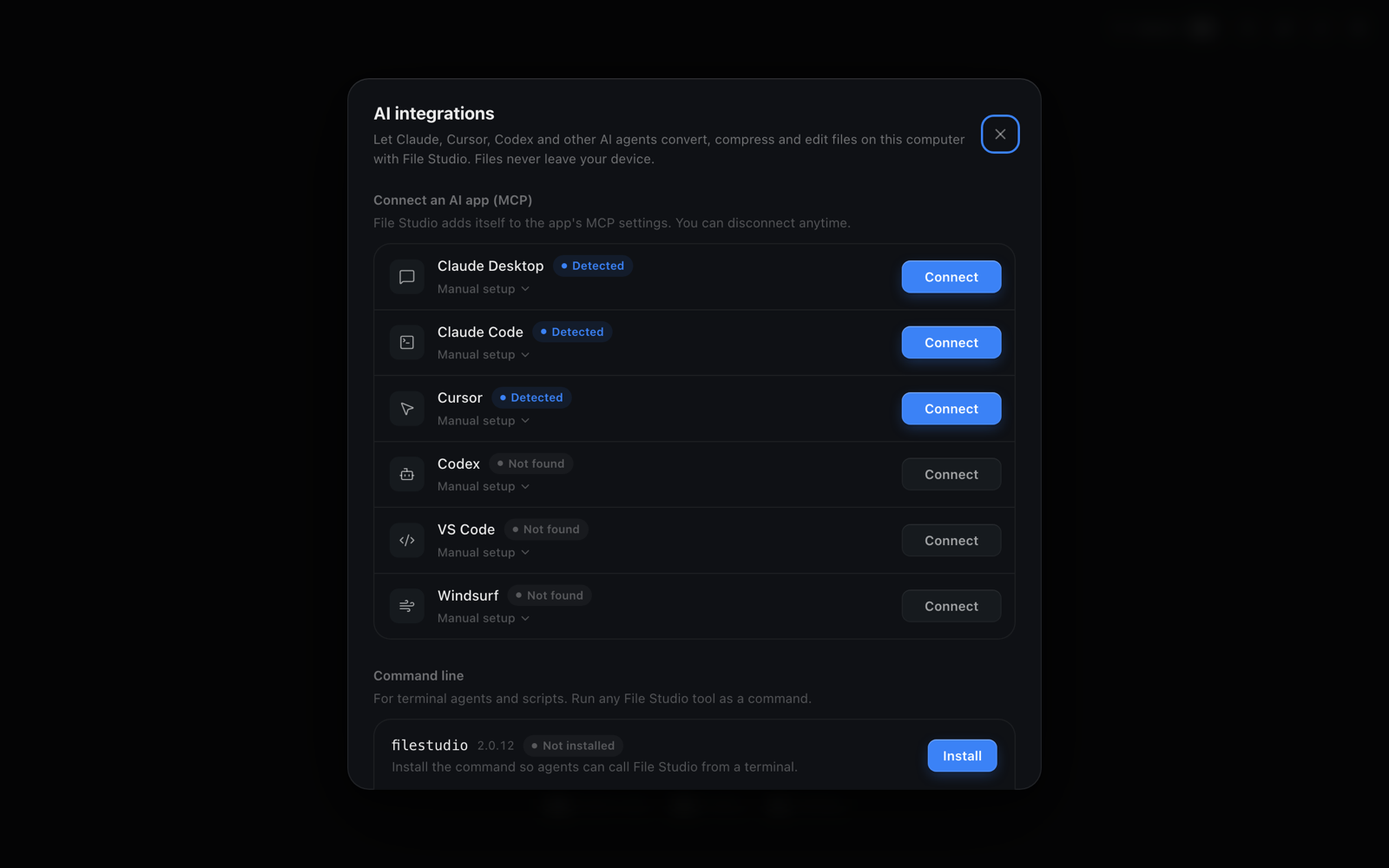
File Studio lists the AI apps it finds on your computer: Claude Desktop, Claude Code, Cursor, Codex, VS Code, and Windsurf.
- 3
Click Connect next to your AI app
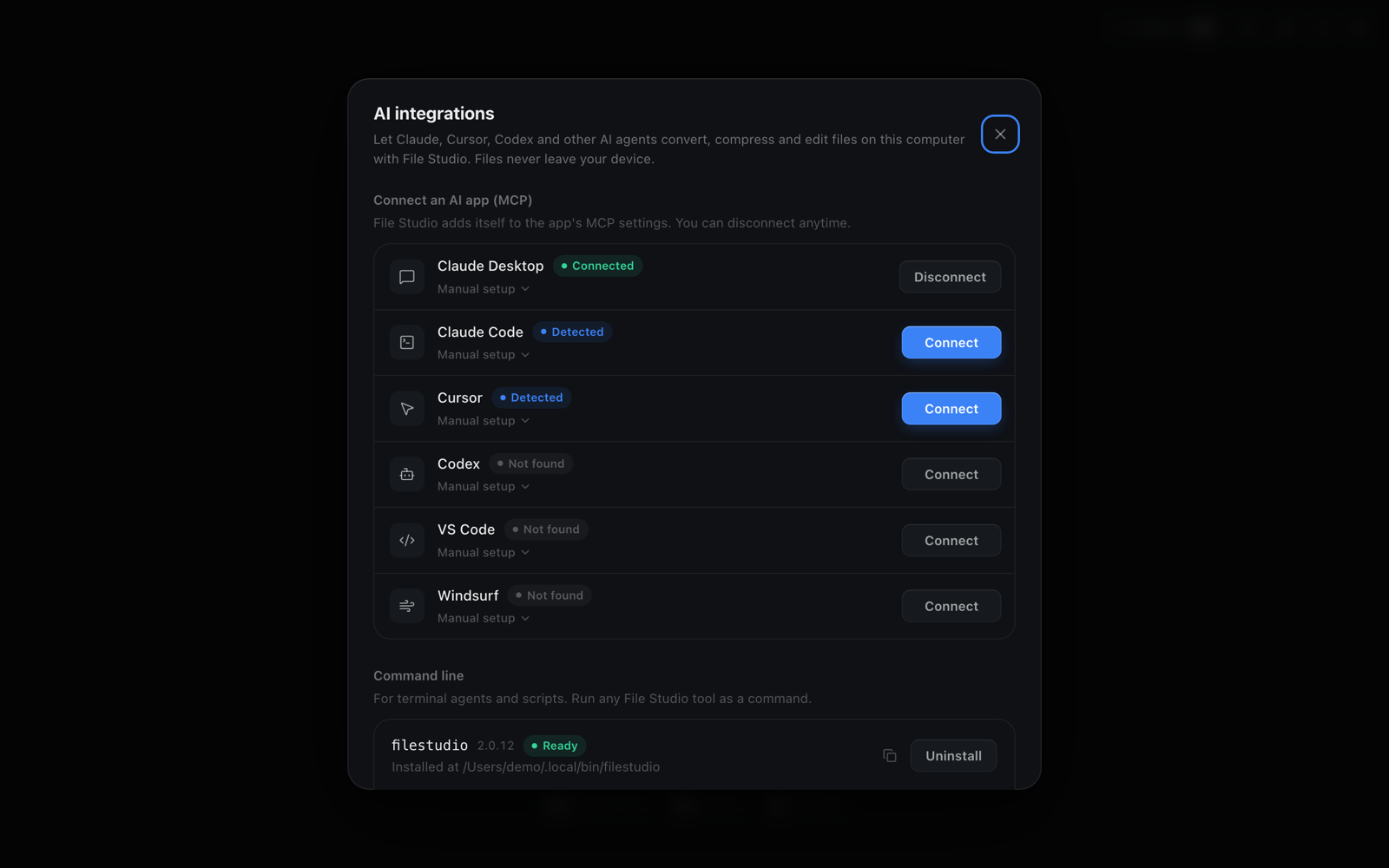
File Studio adds its MCP server to that app's settings. Click Disconnect any time to remove it.
- 4
Restart the AI app
Quit and reopen it, or start a new session. File Studio's tools now show up in its tool list.
- 5
Optional: install the command line tool
Under Command line, click Install to add the filestudio command so terminal agents and scripts can call it directly.
Manual setup for each AI app
Prefer to edit config files yourself? Install the filestudio command first (AI integrations, Command line, Install), add the snippet for your app, then restart it.
Claude Desktop
~/Library/Application Support/Claude/claude_desktop_config.json (Mac) or %APPDATA%\Claude\claude_desktop_config.json (Windows)
{
  "mcpServers": {
    "filestudio": {
      "command": "filestudio",
      "args": ["mcp"]
    }
  }
}Claude Code
Run in your terminal
claude mcp add filestudio -- filestudio mcpCursor
~/.cursor/mcp.json, or .cursor/mcp.json in a project
{
  "mcpServers": {
    "filestudio": {
      "command": "filestudio",
      "args": ["mcp"]
    }
  }
}Codex
~/.codex/config.toml
[mcp_servers.filestudio]
command = "filestudio"
args = ["mcp"]VS Code
.vscode/mcp.json in your workspace
{
  "servers": {
    "filestudio": {
      "type": "stdio",
      "command": "filestudio",
      "args": ["mcp"]
    }
  }
}
Windsurf
~/.codeium/windsurf/mcp_config.json
{
  "mcpServers": {
    "filestudio": {
      "command": "filestudio",
      "args": ["mcp"]
    }
  }
}
Example prompts
- "Compress every PDF in ~/Downloads and put them in a compressed folder."
- "Convert these screenshots to WebP at 80% quality."
- "Merge invoice-1.pdf and invoice-2.pdf and add page numbers."
- "Resize every image in ./photos to a max width of 1600px."
- "Turn report.xlsx into a CSV I can import into my database."
- "Rotate pages 2 and 5-7 of scan.pdf so they read the right way up."
Command line examples
Terminal
$ filestudio pdf merge a.pdf b.pdf -o out.pdf
$ filestudio image convert photo.png --format webp
$ filestudio pdf compress report.pdf
$ filestudio --help
Run filestudio --help to see every command and option.
FAQ
Frequently asked questions
What is the File Studio MCP server?
It is a local Model Context Protocol server built into File Studio. AI apps that support MCP, such as Claude, Cursor, Codex, VS Code, and Windsurf, can call it to merge, compress, convert, rotate, and edit files on your computer.
Do my files leave my computer?
No. The MCP server and the filestudio command run locally and read and write files on your disk. File Studio does not upload them. Your AI app only exchanges text like file paths and results with File Studio.
Which AI apps are supported?
One-click Connect works with Claude Desktop, Claude Code, Cursor, Codex, VS Code, and Windsurf. Any other MCP client can use the manual config, and any agent that can run terminal commands can use the filestudio CLI.
Is AI integration available in the Mac App Store version?
No. App Store apps can't add command line tools or edit other apps' settings, so AI integrations are in the version downloaded from filestudio.app. Your license works in both.
Do I need to install the CLI for MCP to work?
The one-click Connect button handles setup for you. For manual setup, the config runs filestudio mcp, so the filestudio command needs to be installed and on your PATH. Install it from AI integrations, under Command line.
Which file formats can AI agents work with?
The same ones as the app: PDFs; JPG, PNG, WebP, TIFF, BMP, and other common images; SVG; and XLSX, XLS, ODS, and CSV spreadsheets. HEIC and AVIF are not supported as input.
Setup guides:
Things to ask your agent to do: