

PDF guide
How to compress a PDF offline
To compress a PDF offline, open File Studio, choose PDF, then Compress, drop in your PDF, and click Compress. File Studio shrinks the file on your Mac or Windows PC with no upload and no internet connection, which makes it safe for contracts, statements, and other private documents.
By Ayush Soni · Updated October 21, 2026
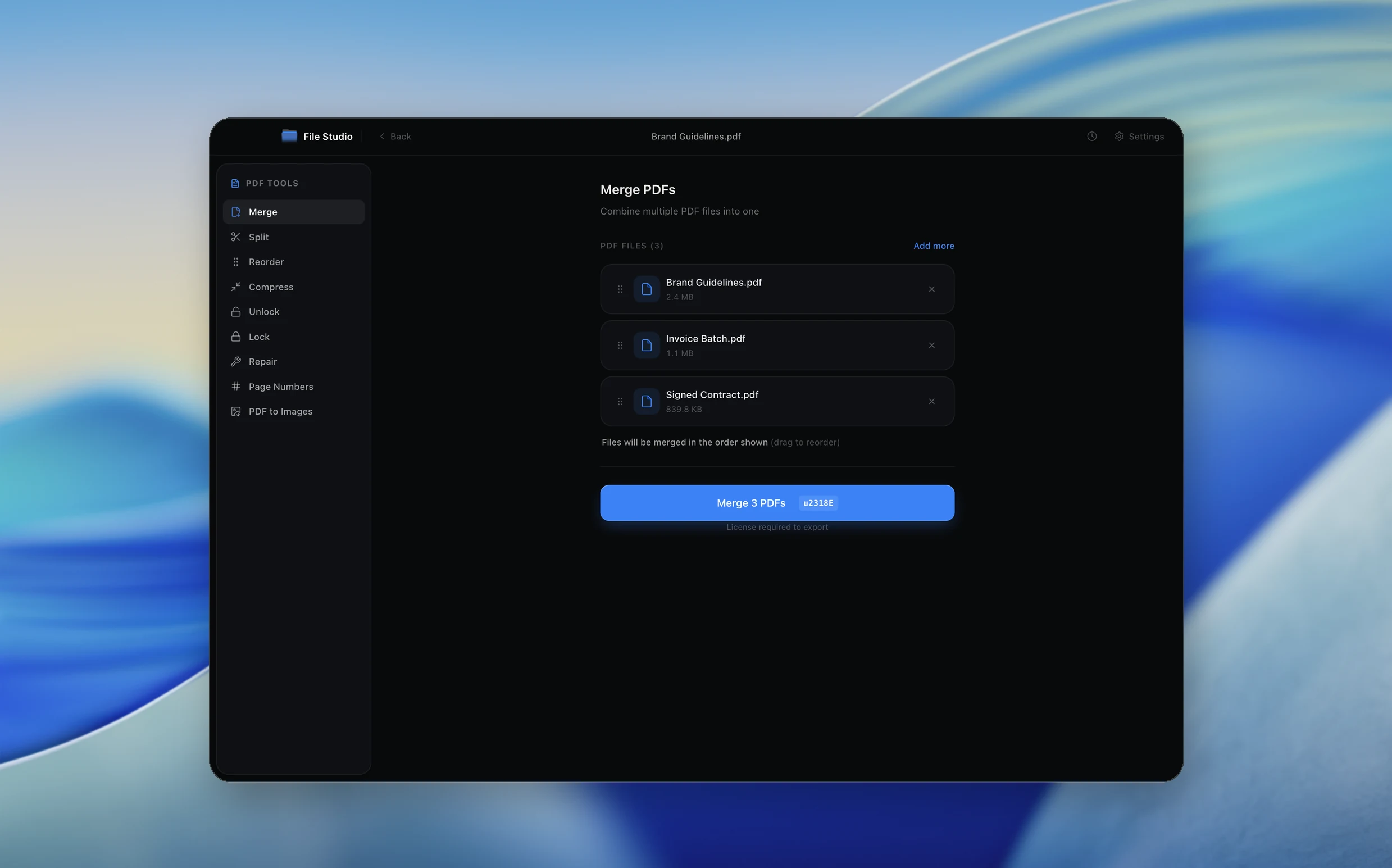
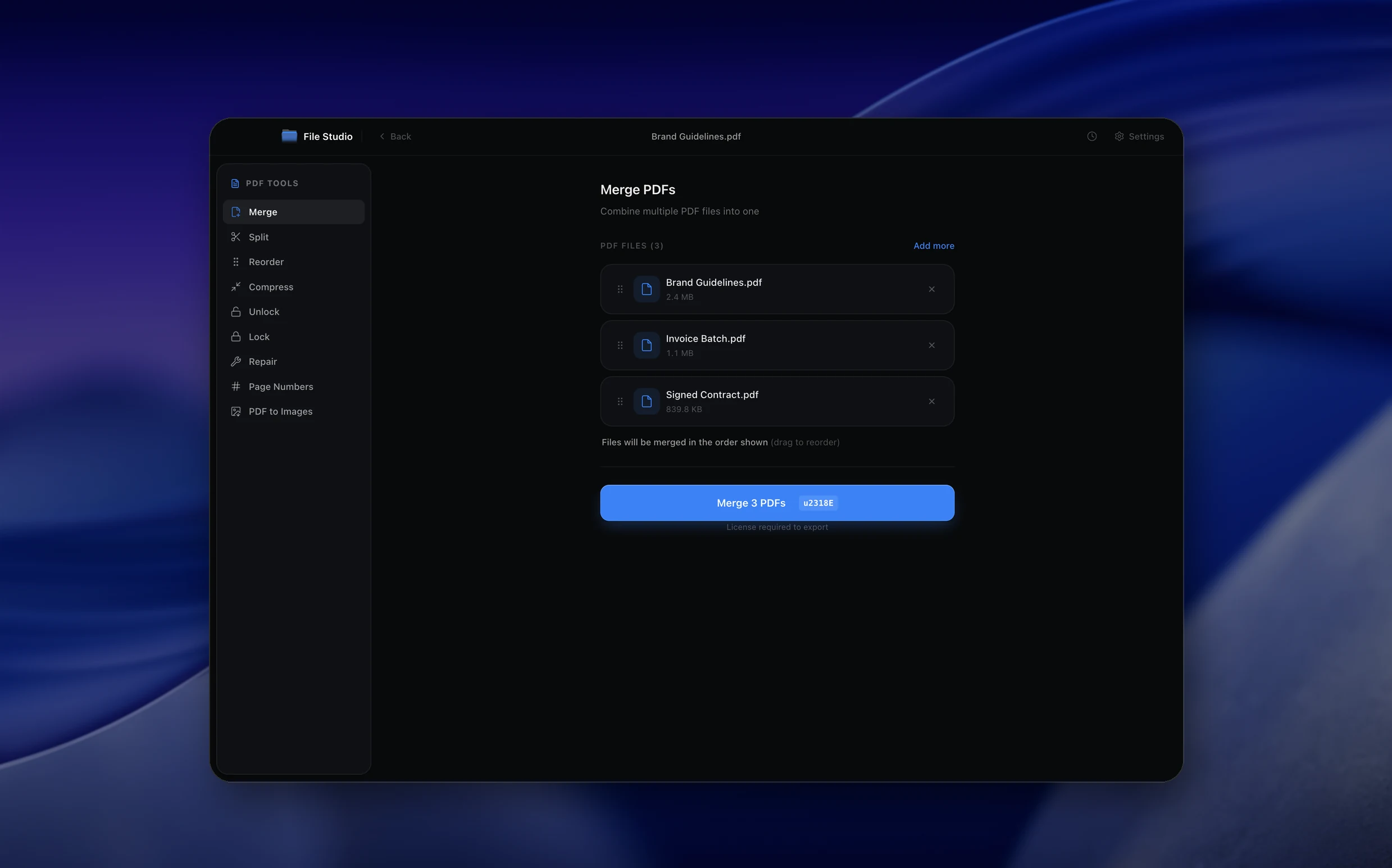
Step by step
- 1
Open File Studio and choose PDF, then Compress
The Compress tool reduces file size for email and sharing.
- 2
Add your PDF
Drag the file into the window or click to browse. You can add several PDFs at once.
- 3
Compress and save
Click Compress. File Studio writes a smaller copy and keeps your original untouched.
From the command line
With the filestudio command installed (AI integrations, Command line), you or an AI agent can do the same thing from a terminal:
filestudio pdf compress report.pdfTry File Studio free
Every tool runs locally on Mac and Windows. No uploads, no account.
FAQ
Frequently asked questions
Is offline PDF compression as good as online tools?
For most documents, yes. Online tools run similar compression on a server; File Studio runs it on your computer, so you skip the upload and download time as well as the privacy risk.
Will compressing a PDF lower the quality?
Text and vector graphics stay sharp. Large embedded images are where the savings come from, so photo-heavy PDFs shrink the most.
Can I compress many PDFs at once?
Yes. Add multiple files to the Compress tool, or set up a watch folder so every PDF dropped into a folder is compressed automatically.
Related:
More guides: