

Images guide
How to batch resize images
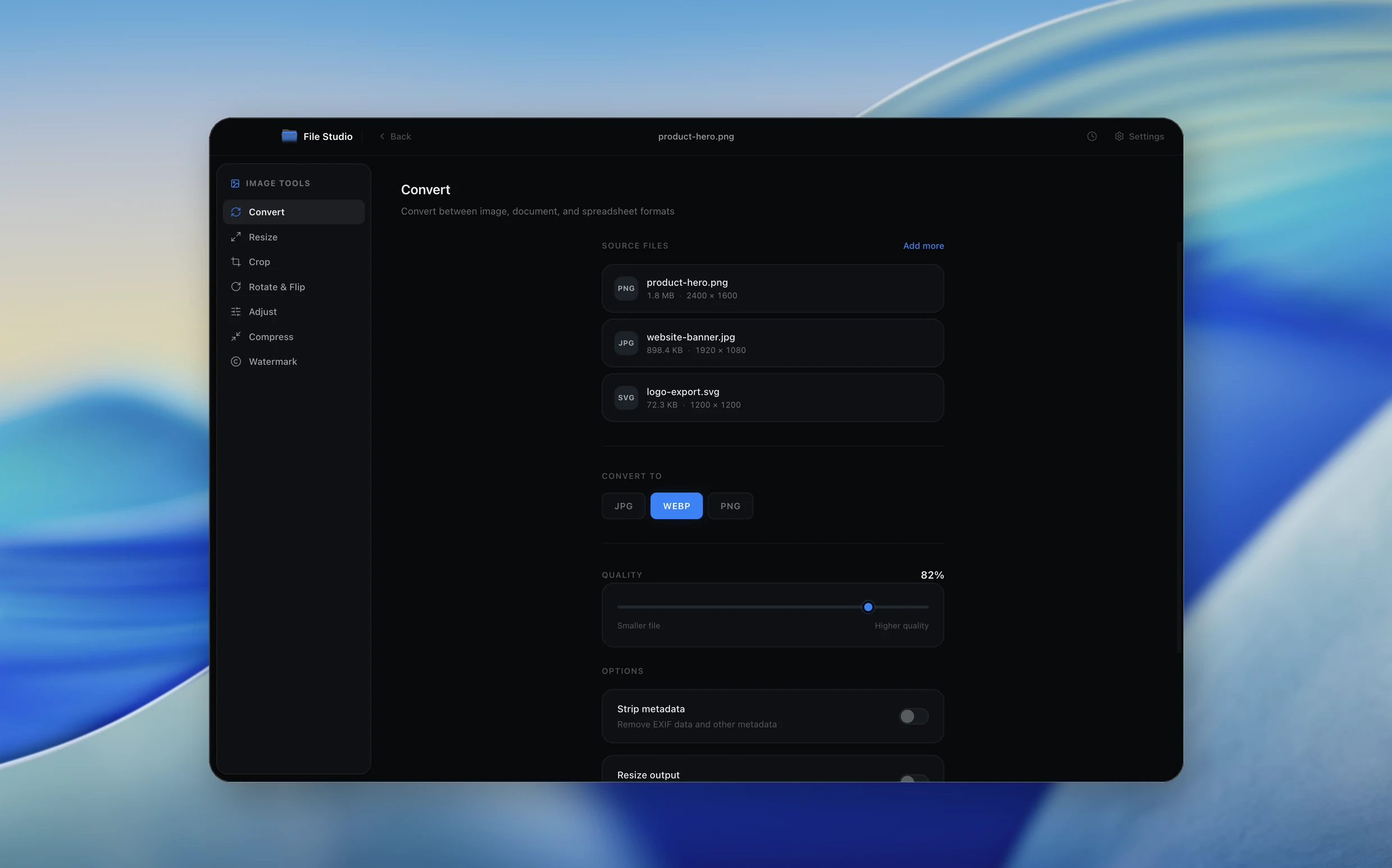
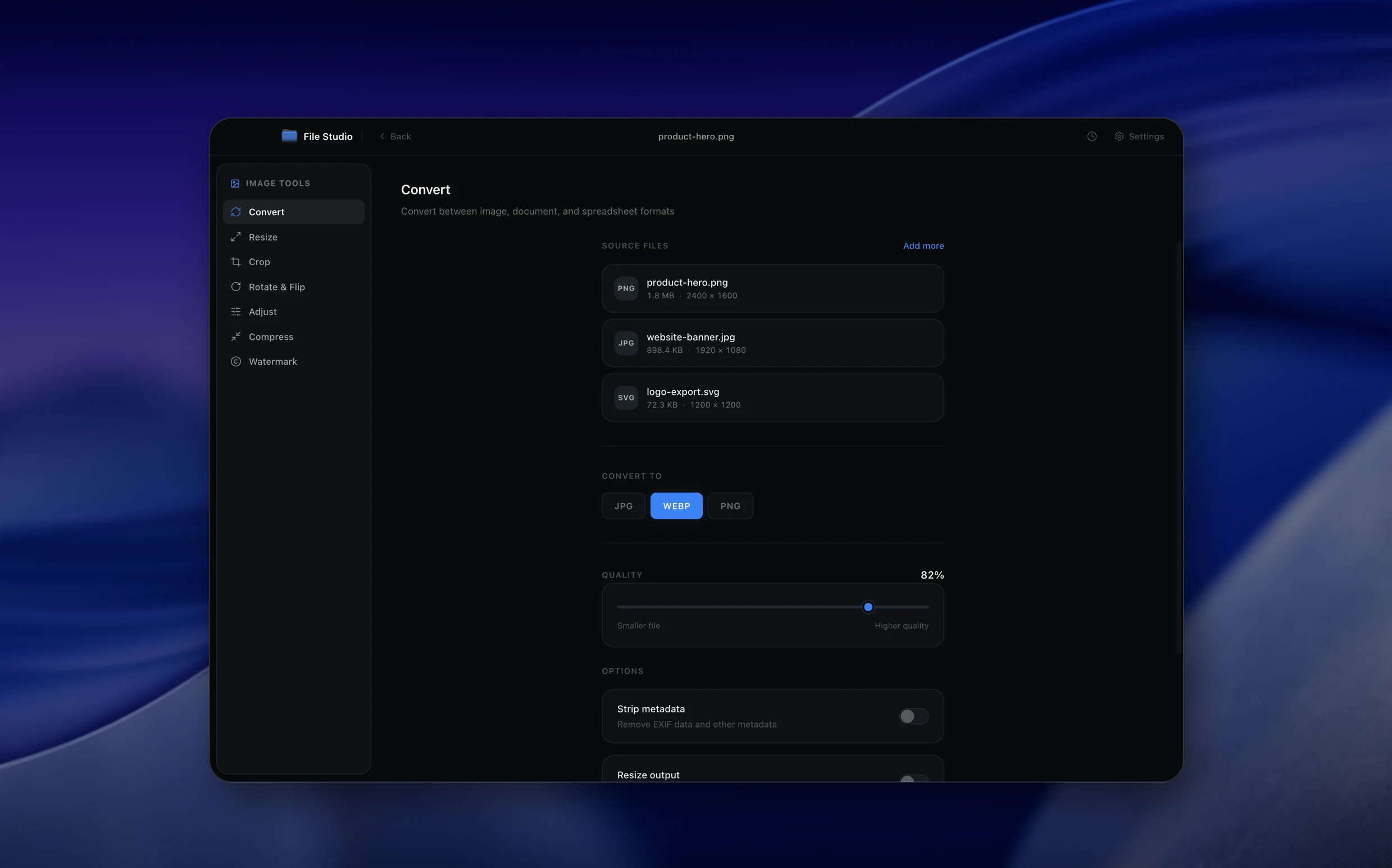
To batch resize images, open File Studio's image Resize tool, drop in all your images or a whole folder, set exact dimensions or a maximum width and height that keeps the aspect ratio, and click Resize. File Studio processes the whole batch locally and saves resized copies, leaving your originals untouched.
By Ayush Soni · Updated October 21, 2026
Step by step
- 1
Open File Studio and choose Image, then Resize
Drop in your images or a folder of them.
- 2
Set the size
Enter exact pixel dimensions, or set a maximum width and height to fit images while keeping their proportions.
- 3
Optionally change format
Convert to WebP or JPG at the same time to cut file size further.
- 4
Resize the batch
Click Resize. File Studio saves the new copies and leaves the originals alone.
Try File Studio free
Every tool runs locally on Mac and Windows. No uploads, no account.
FAQ
Frequently asked questions
Which formats can I resize?
Common formats such as JPG, PNG, WebP, TIFF, and BMP. HEIC and AVIF are not supported as input.
Will resizing keep the aspect ratio?
Yes, if you use a maximum width and height. Use exact dimensions only when you want a fixed size.
Can I resize new images automatically?
Yes. Set up a watch folder with a resize action and every new image in that folder is resized as it arrives.
Related:
More guides: