

PDF guide
How to rotate pages in a PDF
To rotate pages in a PDF, open File Studio's Rotate Pages tool, drop in the PDF, enter the pages to rotate (all pages, or a list like 2, 5-7), choose 90 degrees clockwise, counter-clockwise, or upside down, and save. The rotation is stored in the file, so it stays fixed in every PDF viewer.
By Ayush Soni · Updated October 21, 2026
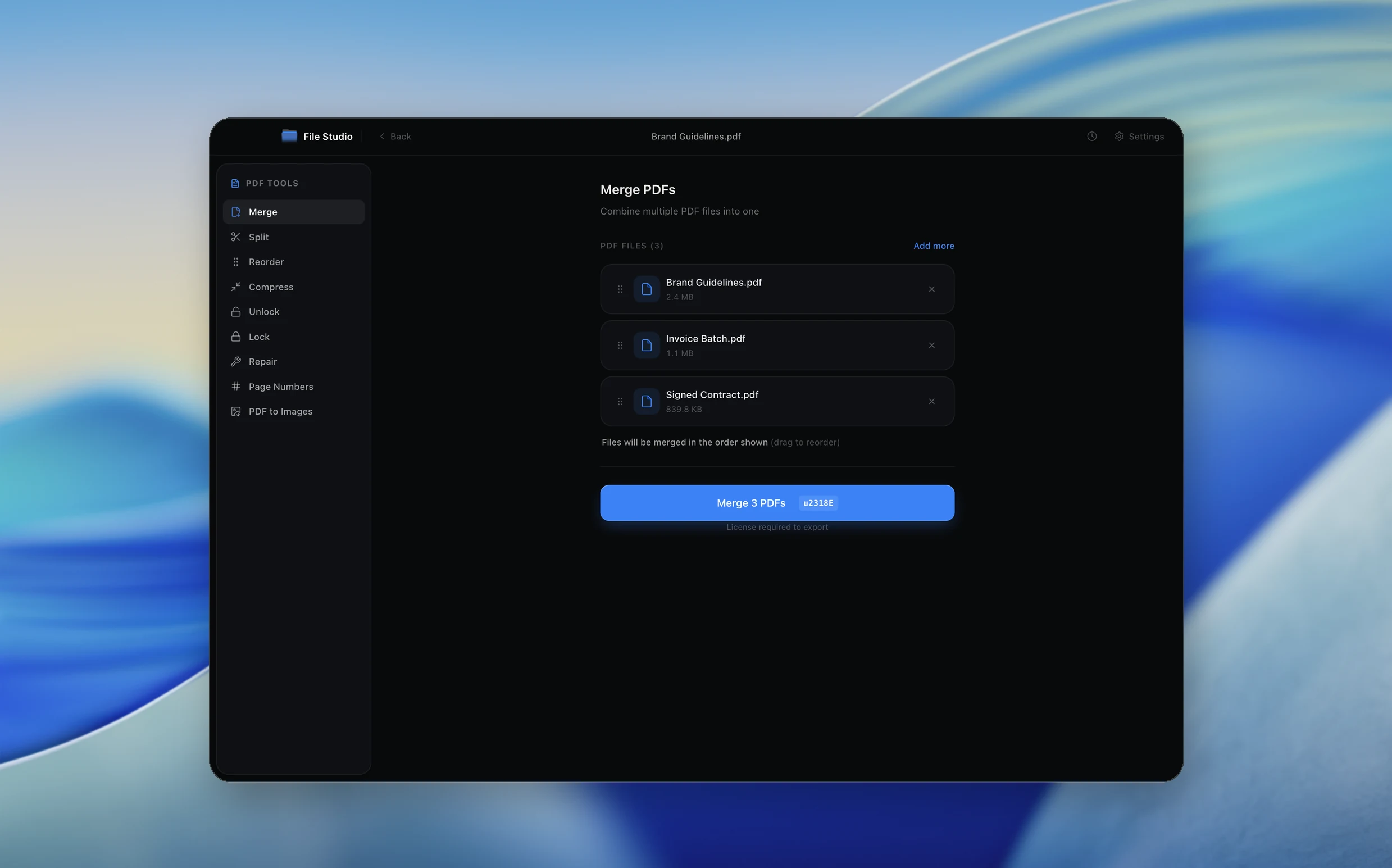
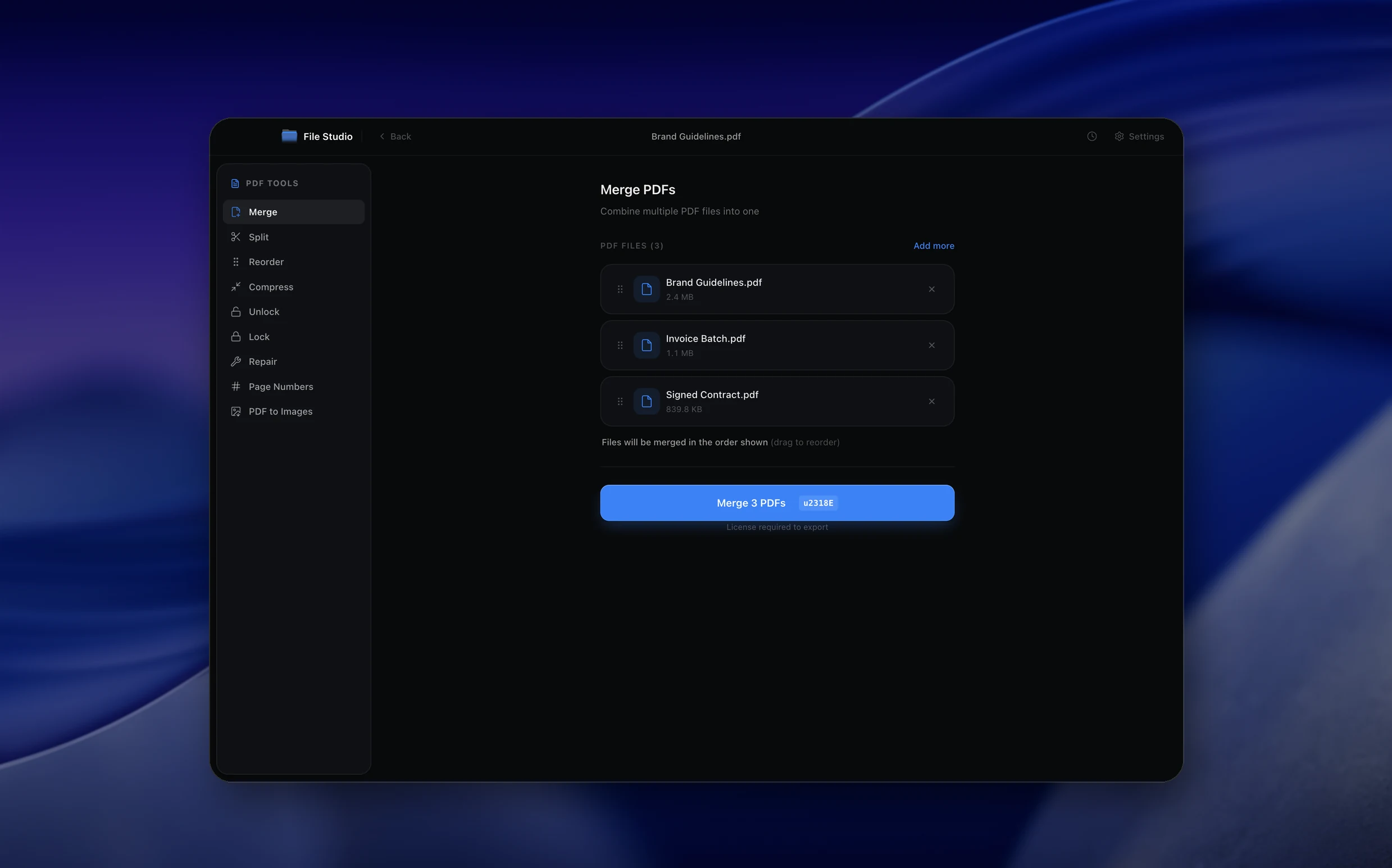
Step by step
- 1
Open File Studio and choose PDF, then Rotate Pages
Drop in the PDF with sideways or upside-down pages.
- 2
Pick the pages
Leave Pages empty for all pages, or type a list such as 2, 5-7. You can also rotate a single page from its preview.
- 3
Choose the direction
Rotate 90 degrees clockwise, 90 degrees counter-clockwise, or turn upside down.
- 4
Save the rotated PDF
File Studio saves a corrected copy that opens the right way everywhere.
Try File Studio free
Every tool runs locally on Mac and Windows. No uploads, no account.
FAQ
Frequently asked questions
Does rotating a PDF reduce quality?
No. Rotation changes the page orientation only; text and images are not re-encoded.
Why does my PDF go back to sideways after I rotate it in a viewer?
Many viewers only rotate the view. File Studio saves the rotation into the PDF itself.
Can an AI agent rotate pages for me?
Yes. Once File Studio is connected to Claude, Cursor, or Codex, you can ask it to rotate specific pages and it will use File Studio locally.
Related:
More guides: