

AI guide
How to connect File Studio to Codex
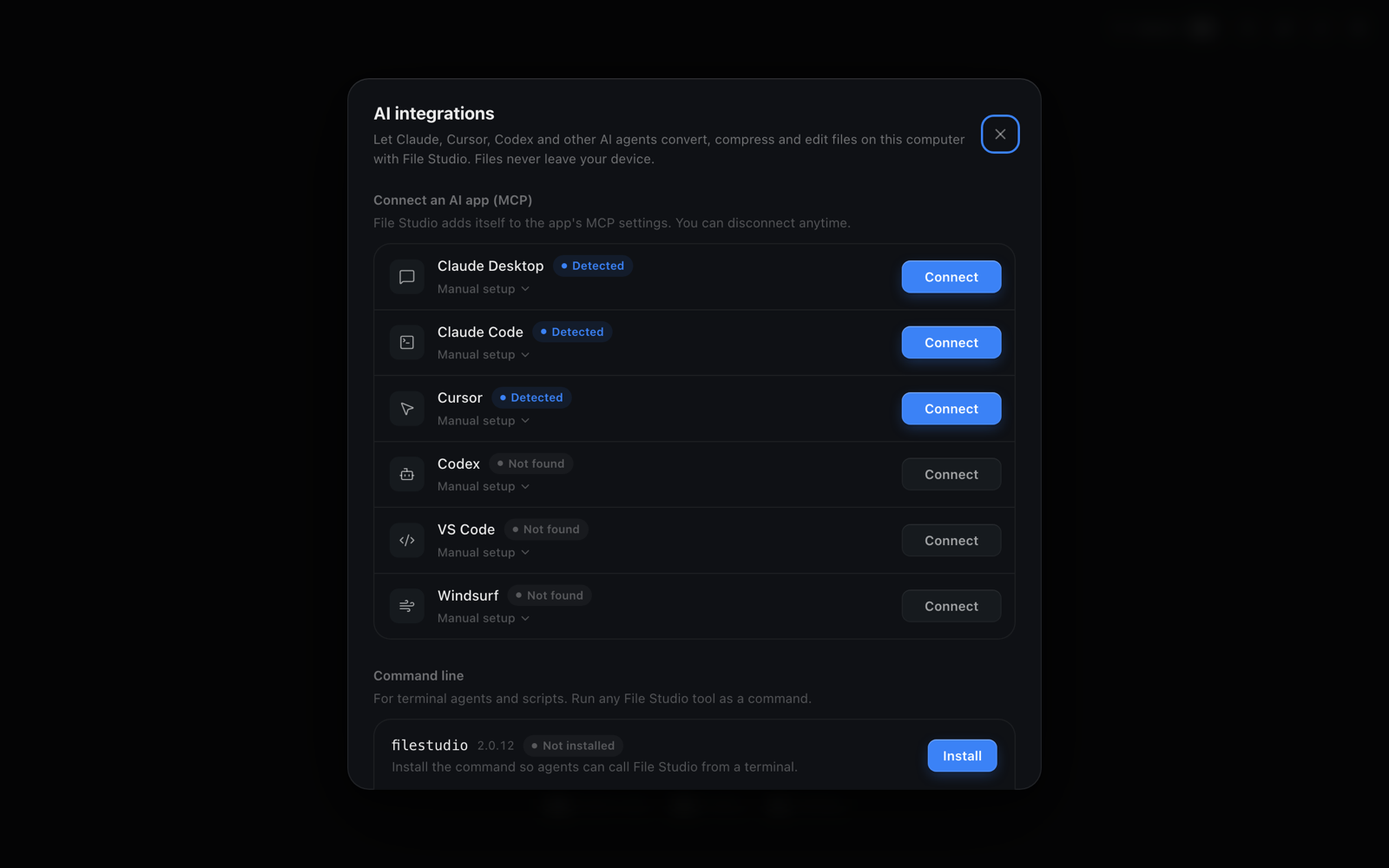
To connect File Studio to Codex, open File Studio, go to AI integrations, and click Connect next to Codex. File Studio adds a [mcp_servers.filestudio] entry to ~/.codex/config.toml, so Codex can merge PDFs, compress files, and convert images on your computer. Start a new Codex session to load it.
By Ayush Soni · Updated October 21, 2026
Step by step
- 1
Open AI integrations in File Studio
Launch File Studio and open AI integrations.
- 2
Click Connect next to Codex
File Studio adds its MCP server to your Codex config file.
- 3
Start a new Codex session
Codex reads its config when a session starts, so open a new session after connecting.
- 4
Ask Codex to work with files
Try "Merge invoice-1.pdf and invoice-2.pdf and add page numbers." Codex calls File Studio's tools to do it locally.
Manual setup
Manual setup: add the TOML below to ~/.codex/config.toml, then start a new Codex session.
Manual setup needs the filestudio command on your PATH. Install it from AI integrations, under Command line.
[mcp_servers.filestudio]
command = "filestudio"
args = ["mcp"]
Try File Studio free
Every tool runs locally on Mac and Windows. No uploads, no account.
FAQ
Frequently asked questions
Do my files get uploaded to File Studio or the AI provider?
No file is uploaded by File Studio. The MCP server and the filestudio command run on your computer and read and write files on your disk. Your AI app only sees the text it sends and receives, such as file paths and results, never a copy of the file sent through File Studio.
Does Codex need MCP to use File Studio?
No. Codex can run the filestudio command in its terminal, for example filestudio pdf merge a.pdf b.pdf -o out.pdf. MCP gives it typed tools, which tends to be more reliable.
How do I disconnect Codex?
Click Disconnect next to Codex in AI integrations, or delete the [mcp_servers.filestudio] block from ~/.codex/config.toml.
Related:
More guides: