

Rotate & Flip
Images to Rotated Images - Fix image orientation in seconds - rotate or flip with precision.
Whether your photos came out sideways or you need a mirror image, File Studio makes it effortless to rotate and flip images exactly how you need them.
Free trial · No account required · Files stay on your device
All conversions happen locally on your computer. No uploads, no subscriptions, and no background syncing.
Images → Rotated Images
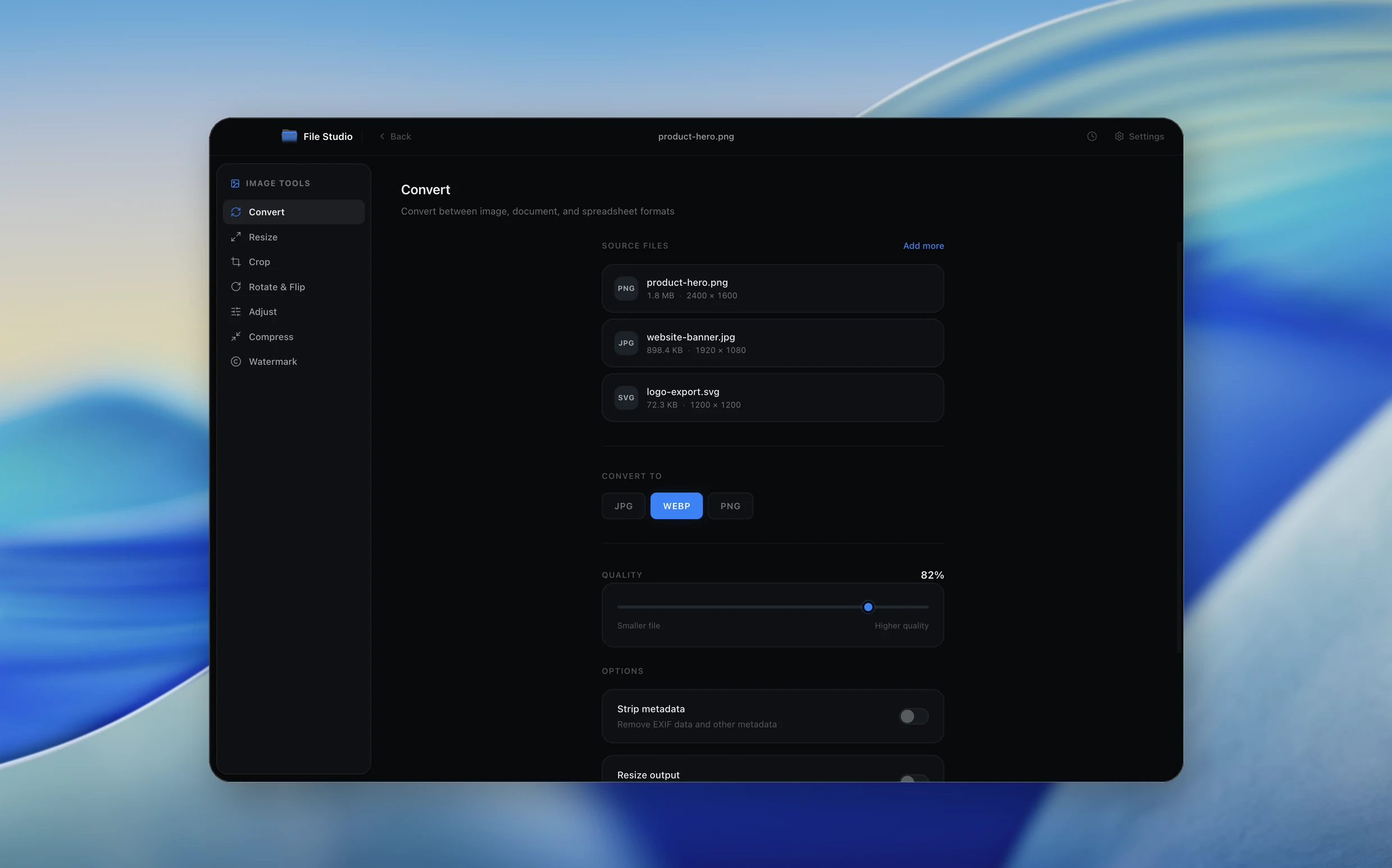
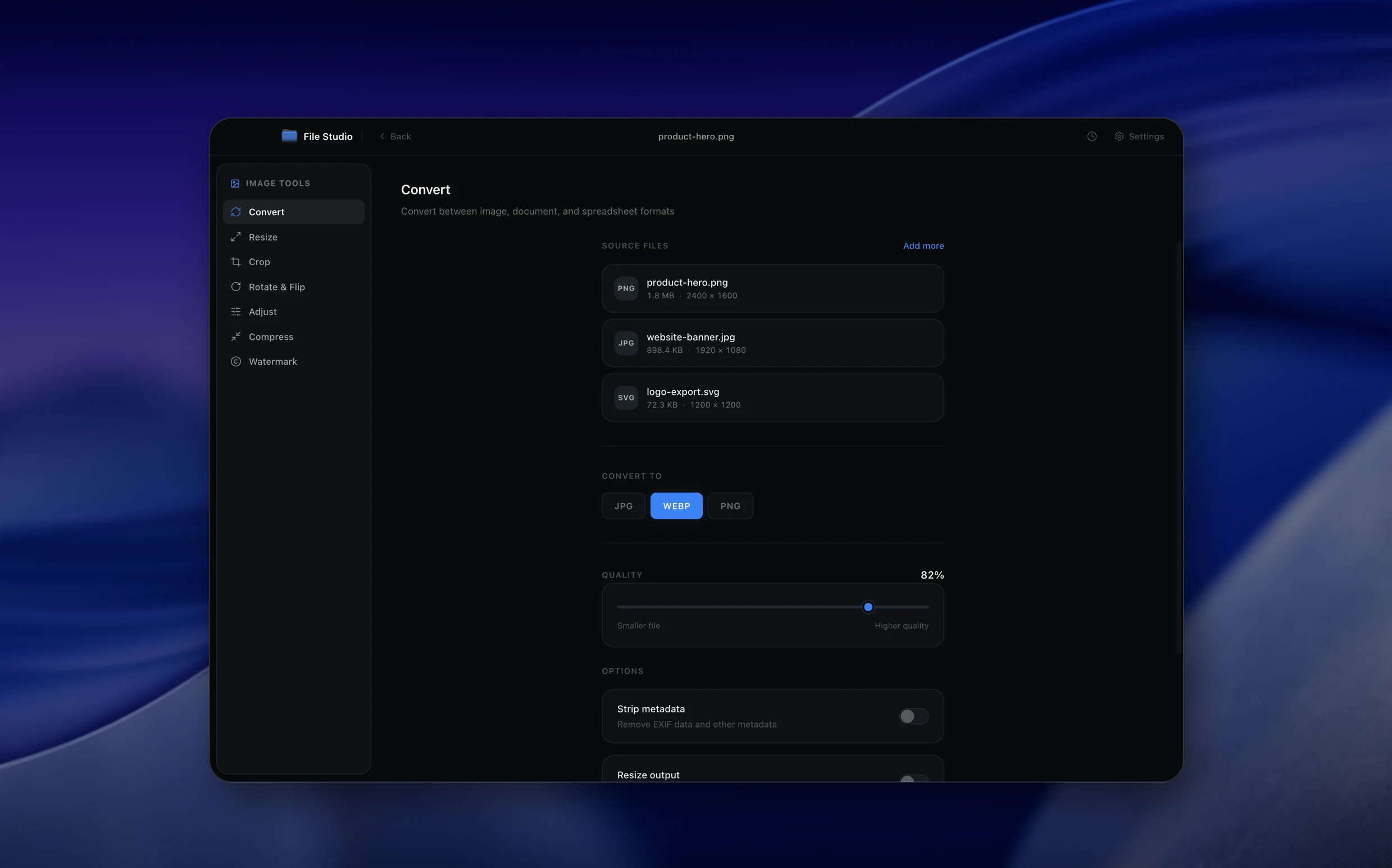
Real File Studio interface, shown in light and dark mode.
Understanding image rotation and flipping
Image rotation changes the angular orientation of an image, typically in 90-degree increments (clockwise or counterclockwise) or by an arbitrary angle. Flipping creates a mirror image along either the horizontal axis (vertical flip, turning the image upside down) or the vertical axis (horizontal flip, creating a left-right mirror). These are fundamental image transformation operations.
When rotating by exact 90-degree multiples, no pixel data is lost because each pixel maps directly to a new position. Arbitrary-angle rotation requires resampling, where new pixel values are interpolated from surrounding pixels, which can introduce slight softening. Modern algorithms minimize this quality loss, but repeated arbitrary rotations will gradually degrade image quality.
Rotation and flipping are essential for correcting photos taken in the wrong orientation, adjusting scanned documents that were fed into the scanner at an angle, creating mirror images for print transfers, and preparing images for specific layout requirements. Most cameras embed EXIF orientation tags, and rotating an image may involve updating or removing this metadata to prevent double-rotation in viewers that auto-apply EXIF orientation.
How it works
Convert Images to Rotated Images in four simple steps.
The flow mirrors the main File Studio experience: install the app, drop in your files, pick the right tool, and export clean, ready-to-share output. All without sending anything to the cloud.
Install File Studio
Download the app, move it to Applications, and open it. No sign-ups or accounts required.
Add your Images files
Drag-and-drop your images files into the window or click to browse from disk.
Choose Images → Rotated Images
Pick the dedicated tool, then adjust resolution, quality, and page range until the preview feels right.
Export & keep working
Select an output folder and run the conversion. Your originals stay untouched on your device.
Best practices for cleaner results
- ·Group related files into folders before converting so your output stays organized and easy to archive.
- ·Use higher resolution presets when you know the result will be printed, zoomed in, or reused in design tools.
- ·Keep an unedited copy of your original Images files for audits, record-keeping, or compliance workflows.
- ·Combine this tool with other File Studio actions like compress, merge, or split to streamline entire document pipelines.
Why File Studio
Built for trustworthy, everyday Images to Rotated Images work.
You get precise control over the output, predictable file names, and a private workflow that keeps sensitive documents on your own machine.
Features tuned for this conversion
- ·Instant preview of rotation and flip changes.
- ·Batch rotate multiple images with the same setting.
- ·Preserve image quality - no recompression during rotation.
Why use File Studio for this conversion?
- ·Rotate 90°, 180°, or 270° with a single click.
- ·Flip images horizontally or vertically.
- ·Batch process entire folders of misoriented photos.
Real-world ways people use it
- ·Fix sideways photos from your phone before sharing.
- ·Create mirror images for design and printing projects.
- ·Correct scanned documents that came through upside down.
Settings guide
Understanding your conversion options
Rotation Angle
Choose 90, 180, or 270 degrees for lossless rotation, or enter a custom angle for fine adjustment. Custom angles require resampling and may produce slightly softer results. Some tools offer a straightening guide that lets you align to a horizon or edge.
Flip Direction
Horizontal flip mirrors the image left to right (like looking in a mirror). Vertical flip turns the image upside down. These can be combined with rotation; for example, a horizontal flip followed by a 90-degree rotation is equivalent to a specific transposition.
Canvas Handling
When rotating by a non-90-degree angle, the rotated image may not fill a rectangular canvas. You can crop to the largest inscribed rectangle (losing corners), expand the canvas to fit all content (adding background fill), or accept the default behavior of your tool.
EXIF Orientation
Update the EXIF orientation tag after rotation to prevent viewers from applying their own auto-rotation on top of your changes. Alternatively, strip the EXIF orientation tag entirely so the pixel data alone determines display orientation.
Industry standards and requirements
In document scanning workflows, automatic orientation detection uses OCR to determine the correct reading direction and rotates pages accordingly. Enterprise document management systems like SharePoint and DocuWare often apply automatic rotation during ingestion. Manual rotation tools serve as a fallback when automatic detection fails.
For photography, camera EXIF orientation tags follow the EXIF 2.3 standard with eight possible orientations (four rotations and their mirrored counterparts). Social media platforms and web browsers increasingly respect these tags, but email clients and older software may not. The safest approach is to physically rotate the pixel data and set the EXIF orientation to 1 (normal).
In print production and textile design, horizontal flipping is used to create mirror images for iron-on transfers, screen printing, and engraving. Getting the flip direction wrong results in reversed text or backwards logos, which can be costly in production runs. Always verify the flip direction with a test print before committing to a production run.
Troubleshooting
Common issues and how to fix them
Image appears rotated in some apps but correct in others→
The EXIF orientation tag may conflict with the actual pixel data. Some apps auto-rotate based on EXIF, others do not. Reset the EXIF orientation to 'normal' after physically rotating the pixel data to eliminate ambiguity.
Rotated image has white or black triangles in corners→
This happens when rotating by a non-90-degree angle. The corners of the original rectangular image fall outside the output rectangle. Use the crop-after-rotate option to trim the image to a rectangle that fits entirely within the rotated area.
Image quality degraded after rotation→
Arbitrary-angle rotation requires resampling, which can soften details. If you only need 90/180/270-degree rotation, use a lossless rotation tool. For JPG files, some tools support lossless JPEG rotation that manipulates DCT coefficients without re-encoding.
Pricing
Simple, fair pricing.
All tools included. No hidden fees. Processing stays on your device.
Yearly
For short-term projects.
- 1 year of updates
- Image, PDF, SVG, and spreadsheet tools
- Works on Mac & Windows
- All processing done on device
Lifetime
One purchase. Keep it forever.
- Unlimited conversions forever
- 1 year of major updates
- Image, PDF, SVG, and spreadsheet tools
- Watch Folders & Automation
- macOS Notch Drop Zone
- Works on Mac & Windows
Team & Bulk Pricing
Lifetime seats with volume discounts. More seats, bigger discount.
15
lifetime seats
You save
$60
15% off the individual price
Enterprise
50+ seats with custom pricing, centralized license management, and priority support.
FAQ
Frequently asked questions
Does rotating an image reduce quality?→
No. File Studio performs lossless rotation that doesn't recompress your image, preserving the original quality.
Can I rotate and flip in the same operation?→
Yes. You can combine rotation and flip transformations before exporting.
What's the difference between horizontal and vertical flip?→
Horizontal flip mirrors the image left-to-right (like looking in a mirror). Vertical flip turns it upside down.
Can I rotate by custom angles like 45°?→
The rotate tool supports 90° increments for precise alignment. Custom angle rotation may be added in future updates.
Does rotation update EXIF orientation data?→
Yes. File Studio updates the orientation metadata so images display correctly in all apps and services.
Can I undo a rotation after saving?→
Your original file is never modified. File Studio saves rotated images as new files, so you can always go back to the original.
Looking for something else? Explore more offline conversions with File Studio: