

Online HEIC Converters alternative
Convert iPhone photos from HEIC without uploading them anywhere.
HEIC is the default photo format on iPhones, but it is not universally supported. Online HEIC converters solve this by converting your photos in a browser, but that means uploading your personal images to someone else's server. File Studio converts HEIC files to JPG, PNG, and other formats entirely on your computer.
Works 100% offline on both Windows and Mac.
Online HEIC Converters
Requires internet and file uploads to work.
Why people use Online HEIC Converters
HEIC (High Efficiency Image Coding) became a mainstream format when Apple adopted it as the default photo format for iPhones starting with iOS 11 in 2017. HEIC files are typically about half the size of equivalent JPEG images while maintaining comparable visual quality, which helps conserve iPhone storage space. The format is technically excellent, but its adoption outside the Apple ecosystem has been slow, creating a persistent compatibility problem for anyone who transfers iPhone photos to Windows PCs, Android devices, or web platforms that do not support HEIC.
Online HEIC converters emerged to fill this compatibility gap. Dozens of websites offer free HEIC-to-JPG conversion: you upload your HEIC files, the service converts them, and you download JPG versions. Sites like HEICtoJPEG.com, Convertio, and CloudConvert are among the popular options. The workflow is simple enough for anyone to use, requiring no technical knowledge beyond the ability to upload and download files.
The limitations of online HEIC converters show up quickly in real-world use. Most free converters allow only 5 to 30 photos at a time, which is frustrating when you have hundreds of vacation photos to convert. Output is usually limited to JPG, with no option for PNG, WebP, or other formats. Quality settings are minimal or nonexistent, giving you no control over the output resolution or compression level. And EXIF metadata, including dates, locations, and camera settings, is often stripped during conversion, losing valuable information that was embedded in the original photos.
Perhaps most importantly, online HEIC converters require you to upload your personal photos to someone else's server. These are your private images: family photos, personal moments, and location-tagged pictures that reveal where you have been. Uploading them to an unknown web service introduces a privacy risk that many users do not consider in the moment. File Studio converts HEIC files locally on your Mac or Windows PC, preserving metadata, offering format and quality choices, and keeping your personal photos entirely on your device.
The HEIC compatibility problem is particularly acute for Windows users. macOS handles HEIC files natively through Preview and other system tools, so Mac users may not even realize there is a problem. Windows users, however, often encounter HEIC files they cannot open, especially when receiving photos from iPhone users. The standard workflow of searching for an online converter, uploading personal photos to an unfamiliar website, and downloading converted files is both inefficient and risky. File Studio provides a permanent, local solution that eliminates the need to search for converters every time you receive HEIC files.
Side-by-side comparison
File Studio vs Online HEIC Converters
| Feature | Online HEIC Converters | File Studio |
|---|---|---|
| Works offline | No, web-based | Yes, fully offline |
| Photo privacy | Personal photos uploaded to third-party servers | Photos never leave your device |
| Batch conversion | Limited (most allow 5-30 photos at a time) | Convert entire photo libraries at once |
| Output formats | Usually JPG only | JPG, PNG, WebP, PDF |
| Quality control | Minimal or no quality settings | Full control over output quality and resolution |
| EXIF data preservation | Often stripped during conversion | Preserves metadata during conversion |
| Price | Free with limits; some charge for batch | $29 one-time or $15/year |
Why switch
What you get with File Studio instead
Convert hundreds of HEIC photos at once without uploading them in small batches.
Your personal and family photos never leave your computer. No privacy concerns.
Preserve photo metadata (date, location, camera info) during conversion.
Convert to multiple formats including PNG and WebP, not just JPG.
Control output quality and resolution to balance file size and image clarity.
Works without internet, which is useful when transferring photos from an iPhone in a location without Wi-Fi.
Pricing
Many online HEIC converters are free for converting a few photos at a time. However, batch conversion often requires a paid plan or repeated manual uploads. File Studio costs $29 once and converts unlimited HEIC files with full quality control. If you regularly move photos from an iPhone to a Windows PC or need universal formats, the one-time cost is worthwhile.
In-depth look
Feature breakdown: Online HEIC Converters vs File Studio
PDF tools comparison
Online HEIC converters do not include any PDF tools. They are specialized, single-purpose services for converting HEIC images to more widely compatible formats. Any PDF operations require a separate tool.
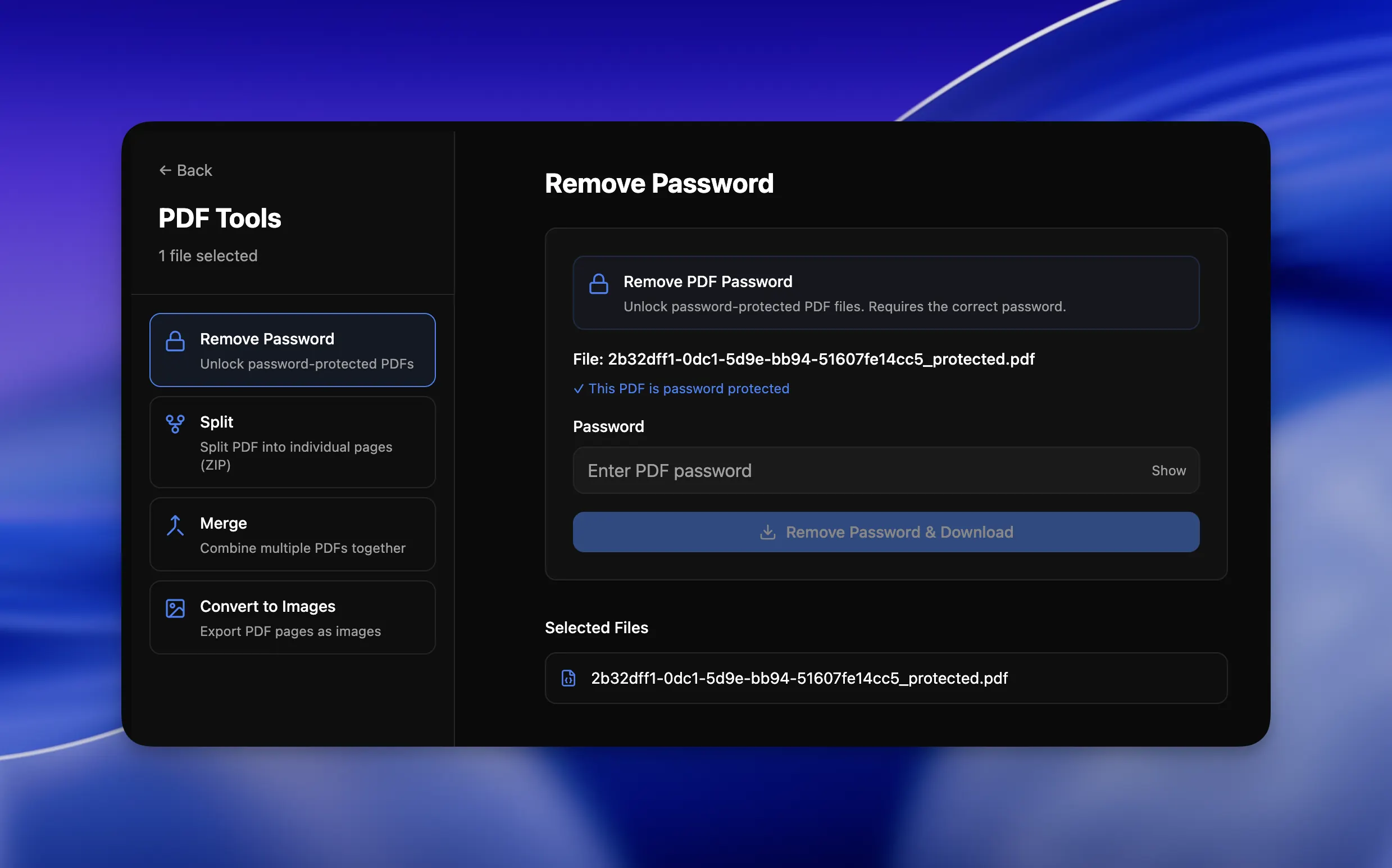
File Studio includes a full set of PDF tools alongside its image and HEIC conversion features: merging, splitting, compressing, converting between PDF and image formats, and password removal. For users who need both HEIC conversion and PDF manipulation, File Studio covers both in a single application.
This combination is more common than it might seem. Someone transferring photos from an iPhone often also needs to work with PDF documents as part of the same workflow, whether it is preparing a photo report, combining images with PDF pages, or converting documents alongside images.
Image handling
Online HEIC converters typically offer conversion to JPG and sometimes PNG. The process is basic: upload HEIC files, get JPG files back. There are usually no quality controls, no resolution settings, and no options for output format beyond JPG. Some services strip EXIF metadata during conversion, while others preserve it inconsistently. Batch processing is limited to whatever the site allows, usually a small number of files per session.
File Studio's HEIC conversion is more capable in every dimension. You can convert to JPG, PNG, WebP, or PDF. Quality and resolution controls let you choose the tradeoff between file size and image clarity. EXIF metadata is preserved during conversion, so dates, locations, and camera information stay with your photos. Batch conversion handles entire folders at once, with no per-session limit. And the conversion happens locally, so even thousands of photos process quickly without upload and download delays.
Beyond HEIC conversion, File Studio includes tools for image compression, resizing, cropping, watermarking, and collage creation. These tools work with all supported image formats, not just HEIC. For someone who regularly works with photos from an iPhone or other camera, the comprehensive toolkit covers the full image preparation workflow.
The EXIF metadata preservation in File Studio deserves special attention. When you convert HEIC photos with most online converters, metadata like the date the photo was taken, GPS coordinates, camera settings, and orientation information is often stripped or corrupted. This means you lose the ability to sort photos by date, view them on a map, or access the technical details of each shot. File Studio preserves this metadata during conversion, which is essential for photographers, journalists, and anyone who relies on photo metadata for organization or documentation purposes.
Quality control is another area where File Studio offers more than online converters. Most online HEIC converters output JPG files at a fixed quality level, giving you no choice over the balance between file size and visual quality. File Studio lets you specify the output quality, from high-fidelity conversions that preserve maximum detail to more compressed outputs that minimize file size. This flexibility matters when you need to balance storage space against image quality for different use cases.
Privacy and data handling
Online HEIC converters require you to upload your personal photos to third-party servers. This is inherently more sensitive than uploading a PDF or document, because personal photos often contain faces, private moments, and location information embedded in EXIF metadata. The combination of images and geolocation data is particularly sensitive from a privacy perspective.
Many online HEIC converters are small, independent operations with minimal privacy policies and unknown security practices. Even well-intentioned services may have inadequate security measures for protecting the large volumes of personal photos that pass through their systems. The risk of a data breach exposing personal photos is real and has real consequences.
File Studio converts HEIC files entirely on your local machine. Your photos never leave your computer, never travel over the internet, and are never stored on anyone else's infrastructure. For personal photos, family images, and any pictures you would not want to see on a stranger's server, local conversion is the only approach that completely eliminates the privacy risk.
Honest take
What you give up by switching
- *Online HEIC converters are free and require no installation, making them accessible from any device with a browser.
- *For converting a handful of non-sensitive photos, online converters are quick and convenient.
- *Some online converters support drag-and-drop directly from cloud storage services like Google Photos or iCloud.
- *Online converters work on Chromebooks, Linux machines, and other platforms where File Studio is not available.
- *File Studio requires a $29 purchase, which may not be justified if you only need to convert a few photos once.
Decision guide
Which tool is right for you?
You need to convert 5 to 10 non-sensitive HEIC photos quickly and have no software installed
An online HEIC converter is adequate for a small, one-off batch of non-personal images where privacy is not a concern.
You regularly transfer iPhone photos to a Windows PC and need reliable batch conversion
Use File Studio. Its batch conversion handles entire photo libraries locally, with format choices, quality controls, and metadata preservation.
You want to convert personal or family photos without uploading them to a stranger's server
Use File Studio. Personal photos with faces, locations, and private moments should stay on your device throughout the conversion process.
You need HEIC conversion alongside other image and PDF tools in a single application
Use File Studio. It combines HEIC conversion with image editing, format conversion, compression, and PDF tools in one app.
Pricing
Simple, fair pricing.
All tools included. No hidden fees. Processing stays on your device.
Yearly
For short-term projects.
- 1 year of updates
- Image, PDF, SVG, and spreadsheet tools
- Works on Mac & Windows
- All processing done on device
Lifetime
One purchase. Keep it forever.
- Unlimited conversions forever
- 1 year of major updates
- Image, PDF, SVG, and spreadsheet tools
- Watch Folders & Automation
- macOS Notch Drop Zone
- Works on Mac & Windows
Team & Bulk Pricing
Lifetime seats with volume discounts. More seats, bigger discount.
15
lifetime seats
You save
$60
15% off the individual price
Enterprise
50+ seats with custom pricing, centralized license management, and priority support.
FAQ
Frequently asked questions
Why do iPhones save photos as HEIC?→
HEIC (High Efficiency Image Coding) produces smaller files than JPG at the same quality level. Apple adopted it to save storage space on iPhones. The downside is that HEIC is not universally supported, especially on Windows and older software.
Can I set my iPhone to shoot JPG instead?→
Yes. Go to Settings > Camera > Formats and choose Most Compatible. This saves photos as JPG but uses more storage space. Many people prefer to keep HEIC on the phone and convert when needed using a tool like File Studio.
Does File Studio preserve photo quality during HEIC conversion?→
Yes. File Studio lets you choose the output quality level. At high quality settings, the visual difference between the original HEIC and the converted JPG or PNG is negligible.
Can File Studio convert HEIC to PNG for transparency?→
Yes. While HEIC photos from iPhones typically do not use transparency, converting to PNG is useful when you want lossless quality or need to use the image in a workflow that requires PNG format.
How many HEIC photos can File Studio convert at once?→
There is no fixed limit. You can drop in hundreds or thousands of HEIC files and File Studio will batch-convert them. The speed depends on your computer's hardware.
Does macOS Preview already convert HEIC?→
Preview can export a single HEIC file to JPG or PNG, but it cannot batch-convert a folder of photos. File Studio's batch conversion is much faster for handling multiple files.
@ayysoni · March 11, 2026
Related File Studio tools you might find useful:
Compare File Studio with other tools: