

Spreadsheet Converter
Excel to CSV / JSON - Extract and convert data from spreadsheets securely.
Turn complex Excel workbooks into clean, developer-ready CSV or JSON files. Keep your financial models, customer lists, and proprietary data completely offline.
Free trial · No account required · Files stay on your device
All conversions happen locally on your computer. No uploads, no subscriptions, and no background syncing.
Excel → CSV / JSON
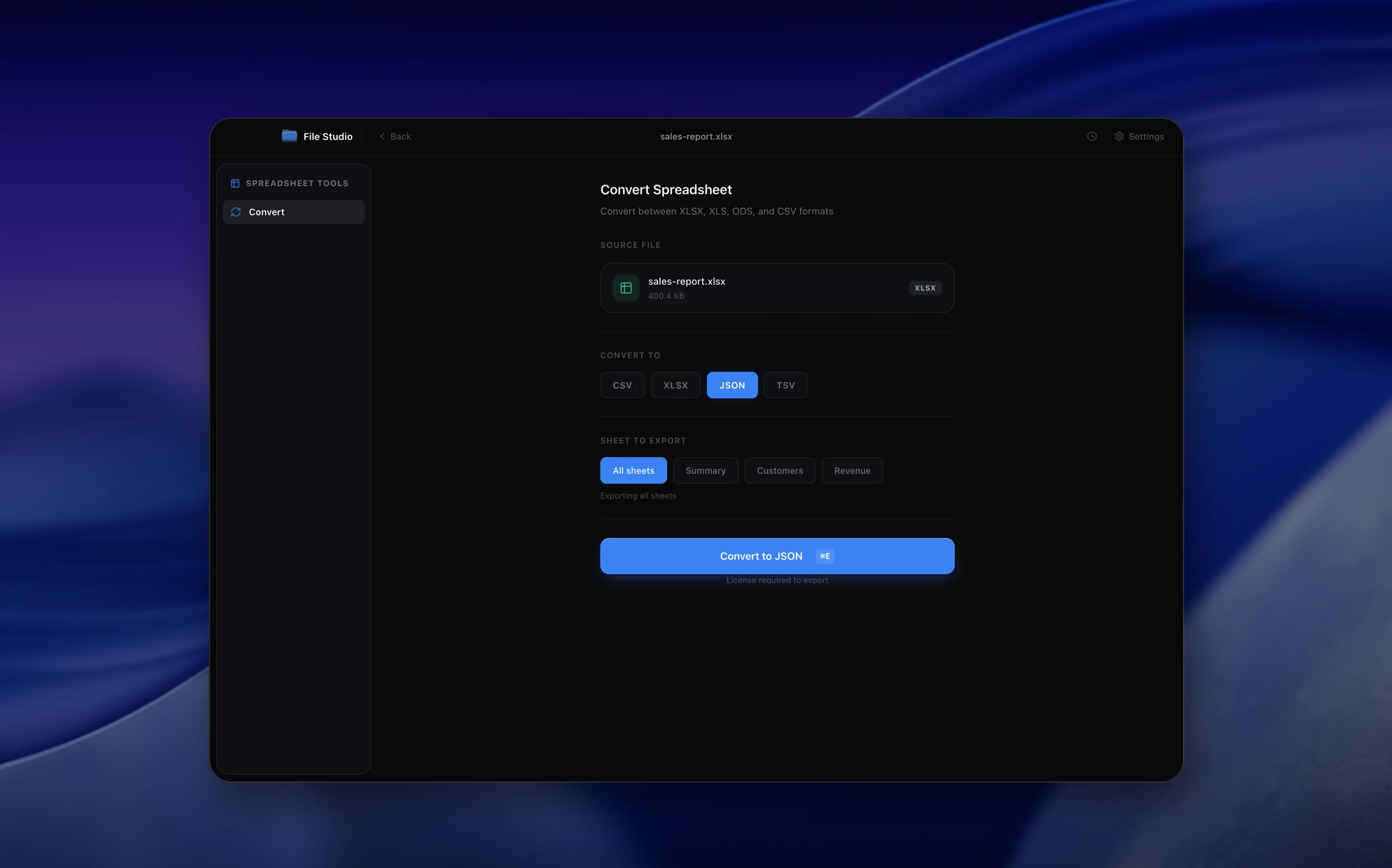
Real File Studio interface, shown in light and dark mode.

Understanding the CSV format
CSV (Comma-Separated Values) is the simplest tabular data format in widespread use. A CSV file is plain text where each line represents a row and fields are separated by a delimiter, typically a comma. There is no formal owner of the format, but RFC 4180 (published in 2005) describes the most commonly accepted conventions: fields containing the delimiter, quotes, or line breaks must be enclosed in double quotes, and embedded double quotes are escaped by doubling them.
Despite its simplicity, CSV has many real-world variations. European locales often use semicolons as delimiters because the comma is the decimal separator. Some systems use tabs (technically TSV) or pipes. Line endings vary between LF (Unix), CRLF (Windows), and CR (legacy Mac). Character encoding is not declared inside the file, so a CSV must be paired with knowledge of its encoding (UTF-8, UTF-16, Windows-1252, ISO 8859-1) or risk garbled non-ASCII characters.
When converting from Excel to CSV, the rich features of XLSX (formulas, formatting, multiple sheets, merged cells, data types) collapse into flat text. Formulas are replaced with their computed values, formatting is lost, and only one sheet can be exported per file. Numbers with currency or date formats become raw values whose interpretation depends on the receiving program. This trade-off is exactly why CSV remains the lingua franca of data interchange between databases, scripts, and analysis tools.
How it works
Convert Excel to CSV / JSON in four simple steps.
The flow mirrors the main File Studio experience: install the app, drop in your files, pick the right tool, and export clean, ready-to-share output. All without sending anything to the cloud.
Install File Studio
Download the app, move it to Applications, and open it. No sign-ups or accounts required.
Add your Excel files
Drag-and-drop your excel files into the window or click to browse from disk.
Choose Excel → CSV / JSON
Pick the dedicated tool, then adjust resolution, quality, and page range until the preview feels right.
Export & keep working
Select an output folder and run the conversion. Your originals stay untouched on your device.
Best practices for cleaner results
- ·Group related files into folders before converting so your output stays organized and easy to archive.
- ·Use higher resolution presets when you know the result will be printed, zoomed in, or reused in design tools.
- ·Keep an unedited copy of your original Excel files for audits, record-keeping, or compliance workflows.
- ·Combine this tool with other File Studio actions like compress, merge, or split to streamline entire document pipelines.
Why File Studio
Built for trustworthy, everyday Excel to CSV / JSON work.
You get precise control over the output, predictable file names, and a private workflow that keeps sensitive documents on your own machine.
Features tuned for this conversion
- ·Support for complex XLSX and legacy XLS files.
- ·Configurable delimiters and JSON formatting.
- ·Batch convert entire folders of spreadsheets.
Why use File Studio for this conversion?
- ·Convert Excel to CSV or JSON formats.
- ·Process massive datasets instantly.
- ·100% offline - your data never leaves your device.
Real-world ways people use it
- ·Prepare customer data for database imports.
- ·Convert financial reports into machine-readable JSON.
- ·Extract specific worksheets from large Excel files.
Settings guide
Understanding your conversion options
Delimiter
Comma is the default and most universally supported. Use semicolon for European locales where commas serve as decimal separators. Use tab for data that contains many commas in field values (free text, addresses). Pipe (|) is occasionally used in legacy systems. Match the delimiter to whatever your downstream tool expects.
Encoding
UTF-8 with BOM (Byte Order Mark) is the safest default for Excel compatibility, because Excel auto-detects the BOM and opens the file with correct character encoding. Without the BOM, Excel may default to the system code page and corrupt non-ASCII characters. Pure UTF-8 (no BOM) is preferred for Unix tools and most programming languages.
Sheet Selection
An Excel workbook can contain dozens of sheets, but a CSV holds only one. Choose which sheet to export, or run multiple conversions to produce one CSV per sheet. Some tools generate a zipped archive containing one CSV per sheet for quick batch export.
Date Format
Excel stores dates as serial numbers internally. When exporting to CSV, the converter must format them as text. Common choices include ISO 8601 (2026-04-08), US format (04/08/2026), or European format (08/04/2026). ISO 8601 is the safest because it sorts correctly as text and is unambiguous across locales.
Quote Character
Double quote is the RFC 4180 standard. Some legacy systems use single quotes. The quote character only appears around fields that contain the delimiter, the quote character itself, or a newline. Forced quoting (quote every field) is available when the receiving system requires it.
Industry standards and requirements
Database systems (PostgreSQL, MySQL, SQL Server, Snowflake) all support CSV import via dedicated commands like COPY, LOAD DATA INFILE, and BULK INSERT. Each accepts variations on RFC 4180, with options for delimiter, quote character, header row, and null marker. For high-volume data loading, CSV with proper quoting and consistent encoding is faster than JSON or XML by an order of magnitude because the parser is simpler.
Financial regulators in the U.S. (SEC, CFTC) and Europe (ESMA) accept CSV for transaction reporting under MiFID II, Dodd-Frank, and EMIR. These submissions specify exact column orders, date formats (typically ISO 8601), and decimal separators. Validation tools at the receiving agency reject any file that deviates from the schema, so producers must control encoding, delimiter, and quoting precisely.
Open data initiatives such as data.gov and the European Data Portal require CSV files to follow the W3C CSV on the Web (CSVW) recommendations, which include a JSON schema describing column types, units, and constraints. CSVW enables machine-readable validation while keeping the data file itself in the simplest possible format for direct download and analysis.
Troubleshooting
Common issues and how to fix them
Special characters appear as question marks or boxes→
The CSV was saved in an encoding that does not support those characters, such as ASCII or Windows-1252. Re-export with UTF-8 encoding. If the destination is Excel, include the UTF-8 BOM so Excel detects the encoding correctly when double-clicking the file.
Numbers with leading zeros lose them after conversion→
CSV does not distinguish text from numbers, so '00123' is interpreted as the number 123 by most spreadsheet importers. Format the source column as Text in Excel before exporting, or wrap the values in tab characters or formulas like ='00123' to force text interpretation on import.
Long numbers are converted to scientific notation→
Excel displays numbers longer than 15 digits in scientific notation by default and may store them with reduced precision. For identifiers, account numbers, and tracking codes, format the source column as Text before populating the cells, or prefix values with an apostrophe to force string storage.
Multi-line cells break the row structure→
Cells containing line breaks must be enclosed in quote characters per RFC 4180. If the importing tool does not respect quoting, replace embedded line breaks with spaces or HTML break tags before export. Verify by opening the CSV in a text editor to confirm line counts match row counts.
Pricing
Simple, fair pricing.
All tools included. No hidden fees. Processing stays on your device.
Yearly
For short-term projects.
- 1 year of updates
- Image, PDF, SVG, and spreadsheet tools
- Works on Mac & Windows
- All processing done on device
Lifetime
One purchase. Keep it forever.
- Unlimited conversions forever
- 1 year of major updates
- Image, PDF, SVG, and spreadsheet tools
- Watch Folders & Automation
- macOS Notch Drop Zone
- Works on Mac & Windows
Team & Bulk Pricing
Lifetime seats with volume discounts. More seats, bigger discount.
15
lifetime seats
You save
$60
15% off the individual price
Enterprise
50+ seats with custom pricing, centralized license management, and priority support.
FAQ
Frequently asked questions
Is my spreadsheet data uploaded anywhere?→
No. All data processing and conversion happens locally on your computer. Your sensitive spreadsheets are never sent to the cloud.
Can I convert multiple spreadsheets at once?→
Yes. You can drop in an entire folder of Excel files and convert them all to CSV or JSON in a single batch operation.
Does it support multiple worksheets?→
Yes. File Studio can export all worksheets from an Excel file into separate CSV files or a structured JSON document.
Are formulas evaluated during conversion?→
Yes, the converter extracts the calculated values from your formulas rather than the formula text itself.
Can I customize the CSV delimiter?→
Absolutely. You can choose commas, semicolons, tabs, or custom characters to match your target system's requirements.
How large of a spreadsheet can I convert?→
File Studio is optimized for performance and can handle very large datasets, limited primarily by your computer's memory.
Looking for something else? Explore more offline conversions with File Studio: