

JPG to BMP converter
JPG to BMP - Decode JPGs into uncompressed BMP files for systems that need raw pixels.
Some hardware, firmware, and legacy software only accept BMP input. File Studio decodes your JPG images and writes them as uncompressed bitmaps, giving you raw pixel data that any system can read, all processed locally.
Free trial · No account required · Files stay on your device
All conversions happen locally on your computer. No uploads, no subscriptions, and no background syncing.
JPG → BMP
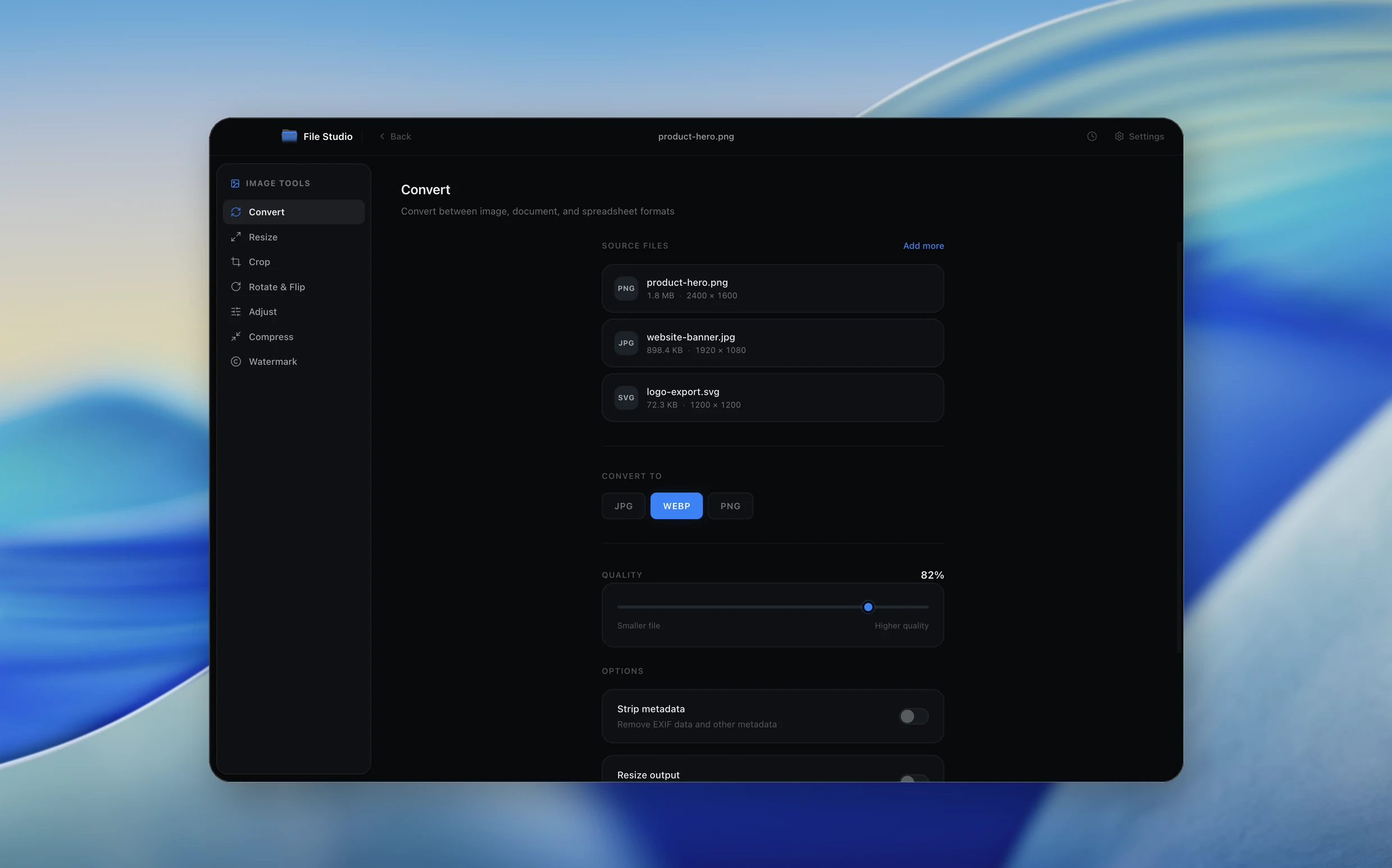
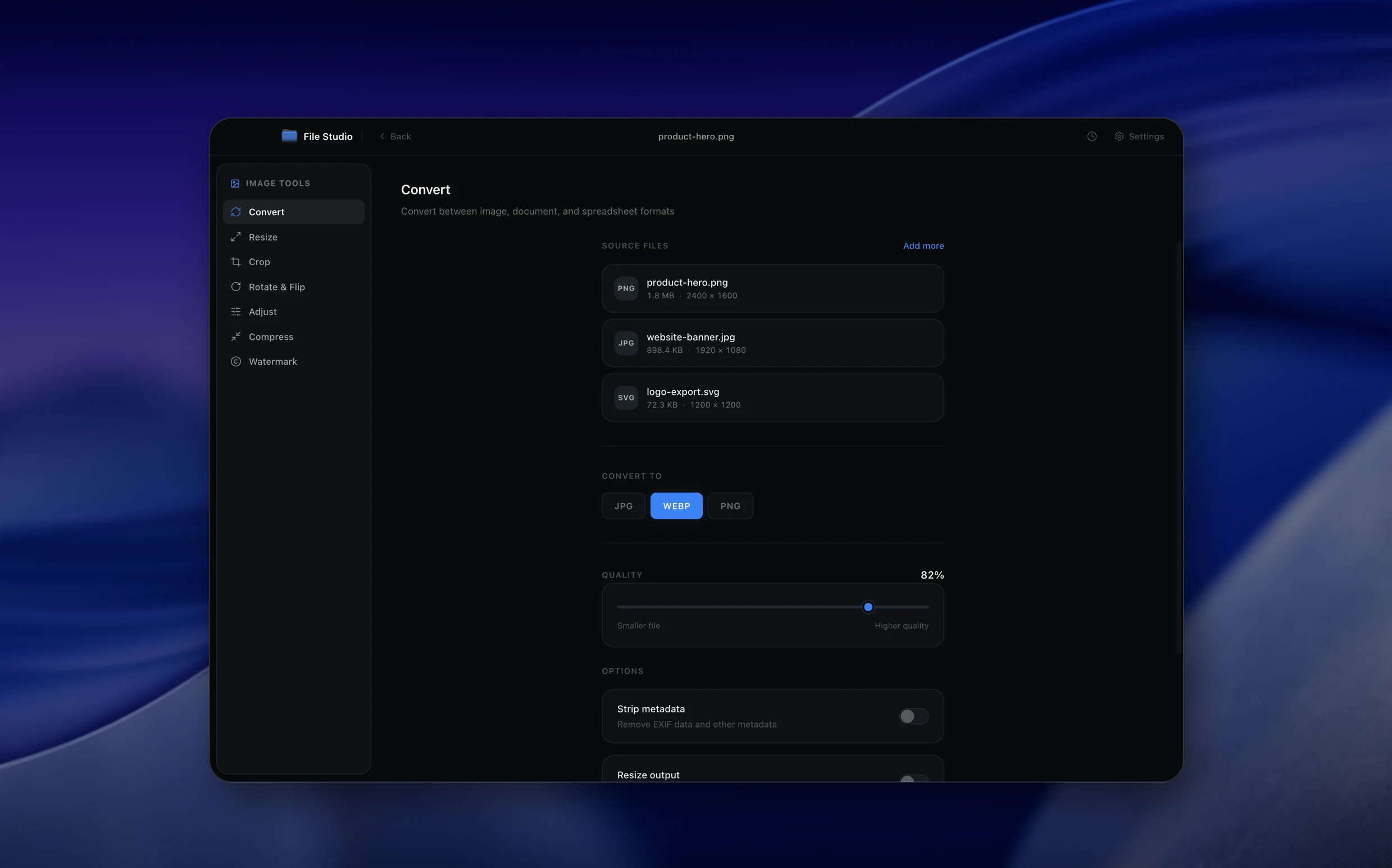
Real File Studio interface, shown in light and dark mode.
Understanding the BMP format
BMP is a Microsoft raster format that dates back to the original Windows and OS/2 releases. It encodes images as a header followed by raw pixel data, optionally compressed with run-length encoding for indexed color modes. In practice, almost all BMPs in circulation are stored uncompressed at 24 or 32 bits per pixel, which makes the format simple to read but extremely large compared to JPG, PNG, or modern web formats.
JPG is a lossy compressed format using DCT and Huffman coding to achieve compression ratios of 10:1 or better at typical quality settings. Converting JPG to BMP decompresses the JPG into raw pixels and writes them with no further compression. The visual quality of the result is identical to the source JPG (no new information is added by decompression), but the file size grows roughly tenfold because the BMP no longer benefits from JPG's perceptual coding.
JPG to BMP conversion is most often required by legacy Windows software, scientific instruments, embedded GUI systems, and forensic workflows that cannot or will not accept compressed input. Converting in advance produces a file that opens directly with Windows GDI, .NET Bitmap, or any C library that includes a basic BMP parser.
How it works
Convert JPG to BMP in four simple steps.
The flow mirrors the main File Studio experience: install the app, drop in your files, pick the right tool, and export clean, ready-to-share output. All without sending anything to the cloud.
Install File Studio
Download the app, move it to Applications, and open it. No sign-ups or accounts required.
Add your JPG files
Drag-and-drop your jpg files into the window or click to browse from disk.
Choose JPG → BMP
Pick the dedicated tool, then adjust resolution, quality, and page range until the preview feels right.
Export & keep working
Select an output folder and run the conversion. Your originals stay untouched on your device.
Best practices for cleaner results
- ·Group related files into folders before converting so your output stays organized and easy to archive.
- ·Use higher resolution presets when you know the result will be printed, zoomed in, or reused in design tools.
- ·Keep an unedited copy of your original JPG files for audits, record-keeping, or compliance workflows.
- ·Combine this tool with other File Studio actions like compress, merge, or split to streamline entire document pipelines.
Why File Studio
Built for trustworthy, everyday JPG to BMP work.
You get precise control over the output, predictable file names, and a private workflow that keeps sensitive documents on your own machine.
Features tuned for this conversion
- ·Full JPG decoding including progressive and baseline JPG variants.
- ·24-bit uncompressed BMP output for maximum compatibility.
- ·Batch conversion for processing multiple JPGs to BMP simultaneously.
Why use File Studio for this conversion?
- ·Decode compressed JPG data into raw, uncompressed BMP pixel output.
- ·Compatible with legacy devices and embedded systems that require BMP.
- ·No internet connection needed, ideal for offline and industrial environments.
Real-world ways people use it
- ·Provide BMP input to CNC engraving machines that do not support JPG.
- ·Convert JPG photos to BMP for custom LED display controllers.
- ·Prepare uncompressed bitmaps from JPG source images for firmware splash screens.
Settings guide
Understanding your conversion options
Bit Depth
24-bit BMP stores 8 bits each for red, green, and blue with no transparency. 32-bit adds an 8-bit alpha channel that some modern readers honor. 8-bit indexed produces a much smaller file but limits the palette to 256 colors. Choose 24-bit unless a specific reason requires another mode.
Background Color
JPG has no transparency, so this setting is rarely needed for direct JPG to BMP conversion. It becomes relevant only if the converter applies a frame, padding, or letterboxing during resize operations.
Resolution Tags (DPI)
BMP headers can record horizontal and vertical pixel-per-meter values. Set these so that destination software displays the correct physical size. JPG often carries no DPI tag, so a sensible default such as 96 or 300 must be supplied.
Row Order
Default BMP rows run bottom to top. Some modern variants support top-down ordering with a negative height value. Stick with bottom-up for compatibility with legacy Windows tools and older third-party libraries.
Palette Generation (for 8-bit output)
When writing 8-bit indexed BMP, a quantization algorithm builds a palette from the source pixels. Use median cut or octree for natural images, and consider Floyd-Steinberg dithering to mask the visible banding that comes from reducing to 256 colors.
Industry standards and requirements
Legacy Windows applications written in Visual Basic 6, classic MFC, and early .NET often expect 24-bit uncompressed BMP because the GDI Bitmap class loads it directly without external decoders. Maintenance workflows for these applications routinely convert modern JPG sources to BMP before ingest.
Industrial vision systems and automated inspection cameras frequently use BMP because the format requires no decompression library on resource-constrained controllers. Converting captured JPGs to BMP for downstream processing is a common preprocessing step on factory floors.
Forensic and evidence handling protocols in some jurisdictions explicitly require uncompressed BMP or TIFF to avoid any implication of post-capture compression manipulation. JPG to BMP conversion satisfies these chain-of-custody rules even though no information is recovered in the process.
Troubleshooting
Common issues and how to fix them
BMP is roughly ten times the size of the source JPG→
This is normal and expected. JPG compression is removed during conversion, so the BMP stores raw pixels with no encoding savings. Reduce bit depth, downscale resolution, or accept the size penalty if BMP is required.
Image appears flipped vertically→
The reader does not handle bottom-up row order. Re-export using standard bottom-up storage, which is the most compatible layout.
JPG compression artifacts are visible in the BMP→
BMP is lossless but cannot recover information that JPG already discarded. Block boundaries and ringing in the source JPG are preserved exactly. The only fix is to use a higher quality source.
Colors look posterized in 8-bit BMP output→
256 colors is too few for most photographs. Enable Floyd-Steinberg dithering, switch to 24-bit output, or use a different format altogether.
Pricing
Simple, fair pricing.
All tools included. No hidden fees. Processing stays on your device.
Yearly
For short-term projects.
- 1 year of updates
- Image, PDF, SVG, and spreadsheet tools
- Works on Mac & Windows
- All processing done on device
Lifetime
One purchase. Keep it forever.
- Unlimited conversions forever
- 1 year of major updates
- Image, PDF, SVG, and spreadsheet tools
- Watch Folders & Automation
- macOS Notch Drop Zone
- Works on Mac & Windows
Team & Bulk Pricing
Lifetime seats with volume discounts. More seats, bigger discount.
15
lifetime seats
You save
$60
15% off the individual price
Enterprise
50+ seats with custom pricing, centralized license management, and priority support.
FAQ
Frequently asked questions
Does converting JPG to BMP improve image quality?→
No. JPG compression is lossy, and any quality lost during JPG encoding cannot be recovered. The BMP will contain the same pixel data as the decoded JPG, just stored without additional compression.
Will the BMP files be very large?→
Yes. A 2 MB JPG photo might produce a 15-25 MB BMP, since BMP stores every pixel as raw uncompressed data. This is expected behavior.
What BMP format is used?→
File Studio outputs standard 24-bit Windows BMP (DIB) format, which is compatible with virtually every system that accepts BMP input.
Can I batch convert?→
Yes. Drop in a folder of JPG files and File Studio converts them all to BMP with consistent settings in one batch.
Is this fully offline?→
Yes. JPG to BMP conversion runs entirely on your Mac or Windows machine. No data is transmitted over the network.
Looking for something else? Explore more offline conversions with File Studio: