

Excel to JSON converter
Excel to JSON - Transform spreadsheet data into clean JSON without any cloud upload.
Developers frequently need to turn spreadsheet data into JSON for APIs, databases, and web applications. File Studio reads your .xlsx files and produces well-structured JSON output, all processed on your local machine so proprietary datasets stay private.
Free trial · No account required · Files stay on your device
All conversions happen locally on your computer. No uploads, no subscriptions, and no background syncing.
Excel → JSON
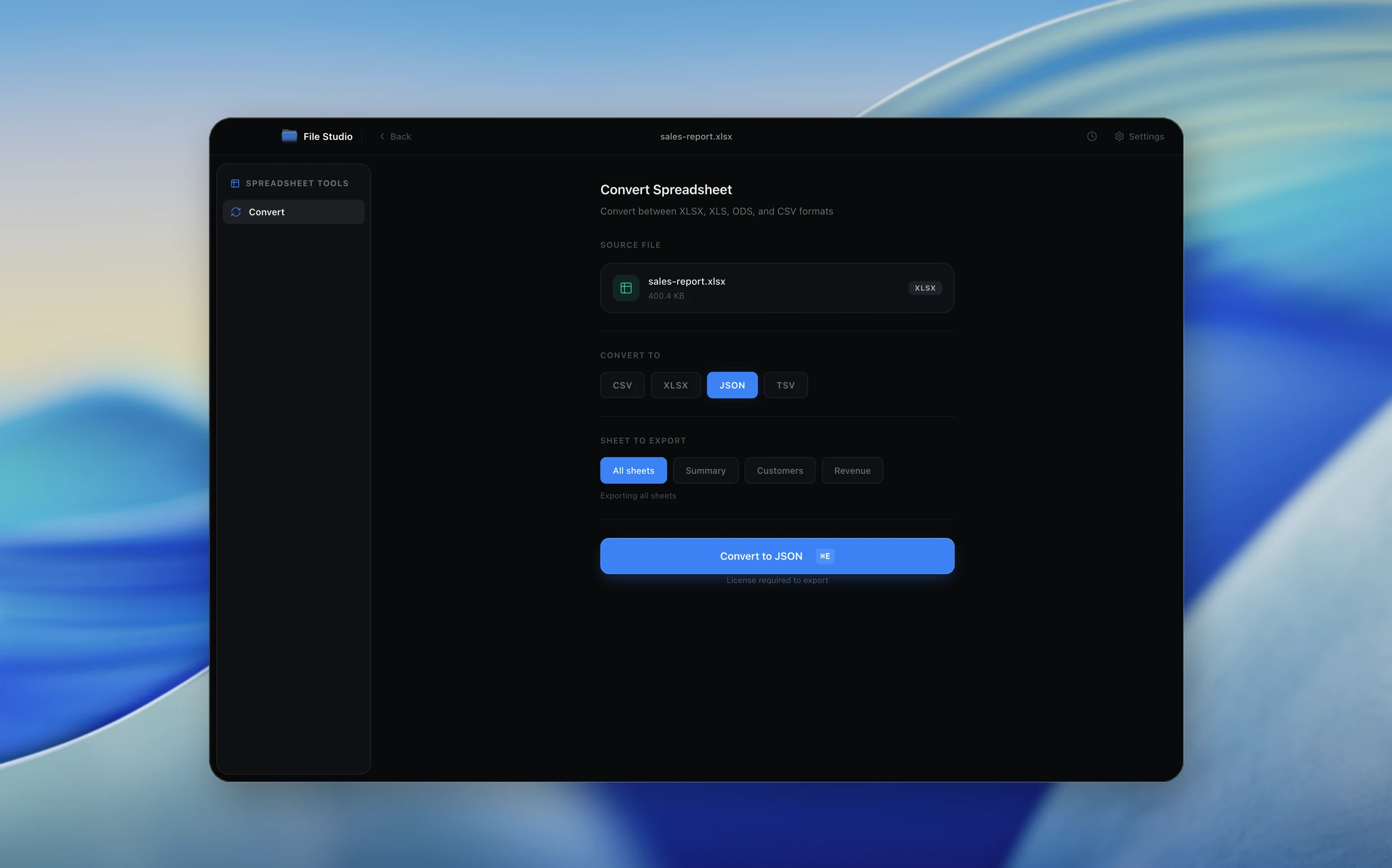
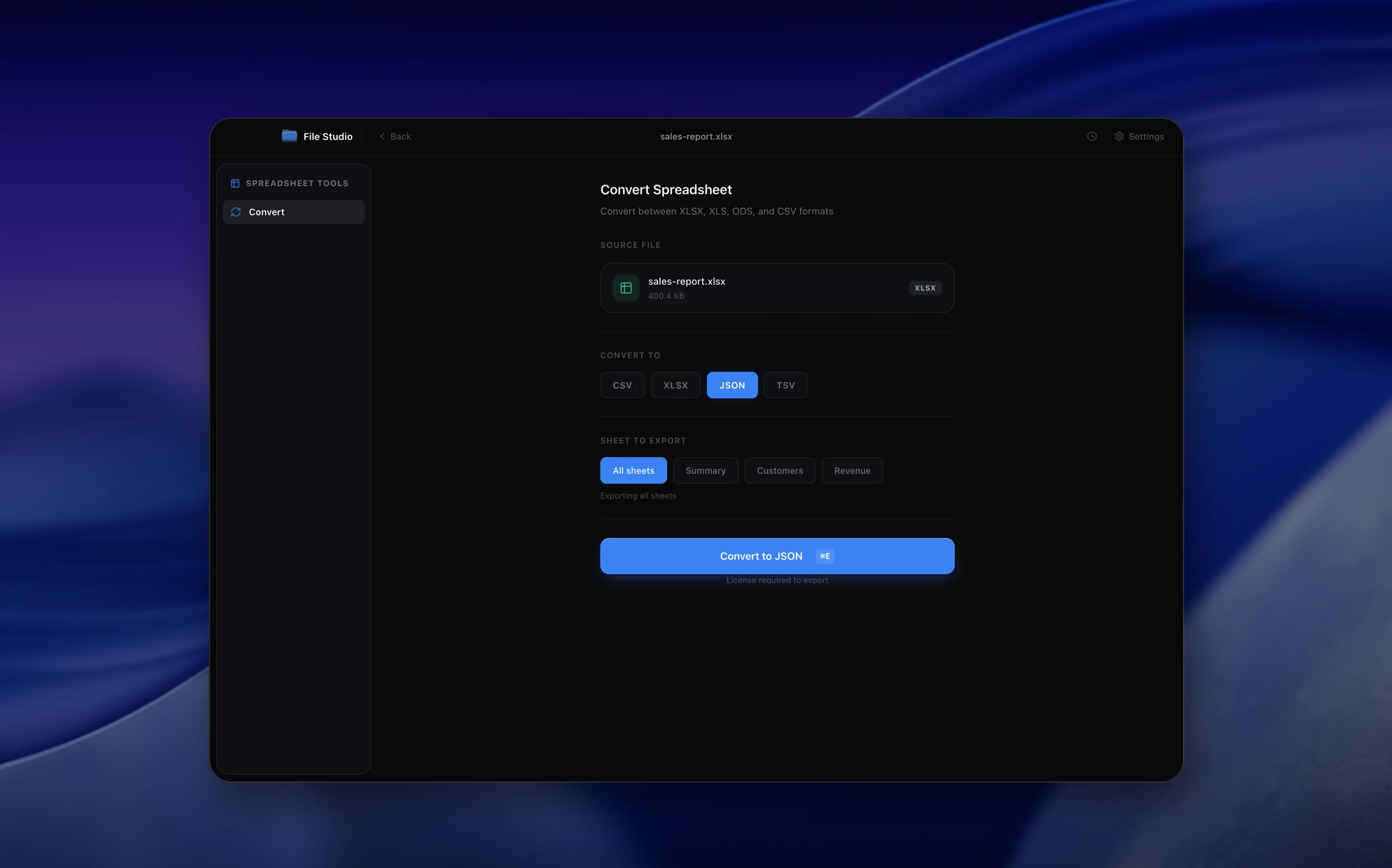
Real File Studio interface, shown in light and dark mode.
Understanding JSON for tabular data
JSON (JavaScript Object Notation) was originally a serialization format for JavaScript values, but RFC 8259 made it a language-independent standard for structured data interchange. JSON supports six data types: string, number, boolean, null, object (key-value pairs), and array (ordered lists). Unlike CSV, JSON can represent nested structures, mixed types in the same file, and explicit null values, which makes it the dominant format for web APIs and modern application configuration.
When exporting Excel data to JSON, the converter must decide how to represent rows. The two most common patterns are an array of objects (each row becomes an object with column headers as keys) and an array of arrays (each row becomes an array of values, with headers in a separate row). The array-of-objects pattern is self-describing and easier for downstream code to consume, but it produces larger files because every key is repeated on every row.
JSON has strict typing rules that Excel does not. Numbers must be valid JSON numbers (no thousand separators, no currency symbols), strings must be UTF-8 and properly escaped, and booleans must be lowercase true or false. Excel cells often contain mixed types in the same column (a header row of strings followed by numeric values), so the converter has to apply per-cell type detection or per-column schemas to produce valid JSON output.
How it works
Convert Excel to JSON in four simple steps.
The flow mirrors the main File Studio experience: install the app, drop in your files, pick the right tool, and export clean, ready-to-share output. All without sending anything to the cloud.
Install File Studio
Download the app, move it to Applications, and open it. No sign-ups or accounts required.
Add your Excel files
Drag-and-drop your excel files into the window or click to browse from disk.
Choose Excel → JSON
Pick the dedicated tool, then adjust resolution, quality, and page range until the preview feels right.
Export & keep working
Select an output folder and run the conversion. Your originals stay untouched on your device.
Best practices for cleaner results
- ·Group related files into folders before converting so your output stays organized and easy to archive.
- ·Use higher resolution presets when you know the result will be printed, zoomed in, or reused in design tools.
- ·Keep an unedited copy of your original Excel files for audits, record-keeping, or compliance workflows.
- ·Combine this tool with other File Studio actions like compress, merge, or split to streamline entire document pipelines.
Why File Studio
Built for trustworthy, everyday Excel to JSON work.
You get precise control over the output, predictable file names, and a private workflow that keeps sensitive documents on your own machine.
Features tuned for this conversion
- ·Automatic type inference: numbers, booleans, dates, and strings are detected and typed correctly in JSON.
- ·Support for multiple sheets with per-sheet JSON output.
- ·Nested JSON generation from column-naming conventions (e.g., 'address.city' becomes nested objects).
Why use File Studio for this conversion?
- ·Convert .xlsx rows and columns into structured JSON arrays or objects.
- ·Use the first row as keys for a clean key-value JSON structure.
- ·Keep proprietary business data offline during conversion.
Real-world ways people use it
- ·Convert a product catalog spreadsheet to JSON for import into a web application.
- ·Transform survey response data from Excel to JSON for analytics pipelines.
- ·Prepare spreadsheet configuration data as JSON for deployment scripts.
Settings guide
Understanding your conversion options
Output Structure
Array of objects ([{name: 'Alice', age: 30}, ...]) is the most common and easiest to consume in JavaScript and Python. Array of arrays ([['name','age'],['Alice',30],...]) is more compact and useful for streaming large datasets. Nested objects can be produced when columns use dotted notation like 'address.city'.
Header Row
Specify which row contains the column headers (usually row 1). Headers become object keys in the output. If there is no header row, the converter generates default keys like 'col1', 'col2'. Trim whitespace and convert headers to camelCase or snake_case to produce valid identifiers for downstream code.
Type Detection
Auto-detection inspects each cell to decide whether it should be a string, number, boolean, or null. Per-column schemas override auto-detection by forcing every value in a column to a specific type. Use schemas when the data is heterogeneous or when downstream code requires consistent types.
Date Handling
JSON has no native date type. Dates can be exported as ISO 8601 strings ('2026-04-08T00:00:00Z'), Unix timestamps (1775865600), or Excel serial numbers (45765). ISO 8601 is the safest because it is human-readable and unambiguous, and most JSON libraries can parse it directly into native date types.
Pretty Print
Pretty-printed JSON includes line breaks and indentation for readability. Minified JSON removes all whitespace and is roughly 30 to 50 percent smaller, which matters for transport over the network. Use minified output for production APIs and pretty-printed output for inspection or version control.
Industry standards and requirements
REST and GraphQL APIs use JSON as the default content type because it maps naturally to objects in JavaScript, Python, Ruby, and most modern languages. The OpenAPI Specification (formerly Swagger) defines schemas for API responses in a JSON Schema dialect, allowing producers and consumers to validate payloads against a contract. When exporting Excel data for API consumption, the JSON output should match the schema declared in the API documentation exactly.
Document databases like MongoDB, CouchDB, and Firestore store records as JSON or JSON-derived formats (BSON for MongoDB). Excel exports targeting these systems benefit from nested object output where related fields collapse into sub-documents. Field names should follow the database's naming conventions: lowercase with underscores for PostgreSQL JSONB, camelCase for MongoDB, and dotted paths for Firestore.
JSON Lines (jsonl), also called newline-delimited JSON, is the de facto standard for streaming and big-data pipelines. Each line is a complete JSON object representing one record, allowing tools like Apache Spark, Google BigQuery, and AWS Athena to process files in parallel. When exporting large Excel datasets for analytics ingestion, JSON Lines is preferred over a single root array because it enables row-by-row streaming without loading the entire file into memory.
Troubleshooting
Common issues and how to fix them
Output JSON is invalid and parsers reject it→
Run the file through a validator like jsonlint.com or jq to identify the exact error. Common problems are unescaped quotes inside string values, trailing commas after the last array element, and unquoted keys. Most can be fixed by enabling strict RFC 8259 mode in the export settings.
Numbers have unexpected decimal precision→
Excel stores numbers as 64-bit IEEE 754 floats, the same as JSON, but display formatting may hide trailing decimals. The exporter outputs the full stored value, which can include 15 to 17 significant digits. Round in Excel using ROUND() before exporting or apply post-export rounding in code.
Empty cells become null in some places and empty string in others→
Different exporters handle empty cells differently. Configure the empty cell behavior explicitly: omit the key, set to null, or set to empty string. Be consistent across the entire file so downstream code has a single rule for handling missing values.
Special characters break the JSON encoding→
Characters like backslash, double quote, and control characters must be escaped per RFC 8259. Properly written exporters handle this automatically. If you see raw \n or unescaped quotes in the output, the exporter is not compliant. Switch to a JSON-aware library like jq, json5, or simdjson for re-encoding.
Pricing
Simple, fair pricing.
All tools included. No hidden fees. Processing stays on your device.
Yearly
For short-term projects.
- 1 year of updates
- Image, PDF, SVG, and spreadsheet tools
- Works on Mac & Windows
- All processing done on device
Lifetime
One purchase. Keep it forever.
- Unlimited conversions forever
- 1 year of major updates
- Image, PDF, SVG, and spreadsheet tools
- Watch Folders & Automation
- macOS Notch Drop Zone
- Works on Mac & Windows
Team & Bulk Pricing
Lifetime seats with volume discounts. More seats, bigger discount.
15
lifetime seats
You save
$60
15% off the individual price
Enterprise
50+ seats with custom pricing, centralized license management, and priority support.
FAQ
Frequently asked questions
How does File Studio map Excel data to JSON?→
By default, the first row is treated as column headers (keys), and each subsequent row becomes a JSON object. The full output is a JSON array of objects. You can also export as a 2D array if you prefer.
Are data types preserved?→
Yes. File Studio infers types from the Excel cell data: numbers become JSON numbers, dates become ISO 8601 strings, booleans become true/false, and everything else becomes a string.
Can I convert specific sheets only?→
Yes. If your workbook has multiple sheets, you can select which ones to convert. Each sheet produces its own JSON file or they can be combined into a single JSON object with sheet names as keys.
What about empty cells?→
Empty cells are represented as null in the JSON output by default. You can also configure File Studio to omit empty fields entirely.
Is this offline?→
Yes. File Studio reads and converts Excel files entirely on your Mac or Windows machine. No spreadsheet data is uploaded to any server.
Looking for something else? Explore more offline conversions with File Studio: