

Image to PDF converter
Images to PDF - Combine any images into polished PDF documents.
Whether it's photos, screenshots, scans, or graphics - File Studio converts and combines them into professional PDFs without any cloud uploads.
Free trial · No account required · Files stay on your device
All conversions happen locally on your computer. No uploads, no subscriptions, and no background syncing.
Images → PDF
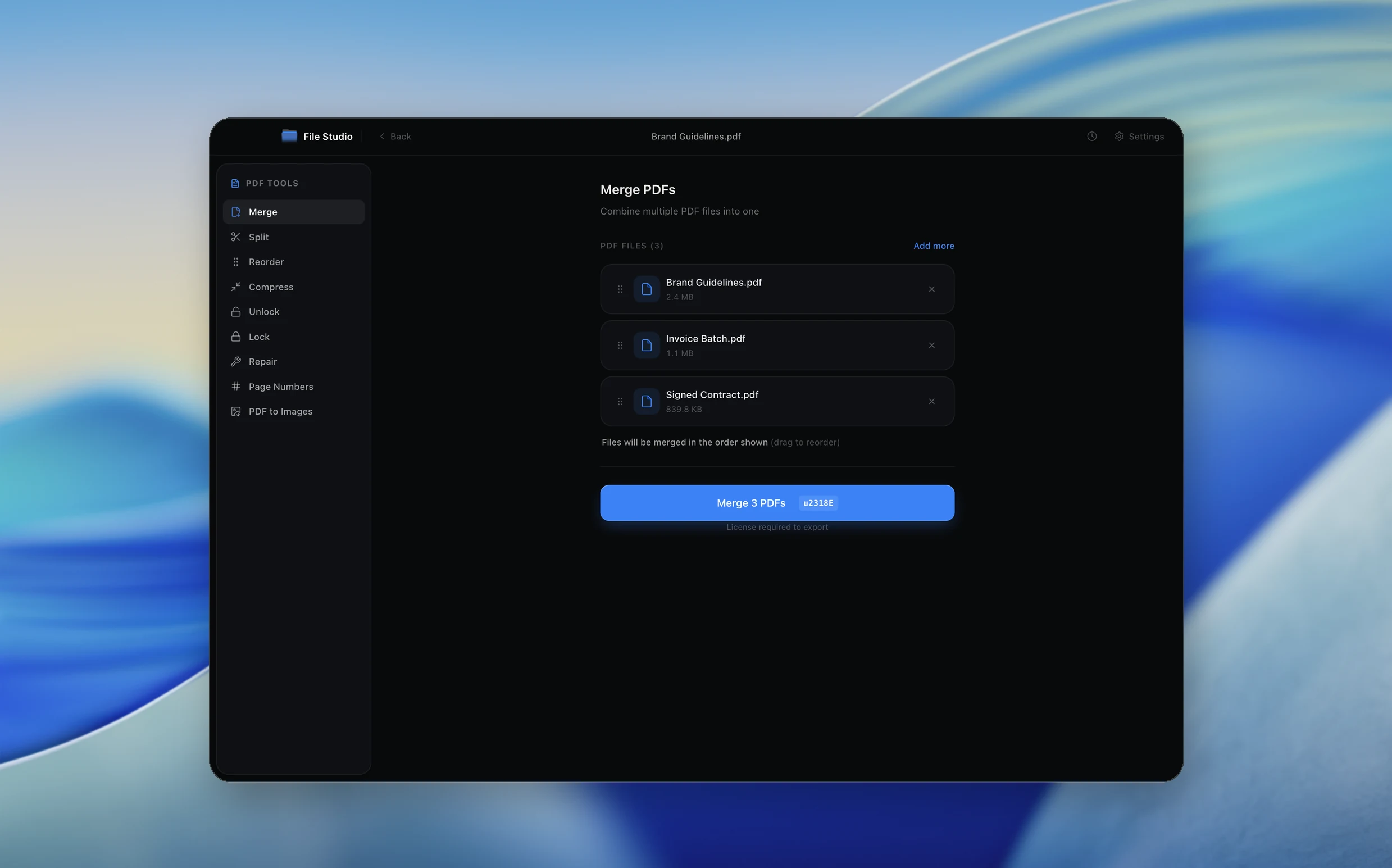
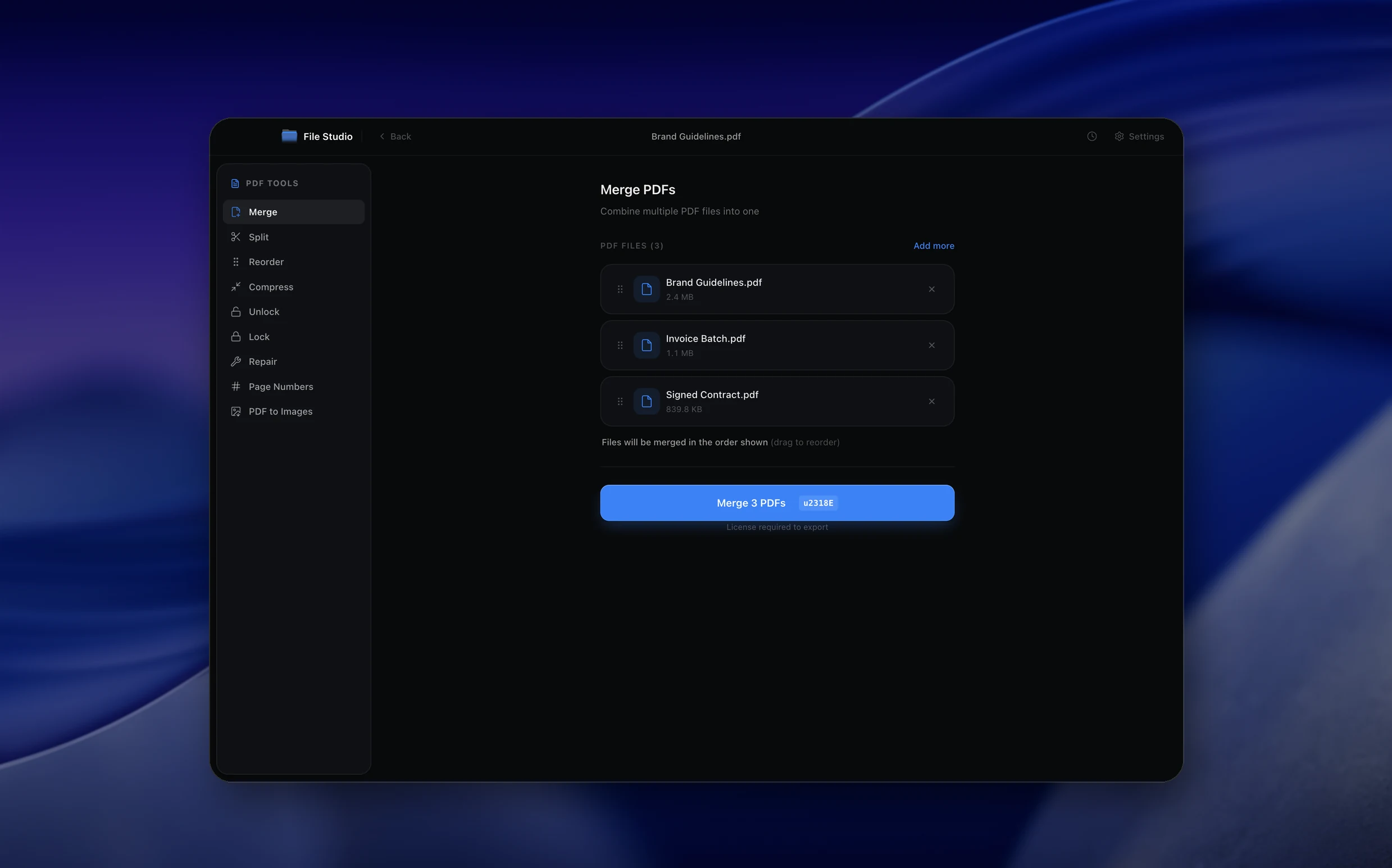
Real File Studio interface, shown in light and dark mode.
Understanding multi-format image to PDF conversion
Combining mixed image formats (JPG, PNG, HEIC, TIFF, BMP, WebP, GIF) into a single PDF is one of the most common document assembly tasks. Each source format carries its own color model, compression scheme, and metadata, so the converter must normalize them into a coherent PDF content stream. The resulting document conforms to ISO 32000 and behaves as a fixed-layout container that any PDF reader can open without additional codecs.
Internally, a PDF treats each image as an XObject referenced from a page content stream. The converter chooses an appropriate filter for each XObject: DCTDecode for JPEG sources (which can be embedded byte-for-byte without re-encoding), FlateDecode for PNG and BMP sources, and CCITTFaxDecode for bilevel TIFF scans. Smart converters detect the source encoding and pass it through directly, which preserves the original quality and keeps the output file size close to the sum of the inputs.
Typical use cases include assembling a stack of phone photos into a receipt expense report, merging scanned contract pages into one signable PDF, batching product photography into a buyer presentation, and turning a folder of inspection images into a field service record. In each case, the PDF acts as an envelope that preserves order, adds page numbers, and lets the recipient view all images without needing format-specific software.
How it works
Convert Images to PDF in four simple steps.
The flow mirrors the main File Studio experience: install the app, drop in your files, pick the right tool, and export clean, ready-to-share output. All without sending anything to the cloud.
Install File Studio
Download the app, move it to Applications, and open it. No sign-ups or accounts required.
Add your Images files
Drag-and-drop your images files into the window or click to browse from disk.
Choose Images → PDF
Pick the dedicated tool, then adjust resolution, quality, and page range until the preview feels right.
Export & keep working
Select an output folder and run the conversion. Your originals stay untouched on your device.
Best practices for cleaner results
- ·Group related files into folders before converting so your output stays organized and easy to archive.
- ·Use higher resolution presets when you know the result will be printed, zoomed in, or reused in design tools.
- ·Keep an unedited copy of your original Images files for audits, record-keeping, or compliance workflows.
- ·Combine this tool with other File Studio actions like compress, merge, or split to streamline entire document pipelines.
Why File Studio
Built for trustworthy, everyday Images to PDF work.
You get precise control over the output, predictable file names, and a private workflow that keeps sensitive documents on your own machine.
Features tuned for this conversion
- ·Accept 20+ image formats in one workflow.
- ·Automatic format conversion during PDF creation.
- ·Page size options: fit to image, A4, Letter, custom.
Why use File Studio for this conversion?
- ·Support for JPG, PNG, HEIC, WebP, TIFF, and more.
- ·Combine mixed formats into single PDFs.
- ·Reorder, rotate, and organize before exporting.
Real-world ways people use it
- ·Bundle mixed-format photos into trip albums.
- ·Create PDF reports combining various image sources.
- ·Archive scans and photos in organized PDF documents.
Settings guide
Understanding your conversion options
Source Format Auto-detection
The converter should automatically identify each input by magic bytes (not file extension) and apply the best compression strategy. JPEGs are passed through unchanged, PNGs use FlateDecode, HEIC files are decoded to RGB then re-encoded as JPEG or stored as JPEG2000, and bilevel TIFF scans use CCITT Group 4.
Page Size Strategy
Three main strategies exist: uniform page size (everything fits to A4 or Letter), per-image custom size (page dimensions match each image), or first-image driven (every page uses the dimensions of the first image). Uniform is best for printed reports, per-image is best for archival, and first-image is best for slideshow-style decks.
Image Order and Sorting
Define how the input list is ordered: filename (alphabetic or natural numeric sort), creation date from EXIF metadata, modification date, or manual reordering. EXIF sorting is critical for camera dumps where filenames do not reflect capture order.
Recompression Quality
When forced to re-encode (for example, converting HEIC to JPEG inside the PDF), set quality between 80 and 90 for visually lossless results. Quality 95 doubles file size with no perceptible improvement, and quality below 70 introduces visible blocking on smooth gradients.
OCR Layer (optional)
If the images contain text that should be searchable, run OCR during conversion to overlay an invisible text layer behind each image. Use a language model that matches the document language and a confidence threshold around 70 percent to avoid embedding garbled words.
Industry standards and requirements
For legal and insurance evidence packages, image bundles are typically delivered as PDF/A-2 (ISO 19005-2) so they can be preserved unchanged for the duration of a case file. Each image should retain its original capture metadata in XMP form, and the PDF should include a manifest page listing the source filenames, hashes, and capture timestamps for chain-of-custody verification.
In construction, real estate, and field inspection workflows, the standard practice is to embed GPS coordinates from EXIF data into the PDF as either visible captions or hidden metadata. Many field service platforms expect inspection PDFs to be under 10 MB per report, which often requires moderate JPEG compression (quality 80) and a maximum long-edge resolution of 2048 pixels per image.
For e-commerce product catalogs and supplier documentation, image-to-PDF output should preserve color accuracy by tagging each embedded image with its source ICC profile (sRGB for web photos, Adobe RGB for studio photography, CMYK for print-ready assets). Without profile tags, downstream viewers may shift colors, which is unacceptable for textile, paint, and cosmetic product documentation.
Troubleshooting
Common issues and how to fix them
Pages appear in the wrong order→
The default alphabetic sort treats IMG_2.jpg as coming after IMG_10.jpg because of lexical comparison. Switch to natural sort (which understands numeric segments) or use EXIF date sorting for camera images.
HEIC files fail to convert→
HEIC requires the libheif library or platform decoder. Confirm the converter has HEIC support enabled. On older systems without HEVC codecs, pre-convert HEIC to JPEG with a separate tool before merging.
Output PDF is huge despite small inputs→
Check whether the converter is recompressing JPEGs at high quality or upscaling small images to a larger page size. Enable pass-through mode for JPEGs and disable any automatic resampling.
Mixed orientations create rotated pages→
EXIF orientation tags from phone cameras are often ignored by basic converters. Enable EXIF rotation correction so portrait and landscape images are placed with the intended orientation rather than the raw pixel grid.
Pricing
Simple, fair pricing.
All tools included. No hidden fees. Processing stays on your device.
Yearly
For short-term projects.
- 1 year of updates
- Image, PDF, SVG, and spreadsheet tools
- Works on Mac & Windows
- All processing done on device
Lifetime
One purchase. Keep it forever.
- Unlimited conversions forever
- 1 year of major updates
- Image, PDF, SVG, and spreadsheet tools
- Watch Folders & Automation
- macOS Notch Drop Zone
- Works on Mac & Windows
Team & Bulk Pricing
Lifetime seats with volume discounts. More seats, bigger discount.
15
lifetime seats
You save
$60
15% off the individual price
Enterprise
50+ seats with custom pricing, centralized license management, and priority support.
FAQ
Frequently asked questions
What image formats can I convert to PDF?→
JPG, PNG, HEIC, WebP, AVIF, TIFF, BMP, GIF, and many more. File Studio handles 20+ formats.
Can I mix different image formats in one PDF?→
Yes. Drop in JPGs, PNGs, HEICs and more - File Studio combines them all into a single PDF.
Can I control the page order?→
Yes. Drag and drop to arrange images in any order before creating the PDF.
What about images with different sizes and orientations?→
Each image becomes its own page. You can rotate pages and choose how to fit images to page sizes.
Is there a limit to how many images I can combine?→
No fixed limit. Combine as many images as needed - limited only by your available memory.
Can I compress the final PDF?→
Yes. Choose quality settings to balance image fidelity against file size in the exported PDF.
Looking for something else? Explore more offline conversions with File Studio: