

TIFF to PNG converter
TIFF to PNG - Move from TIFF to PNG with zero quality loss, entirely on your desktop.
PNG offers the same lossless quality as TIFF but with much broader compatibility across browsers, apps, and operating systems. File Studio converts your TIFFs to PNG while preserving every detail, all without an internet connection.
Free trial · No account required · Files stay on your device
All conversions happen locally on your computer. No uploads, no subscriptions, and no background syncing.
TIFF → PNG
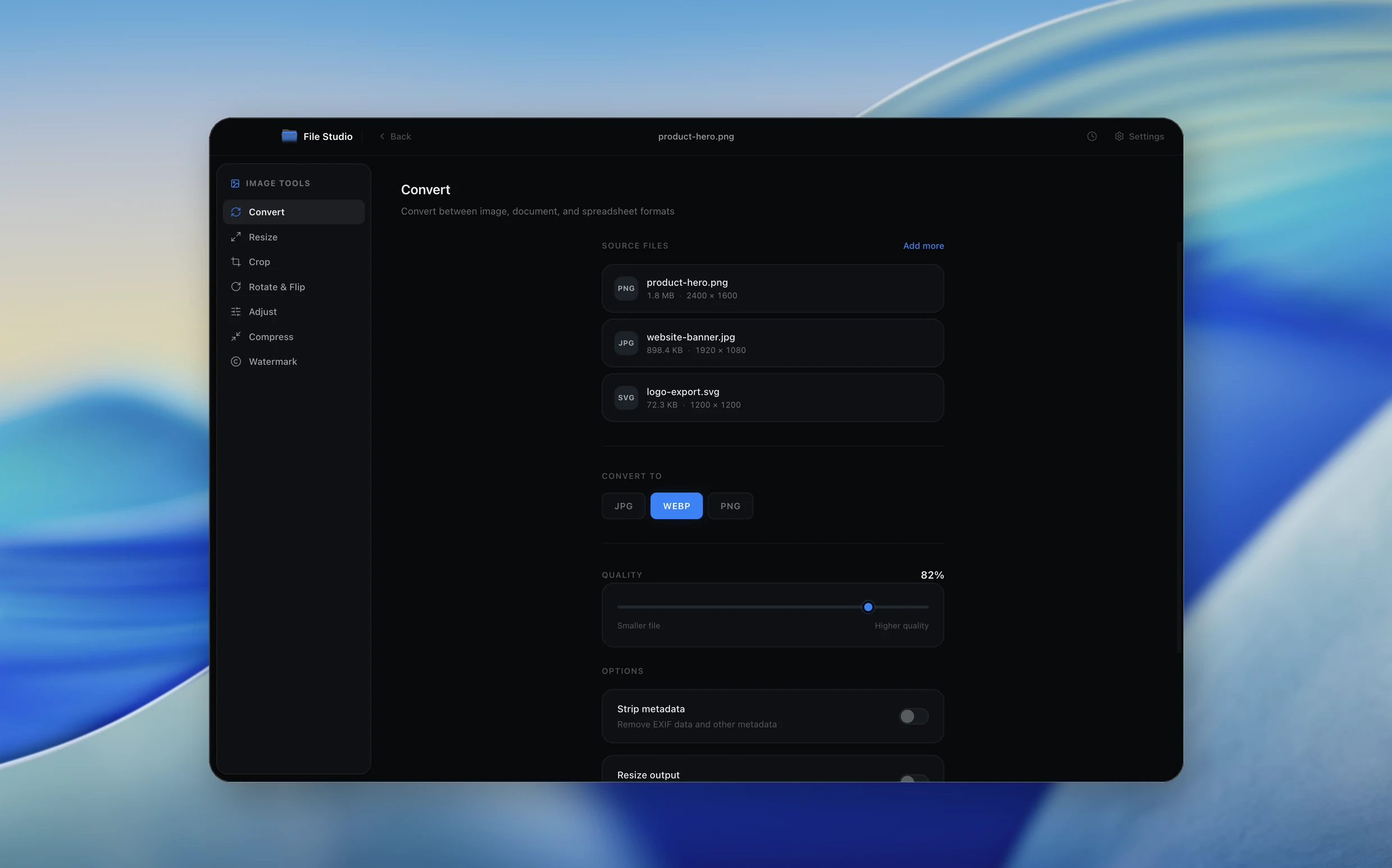
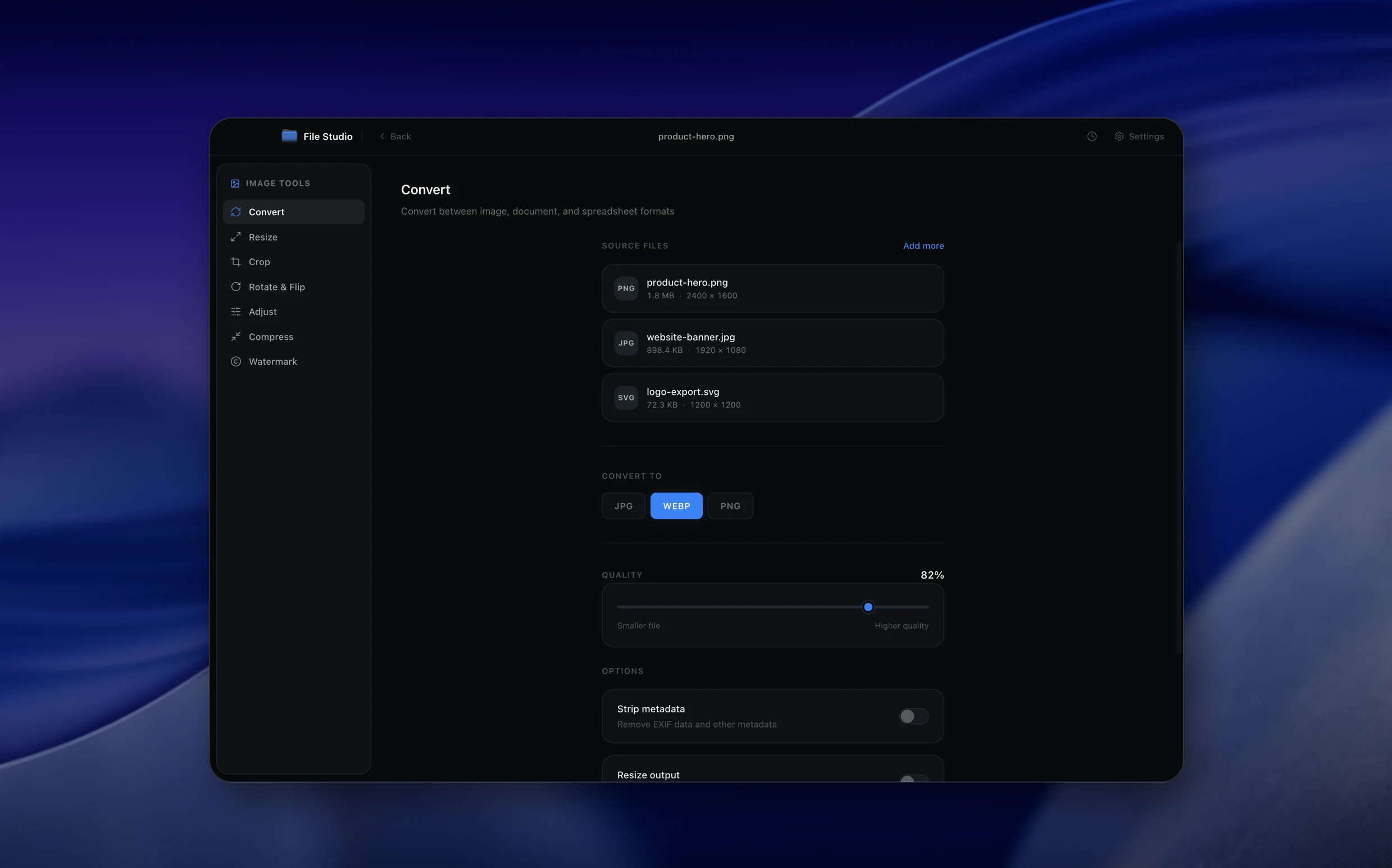
Real File Studio interface, shown in light and dark mode.
Understanding the PNG format
PNG (Portable Network Graphics) is a lossless raster image format published in 1996 and standardized as ISO/IEC 15948. It uses the DEFLATE compression algorithm combined with five row prefilters that improve compressibility. PNG supports grayscale, indexed palette, RGB, and RGBA modes at 1, 2, 4, 8, or 16 bits per channel, full alpha transparency, gamma correction, and ICC color profiles. Unlike TIFF, PNG is single-page only and supports a smaller set of color spaces.
TIFF (Tagged Image File Format) is a flexible container that supports many bit depths, color spaces, multi-page documents, layers, and a large variety of compression schemes. Converting TIFF to PNG is typically a lossless operation when both source and destination use the same bit depth and color space. The main constraints are that PNG cannot store CMYK or Lab color (must be converted to RGB or grayscale) and PNG is single-page (each TIFF page becomes a separate PNG).
The reason to convert TIFF to PNG is compatibility, especially for the web and for software that does not handle TIFF well. Browsers do not display TIFF; PNG works in all of them. Many CMSes accept PNG but reject TIFF. PNG file sizes are usually similar to or smaller than uncompressed or LZW TIFFs, so storage is rarely a concern. The output remains lossless and suitable for further editing.
How it works
Convert TIFF to PNG in four simple steps.
The flow mirrors the main File Studio experience: install the app, drop in your files, pick the right tool, and export clean, ready-to-share output. All without sending anything to the cloud.
Install File Studio
Download the app, move it to Applications, and open it. No sign-ups or accounts required.
Add your TIFF files
Drag-and-drop your tiff files into the window or click to browse from disk.
Choose TIFF → PNG
Pick the dedicated tool, then adjust resolution, quality, and page range until the preview feels right.
Export & keep working
Select an output folder and run the conversion. Your originals stay untouched on your device.
Best practices for cleaner results
- ·Group related files into folders before converting so your output stays organized and easy to archive.
- ·Use higher resolution presets when you know the result will be printed, zoomed in, or reused in design tools.
- ·Keep an unedited copy of your original TIFF files for audits, record-keeping, or compliance workflows.
- ·Combine this tool with other File Studio actions like compress, merge, or split to streamline entire document pipelines.
Why File Studio
Built for trustworthy, everyday TIFF to PNG work.
You get precise control over the output, predictable file names, and a private workflow that keeps sensitive documents on your own machine.
Features tuned for this conversion
- ·Lossless format-to-format conversion with no generation loss.
- ·Support for multi-page TIFF input, exporting each frame as a separate PNG.
- ·Preserve transparency from TIFF alpha channels in the PNG output.
Why use File Studio for this conversion?
- ·Lossless conversion preserves every pixel of your original TIFF data.
- ·Get files that open natively in any browser or image viewer.
- ·Process sensitive scans and medical images without any cloud exposure.
Real-world ways people use it
- ·Convert scientific or medical imaging TIFFs to PNG for easier sharing with collaborators.
- ·Make archival TIFF photographs viewable in standard web browsers.
- ·Prepare TIFF-based design assets for platforms that accept PNG but not TIFF.
Settings guide
Understanding your conversion options
Bit depth
TIFF often stores 16 bits per channel. PNG supports 8 or 16 bits. Use 16-bit PNG to preserve full tonal headroom for editing. Use 8-bit PNG when the destination only supports 8-bit (most web browsers display 16-bit PNGs but downsample for rendering) and when smaller files are preferred.
Color mode
TIFF can be RGB, CMYK, Lab, or grayscale. PNG supports grayscale, indexed, RGB, and RGBA only. CMYK and Lab TIFFs must be converted to RGB during the conversion using an ICC profile transform. Use grayscale PNG when the source is a black-and-white scan to cut file size dramatically.
Compression level
PNG compression level runs 0 to 9. Visual output is identical at all levels because PNG is lossless; only file size and encoding time vary. Level 6 is the default. For maximum compression, run a post-processor like oxipng or zopflipng on the output.
Multi-page handling
TIFF can store multiple pages (common for scanned documents). PNG is single-page, so each TIFF page becomes its own PNG file with a sequential filename suffix. Confirm the converter handles all pages, not just the first.
ICC profile preservation
Embed the source ICC profile in the PNG iCCP chunk so color-managed applications render the colors correctly. This is especially important when converting wide-gamut TIFFs (Adobe RGB, ProPhoto RGB) to PNG for use in browsers or design tools.
Industry standards and requirements
Federal e-filing systems including the U.S. Patent and Trademark Office accept PNG drawings at 300 to 600 DPI but increasingly reject TIFF due to format complexity. Converting TIFF to PNG is a standard preparation step for legal exhibits, patent drawings, and government document submissions where the source was scanned to TIFF.
Web publishing of scanned material (historical documents, maps, manuscripts) uses PNG almost universally. The IIIF (International Image Interoperability Framework) used by major libraries and museums delivers high-resolution images as JPG for photographs and PNG for line art and text. Converting archival TIFF masters to PNG access copies is a standard library workflow.
For archival work, TIFF remains the preservation format and PNG is the access format. The Library of Congress lists both as recommended formats but uses TIFF for masters and PNG for derivatives. The recommended TIFF-to-PNG conversion preserves bit depth (16-bit master to 16-bit access copy when possible) and embeds the ICC profile to ensure consistent rendering across viewers.
Troubleshooting
Common issues and how to fix them
PNG looks darker or has different colors than the TIFF→
The TIFF was probably in CMYK or a wide-gamut color space and the conversion did not apply ICC color management. Enable color management so the converter performs a proper profile transform to sRGB or to whatever destination profile is selected, and embed that profile in the PNG.
Only the first page of a multi-page TIFF converted→
The converter is treating the TIFF as single-page. Enable multi-page mode or specify a page range covering all pages. Each TIFF page becomes its own PNG with a numeric suffix.
PNG file is much larger than expected→
16-bit PNG output doubles file size compared to 8-bit. If 16-bit precision is not required, downsample to 8-bit. Also try a PNG optimizer (oxipng, zopflipng) for an additional 5 to 20 percent reduction. Indexed color further shrinks files when the image has limited tones.
Transparency from a layered TIFF was lost→
PNG supports a single alpha channel but not multiple layers. Layered TIFFs must be flattened before conversion, with the layer composition baked into the alpha channel. Confirm that the converter flattens layers correctly before producing the PNG.
Pricing
Simple, fair pricing.
All tools included. No hidden fees. Processing stays on your device.
Yearly
For short-term projects.
- 1 year of updates
- Image, PDF, SVG, and spreadsheet tools
- Works on Mac & Windows
- All processing done on device
Lifetime
One purchase. Keep it forever.
- Unlimited conversions forever
- 1 year of major updates
- Image, PDF, SVG, and spreadsheet tools
- Watch Folders & Automation
- macOS Notch Drop Zone
- Works on Mac & Windows
Team & Bulk Pricing
Lifetime seats with volume discounts. More seats, bigger discount.
15
lifetime seats
You save
$60
15% off the individual price
Enterprise
50+ seats with custom pricing, centralized license management, and priority support.
FAQ
Frequently asked questions
Is TIFF to PNG truly lossless?→
Yes. Both TIFF (uncompressed or LZW) and PNG are lossless formats, so converting between them preserves every pixel exactly. No data is lost.
Why choose PNG over TIFF?→
PNG is supported by virtually every browser, viewer, and application, while TIFF support is less universal. PNG files are also typically smaller than uncompressed TIFFs thanks to deflate compression.
Does this handle TIFF files with transparency?→
Yes. If your TIFF has an alpha channel, File Studio preserves it in the PNG output so transparency is maintained.
What about multi-page TIFFs?→
Each frame in a multi-page TIFF is exported as its own PNG file, since PNG does not support multi-page containers.
Is this offline and private?→
Yes. All conversion happens locally on your Mac or Windows PC. Nothing is uploaded, making File Studio safe for confidential medical, legal, or financial images.
Looking for something else? Explore more offline conversions with File Studio: