

JPG to PDF converter
JPG to PDF - Turn scattered photos into share‑ready PDFs in seconds.
Drag in receipts, scans, or camera photos and File Studio will combine them into a compact PDF that’s easy to archive and send.
Free trial · No account required · Files stay on your device
All conversions happen locally on your computer. No uploads, no subscriptions, and no background syncing.
JPG → PDF
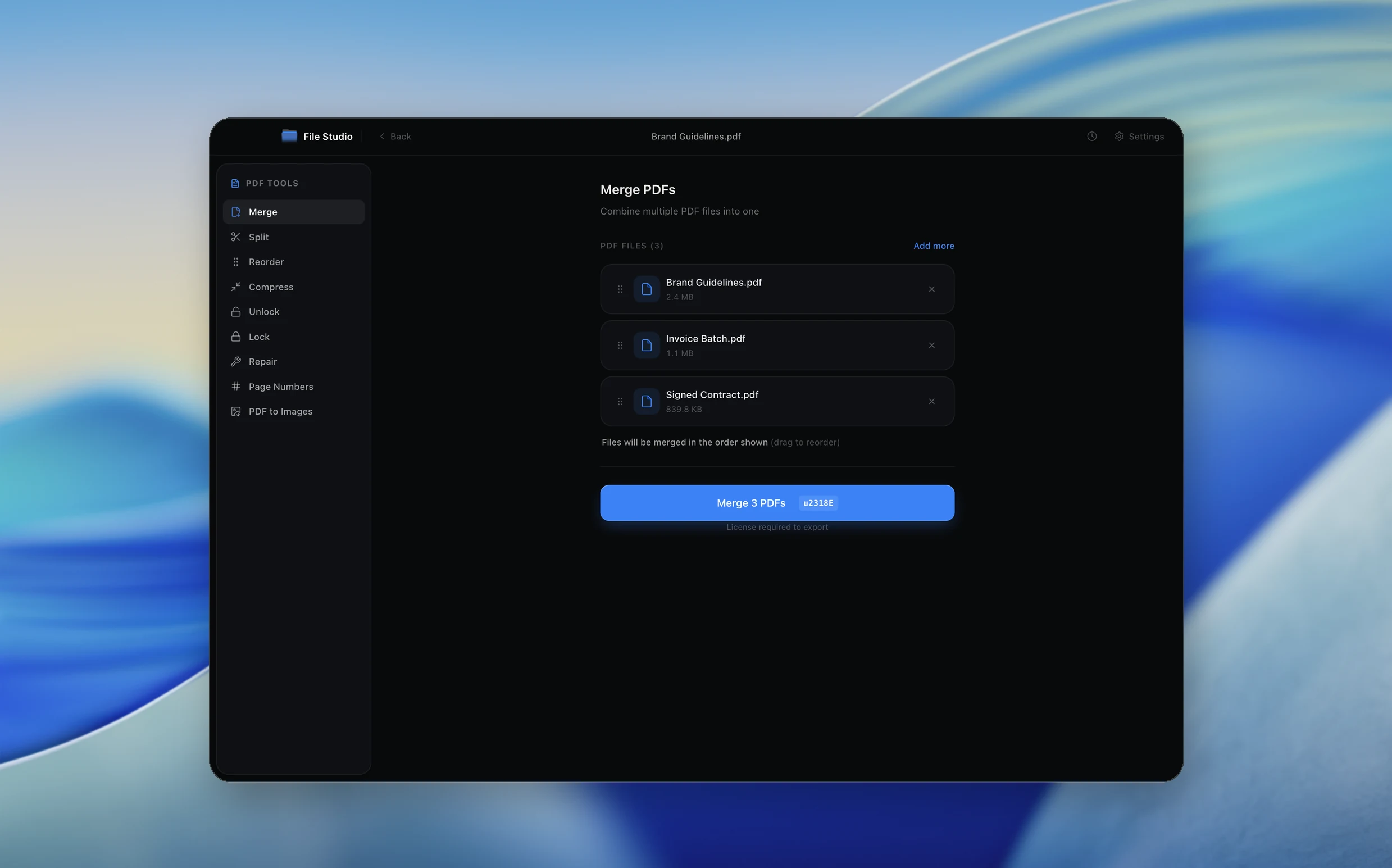
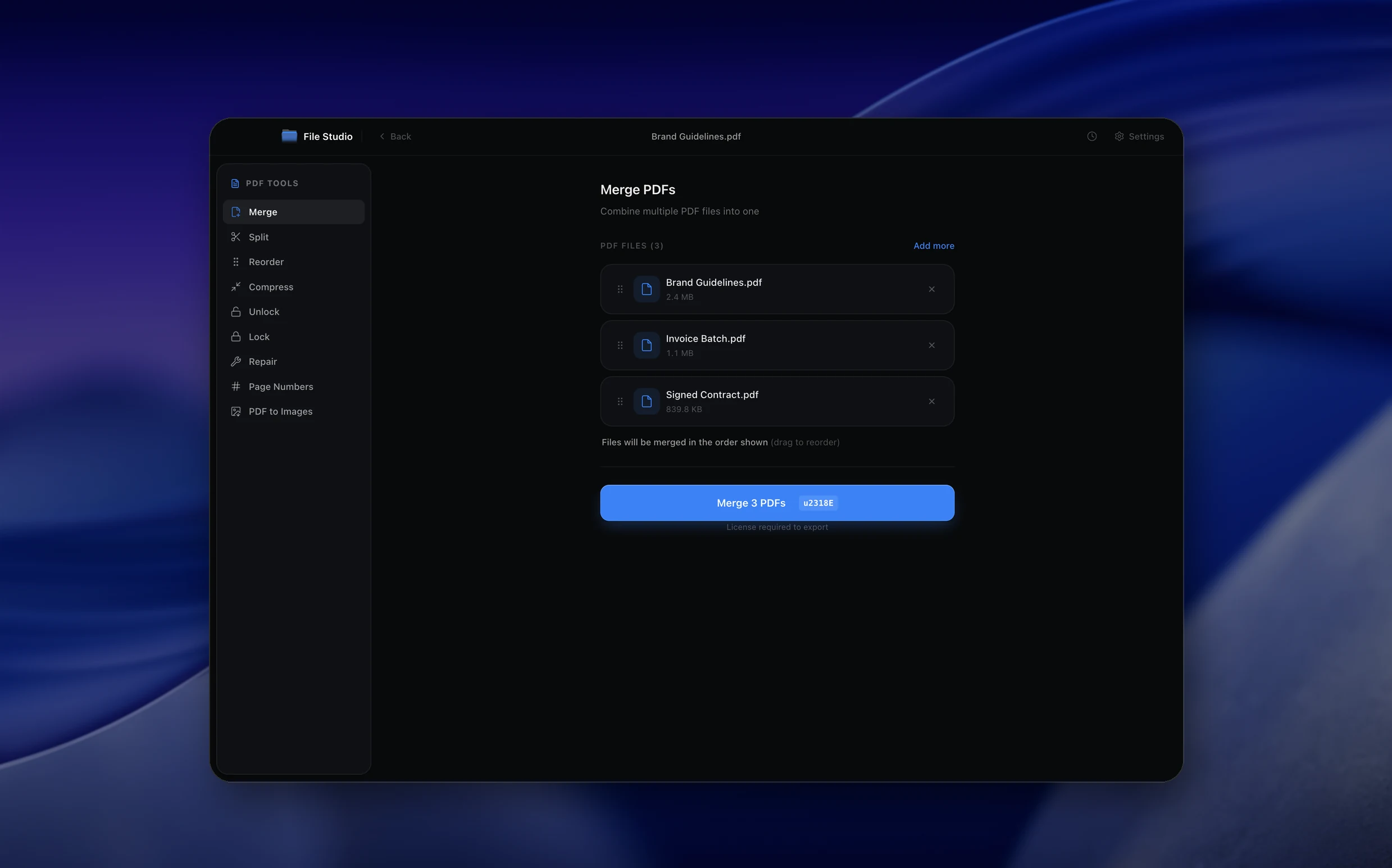
Real File Studio interface, shown in light and dark mode.
Understanding the PDF format for image collections
PDF (Portable Document Format) was created by Adobe in 1993 to present documents consistently across every platform and device. A PDF can contain text, vector graphics, raster images, forms, annotations, and embedded fonts in a single self-contained file. When converting JPG images to PDF, each image is placed on its own page (or arranged according to your layout preferences) and wrapped in the PDF container.
One major advantage of combining JPGs into a PDF is portability. Instead of sending a folder of loose image files, you can deliver a single document that opens reliably on any computer, phone, or tablet. PDFs also support password protection, metadata fields, and bookmarks, giving you organizational options that image files alone cannot provide.
The PDF specification (ISO 32000) supports multiple internal compression methods. When a JPG is embedded in a PDF, the JPEG data stream is typically stored as-is, meaning no additional quality loss occurs. The PDF simply acts as a wrapper that adds pagination, ordering, and optional metadata around your existing images.
How it works
Convert JPG to PDF in four simple steps.
The flow mirrors the main File Studio experience: install the app, drop in your files, pick the right tool, and export clean, ready-to-share output. All without sending anything to the cloud.
Install File Studio
Download the app, move it to Applications, and open it. No sign-ups or accounts required.
Add your JPG files
Drag-and-drop your jpg files into the window or click to browse from disk.
Choose JPG → PDF
Pick the dedicated tool, then adjust resolution, quality, and page range until the preview feels right.
Export & keep working
Select an output folder and run the conversion. Your originals stay untouched on your device.
Best practices for cleaner results
- ·Group related files into folders before converting so your output stays organized and easy to archive.
- ·Use higher resolution presets when you know the result will be printed, zoomed in, or reused in design tools.
- ·Keep an unedited copy of your original JPG files for audits, record-keeping, or compliance workflows.
- ·Combine this tool with other File Studio actions like compress, merge, or split to streamline entire document pipelines.
Why File Studio
Built for trustworthy, everyday JPG to PDF work.
You get precise control over the output, predictable file names, and a private workflow that keeps sensitive documents on your own machine.
Features tuned for this conversion
- ·Reorder pages with drag‑and‑drop before exporting.
- ·Normalize orientation so sideways photos become upright pages.
- ·Apply light compression so PDFs stay small but readable.
Why use File Studio for this conversion?
- ·Reorder and rotate pages before exporting the final PDF.
- ·Compress output to keep email‑friendly file sizes.
- ·Works fully offline so sensitive paperwork stays on your device.
Real-world ways people use it
- ·Submit expense reports by merging receipt photos into a single PDF.
- ·Bundle handwritten notes into a tidy document after a meeting.
- ·Archive family documents and photos in one secure PDF.
Settings guide
Understanding your conversion options
Page Size
Choose a standard page size (A4, Letter, Legal) or select 'fit to image' to make each PDF page exactly match the dimensions of the source JPG. Fit-to-image avoids white borders and preserves the original aspect ratio.
Page Orientation
Auto-detect orientation analyzes each image and sets the page to portrait or landscape accordingly. You can also force all pages to portrait or landscape if consistency matters more than matching each image.
Image Compression
You can re-compress images during PDF creation to reduce file size, or embed the original JPG data without recompression to preserve quality. For archival use, no recompression is recommended. For email-friendly files, moderate recompression can halve the size.
Page Order
Drag and drop images to set the page order before conversion. Alphabetical or date-based sorting options are also available. Getting the order right before conversion avoids needing to rearrange pages afterward.
Margins
Add margins around each image if the PDF will be printed and needs binding space, or set margins to zero for a borderless presentation. Standard print margins are 0.5 to 1 inch on each side.
Industry standards and requirements
In legal offices and notary workflows, scanned documents must often be submitted as a single PDF rather than loose JPGs. Courts and government agencies typically require PDF format for electronic filing. When converting scanned JPGs to PDF for legal submission, ensure pages are in the correct order and consider adding Bates numbering for multi-page exhibits.
Healthcare and insurance industries frequently convert photographed forms and receipts to PDF for claims processing. HIPAA and similar regulations do not mandate a specific image format, but PDF is preferred because it supports encryption, access controls, and digital signatures that help maintain document integrity.
For professional photography, embedding high-resolution JPGs into a PDF creates a convenient proof sheet or portfolio that clients can review without specialized software. Photographers typically use 'fit to image' sizing with zero margins to showcase each image at its native aspect ratio. Print-ready photo books, however, usually require specialized layout software beyond simple JPG-to-PDF conversion.
Troubleshooting
Common issues and how to fix them
PDF file size is much larger than the combined JPGs→
This can happen if images are being re-encoded or if the converter is expanding JPGs into uncompressed bitmaps internally. Ensure the setting is configured to embed original JPEG streams rather than re-encoding.
Images appear rotated in the PDF→
Many phone cameras store orientation in EXIF metadata rather than rotating actual pixel data. If the converter does not read EXIF orientation tags, images may appear sideways. Use the rotation tool to correct them before or after conversion.
Image quality decreased after conversion→
Check whether re-compression is enabled in the settings. If the converter applies additional JPEG compression on top of the already-compressed source, quality degrades. Disable re-compression or set quality to 100 to preserve the original data.
White borders appear around images→
This occurs when the page size is larger than the image. Switch to 'fit to image' page sizing, or enable 'stretch to fill' (with caution, as it may crop edges or distort aspect ratio).
Pricing
Simple, fair pricing.
All tools included. No hidden fees. Processing stays on your device.
Yearly
For short-term projects.
- 1 year of updates
- Image, PDF, SVG, and spreadsheet tools
- Works on Mac & Windows
- All processing done on device
Lifetime
One purchase. Keep it forever.
- Unlimited conversions forever
- 1 year of major updates
- Image, PDF, SVG, and spreadsheet tools
- Watch Folders & Automation
- macOS Notch Drop Zone
- Works on Mac & Windows
Team & Bulk Pricing
Lifetime seats with volume discounts. More seats, bigger discount.
15
lifetime seats
You save
$60
15% off the individual price
Enterprise
50+ seats with custom pricing, centralized license management, and priority support.
FAQ
Frequently asked questions
Will my JPGs lose quality when turned into a PDF?→
File Studio avoids unnecessary recompression and lets you control how much to compress images in the final PDF.
Can I add more pages to a PDF later?→
Yes. You can open the exported PDF, add new JPGs, and create an updated merged file at any time.
Can I change the order of photos before I export the PDF?→
Yes. You can drag photos into the exact order you want and rotate or remove pages before creating the final PDF.
Does File Studio support mixing portrait and landscape images?→
Absolutely. Each image becomes its own page, and you can rotate pages so the final PDF feels natural to read.
Does the JPG to PDF converter run on both Mac and Windows?→
Yes. File Studio’s JPG to PDF workflow is identical on macOS and Windows, so teams can share presets and get consistent output across devices.
Can I lock or password‑protect the exported PDF?→
You can create the PDF first and then use File Studio’s PDF tools to add passwords or remove them later, keeping control of who can open the file.
Looking for something else? Explore more offline conversions with File Studio: