

Create Collage
Multiple Images to Collage Image – Combine multiple images into stunning grid collages.
File Studio makes it easy to arrange photos into professional-looking collages — choose a layout, drag in your images, and export in seconds.
Works 100% offline on both Windows and Mac.
All conversions happen locally on your computer. No uploads, no subscriptions, and no background syncing.
Multiple Images → Collage Image
Default preview image can be updated per conversion type.
Looking for something else? Explore more offline conversions with File Studio:
How it works
Convert Multiple Images to Collage Image in four simple steps.
The flow mirrors the main File Studio experience: install the app, drop in your files, pick the right tool, and export clean, ready‑to‑share output — all without sending anything to the cloud.
Install File Studio
Download the app, move it to Applications, and open it. No sign‑ups or accounts required.
Add your Multiple Images files
Drag-and-drop your multiple images files into the window or click to browse from disk.
Choose Multiple Images → Collage Image
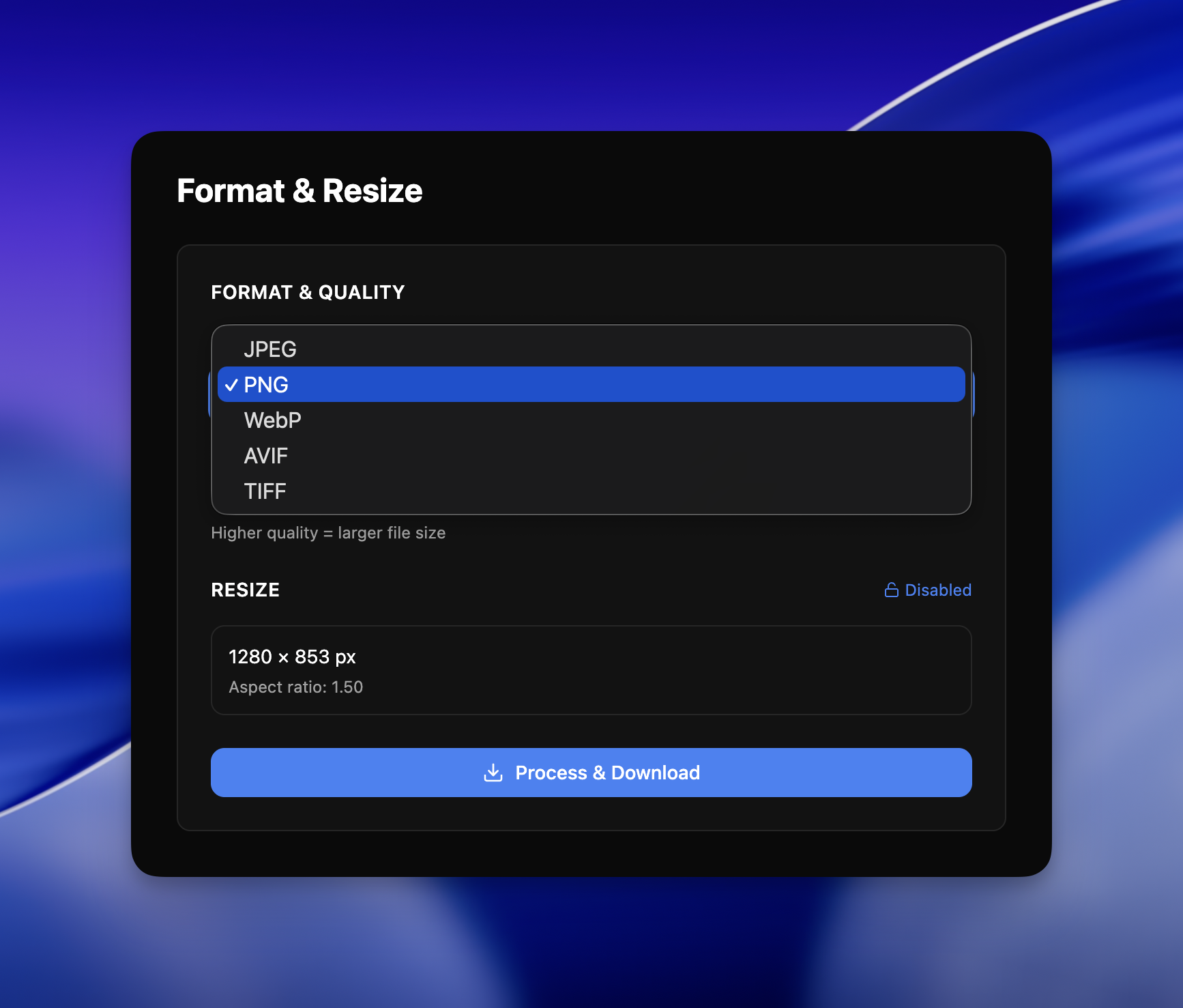
Pick the dedicated tool, then adjust resolution, quality, and page range until the preview feels right.
Export & keep working
Select an output folder and run the conversion. Your originals stay untouched on your device.
Best practices for cleaner results
- Group related files into folders before converting so your output stays organized and easy to archive.
- Use higher resolution presets when you know the result will be printed, zoomed in, or reused in design tools.
- Keep an unedited copy of your original Multiple Images files for audits, record‑keeping, or compliance workflows.
- Combine this tool with other File Studio actions like compress, merge, or split to streamline entire document pipelines.
Why File Studio
Built for trustworthy, everyday Multiple Images to Collage Image work.
You get precise control over the output, predictable file names, and a private workflow that keeps sensitive documents on your own machine.
Features tuned for this conversion
- 2x2, 3x3, 2x3, and custom grid layouts available.
- Adjustable cell spacing and rounded corners.
- Export at custom resolutions for web or print.
Why use File Studio for this conversion?
- Multiple grid layout templates to choose from.
- Drag-and-drop images into collage cells.
- Customize spacing, borders, and background colors.
Real‑world ways people use it
- Create before/after comparisons for portfolios.
- Design social media posts with multiple product shots.
- Compile event photos into shareable montages.
Lifetime plan
No subscriptions. No strings.
One-time license, yours forever. Get all current tools, future updates, and on-device processing without monthly fees.
Lifetime Plan
One purchase. Keep File Studio forever.
$29
one-time
What's included
- Unlimited conversions
- Updates for 1 year
- Offline-first file & image conversion
- PDF toolkit for everyday tasks
- Works on Mac & Windows
- All processing done on your device
- No uploads or accounts required
FAQ
Frequently asked questions
How many images can I include in a collage?→
Layouts support 2 to 12+ images depending on the template. Custom grids allow for even more flexibility.
Can I adjust individual image positions within cells?→
Yes. Each image can be repositioned and zoomed within its cell to get the perfect framing.
What output sizes are available?→
Export at standard sizes like 1080x1080 for Instagram, or set custom dimensions for your specific needs.
Can I add borders or spacing between images?→
Yes. You can customize the gap between images and add colored borders around the entire collage.
Does the collage maker support different aspect ratios?→
Absolutely. Create square, landscape, or portrait collages to match your intended platform.
Can I save collage templates for reuse?→
Your recently used layouts and settings are remembered so you can quickly create consistent collages.