

SVG Optimizer
SVG to Optimized SVG / PNG - Minify and convert vector graphics with precision.
Clean up messy SVG code, strip unnecessary metadata, and dramatically reduce file sizes. Or convert your pristine vectors into crisp, scalable PNGs for universal use.
Free trial · No account required · Files stay on your device
All conversions happen locally on your computer. No uploads, no subscriptions, and no background syncing.
SVG → Optimized SVG / PNG
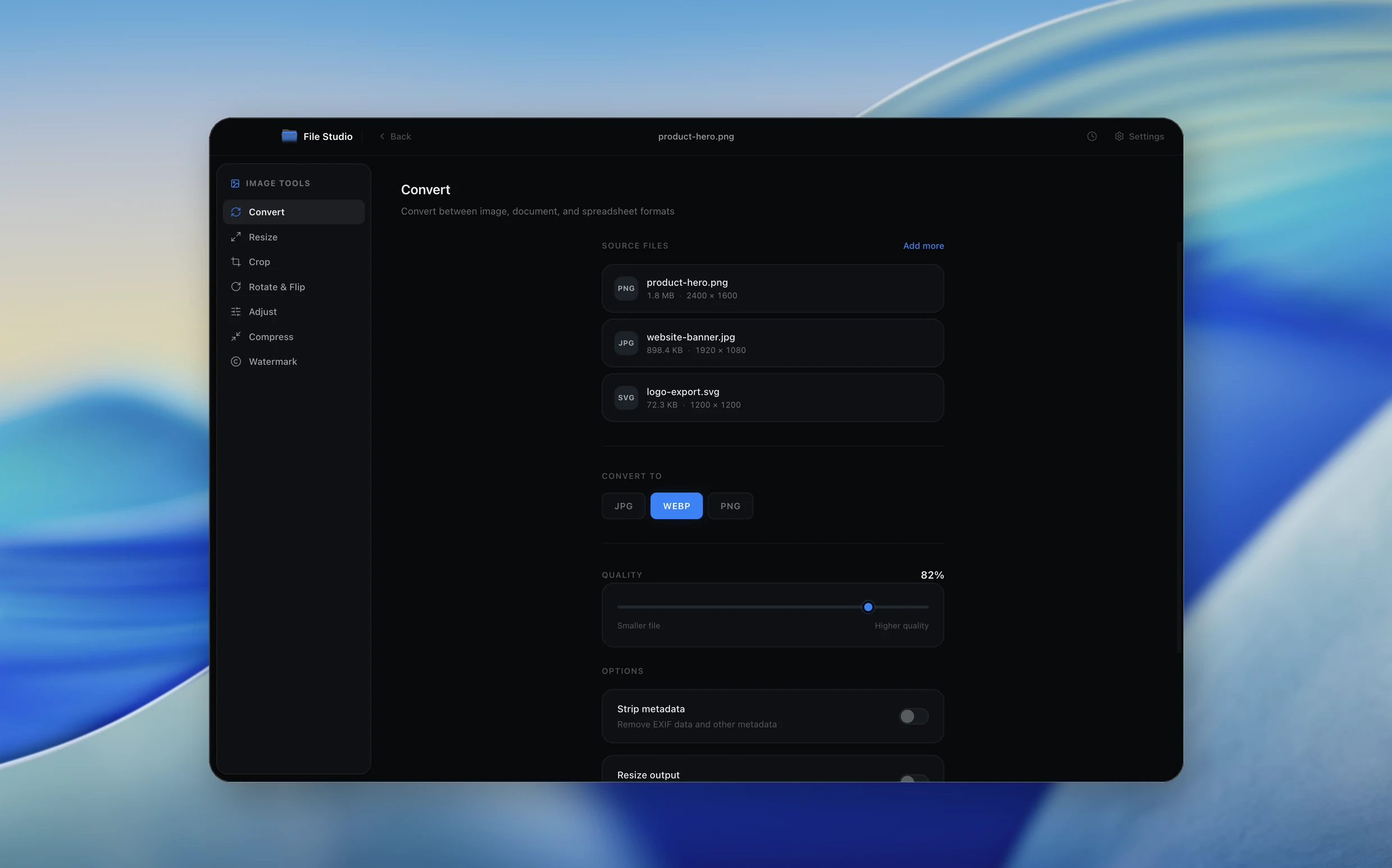
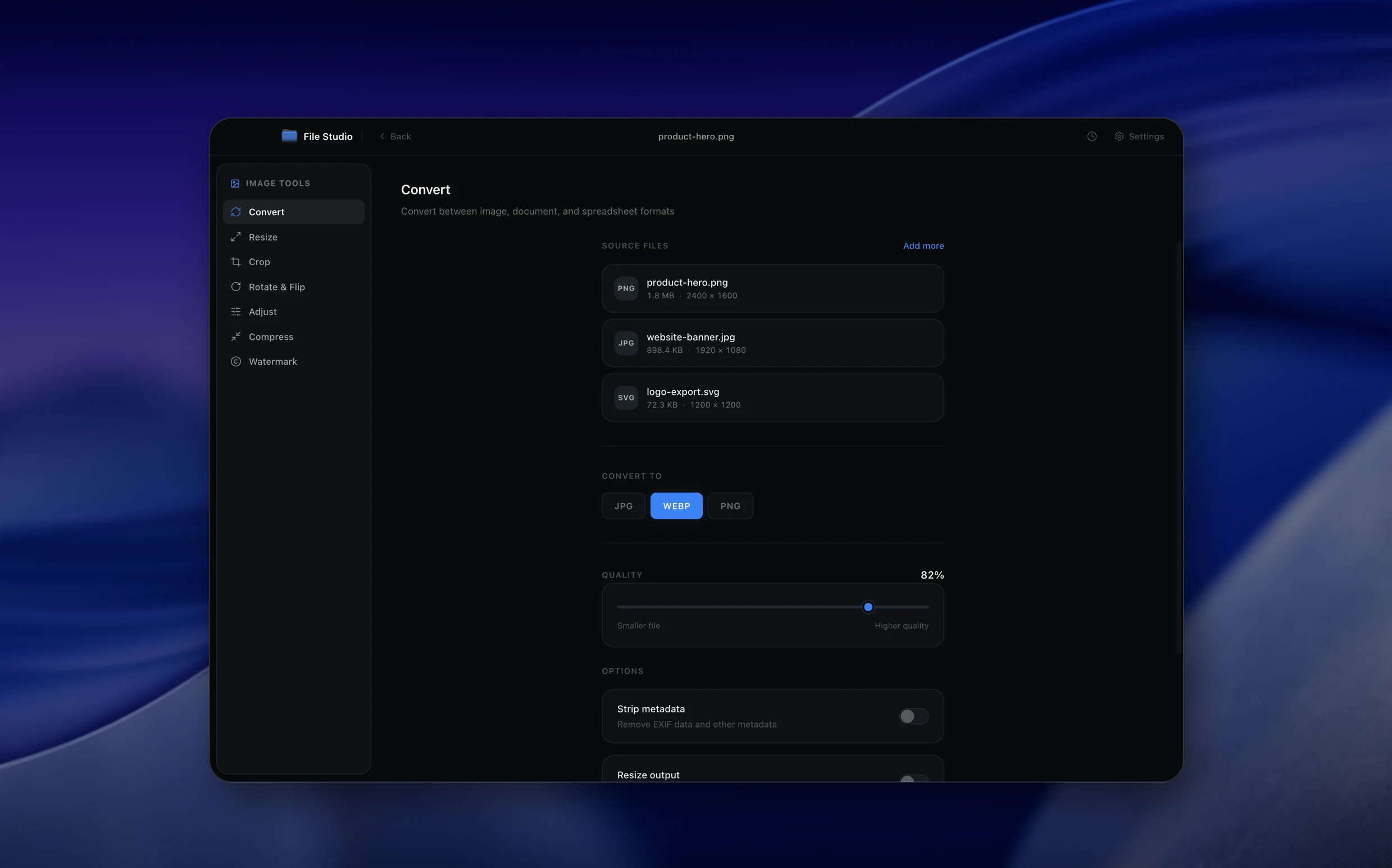
Real File Studio interface, shown in light and dark mode.
Understanding SVG optimization
SVG (Scalable Vector Graphics) is an XML-based format for two-dimensional vector graphics, standardized by the W3C as SVG 1.1 in 2003 and SVG 2 in 2018. Because SVG is text, it is human-readable and can be edited in any text editor, but it is also verbose. A typical SVG exported from Illustrator, Figma, or Sketch contains editor metadata, default attribute values, redundant transform matrices, and unused namespaces. Optimization removes this overhead without changing the rendered output.
An SVG optimizer parses the file into a DOM, applies a series of transformations, and serializes the result back to text. Common transformations include: removing comments, metadata, and editor namespaces; collapsing nested groups; rounding numeric precision (a path command like '12.34567' becomes '12.35'); merging consecutive paths; converting shapes to paths; and minifying inline styles. The most popular open-source optimizer is SVGO, which uses a plugin architecture to make each transformation optional.
Optimization typically reduces file size by 30 to 70 percent for SVGs exported from vector editors. The tradeoff is editability: heavily optimized SVGs lose layer names, group structure, and editor-specific metadata, making them harder to edit later in the source application. The standard practice is to keep the source SVG in version control and optimize a derived copy for distribution.
How it works
Convert SVG to Optimized SVG / PNG in four simple steps.
The flow mirrors the main File Studio experience: install the app, drop in your files, pick the right tool, and export clean, ready-to-share output. All without sending anything to the cloud.
Install File Studio
Download the app, move it to Applications, and open it. No sign-ups or accounts required.
Add your SVG files
Drag-and-drop your svg files into the window or click to browse from disk.
Choose SVG → Optimized SVG / PNG
Pick the dedicated tool, then adjust resolution, quality, and page range until the preview feels right.
Export & keep working
Select an output folder and run the conversion. Your originals stay untouched on your device.
Best practices for cleaner results
- ·Group related files into folders before converting so your output stays organized and easy to archive.
- ·Use higher resolution presets when you know the result will be printed, zoomed in, or reused in design tools.
- ·Keep an unedited copy of your original SVG files for audits, record-keeping, or compliance workflows.
- ·Combine this tool with other File Studio actions like compress, merge, or split to streamline entire document pipelines.
Why File Studio
Built for trustworthy, everyday SVG to Optimized SVG / PNG work.
You get precise control over the output, predictable file names, and a private workflow that keeps sensitive documents on your own machine.
Features tuned for this conversion
- ·Advanced SVG minification and path optimization.
- ·Scale vectors to any resolution before PNG export.
- ·Batch process entire icon libraries instantly.
Why use File Studio for this conversion?
- ·Dramatically reduce SVG file sizes for web.
- ·Convert SVGs to transparent PNGs at any scale.
- ·Clean up metadata, hidden elements, and empty groups.
Real-world ways people use it
- ·Optimize vector icons for faster website loading.
- ·Convert SVG illustrations to PNG for social media.
- ·Clean up exported SVGs from design tools like Figma or Illustrator.
Settings guide
Understanding your conversion options
Numeric Precision
Controls how many decimal places are kept in path data and coordinates. Default is 3 decimals which is invisible to the human eye for screen sizes. Reduce to 1 or 2 decimals for icons and simple shapes; keep 3 to 4 for complex illustrations where rounding artifacts could become visible.
Remove Metadata
Strips XML comments, title and desc elements, editor metadata (Illustrator XMP, Inkscape sodipodi), and unused namespaces. Disable this if you need title and desc for accessibility (screen readers use them as alt text equivalents). Always remove editor-specific metadata for production assets.
Collapse Groups
Merges nested groups (g elements) when they have no semantic purpose, hoisting child elements into the parent and combining transforms. This reduces DOM depth and file size. Be careful when SVGs are styled with CSS that targets group selectors, because collapsing the group breaks the selector match.
Convert Shapes to Paths
Replaces rect, circle, ellipse, line, polyline, and polygon elements with equivalent path d attributes. Paths are usually shorter than the equivalent shape elements and can be merged with adjacent paths. Disable for SVGs that need to remain editable as primitive shapes.
Minify Output
Removes unnecessary whitespace, line breaks, and indentation from the final XML. Reduces file size by 5 to 15 percent on top of structural optimizations. Pretty-printed output is easier to inspect during development; minified output is preferred for production assets served to browsers.
Industry standards and requirements
Web performance guidelines from Google's Core Web Vitals encourage minimizing CSS and asset payloads. SVG icons used in modern web design should be optimized to under 1 KB each, and full illustrations to under 20 KB. Optimized SVGs reduce Largest Contentful Paint (LCP) time and improve mobile load performance, both of which factor into Google's search ranking signals.
Accessibility standards (WCAG 2.1, Section 508) require SVGs that convey meaning to include accessible text. The title and desc child elements provide screen reader compatible names and descriptions, and the role='img' attribute on the root svg element identifies it as an image. Optimizers must be configured to preserve these elements for any SVG that is not purely decorative.
Brand guidelines from companies like Apple, Google, and Microsoft specify exact SVG output for logo usage. Optimized logos must preserve precise proportions, anchor points, and color values. Numeric precision below 4 decimals can shift anchor points enough to fail brand audits, so logo SVGs are usually optimized with conservative settings (no shape conversion, no path merging, 4 decimal precision) and then served alongside hash-based cache busting.
Troubleshooting
Common issues and how to fix them
Optimized SVG looks different from the original→
Numeric precision is too low. Increase decimals to 3 or 4 to avoid visible rounding. Also check whether 'merge paths' is enabled, because merging can change z-order or fill rules. Disable the merge path plugin and re-optimize to isolate the cause.
Animations or interactivity stop working→
The optimizer removed IDs, classes, or inline event handlers that the script depended on. Configure the optimizer to preserve specific IDs (with the cleanupIDs plugin's prefix list) and disable removal of inline scripts. Keep an unoptimized copy for development and optimize only the production build.
Some elements disappear after optimization→
The optimizer probably removed elements with zero opacity, zero size, or empty content. These can be intentional (placeholder elements toggled by JavaScript). Disable the removeHiddenElems plugin or whitelist specific selectors. Check the diff between input and output to see exactly what was removed.
File size barely decreased→
The source SVG is already optimized or has very little overhead. Check whether the file contains large embedded raster images (data URIs) that the optimizer cannot reduce. Extract embedded images to separate files, or compress them with a raster optimizer before re-embedding.
Pricing
Simple, fair pricing.
All tools included. No hidden fees. Processing stays on your device.
Yearly
For short-term projects.
- 1 year of updates
- Image, PDF, SVG, and spreadsheet tools
- Works on Mac & Windows
- All processing done on device
Lifetime
One purchase. Keep it forever.
- Unlimited conversions forever
- 1 year of major updates
- Image, PDF, SVG, and spreadsheet tools
- Watch Folders & Automation
- macOS Notch Drop Zone
- Works on Mac & Windows
Team & Bulk Pricing
Lifetime seats with volume discounts. More seats, bigger discount.
15
lifetime seats
You save
$60
15% off the individual price
Enterprise
50+ seats with custom pricing, centralized license management, and priority support.
FAQ
Frequently asked questions
Will optimizing my SVG change how it looks?→
File Studio uses safe optimization techniques that reduce file size by removing metadata and simplifying paths without altering the visual appearance.
Can I convert SVG to PNG at a very high resolution?→
Yes. Because SVGs are resolution-independent vectors, you can scale them up to any size before exporting to PNG without any loss of quality.
Does the SVG optimizer remove my original files?→
No. File Studio always writes the optimized SVGs or converted PNGs to a new location, leaving your original files untouched.
Can I batch optimize an entire icon set?→
Yes. You can drop in hundreds of SVG icons and optimize or convert them all with a single click.
Does it support SVG transparency?→
Absolutely. Both optimized SVGs and exported PNGs will fully preserve any transparency or alpha channels from your original graphics.
Are inline styles and classes preserved?→
You have full control over the optimization process. You can choose to keep or inline styles, remove empty attributes, and merge paths as needed.
Looking for something else? Explore more offline conversions with File Studio: