

PDF signer
PDF to PDF - Sign contracts and forms on your desktop, no cloud signature service needed.
Cloud-based e-signature platforms upload your documents to their servers. File Studio lets you place your signature directly onto PDF pages on your own machine. Draw a signature, import an image, or use a saved signature, and finalize the document locally.
Free trial · No account required · Files stay on your device
All conversions happen locally on your computer. No uploads, no subscriptions, and no background syncing.
PDF → PDF
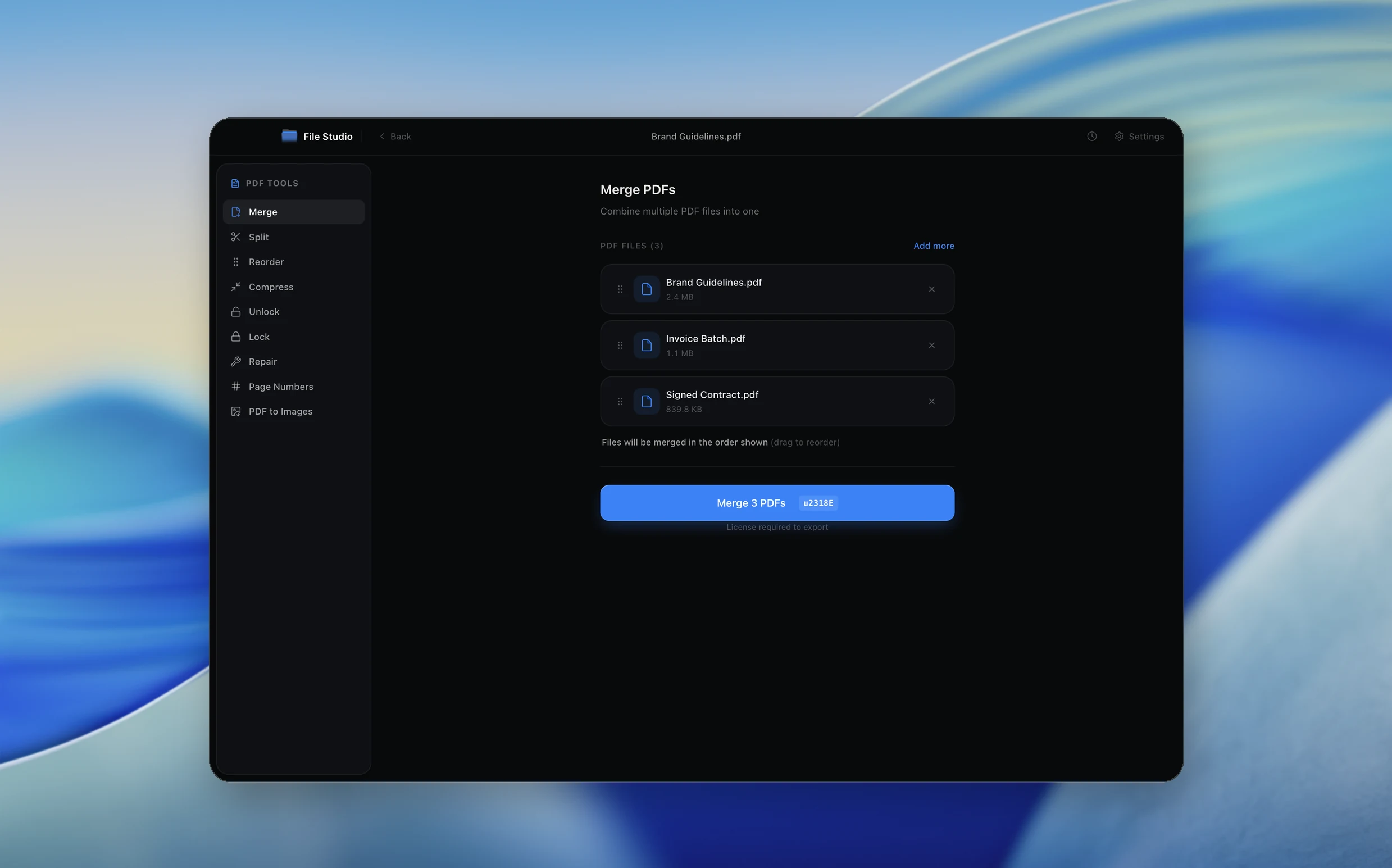
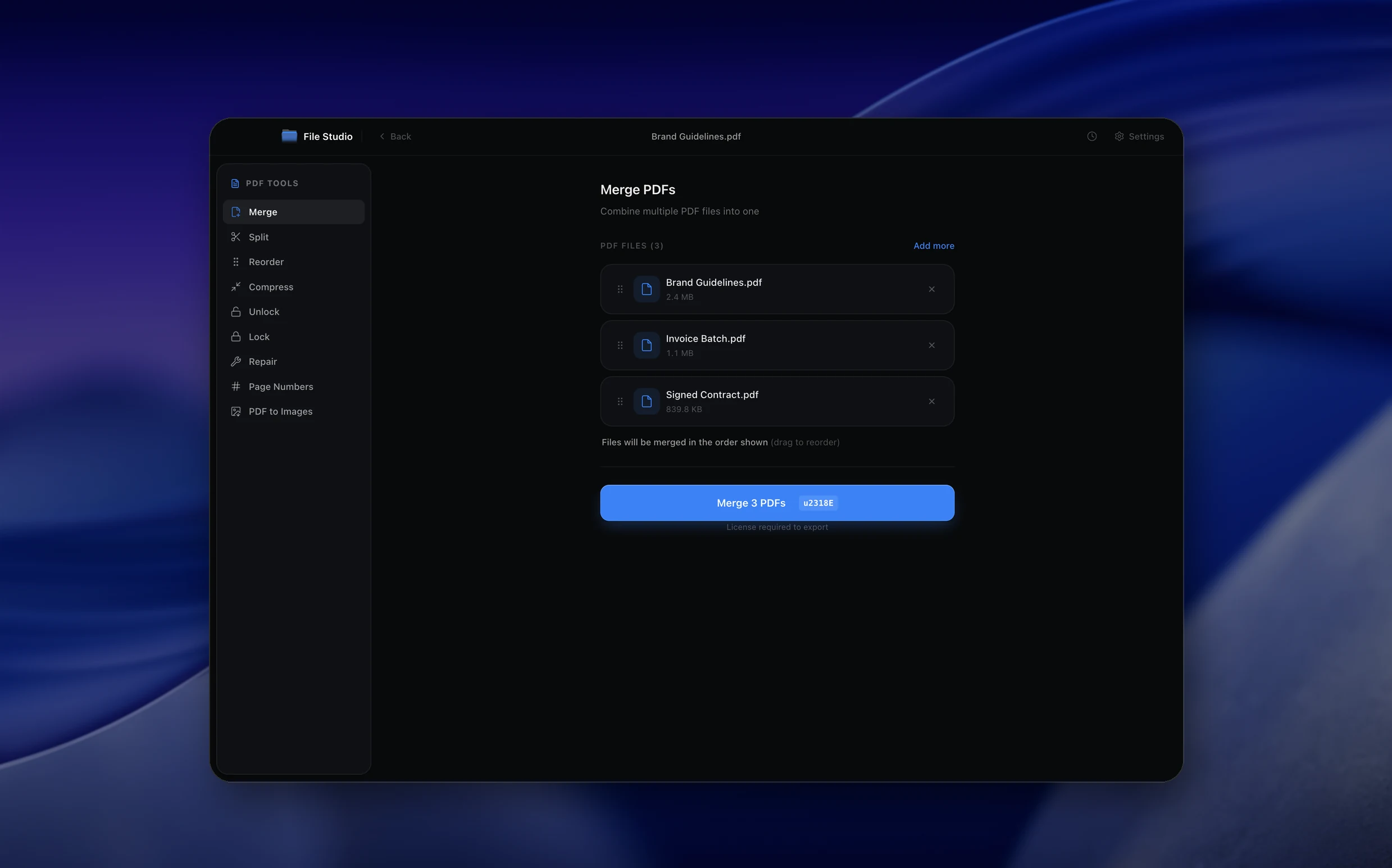
Real File Studio interface, shown in light and dark mode.
Why not an online converter?
No uploads, no pop-ups, no sign-up walls
Understanding PDF signatures
A signature on a PDF can mean two different things: a visible mark that looks like a handwritten signature, or a cryptographic digital signature that proves the document's integrity and the signer's identity. Both are defined in the PDF specification (ISO 32000), and a single document can carry one, the other, or both. The visible mark alone offers no legal or technical guarantee; the cryptographic layer is what makes a signature verifiable.
A digital signature works by computing a hash of the PDF (excluding the signature dictionary itself), encrypting that hash with the signer's private key, and embedding the result in a signature dictionary on the page. Verification reverses the process: the verifier hashes the document the same way, decrypts the embedded value with the signer's public key (obtained from a certificate), and checks that the two hashes match. If they do, the document has not been altered since signing.
Visible signatures can be drawn freehand with a stylus or trackpad, typed using a script font, or imported from a scanned image. They are stored as form field appearances or as direct content stream operations. For workflows that need only visual evidence (internal approvals, informal sign-offs), a visible signature is sufficient. For contracts, legal filings, or anything that may be challenged later, the visible mark should be paired with a cryptographic signature backed by a trusted certificate.
How it works
Convert PDF to PDF in four simple steps.
The flow mirrors the main File Studio experience: install the app, drop in your files, pick the right tool, and export clean, ready-to-share output. All without sending anything to the cloud.
Install File Studio
Download the app, move it to Applications, and open it. No sign-ups or accounts required.
Add your PDF files
Drag-and-drop your pdf files into the window or click to browse from disk.
Choose PDF → PDF
Pick the dedicated tool, then adjust resolution, quality, and page range until the preview feels right.
Export & keep working
Select an output folder and run the conversion. Your originals stay untouched on your device.
Best practices for cleaner results
- ·Group related files into folders before converting so your output stays organized and easy to archive.
- ·Use higher resolution presets when you know the result will be printed, zoomed in, or reused in design tools.
- ·Keep an unedited copy of your original PDF files for audits, record-keeping, or compliance workflows.
- ·Combine this tool with other File Studio actions like compress, merge, or split to streamline entire document pipelines.
Why File Studio
Built for trustworthy, everyday PDF to PDF work.
You get precise control over the output, predictable file names, and a private workflow that keeps sensitive documents on your own machine.
Features tuned for this conversion
- ·Freehand signature drawing with customizable pen color and thickness.
- ·Import a scanned or photographed signature as a transparent PNG overlay.
- ·Save signatures for reuse across multiple documents.
Why use File Studio for this conversion?
- ·Place signatures anywhere on any page of a PDF document.
- ·Draw a signature with your mouse/trackpad or import a signature image.
- ·Your signed documents never touch a third-party server.
Real-world ways people use it
- ·Sign rental agreements and NDAs without subscribing to an e-signature service.
- ·Add your signature to completed tax forms before filing.
- ·Sign freelance contracts and invoices before sending them to clients.
Settings guide
Understanding your conversion options
Signature Type
Choose Draw (freehand with your mouse or trackpad), Type (your name in a Script, Hand, or Brush style), or Upload image (a scan or photo of your physical signature). Drawn signatures look most authentic. Uploaded images preserve the look of a real handwritten signature; a transparent PNG looks best.
Position and Size
Pick the page, then drag the signature to place it and drag its corner to resize it. Standard signature lines are 200 to 300 points wide and 50 to 80 points tall. Make sure the signature does not overlap printed text.
Ink Color
Choose an ink color for drawn and typed signatures. Blue or black ink is the most common choice and makes it easy to tell a signed copy from an unsigned printout.
Visual Signature, Not a Certificate
File Studio places a visual signature on the page. It does not apply a certificate-based (cryptographic) digital signature, so there is no certificate, reason, or timestamp to configure. Use it for approvals, sign-offs, and forms that accept an electronic signature mark.
Original File
Signing saves a new PDF and leaves your original unchanged, so you can always go back and place the signature again.
Industry standards and requirements
The U.S. Electronic Signatures in Global and National Commerce Act (E-SIGN, 2000) and the Uniform Electronic Transactions Act (UETA) recognize electronic signatures as legally equivalent to handwritten signatures for most contracts. Both laws require that the signer intended to sign, consented to electronic transactions, and that the signed document be retainable. They do not mandate cryptographic signatures, but using one provides much stronger evidentiary support in court.
In the European Union, eIDAS (Regulation 910/2014) defines three signature levels: Simple Electronic Signature (SES), Advanced Electronic Signature (AES), and Qualified Electronic Signature (QES). Only QES, which requires a qualified certificate from a trusted service provider and a secure signature creation device, has the same legal effect as a handwritten signature across all EU member states. PAdES (PDF Advanced Electronic Signatures, ETSI EN 319 142) is the technical profile that PDFs must meet to qualify.
For long-term archival, signatures should follow the PAdES B-LTA profile, which embeds the full certificate chain, OCSP or CRL revocation data, and a trusted timestamp. This allows the signature to remain verifiable for decades, even after the signing certificate expires or the issuing CA goes out of business. Government archives in countries like Germany and the Netherlands require this profile for any PDF submitted for permanent retention.
Troubleshooting
Common issues and how to fix them
Signature looks pixelated or blurry→
If you uploaded an image, use a sharp, high-resolution scan, ideally a PNG with a transparent background. Avoid enlarging a small image far beyond its original size when resizing the signature on the page.
Recipient requires a certificate-based digital signature→
Some contracts, government portals, and regulated workflows require a cryptographic signature backed by a trusted certificate. File Studio's signatures are visual only, so use a dedicated digital signing service or Adobe Acrobat with your certificate for those documents.
Signing breaks an existing digital signature on the document→
PDF supports incremental updates so multiple cryptographic signatures can coexist, but adding content with a tool that saves a rewritten file invalidates prior signatures. If the PDF is already digitally signed, add further signatures with the signing tool that supports incremental updates.
Uploaded signature has a white box around it→
The image has a solid background. Use a PNG with a transparent background, or draw or type the signature in File Studio instead.
Pricing
Simple, fair pricing.
All tools included. No hidden fees. Processing stays on your device.
Yearly
For short-term projects.
- 1 year of updates
- Image, PDF, SVG, and spreadsheet tools
- Batch processing & Watch Folders
- AI integration (CLI & local MCP)
- Works on Mac & Windows
- All processing done on device
Lifetime
One purchase. Keep it forever.
- Unlimited conversions forever
- 1 year of major updates
- Image, PDF, SVG, and spreadsheet tools
- Watch Folders & Automation
- AI integration (CLI & local MCP)
- macOS Notch Drop Zone
- Works on Mac & Windows
Team & Bulk Pricing
Lifetime seats with volume discounts. More seats, bigger discount.
15
lifetime seats
You save
$60
15% off the individual price
Enterprise
50+ seats with custom pricing, one shared license key, and priority support.
FAQ
Frequently asked questions
Is this a legally binding electronic signature?→
File Studio adds a visual signature to the PDF. In many jurisdictions, an electronic image of a signature on a document constitutes a valid electronic signature, but requirements vary. For legally critical documents, verify your jurisdiction's rules or consult legal counsel.
Can I save my signature for reuse?→
Yes. Once you draw or import a signature, File Studio lets you save it locally for quick reuse on future documents. The saved signature stays on your device.
Can I add signatures to multiple pages?→
Yes. You can place your signature on any page of the PDF, or add it to multiple pages if needed (for example, initialing every page of a contract).
Does signing modify my original PDF?→
File Studio creates a new signed copy of the PDF by default, preserving your original unsigned version. You can also choose to overwrite if preferred.
Is this completely offline?→
Yes. Unlike cloud e-signature platforms, File Studio processes everything on your local Mac or Windows machine. Your documents and signature data are never uploaded anywhere.
Can I also add the date alongside my signature?→
Yes. You can add text fields for the date, printed name, or any other annotation alongside your signature placement.
Looking for something else? Explore more offline conversions with File Studio: