

PDF page rotator
PDF to PDF - Fix sideways and upside-down PDF pages without leaving your desktop.
Scanned documents, merged PDFs, and faxes often have pages in the wrong orientation. File Studio lets you rotate individual pages or entire documents by 90, 180, or 270 degrees, all processed locally on your machine.
Free trial · No account required · Files stay on your device
All conversions happen locally on your computer. No uploads, no subscriptions, and no background syncing.
PDF → PDF
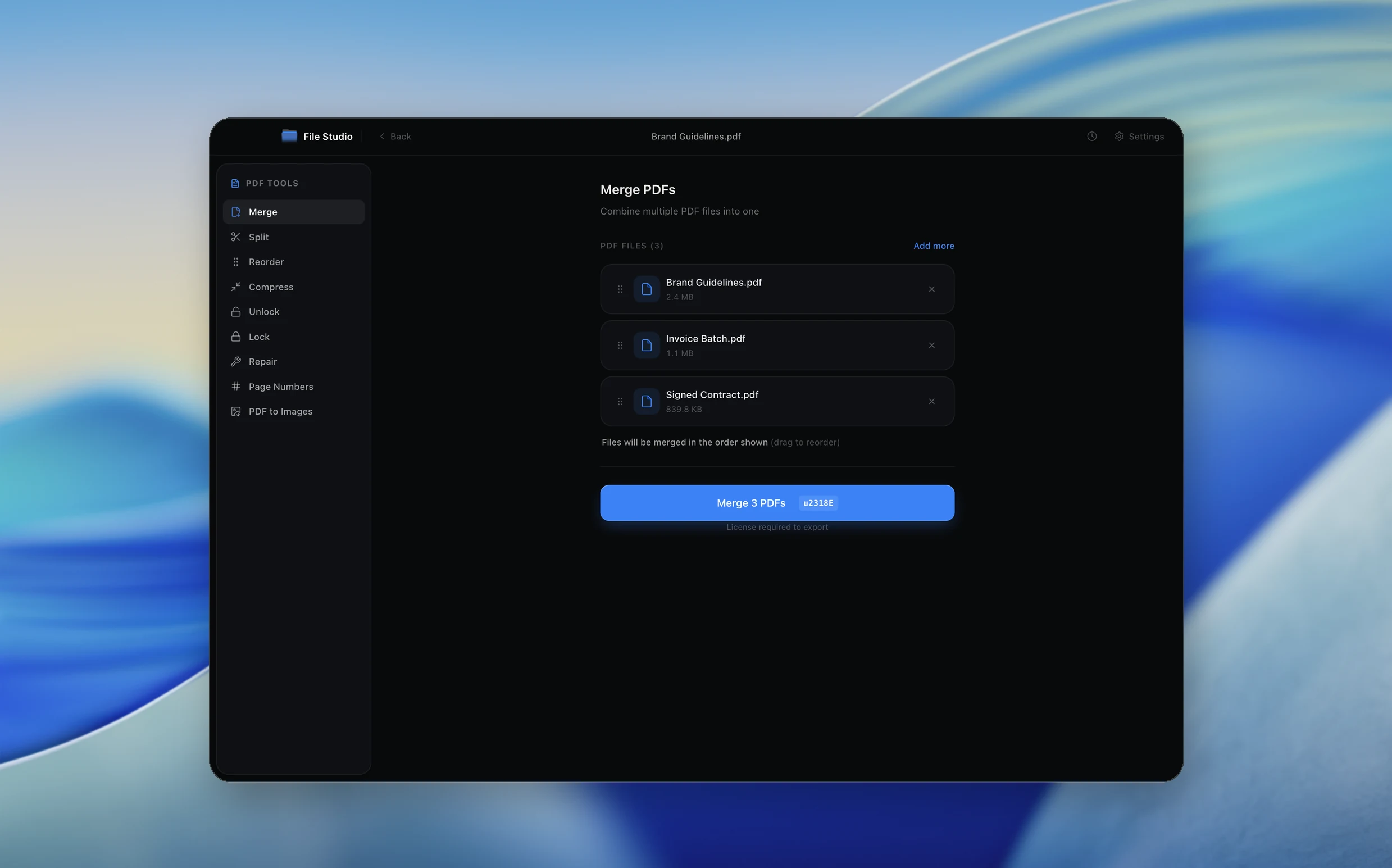
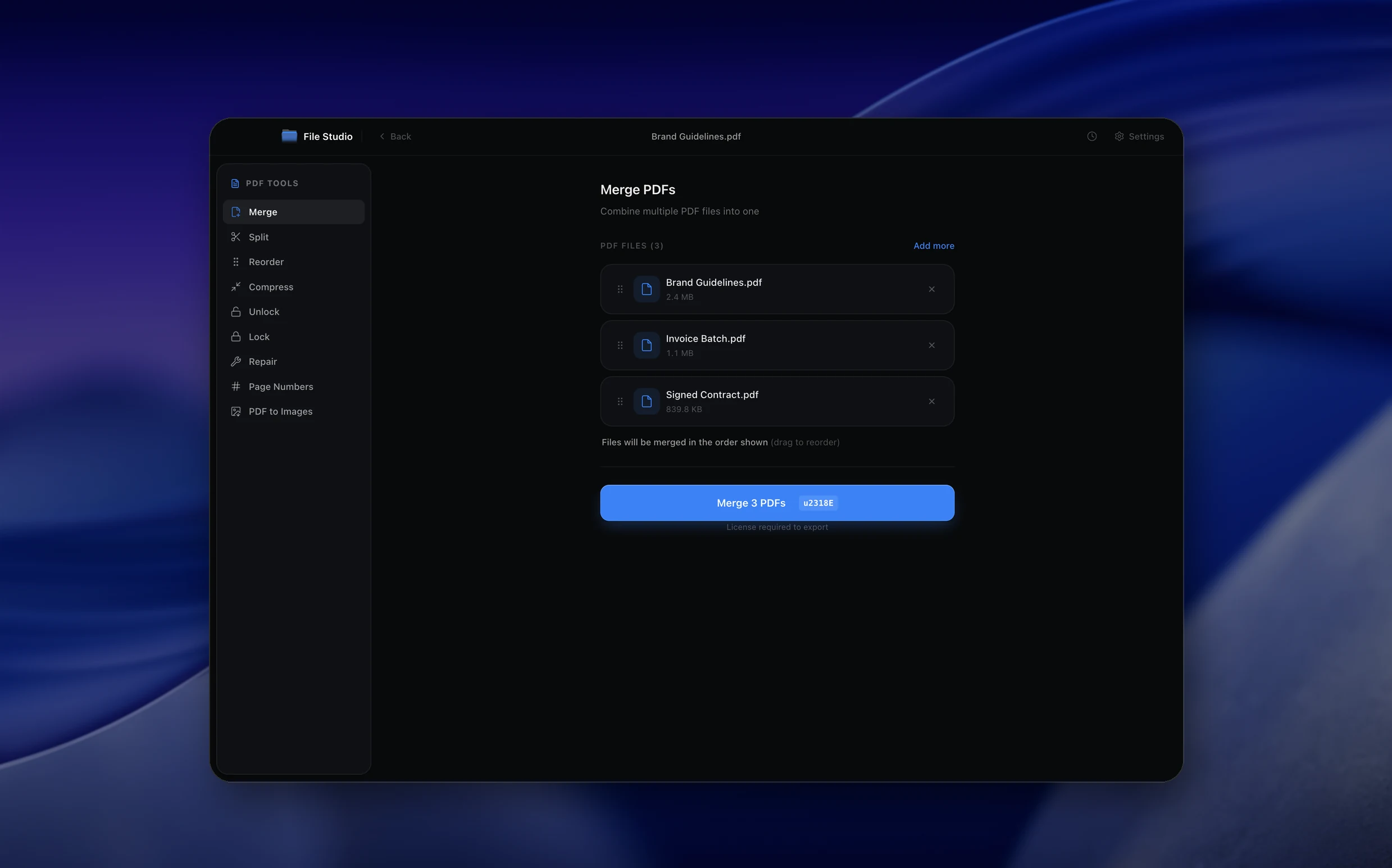
Real File Studio interface, shown in light and dark mode.
Why not an online converter?
No uploads, no pop-ups, no sign-up walls
Understanding PDF page rotation
Page rotation in PDF is governed by the /Rotate entry in the page dictionary, defined by the PDF specification (ISO 32000). The value must be a multiple of 90 (0, 90, 180, or 270) and represents a clockwise rotation applied at display time. Crucially, rotation does not modify the underlying content stream: the text, images, and vector graphics remain stored in their original orientation, and the viewer simply applies the rotation as a final transform during rendering. This means rotation is fast, lossless, and reversible.
Because rotation is a metadata operation rather than a content transformation, rotating PDF pages does not affect file size, image quality, text searchability, or accessibility. Bookmarks, annotations, and form fields continue to work because they reference page content in its original coordinate system, and the viewer rotates them along with the page. This is fundamentally different from rotating a raster image (JPG, PNG), which requires rewriting every pixel and may introduce interpolation artifacts at angles other than 90 degrees.
Common reasons to rotate PDF pages include correcting scans that came out sideways or upside down, fixing camera-captured documents where the phone was held in the wrong orientation, preparing landscape diagrams that should display in portrait alongside text pages, and matching the orientation of pages within a merged document. Rotation is one of the safest PDF operations because it preserves all original content while changing only the display angle.
How it works
Convert PDF to PDF in four simple steps.
The flow mirrors the main File Studio experience: install the app, drop in your files, pick the right tool, and export clean, ready-to-share output. All without sending anything to the cloud.
Install File Studio
Download the app, move it to Applications, and open it. No sign-ups or accounts required.
Add your PDF files
Drag-and-drop your pdf files into the window or click to browse from disk.
Choose PDF → PDF
Pick the dedicated tool, then adjust resolution, quality, and page range until the preview feels right.
Export & keep working
Select an output folder and run the conversion. Your originals stay untouched on your device.
Best practices for cleaner results
- ·Group related files into folders before converting so your output stays organized and easy to archive.
- ·Use higher resolution presets when you know the result will be printed, zoomed in, or reused in design tools.
- ·Keep an unedited copy of your original PDF files for audits, record-keeping, or compliance workflows.
- ·Combine this tool with other File Studio actions like compress, merge, or split to streamline entire document pipelines.
Why File Studio
Built for trustworthy, everyday PDF to PDF work.
You get precise control over the output, predictable file names, and a private workflow that keeps sensitive documents on your own machine.
Features tuned for this conversion
- ·Per-page rotation control with visual thumbnails for easy identification.
- ·Batch rotate all pages or apply different rotations to individual pages.
- ·Preserve all text, images, annotations, and form fields during rotation.
Why use File Studio for this conversion?
- ·Rotate individual pages or the entire document by 90, 180, or 270 degrees.
- ·Fix mixed-orientation scans where some pages are sideways or upside-down.
- ·Process offline so sensitive documents stay completely private.
Real-world ways people use it
- ·Correct sideways pages in a scanned multi-page document.
- ·Fix landscape tables that appear rotated in a portrait PDF report.
- ·Normalize page orientations after merging PDFs from different sources.
Settings guide
Understanding your conversion options
Rotation Angle
Choose 90 degrees clockwise (right), 90 degrees counter-clockwise (left, equivalent to 270 clockwise), or 180 degrees (upside down). Arbitrary angles are not supported by the PDF specification because the /Rotate entry is constrained to multiples of 90.
Page Selection
Rotate some or all pages. Type pages such as '2, 5-7' or click page thumbnails to select them, then apply a rotation. With nothing selected, the rotation applies to every page. You can also turn a single page from its thumbnail.
Preview Before Saving
Page thumbnails show each page's new orientation before you save, so you can check sideways scans and mixed portrait and landscape pages at a glance. File Studio saves a new PDF and leaves the original unchanged.
Annotation and Form Field Handling
File Studio only changes each page's /Rotate value and leaves the content untouched, so annotations and form fields turn with the page and stay in their correct positions.
Rotation Adds to the Current Orientation
Each rotation is added to the page's current orientation, including any rotation the PDF already had. Rotating a page that was already turned 90 degrees by another 90 degrees leaves it upside down, which the thumbnails make easy to spot.
Industry standards and requirements
In legal document production, rotation is applied as a cleanup step before pages are stamped with Bates numbers and produced to opposing counsel. The Federal Rules of Civil Procedure and most state equivalents require documents to be produced in a usable form, which includes correct orientation. Most e-discovery platforms apply rotation automatically based on OCR detection and log the change as part of the document's processing history.
For accessibility compliance under ISO 14289 (PDF/UA), pages must be in the correct orientation so screen readers can navigate the content tree. Section 508 of the US Rehabilitation Act and the European EN 301 549 standard reference PDF/UA, making correct orientation a legal requirement for government and public-sector documents. Tools that automate rotation must also update the structure tree to reflect the new orientation.
In archival workflows, page rotation is logged as a preservation event in PREMIS metadata so that future researchers can understand any modifications applied to the file after capture. The Library of Congress and similar institutions maintain provenance records that include the rotation angle, the operator, and the timestamp, allowing the original (pre-rotation) state to be reconstructed if needed for forensic or scholarly purposes.
Troubleshooting
Common issues and how to fix them
Rotation does not stick when reopened in another viewer→
The /Rotate entry is part of the PDF standard and is honored by mainstream viewers such as Acrobat, Preview, and browser PDF viewers. If a niche viewer ignores it, try opening the file in a different viewer, or print the PDF to a new PDF from a viewer that displays it correctly.
Annotations are misplaced after rotation→
Tools that rewrite page content can leave annotation coordinates behind. File Studio changes only the page's /Rotate value, so annotations turn with the page. If an annotation still looks off, it may have been created with unusual coordinates; remove it with Remove Annotations or recreate it after rotating.
Some pages end up in different orientations→
The pages had different starting rotations, and each rotation is added to the existing one. Select only the pages that are still wrong and rotate them again, checking the thumbnails until every page looks right.
Only some pages are sideways→
Select just those pages by clicking their thumbnails or typing their numbers (for example, '3, 8-9'), then rotate. Pages you do not select stay as they are.
Pricing
Simple, fair pricing.
All tools included. No hidden fees. Processing stays on your device.
Yearly
For short-term projects.
- 1 year of updates
- Image, PDF, SVG, and spreadsheet tools
- Batch processing & Watch Folders
- AI integration (CLI & local MCP)
- Works on Mac & Windows
- All processing done on device
Lifetime
One purchase. Keep it forever.
- Unlimited conversions forever
- 1 year of major updates
- Image, PDF, SVG, and spreadsheet tools
- Watch Folders & Automation
- AI integration (CLI & local MCP)
- macOS Notch Drop Zone
- Works on Mac & Windows
Team & Bulk Pricing
Lifetime seats with volume discounts. More seats, bigger discount.
15
lifetime seats
You save
$60
15% off the individual price
Enterprise
50+ seats with custom pricing, one shared license key, and priority support.
FAQ
Frequently asked questions
Can I rotate just one page without affecting the rest?→
Yes. File Studio shows page thumbnails and lets you select individual pages to rotate while leaving the others unchanged.
Does rotation affect text searchability?→
No. Rotation only changes the display orientation. All embedded text, searchability, and copy-paste functionality remain intact.
What rotation angles are supported?→
You can rotate pages by 90 degrees clockwise, 90 degrees counter-clockwise, or 180 degrees (flip upside-down).
Does this modify my original PDF?→
File Studio creates a new PDF with the corrected rotations. Your original file remains untouched unless you choose to overwrite it.
Is this offline?→
Yes. All PDF page rotation happens locally on your Mac or Windows PC. No documents are uploaded to any cloud service.
Looking for something else? Explore more offline conversions with File Studio: