

Automation guide
How to auto-convert screenshots to WebP with a watch folder
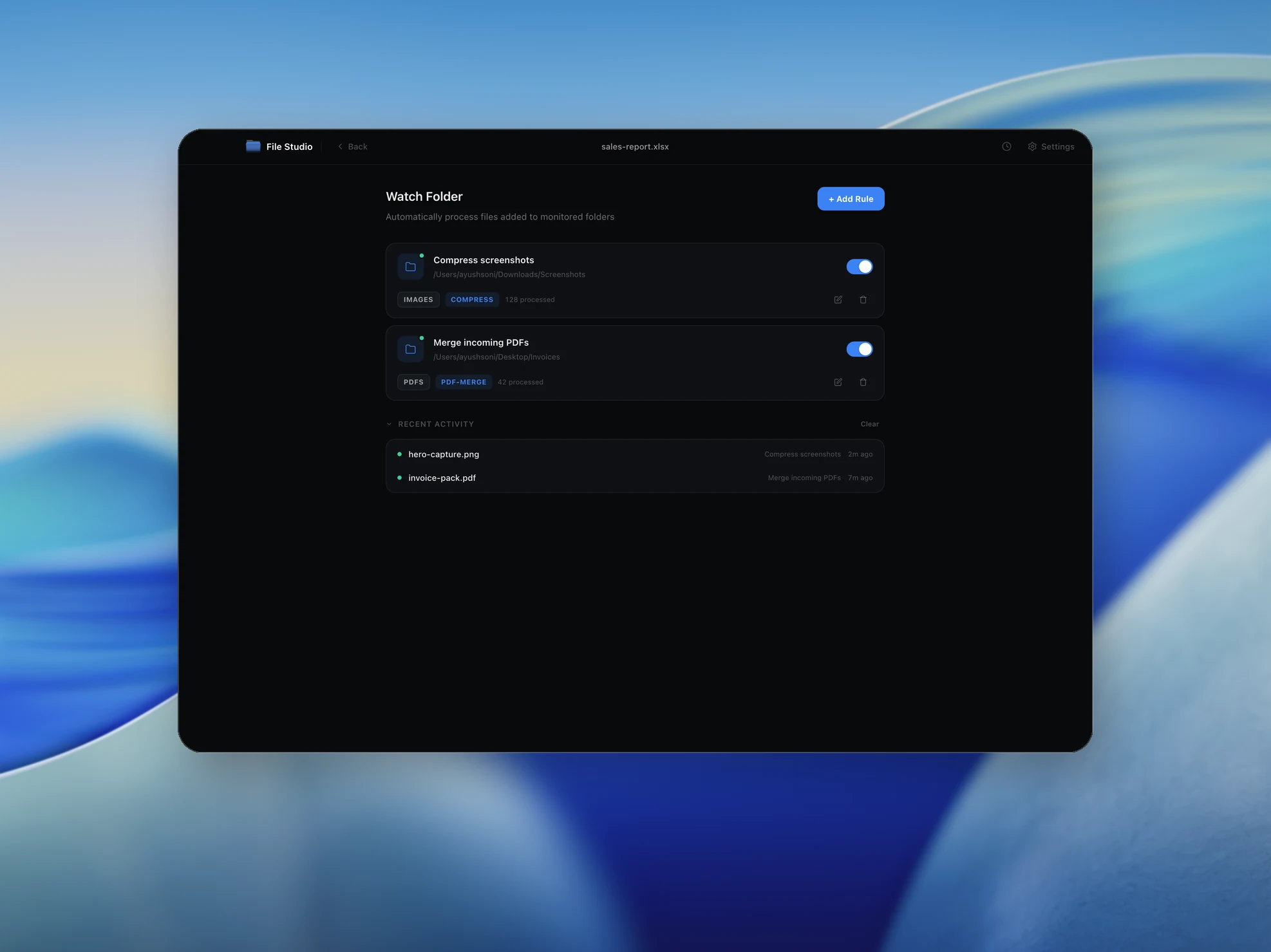
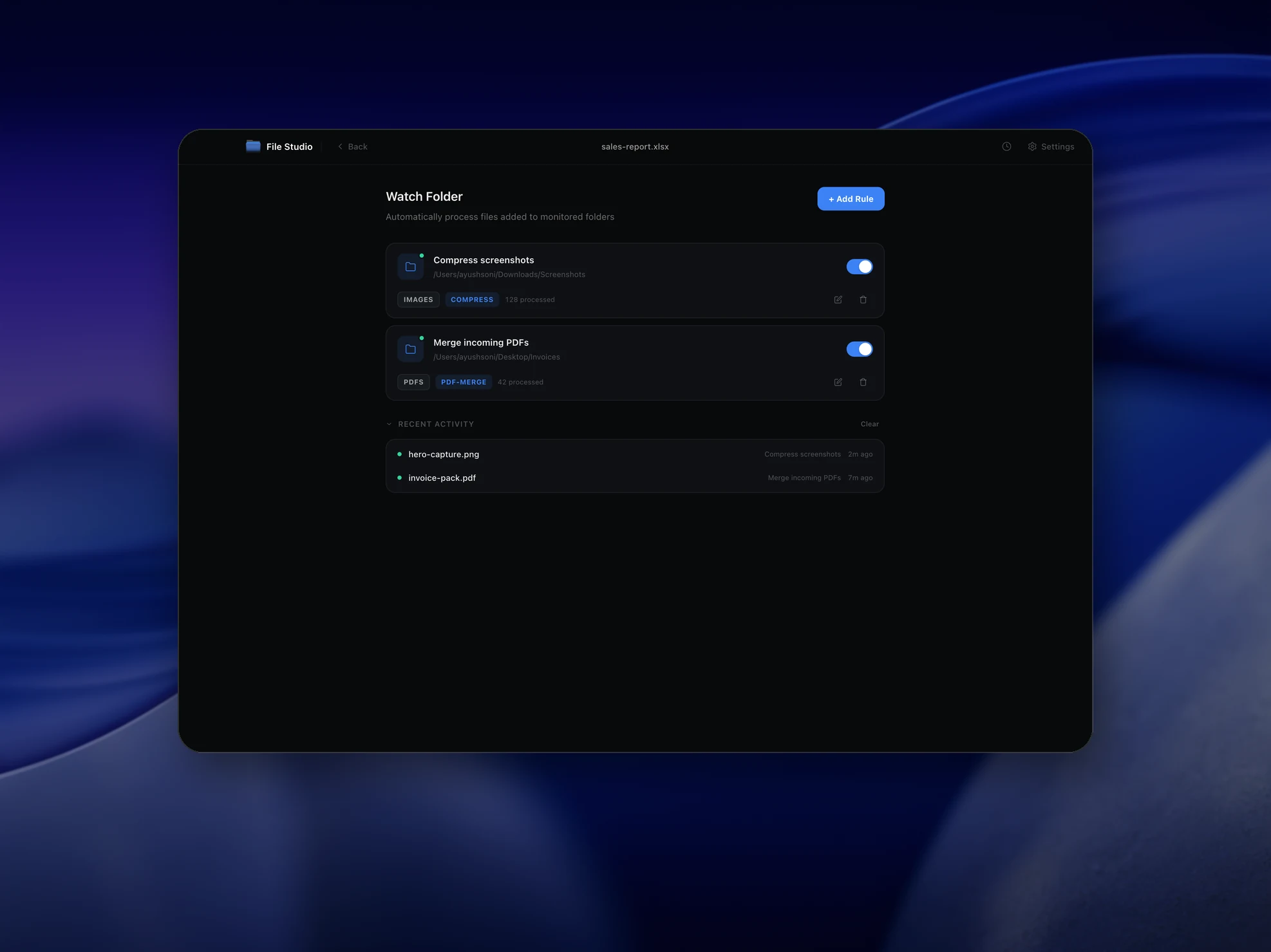
To auto-convert screenshots to WebP, create a watch folder in File Studio that points at your screenshots folder, set the action to convert images to WebP, and leave File Studio running. Every new screenshot is converted to a smaller WebP file as soon as it lands, with no manual step and no upload.
By Ayush Soni · Updated October 21, 2026
Step by step
- 1
Open Watch Folders in File Studio
Add a new watch folder.
- 2
Pick your screenshots folder
On Mac this is usually Desktop or a Screenshots folder you set in the Screenshot app. On Windows it is Pictures\Screenshots.
- 3
Set the action to Convert to WebP
Choose WebP as the output format and a quality around 80% for a good size and sharpness balance.
- 4
Take a screenshot
The new file is converted automatically. Check History to see what was processed.
From the command line
With the filestudio command installed (AI integrations, Command line), you or an AI agent can do the same thing from a terminal:
filestudio image convert photo.png --format webpTry File Studio free
Every tool runs locally on Mac and Windows. No uploads, no account.
FAQ
Frequently asked questions
Why convert screenshots to WebP?
WebP screenshots are usually much smaller than PNG with no visible difference, which saves disk space and makes them faster to share and upload to websites.
Does File Studio need to stay open?
Yes. Watch folders run while File Studio is running, including in the background.
Can I convert screenshots I already have?
Yes. Drag them into the image Convert tool, or run filestudio image convert shot.png --format webp for a single file.
Related:
More guides: