

PDF guide
How to combine images into one PDF
To combine images into one PDF, open File Studio's Images to PDF tool, drop in your JPG, PNG, WebP, TIFF, or BMP files, arrange the page order, pick a page size, orientation, and margin, then create the PDF. It runs locally, so scans of IDs and receipts stay on your device.
By Ayush Soni · Updated October 21, 2026
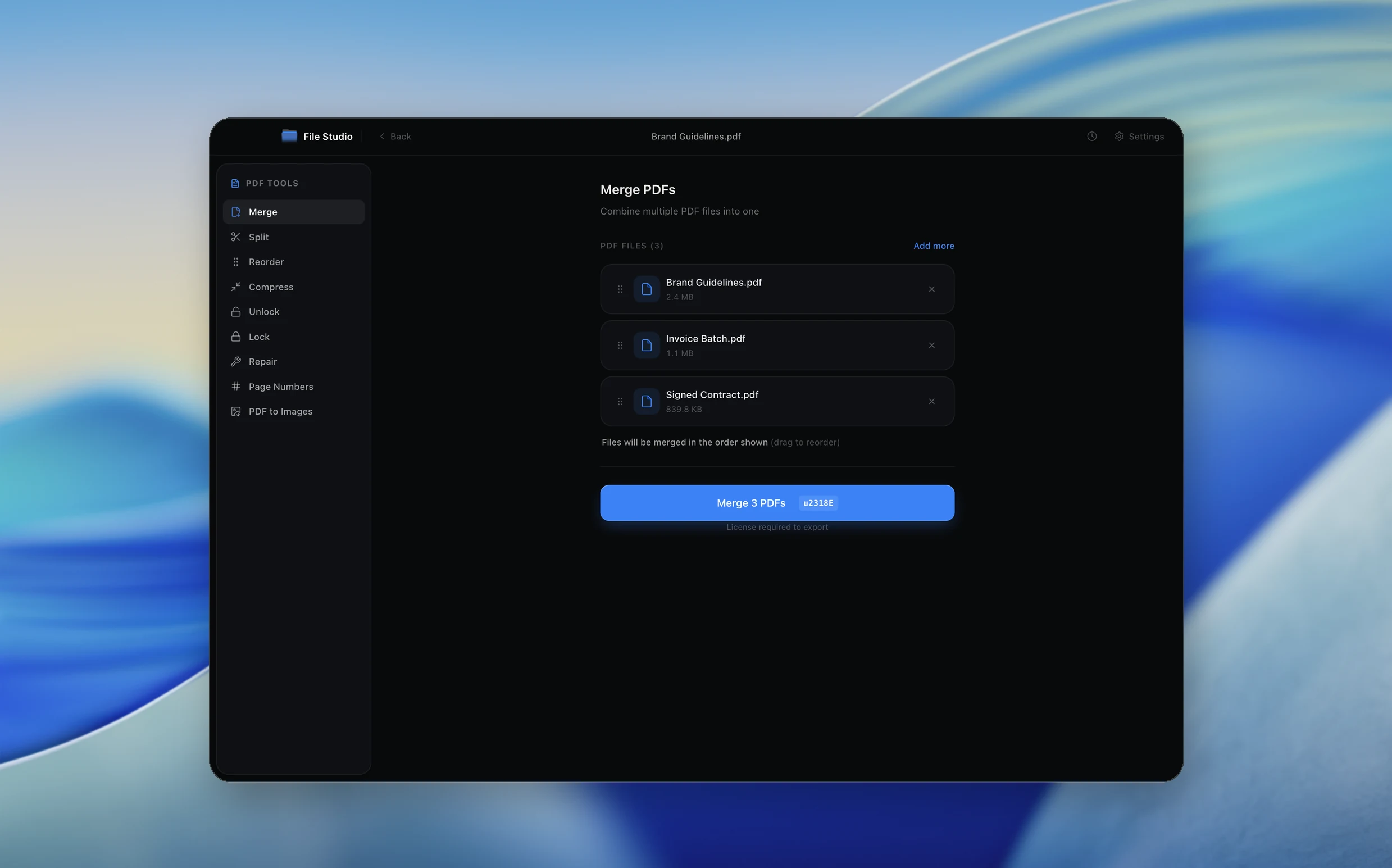
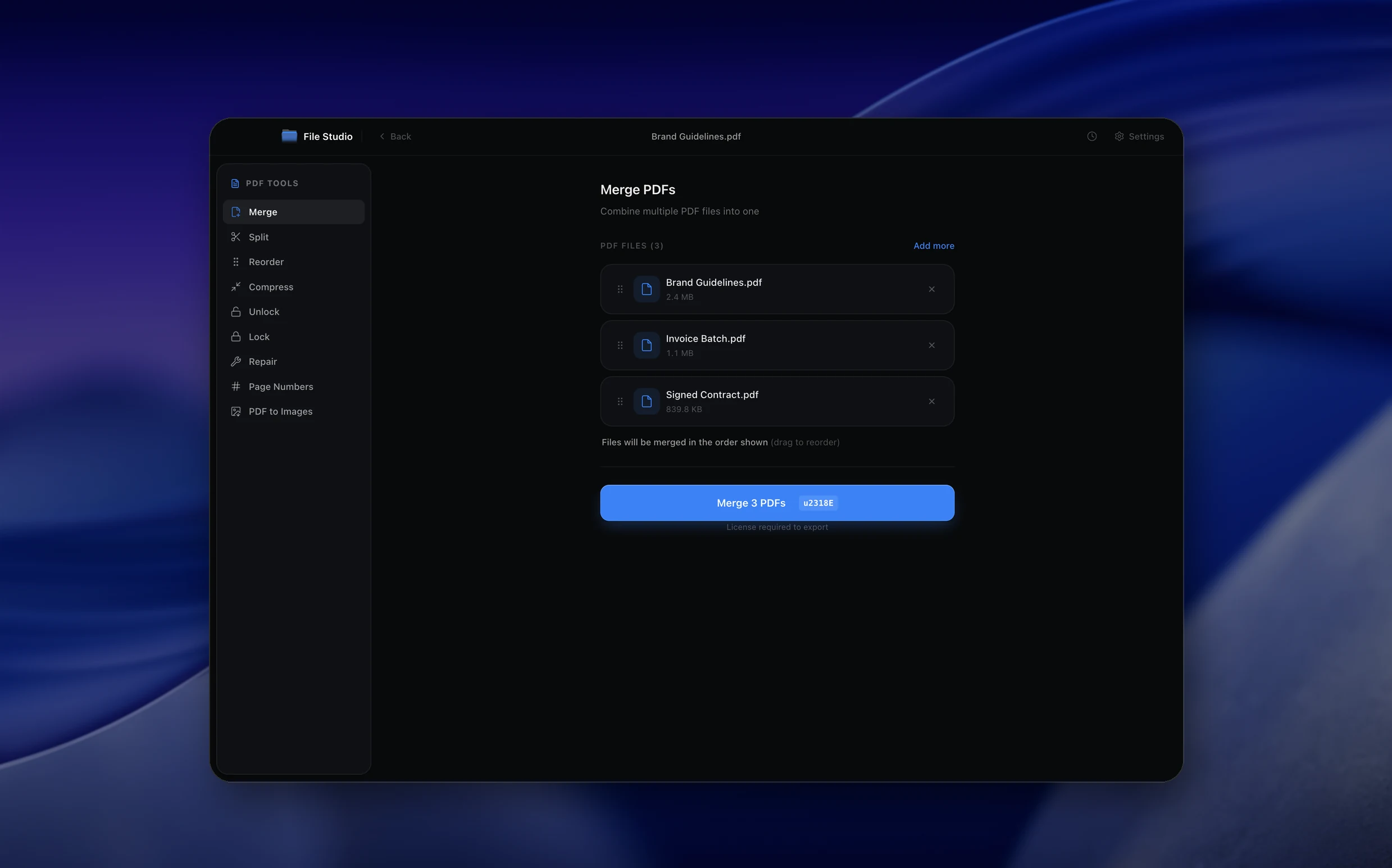
Step by step
- 1
Open File Studio and choose PDF, then Images to PDF
Drop your images into the window.
- 2
Set the page order
Use Move up and Move down to put pages in the right order, or remove any you don't need.
- 3
Choose page size, orientation, and margin
Match the paper size you need, or keep each image at its own size.
- 4
Create the PDF
File Studio builds one PDF from all the images and saves it where you choose.
Try File Studio free
Every tool runs locally on Mac and Windows. No uploads, no account.
FAQ
Frequently asked questions
Which image formats can I use?
JPG, PNG, WebP, TIFF, and BMP. HEIC and AVIF are not supported as input, so export those as JPG first on your phone or with Preview.
Is there a limit on the number of images?
There is no fixed limit. Very large batches just take longer because everything is processed on your machine.
Can I make the PDF smaller afterwards?
Yes. Run the result through Compress PDF to shrink photo-heavy files.
Related:
More guides: