

How to Convert Doc File to Docx: 5 Methods for 2026

Ayush Soni
Founder, File Studio
On this page
- Why Your Old DOC Files Need an Update
- Why renaming the extension doesn't work
- The practical reason to fix them now
- The Benefits of the Modern DOCX Format
- Smaller files and better recovery options
- Better fit for modern platforms
- Cleaner standardization across a team
- Quick Conversion Inside Microsoft Word
- Use Save As for a one-off file
- Use Convert when Word offers an upgrade path
- When this method works best
- Using Free and Open Source Alternatives
- LibreOffice Writer for manual conversion
- LibreOffice command line for repeat jobs
- What free tools do well and where they stumble
- Secure Offline Batch Conversion for Professionals
- Why online converters are a poor fit for archives
- What a safe batch workflow looks like
- How to handle SharePoint and shared folders carefully
- Frequently Asked Questions About DOC to DOCX Conversion
- Do macros survive conversion
- Will formatting always look identical
- Can I rename DOC to DOCX instead of converting
- What's the best option for a large folder
You open a folder from an old shared drive, click a report from 2006, and Word throws it into Compatibility Mode. SharePoint won't preview it properly. Someone on the team edits a copy, someone else uploads a second copy, and now nobody is sure which file is the correct one.
Typically, the guidance offered for how to convert a DOC file to DOCX is shallow: open Word, click Save As, done. That works for one file. It doesn't answer what to do with contract archives, HR templates, macro-heavy forms, or a department folder full of legacy documents that can't leave your machine.
This guide breaks the job down by situation. If you have one file, use the quickest method. If you have a large archive, use a method built for volume. If the documents are sensitive, keep the whole workflow offline.
Why Your Old DOC Files Need an Update
Monday morning usually starts the same way. Someone pulls a ten-year-old policy file from a shared drive, opens it in Word, and then the complaints start. Comments do not behave properly, SharePoint throws a warning, or the team ends up with three versions because one person saved a converted copy while everyone else kept editing the original DOC.
That is a significant problem with old Word files. They often still open, but they slow down modern work the moment a document needs to be shared, reviewed, or stored in a current system.
The gap matters because .doc and .docx are different file formats, not different labels for the same thing. Microsoft used .doc as the standard Word format until 2007, then shifted to .docx. As a result, many offices still have years of reports, templates, HR forms, and board papers sitting in legacy format.
In practice, I see the same issues over and over:
- Compatibility Mode keeps showing up: the file opens, but newer Word features stay limited.
- Shared systems handle it poorly: previews, co-authoring, and browser editing are less reliable with old files.
- Version control breaks down: staff save a new DOCX copy without retiring the DOC, and both files remain in circulation.
- Archives get harder to manage: one outdated folder can turn into a cleanup project across an entire department.
This is why conversion should match the size of the job. A single document can be fixed in Word in under a minute. A records team cleaning up years of inherited files needs a controlled batch process, especially for confidential material. That distinction gets missed in many tutorials, even though it is what determines whether the job stays tidy or turns into a mess. Teams planning broader document cleanup and collaboration standards can also borrow ideas from this guide for content organizations.
Why renaming the extension doesn't work
It is a common but incorrect shortcut to rename file.doc to file.docx.
That does not convert the document. It only changes the filename. The underlying file structure stays in the older format, which means Word or another editor still has to open it properly and save it into the newer one.
Old Word files need a real conversion, not a cosmetic rename.
The practical reason to fix them now
If a document still has business value, it should be stored in a format your current tools handle cleanly. That applies to one-off files, but it matters even more for shared templates and department archives.
Old policy manuals, contract forms, meeting packs, and training documents tend to become urgent without warning. The worst time to discover a format problem is during an audit, a board deadline, or a rushed handover between teams. Converting them now is less about housekeeping and more about reducing avoidable friction later.
The Benefits of the Modern DOCX Format
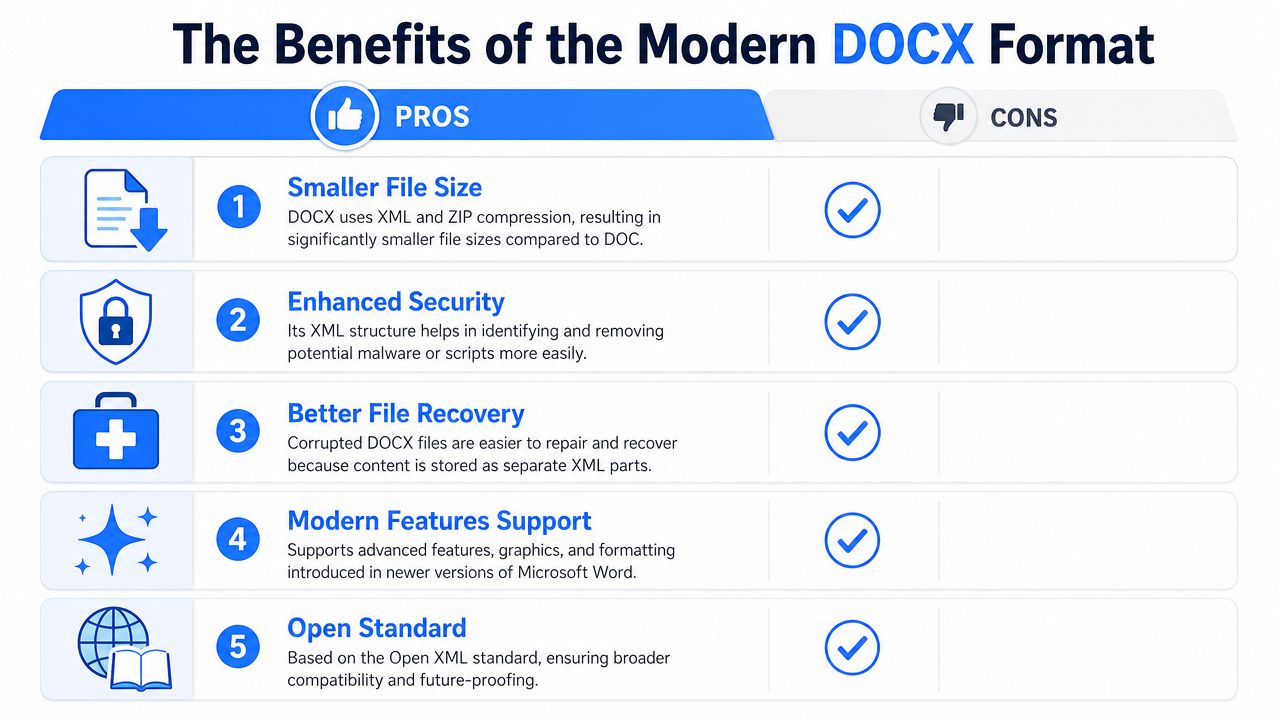
DOCX is the format you want for any document that still gets opened, edited, shared, or stored in a live system. In practical terms, it causes fewer headaches for staff, behaves better in current software, and is easier to manage at scale.
Smaller files and better recovery options
Older DOC files are based on a legacy binary format. DOCX stores document content in a structured XML package, usually with better compression. In a busy department, that difference adds up quickly across reports, forms, meeting packs, and template libraries.
Recovery is another reason IT teams prefer DOCX. If an old binary file gets partially corrupted, repair options can be limited and inconsistent. With DOCX, modern editors often have a better chance of opening at least part of the content, which can save time during audits, legal reviews, or last-minute document retrieval.
Better fit for modern platforms
DOCX works more cleanly with current document systems, especially browser-based editing, version history, and shared review workflows. Legacy DOC files can still open, but they are more likely to trigger compatibility prompts, odd formatting behavior, or restricted editing in platforms built around newer Office standards.
That difference matters more as the file count grows. One old document on a manager's desktop is manageable. A shared folder full of mixed DOC and DOCX files creates confusion over which version is current, which one supports comments properly, and which one will behave in SharePoint or Microsoft 365 without extra cleanup.
| Situation | DOC | DOCX |
|---|---|---|
| Browser editing | Often limited | Better supported |
| Collaboration workflows | More friction | Better aligned with current tools |
| Long-term maintenance | Higher support burden | Easier to standardize |
If your team is also reviewing how documents are created, shared, and maintained across departments, this guide for content organizations is useful because it examines the environments where file standardization stops being a nice-to-have and starts affecting daily work.
Cleaner standardization across a team
Standardizing on DOCX reduces support noise. Staff are less likely to run into Compatibility Mode, outdated templates, or duplicate files with unclear naming. It also makes policy documents, forms, and shared templates easier to govern because everyone is working from the same format.
There is still a trade-off. Archive material that never changes does not always need immediate conversion, especially if you have retention rules or a review process to follow. Active documents are the priority. Convert the files people still edit first, then deal with archive cleanup in batches instead of mixing both jobs together.
Quick Conversion Inside Microsoft Word
If you already have Microsoft Word, this is the fastest route for a single file or a small handful of files. It's familiar, it preserves the original if you want it to, and it doesn't require extra tools.
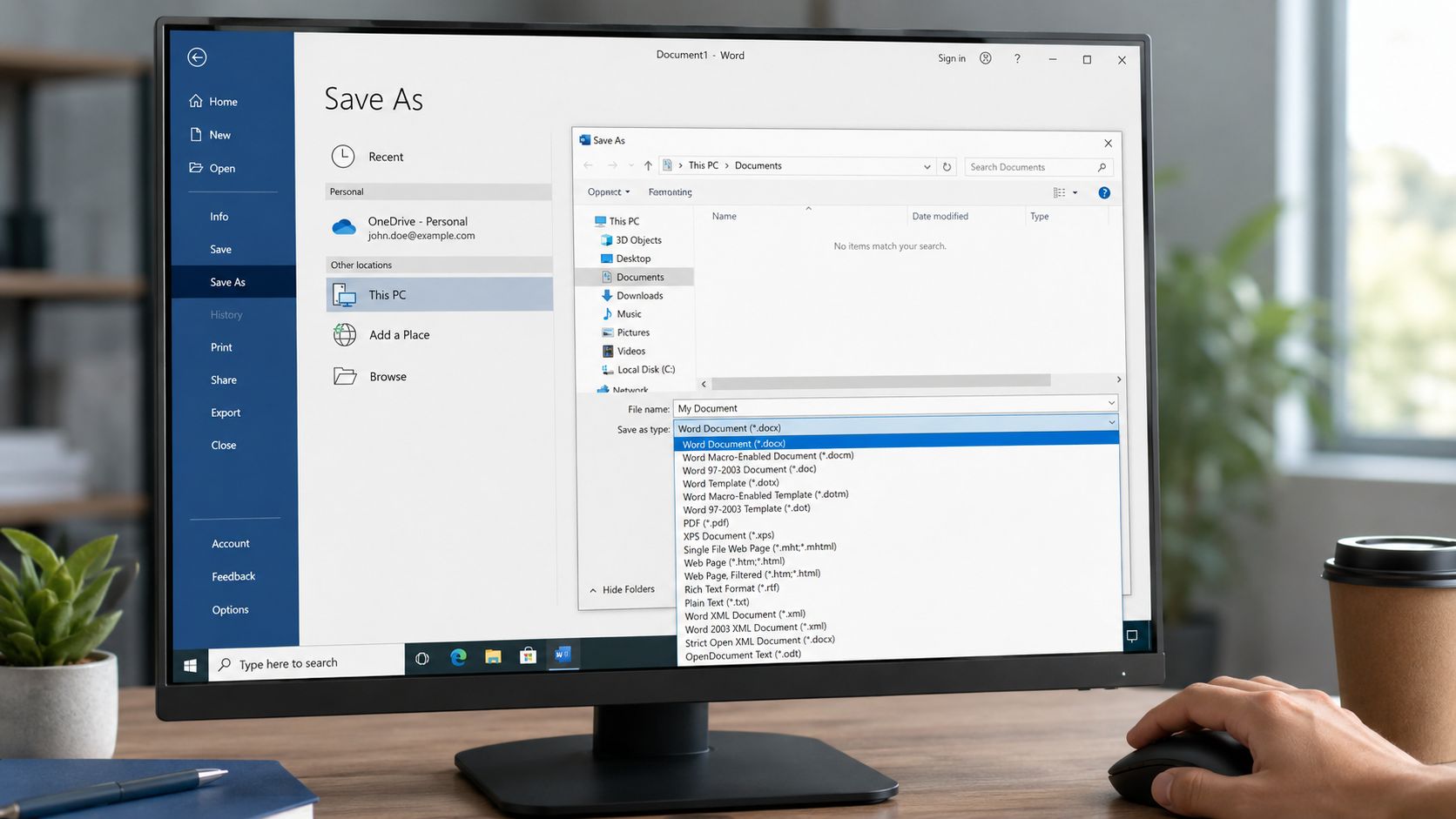
Use Save As for a one-off file
This is the method typically needed when an old file is discovered and needs updating.
- Open the .doc file in Microsoft Word.
- Click File.
- Choose Save As.
- Pick the folder where the new file should go.
- In the file type menu, choose Word Document (*.docx).
- Save the file.
That gives you a fresh DOCX copy while leaving the original DOC intact. For records work, that's often the safest starting point because you can compare the two files before replacing anything.
A few practical habits help here:
- Save to a new folder first: That makes review easier when you're converting several files.
- Open the new DOCX immediately: Check page breaks, headers, tables, and any embedded objects.
- Keep naming clean: Don't use vague names like
updatedornew2. Add a clear suffix only if you need a temporary review version.
Use Convert when Word offers an upgrade path
Some versions of Word show a dedicated Convert option when you open an old file in Compatibility Mode. This is useful when you want Word to fully upgrade the file rather than just saving a copy in a newer format.
The usual path looks like this:
- Open the legacy document.
- Click File.
- Look for Info.
- If Word shows Convert, click it.
- Confirm the upgrade, then save.
This approach is often cleaner for active working documents because Word recognizes that the file is old and offers to bring it into the current format properly.
If Word presents a conversion prompt, don't ignore it automatically. It's often the application telling you the file is still carrying old-format limitations.
When this method works best
Word is the right choice when the conversion job is small and the documents need eyeballs on them anyway. I'd use it for executive reports, templates, board papers, or anything where layout matters more than speed.
It's less ideal in these cases:
- Large archives: Opening and saving hundreds of files by hand burns time fast.
- Sensitive departments: Manual work increases the chance of files being saved in the wrong place.
- Mixed-content folders: Documents with older forms, embedded objects, or macros need closer handling.
For one file, Word is hard to beat. For a whole department archive, it turns into repetitive admin work very quickly.
Using Free and Open Source Alternatives
If you don't have Microsoft Word, you still have solid options. The one I recommend most often is LibreOffice Writer because it's accessible for normal users and flexible enough for batch workflows when you need more than point-and-click.
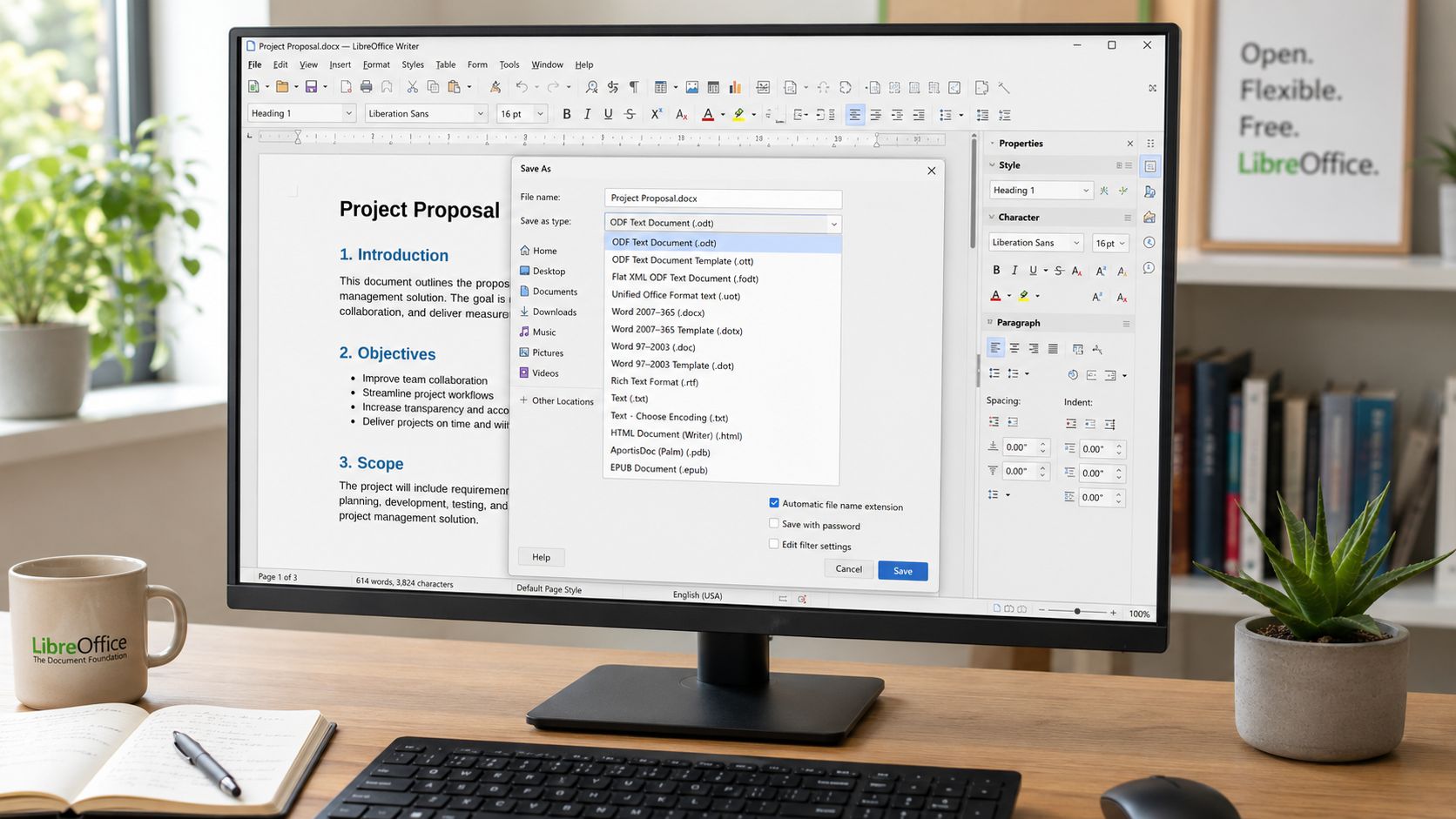
LibreOffice Writer for manual conversion
For single files, the process is straightforward.
Open the DOC file in LibreOffice Writer, then use Save As and choose the DOCX format. After saving, reopen the converted file and inspect anything layout-sensitive such as tables, tracked changes, signatures, or numbered lists.
This method suits home users, schools, and small offices that don't want to pay for Microsoft Office just to modernize a batch of old documents. It's also useful on machines where you need an offline option without tying the workflow to a Microsoft account.
LibreOffice command line for repeat jobs
LibreOffice becomes more interesting when you use its command-line tool. The soffice --convert-to docx workflow is one of the few practical free options for repeated conversion work.
According to SoftInterface's DOC to DOCX conversion notes, automated conversion via LibreOffice's soffice --convert-to docx command yields more than 98% success rates for standard text documents, but that falls to 85% to 90% when legacy macros or non-standard fonts are present, which is why post-conversion checking still matters.
That tells you exactly where this method shines:
- Strong fit: plain text documents, routine reports, meeting notes, letters
- Use caution: files with macros, custom fonts, or unusual embedded elements
- Always review: templates and forms people still rely on operationally
If you prefer tools with transparent ecosystems, this RewriteBar's open source models guide is a good example of how open-source tooling often gives users more control than glossy one-click apps.
For Mac users comparing desktop conversion options more broadly, this review of the best file converter for Mac is a useful starting point.
What free tools do well and where they stumble
Free tools are strongest when the files are ordinary and the workflow is simple. They're weaker when the archive is messy.
Here's the short version:
- LibreOffice GUI: Good for occasional manual conversions.
- LibreOffice command line: Good for tech-comfortable users handling repeat jobs.
- Random web converters: Fine for low-stakes public files, not for anything confidential or operationally important.
Free doesn't mean unsafe. Unreviewed output is what causes trouble.
Secure Offline Batch Conversion for Professionals
Once the job moves from ten files to hundreds, the problem changes. It's no longer about whether a file can be converted. It's about whether you can convert a large set of files without exposing sensitive content, creating duplicate sprawl, or wrecking folder structure.
That's where most generic tutorials stop being useful.
Why online converters are a poor fit for archives
For legal, HR, finance, and operations teams, browser-based converters are usually the wrong tool. Even if the files convert correctly, the workflow itself is weak. You have to upload documents, wait on transfers, monitor downloads, and keep track of what went where.
That creates avoidable risks:
- Confidentiality risk: Contracts, employee records, and internal reports shouldn't be pushed through random upload forms.
- Process risk: People forget which file version came back from the site.
- Scale risk: One-file-at-a-time workflows collapse under real archive volume.
If your environment handles restricted files, an offline workflow is the default choice, not the premium choice. That's especially true when staff need to convert documents repeatedly, not once.
What a safe batch workflow looks like
A good batch process is boring in the best way. It should be predictable, local, and easy to audit after the fact.
I'd set it up like this:
- Work from a copied source folder. Never run the first pass against the only copy of the archive.
- Separate output from input. Put DOCX results in a parallel folder so you can compare and spot failures.
- Review edge-case files manually. Forms, templates, embedded objects, and unusual fonts deserve inspection.
- Standardize naming before rollout. Decide whether converted files replace originals or live in a staged review folder.
- Keep the processing offline. That removes upload exposure and internet dependency from the workflow.
For teams that need a local-first process, this walkthrough on converting documents without internet maps well to the kind of controlled workflow professionals usually want.
How to handle SharePoint and shared folders carefully
The nastiest part of mass conversion isn't usually the file format. It's the surrounding system. Shared links, permissions, metadata, and version history all complicate bulk changes.
A recurring problem in enterprise environments is that existing guides don't address mass-converting legacy DOC files on cloud platforms like SharePoint without breaking links or creating redundancy, which is a gap visible in this SharePoint forum discussion about bulk DOC to DOCX conversion.
That lines up with what admins run into in practice. The conversion itself may be possible, but the safe execution is harder than it looks.
Use this decision table before you touch a large repository:
| Archive type | Best approach | Main risk |
|---|---|---|
| Local folder archive | Offline batch conversion | Missed validation on complex files |
| Shared drive used by a team | Staged conversion with review | Duplicate versions confusing staff |
| SharePoint library | Pilot on a small subset first | Broken links, metadata issues, version confusion |
Start with a pilot folder. If the conversion method causes confusion on twenty files, it will cause chaos on two thousand.
For professionals, that's the key distinction. Single-file conversion is easy. Controlled batch conversion is the part that needs planning.
Frequently Asked Questions About DOC to DOCX Conversion
The conversion itself is simple. The edge cases are where people get burned.
Do macros survive conversion
Usually, not in the way people expect. If the original DOC file contains macros, saving it as .docx can strip out that macro functionality. Microsoft's guidance is clear that macro-enabled documents should be saved as .docm, not .docx, if you want to preserve the code, as explained in Microsoft's article on saving DOC to DOCX or DOCM.
If you work with finance models, legal templates, or internal forms that automate tasks, check for macros before batch conversion. Don't assume the document is “just text” because it opens like a normal report.
Will formatting always look identical
Most straightforward documents convert cleanly. Basic letters, reports, agendas, and meeting notes usually come through with little or no visible change.
Complex layouts need more caution. Tables, embedded items, uncommon fonts, and old form elements are the usual trouble spots. That's why a visual review matters for operational documents.
Can I rename DOC to DOCX instead of converting
No. Renaming the extension doesn't rebuild the file in the newer format. It only changes the filename.
A proper conversion requires Word, LibreOffice, or another compatible application to open the old structure and save it as a true DOCX document.
What's the best option for a large folder
If the files are low risk and mostly standard documents, a desktop batch workflow is usually the most efficient route. If the files are sensitive, keep the process offline and validate a sample set before converting the whole archive.
If you're still weighing whether browser tools are appropriate for document handling, this breakdown of whether it's safe to upload PDFs online covers the broader privacy issue well. The same caution applies to legacy Word documents.
The short answer is simple. Use Word for one file, LibreOffice for a free path, and an offline batch workflow when volume and confidentiality matter.
If you handle confidential files or large document archives, File Studio is worth a look. It's a privacy-first desktop app for Windows and macOS that runs offline, supports batch workflows, and avoids the usual upload limits and browser-based risks that make document conversion harder than it should be.