

CSV to Excel Converter: The Definitive 2026 Guide

Ayush Soni
Founder, File Studio
On this page
- The Right Way to Manually Convert CSV to Excel
- Why double clicking fails
- The manual import workflow that works
- Settings that matter before you click load
- Automating Conversions with Python and Command-Line Tools
- A simple Python workflow with pandas
- A command line option for repeat jobs
- Batch Converting CSV Files Offline with File Studio
- Why browser converters are the wrong fit for sensitive work
- What makes offline batch conversion practical
- Where File Studio fits
- Troubleshooting Common CSV Conversion Headaches
- When all data lands in one column
- When text looks garbled
- When dates and numbers change meaning
- When leading zeros disappear
- Which CSV to Excel Converter Method Is Right for You
- Conclusion From Messy Data to Clean Spreadsheets
You've probably got one of two problems right now. Either you opened a CSV in Excel and every field landed in a single column, or the file opened “fine” until you noticed broken dates, stripped leading zeros, or garbled characters in names and currencies.
That's why picking a CSV to Excel converter isn't really about changing file extensions. It's about preserving structure, text, formatting intent, and trust in the data. A quick conversion that makes unnoticed changes to account codes or employee IDs is worse than a slow conversion done correctly.
The good news is that the workflow is predictable once you know what fails and why. The right method depends on file volume, sensitivity, and whether you need a one-off import or a repeatable process.
The Right Way to Manually Convert CSV to Excel
If you only need to handle one file, Excel's built-in import tool is still the best place to start. It gives you control over the three things that break most CSV imports: delimiter, encoding, and data type inference.
Why double clicking fails
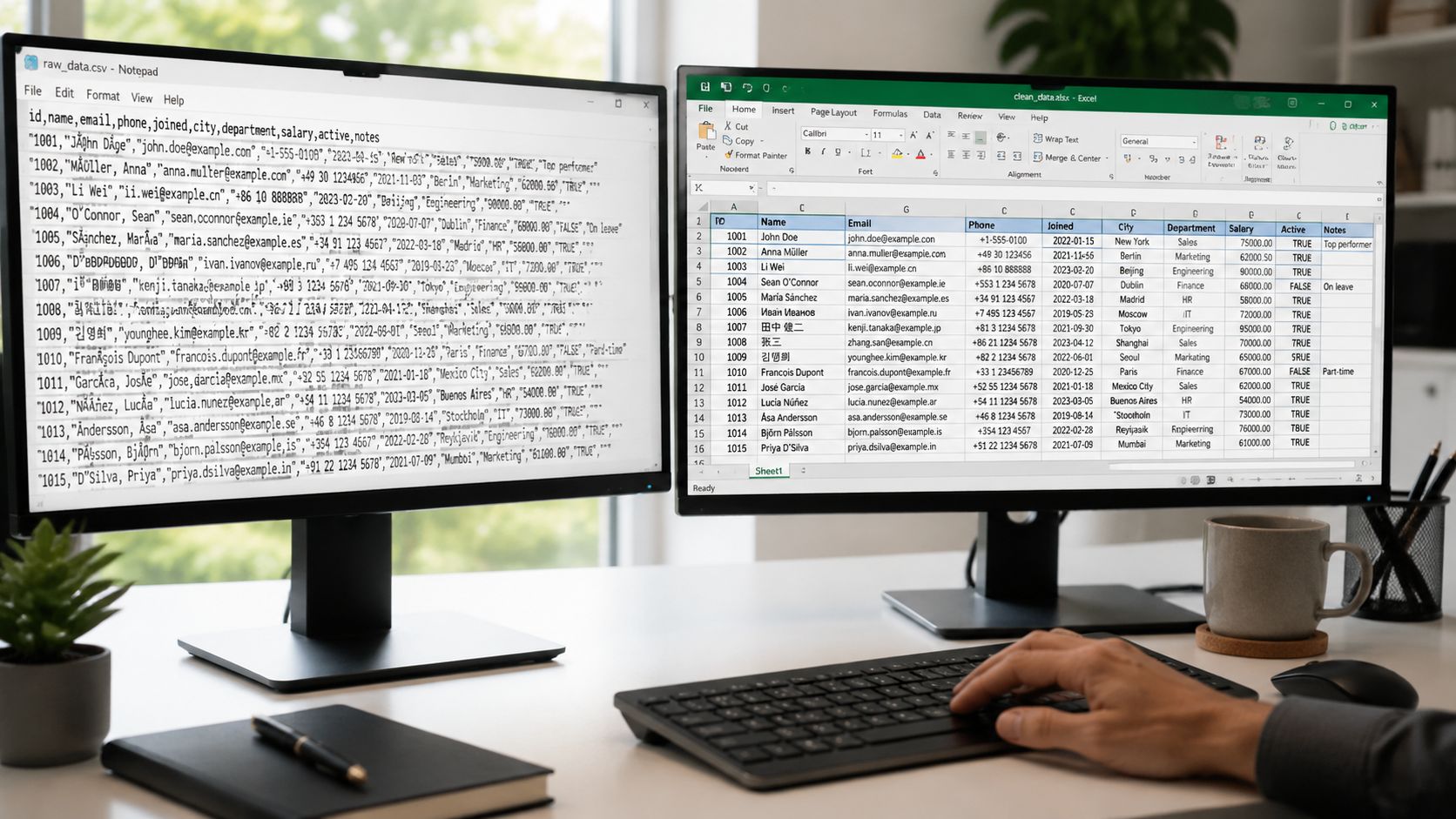
Most bad imports happen because people double-click the CSV and let Excel guess. That guess depends on local system settings, especially regional delimiter rules. If the file uses semicolons but Excel expects commas, columns collapse into one field.
That isn't a rare edge case. The most reliable method is Excel's native Import Wizard because it lets you explicitly control delimiters, file encoding, and type detection. By contrast, double-click opening often fails on non-comma files, and merged columns show up in over 60% of incorrect imports in this kind of scenario, according to CSV Normalize's guide to CSV and Excel differences.
Practical rule: If a CSV matters, don't open it by double-clicking. Import it.
The manual import workflow that works
Use this path in Excel:
- Open a blank workbook Start clean so you don't accidentally paste over an old sheet or mix source data with prior work.
- Go to Data, then Get Data, then From Text/CSV This opens Excel's preview-driven importer instead of the default open behavior.
- Select the CSV file Don't click Load yet. The preview screen is where most errors get caught.
- Check the delimiter If the preview looks wrong, switch the delimiter. Common options are comma, semicolon, and tab.
- Set the file origin or encoding If accented letters, currency symbols, or apostrophes look wrong, the encoding is probably off. Try UTF-8 first. If the file came from an older Windows system, a Windows-based encoding may fit better.
- Review type detection Excel tries to infer whether each column is text, date, or numeric. That's helpful until it isn't. IDs, ZIP codes, phone numbers, and account codes should usually stay as text.
- Load or transform If the preview is clean, load it. If some columns still need special handling, open it in Power Query first and set types there before loading to the sheet.
Settings that matter before you click load
Three checks prevent most headaches:
- Delimiter check Look at the raw file in a text editor if needed. You want to confirm whether fields are separated by commas, semicolons, or tabs.
- Encoding check Garbled symbols like odd apostrophes or broken currency marks usually mean the wrong file origin was selected.
- Type check Anything that must remain exactly as written should be treated as text. That includes employee numbers, invoice IDs, bank account references, and many legal reference fields.
If the preview pane already looks wrong, the final sheet will look worse. Fix the import settings before loading anything.
A manual import takes a little longer up front, but it's the cleanest way to protect one important file from silent corruption.
Automating Conversions with Python and Command-Line Tools
Manual import is fine for occasional files. It's the wrong tool when the same conversion repeats every day, every week, or every time another system exports a folder full of CSVs.
Code helps because it removes guesswork. Once you define the delimiter, encoding, and output path, the conversion becomes repeatable. That's the same logic behind a solid data pipeline ETL workflow. You want the transformation to behave the same way every time, not depend on whoever happens to click through Excel that day.
A simple Python workflow with pandas
If you already use Python, this is the quickest practical approach:
import pandas as pd

df = pd.read_csv("input.csv", sep=",", encoding="utf-8", dtype=str)
df.to_excel("output.xlsx", index=False)
A few notes matter here.
sep=","tells pandas what delimiter to expect. Change it to";"or"\t"if needed.encoding="utf-8"prevents a lot of text issues when the source is modern and clean.dtype=stris the protective setting. It keeps values as strings, which helps preserve IDs and codes that shouldn't be converted into numbers.
If you need this on a schedule, save the script and run it from a task scheduler, cron job, or folder-based automation process. If you want a desktop-oriented option for repeated local workflows, this overview of automating file conversions on Mac is useful for thinking through the operational side.
A command line option for repeat jobs
For admins and terminal users, command-line tools fit well into scripts and batch jobs. A common pattern is to normalize or inspect CSVs before export, then hand them off to a spreadsheet writer.
One practical approach with csvkit is:
csvformat -D "," input.csv > normalized.csvThat command standardizes the delimiter in the CSV layer before you feed it into another step that writes XLSX. It's not a full spreadsheet export by itself, but it's useful for addressing inconsistent CSV structure.
Use code when the process matters more than the interface. Use Excel when the interface matters more than the process.
That's the dividing line. If you need transparency, version control, and consistency, automation wins. If you need eyeballs on every import, stay manual.
Batch Converting CSV Files Offline with File Studio
Monday morning, a finance team drops 60 CSV exports into a shared folder. A few contain employee IDs with leading zeros. A few came from older systems and use different delimiters. All of them contain data that should not be uploaded to a browser tool. At that point, the job is no longer “convert a CSV.” The job is to process a batch safely, keep the structure intact, and avoid creating a cleanup project afterward.

Why browser converters are the wrong fit for sensitive work
Browser converters are built for convenience, not control.
They can be fine for throwaway sample files. They are a poor fit for payroll exports, customer lists, legal records, internal reporting, and any dataset that carries personal, financial, or operational risk. Uploading those files adds another system, another retention policy, and another place where access has to be trusted instead of verified.
The problem is not only privacy. It is also workflow reliability. Web tools often struggle with large batches, inconsistent file structures, and repeat jobs that need the same output rules every time. If a folder lands every day from an ERP, CRM, or HR platform, one-file-at-a-time upload forms create bottlenecks fast.
For regulated teams, local processing is often the safer default.
What makes offline batch conversion practical
A dedicated desktop workflow handles the part that sits between manual Excel imports and custom scripts. It gives non-technical staff a repeatable process without asking them to maintain Python code, and it keeps the files on the machine instead of sending them through a third-party service.
That matters for three reasons.
First, batch jobs need consistency. If 40 files arrive with the same schema, the converter should apply the same rules to every file, including output format, destination folder, and naming pattern.
Second, CSV exports are rarely as clean as people expect. One source system may produce comma-delimited files, another may use semicolons, and a third may wrap text fields inconsistently. In a batch workflow, you want a tool that helps standardize the conversion process so one odd file does not break the whole run.
Third, spreadsheets often contain fields Excel likes to “fix.” Tracking numbers, postal codes, account IDs, and SKUs can lose leading zeros or get reformatted if the conversion path is careless. A good offline workflow reduces that risk by treating conversion as a controlled process rather than an open-and-hope exercise.
Where File Studio fits
File Studio is suited to teams that need repeated local conversions without building their own automation stack. The main advantage is operational. You define the conversion workflow once, run it across a folder, and keep the output predictable.
That is different from using Excel manually, where each import invites another chance to click the wrong delimiter or let Excel auto-format a column. It is also different from a script-based approach, where the process is precise but upkeep falls on whoever wrote the script.
Use an offline converter when the work looks like this:
- Daily or weekly folders instead of one-off files
- Sensitive data that should stay on-device
- Mixed technical skill across the team
- Repeatable output rules that need to stay consistent
- Batch volumes that make browser uploads tedious or unreliable
The practical middle ground is the point. Manual import gives you inspection. Code gives you maximum control. An offline converter gives many teams enough control with far less maintenance.
If you want a clearer picture of how repeat jobs are set up, this overview of batch file operations shows the model: create the rule once, then apply it across the full set.
Troubleshooting Common CSV Conversion Headaches
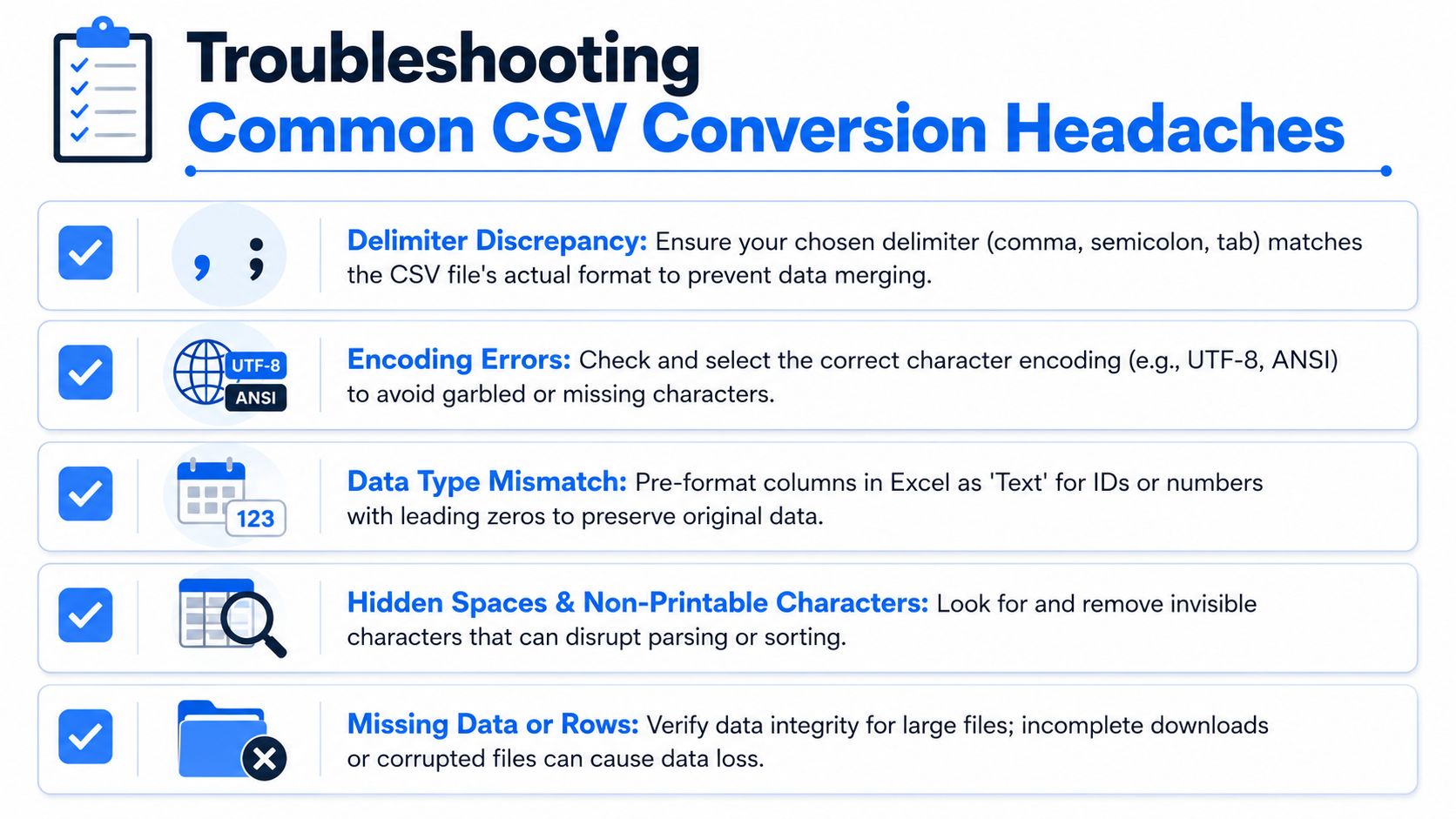
Most CSV conversion failures are easy to diagnose once you stop treating them as “Excel being weird.” The symptom usually points straight to the cause.
When all data lands in one column
This is almost always a delimiter mismatch. The file may use semicolons, tabs, or pipes, but Excel guessed commas.
Fix it by importing through the wizard and changing the delimiter in the preview. If you're unsure, open the CSV in a plain text editor and inspect one row. You'll see the actual separator immediately.
When text looks garbled
If names, symbols, or currency characters look corrupted, you're dealing with encoding. A UTF-8 file opened as an older Windows encoding, or the reverse, will produce junk characters.
Try these in order:
- UTF-8 first if the file came from a modern export tool or web app
- Windows-based encoding if the file came from an older desktop system
- Preview before load so you can catch the issue without contaminating the workbook
This isn't just cosmetic. Broken encoding can affect sorting, matching, and downstream exports.
Garbled text is a data integrity issue, not a display issue.
When dates and numbers change meaning
This is the silent one. The file opens, values look plausible, and then someone notices that day and month were swapped or decimal interpretation changed.
Locale mismatches are a major cause. Microsoft's Office Scripts documentation notes that technical success is highest when CSVs use UTF-8 and a consistent delimiter, and it also highlights that around 40% of imported CSVs in non-English locales show date or number misinterpretation due to locale mismatches unless users explicitly set the import behavior. It also states that documented Office Scripts automation can achieve 98 to 100% successful conversion in correctly configured pipelines. See Microsoft's Office Scripts CSV conversion sample.
When the column contains dates, decimals, or identifiers that could be mistaken for dates, don't trust auto-detection. Force the expected type during import or in your script.
When leading zeros disappear
This is one of the most damaging errors because Excel often treats it like a feature. 00123 becomes 123. ZIP codes, employee IDs, account references, and case numbers stop matching their source systems.
This problem is widely reported. 78% of users report lost leading zeros in converted data, and a 2025 survey found that 64% of spreadsheet errors in financial reports came from misformatted numeric fields after CSV conversion, with leading zeros as the top cause, according to Ablebits' article on CSV to Excel conversion issues.
Use one of these fixes:
- Import as text In Excel, mark those columns as Text before loading.
- Read everything as strings in code
In pandas,
dtype=stris the simplest protection. - Avoid one-click web tools for identifier-heavy files Many online converters don't expose column-type controls.
For sensitive conversions, keeping the work local also matters because you may need to inspect and re-run imports without sending files to third-party servers. That's the practical case for converting files without uploading anything at all.
Which CSV to Excel Converter Method Is Right for You
A finance manager gets a month-end export from the ERP system, opens the CSV in Excel, and half the account codes lose their leading zeros. The file still opens. The conversion still failed.
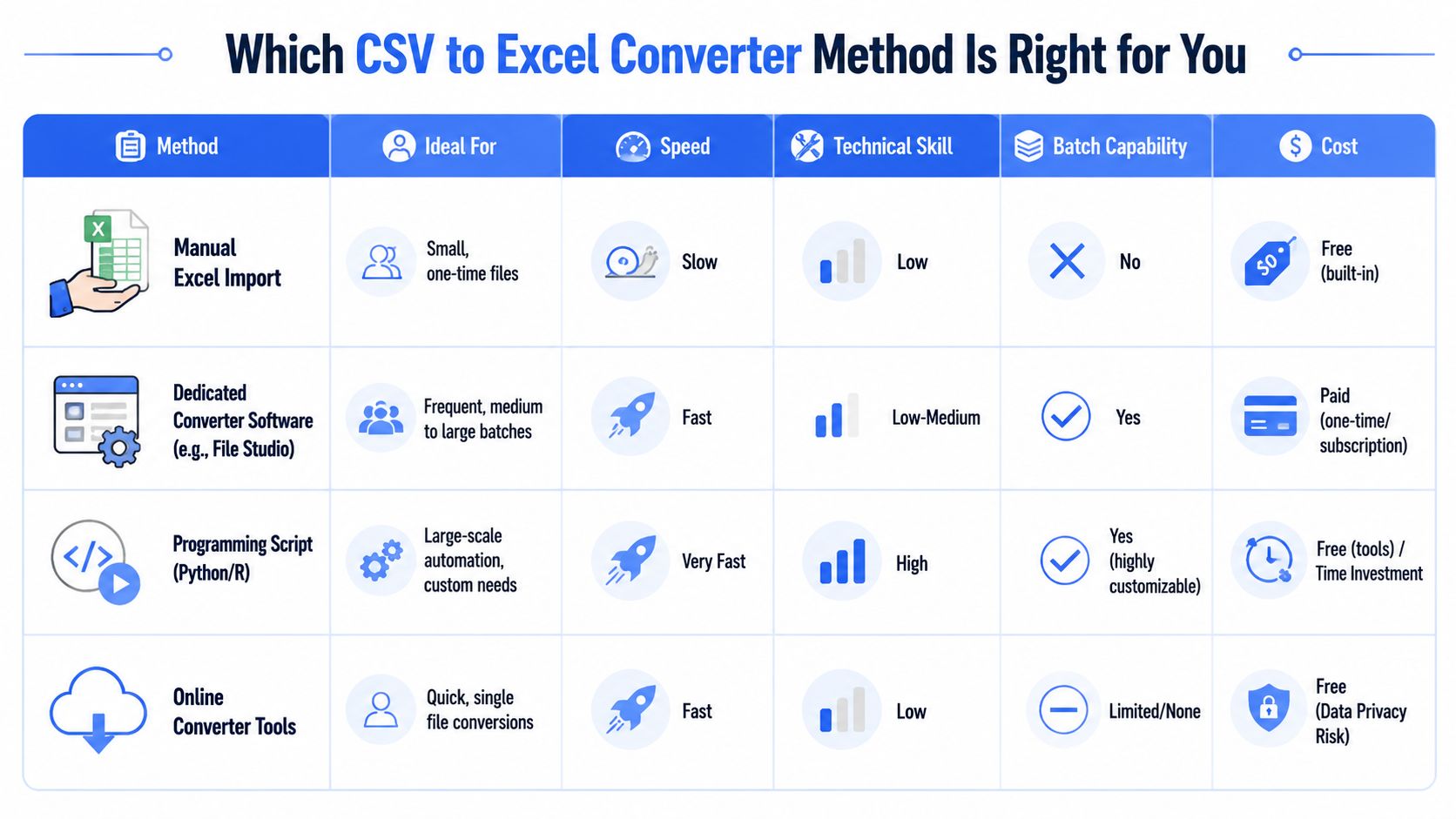
The right method depends on three things: how many files you need to process, how much control you need over data types, and whether the files can leave your machine at all. Speed matters, but only after you know the output will preserve the original values.
| Method | Ideal for | Speed | Technical skill | Batch capability | Cost |
|---|---|---|---|---|---|
| Manual Excel import | Small, one-time files | Slow | Low | No | Built in |
| Dedicated converter software | Frequent medium to large batches | Fast | Low to medium | Yes | Paid |
| Programming script | Large-scale automation and custom rules | Very fast | High | Yes | Tooling is free, time is not |
| Online converter | Quick single files | Fast | Low | Limited | Usually free, with privacy trade-offs |
Here is the practical way to choose.
Use manual Excel import for one-off files that need human review before anyone starts filtering, sorting, or building formulas. It gives you a chance to catch delimiter problems, encoding issues, and columns that Excel wants to reinterpret. For unfamiliar files, that preview step prevents bad assumptions from becoming bad reports.
Use scripts when conversion needs to be repeatable. If the same supplier sends the same messy export every week, code removes guesswork and gives you a process you can test. It also scales better when conversion is only one step in a larger workflow. The same logic applies in adjacent structured-data tasks. If you need to safely convert YML to JSON, controlled transformation is usually better than a quick web form.
Use dedicated desktop converter software when the workload is operational, recurring, and handled by teams who need batch speed without writing code. This is often the best fit for HR, legal, finance, and back-office operations. File Studio stands out in that category because it keeps processing local, which matters when the files contain payroll data, customer records, contract references, or anything else that should not be uploaded to a third-party service.
Use online converters only for low-risk files where privacy is not a concern and column typing errors will not create downstream damage. They are convenient, but convenience hides trade-offs. Many browser tools give you very little control over encoding, delimiters, and fields that must stay as text.
A simple rule helps. If the file is sensitive, process it offline. If the file is recurring, automate it. If the file is messy, choose the method that lets you inspect or define column behavior before conversion.
That is usually the core decision. Not how fast a tool creates an XLSX file, but whether the spreadsheet still means the same thing after it opens.
Conclusion From Messy Data to Clean Spreadsheets
CSV conversion looks simple until the edge cases show up. Then it becomes a data quality problem.
The safest manual path is Excel's import wizard because it lets you control delimiter, encoding, and column types before anything lands in the workbook. That's what you use when one file matters and you want to inspect it closely.
Scripts are the best fit when conversion is repetitive and technical. They're consistent, testable, and easy to fold into a larger operational workflow. If your team already works in Python or the command line, that route gives you the most control.
Dedicated offline desktop tools make the most sense when the work is frequent but the users aren't coders, or when the files are too sensitive for browser-based converters. That's usually reality in finance, HR, legal, and admin-heavy teams. They need batch speed, local processing, and fewer chances for silent formatting errors.
A good CSV to Excel converter doesn't just create an XLSX file. It preserves meaning. If IDs lose zeros, dates shift format, or delimiters collapse columns, the conversion failed even if the file opens.
Choose the method that matches the risk of the data, the volume of the work, and the skill level of the person running it. That's how you stop treating CSV conversion as a nuisance and start treating it like a reliable part of your workflow.
If you want batch CSV-to-Excel conversion without uploads, browser limits, or recurring complexity, File Studio is built for that job. It runs fully offline on macOS and Windows, handles local batch workflows, and gives teams a privacy-first way to convert sensitive spreadsheets without sending them to third-party servers.