

Downloading HTML Files: 4 Methods for Offline Use

Ayush Soni
Founder, File Studio
On this page
- Why Download an HTML File
- Common reasons people save pages locally
- Choosing the Right Download Method
- HTML Download Method Comparison
- Quick and Simple Single Page Downloads
- Using the browser save function
- Copying clean markup from Developer Tools
- What this method does well and poorly
- Automating Downloads with Command-Line Tools
- When wget is the right tool
- Where curl fits better
- What usually breaks in automated downloads
- Mirroring an Entire Website for Offline Archiving
- How HTTrack handles full-site copies
- Practical limits before you hit start
- Managing Your Downloaded HTML and Assets
- What a good offline folder looks like
- Converting assets into usable formats
- Ethical Considerations and Final Thoughts
You have a flight in a few hours, the hotel Wi-Fi will be unreliable, and the documentation you need lives across a handful of web pages. Or maybe you're auditing a site, pulling apart its markup, and you need a local copy you can edit without touching production. That's usually when people realize bookmarks aren't enough.
Downloading HTML files solves a more practical problem than commonly understood. It isn't just about “saving a page.” It's about preserving content, keeping access when the network disappears, inspecting structure, and turning messy web output into something you can work with offline.
Why Download an HTML File
The most common reason is simple. You need the page later, and you don't trust that you'll have a connection when later arrives.
That's true for travel, field work, locked-down office networks, and any project where online content can change underneath you. A tutorial can get updated. A product page can disappear. Documentation can move. If you've ever opened an old bookmark and landed on a redirect loop or a 404, you already know why local copies matter.
There's also a more technical reason. Downloading HTML files gives you something you can inspect, diff, annotate, and reuse. Designers grab local copies to review layout structure. Analysts save pages to examine tables and embedded metadata. Developers pull down markup to understand how a page is assembled before they recreate or transform it.
Common reasons people save pages locally
- Offline reading: Documentation, guides, recipes, reference pages, and long-form articles are easier to trust when they're already on disk.
- Archiving: Local copies preserve a point-in-time version of content that might change later.
- Structure analysis: Raw or saved HTML helps when you want to inspect tags, classes, forms, and linked assets.
- Content reuse: A local HTML file can become input for PDF generation, text extraction, screenshots, or data parsing.
A bookmark points to a page. A downloaded HTML file preserves what you saw at the time you saved it.
That distinction matters more than people think. If the goal is “read this later,” a bookmark may be enough. If the goal is “work with this later,” save the actual file.
Choosing the Right Download Method
Not every page needs the same approach. Sometimes you want one readable file. Sometimes you want the page plus its styles and images. Sometimes you need a terminal-friendly workflow you can repeat. And sometimes you need a full offline copy of a site with links that still work.
The easiest way to choose is to decide what you need at the end. If the output is for reading, the browser is often enough. If the output is for analysis, Developer Tools or curl usually produces cleaner markup. If you're collecting many pages or repeating the task, use the command line. If you need a navigable archive, use a site mirroring tool.
HTML Download Method Comparison
| Method | Best For | Technical Skill | Asset Handling |
|---|---|---|---|
| Browser Saving | Quick single-page offline copies | Low | Good when saved as complete webpage |
| Developer Tools | Clean markup extraction and inspection | Medium | Weak, usually HTML only unless you collect assets separately |
| Command-Line Utilities | Repeatable downloads, scripting, raw source capture | Medium to High | Flexible, depends on flags and page complexity |
| Site Mirroring | Offline archives of multi-page sites | Medium | Strong for linked pages and supporting files |
A lot of frustration comes from using the wrong tool for the job. People save “HTML Only,” then wonder why the page looks broken. Or they mirror a whole site when all they needed was the source of one article.
Selection rule: Choose based on the output you need, not the tool you already know.
That one habit saves time. It also keeps your local folders from turning into a pile of half-working pages and mystery asset directories.
Quick and Simple Single Page Downloads
The browser still handles a surprising amount of this work well. For a single page, especially one you want to read later, built-in save options are the fastest path.
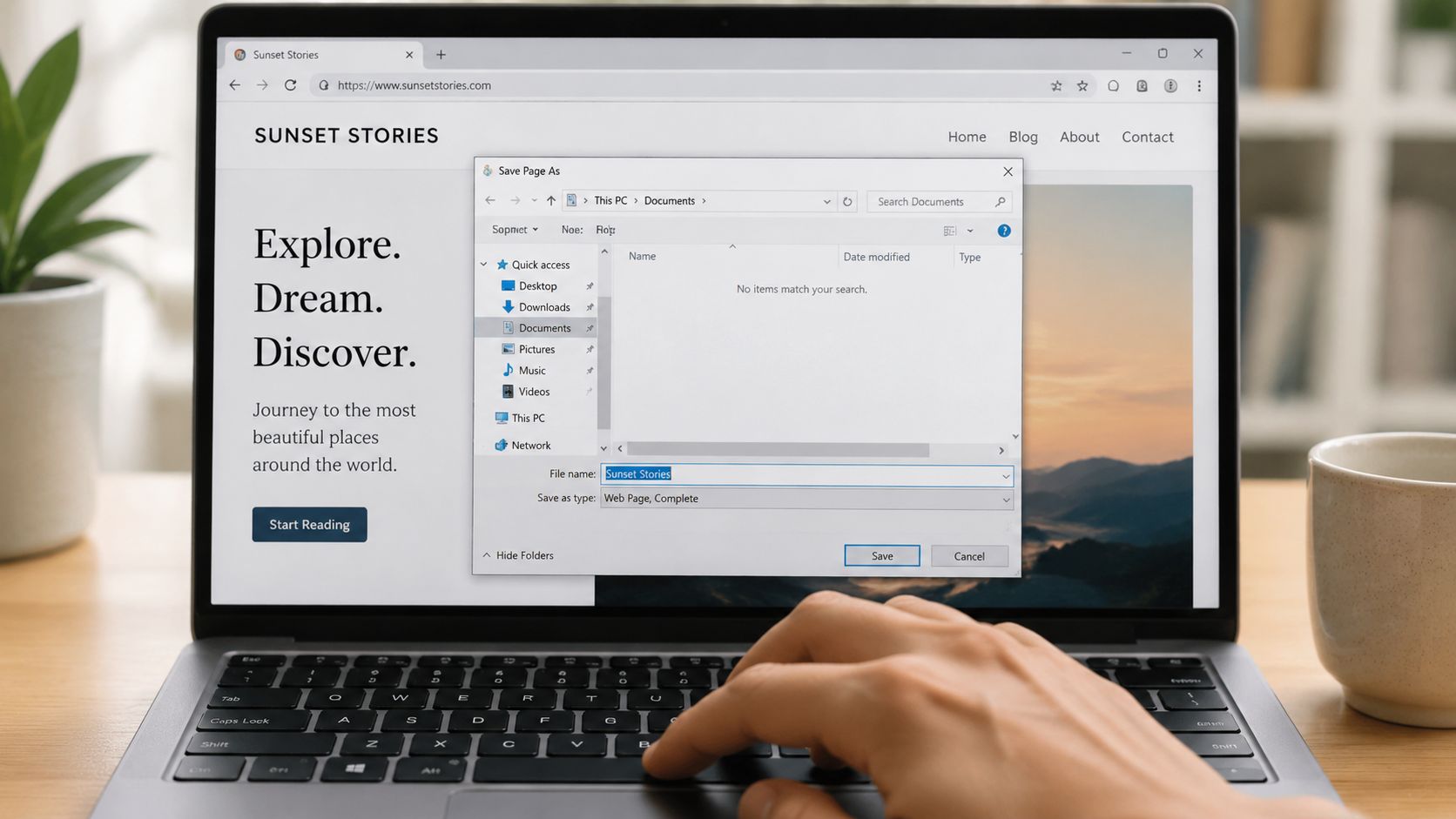
Using the browser save function
In Chrome, Edge, Firefox, and Safari, you can usually open the page and use Save Page As. On most systems that's Ctrl+S or Cmd+S.
The key choice is the file format:
- Webpage, Complete: Saves the HTML file and a companion folder containing images, stylesheets, and other referenced assets the browser can collect.
- HTML Only: Saves a single
.htmlfile with no supporting assets. - Web Archive or similar browser-specific format: Useful in some cases, but less portable if you want to inspect or edit files directly.
If you want offline viewing that resembles the original page, choose Webpage, Complete. The browser writes the markup and updates references so the local file can pull from the saved asset folder. For static pages, this often works well.
If you want a lightweight source file to inspect or transform, choose HTML Only. It won't look right in a browser because the CSS, fonts, and images aren't included, but the markup is easier to move around.
Copying clean markup from Developer Tools
Browser saves are convenient, but they often include whatever the page had after scripts ran. That can be useful, but it can also be noisy.
For cleaner extraction, open Developer Tools, inspect the page, and copy the part you need.
- Open the page.
- Launch Developer Tools.
- Go to the Elements or Inspector panel.
- Find the
<html>,<body>, or a more specific content container. - Right-click the element and choose Copy outerHTML.
That gives you a markup snapshot you can paste into a file and study. It's especially useful when you only need the article body, a table, a product card layout, or a form section.
What this method does well and poorly
The browser method is strong when speed matters. It's weak when the page depends heavily on live scripts, authenticated sessions, or assets loaded from multiple places after interaction.
A few practical truths:
- Great for static pages: Blog posts, docs pages, public reference material.
- Mixed results for app-like interfaces: Dashboards and single-page apps may save incomplete states.
- Useful for markup review: Developer Tools often beats “view source” because you can target just the rendered region you care about.
Save the whole page when you want to read it. Copy targeted HTML when you want to work on it.
That difference keeps your files cleaner from the start.
Automating Downloads with Command-Line Tools
The command line becomes worth it as soon as you need consistency. If you're downloading the same page structure repeatedly, capturing multiple pages, or folding downloads into a script, GUI clicks get old fast.
Two tools dominate this space: wget and curl. They overlap, but they don't feel the same in practice. wget is usually the easier fit when the goal is “download this and keep the files.” curl is better when the goal is “make a request and do something with the response.”
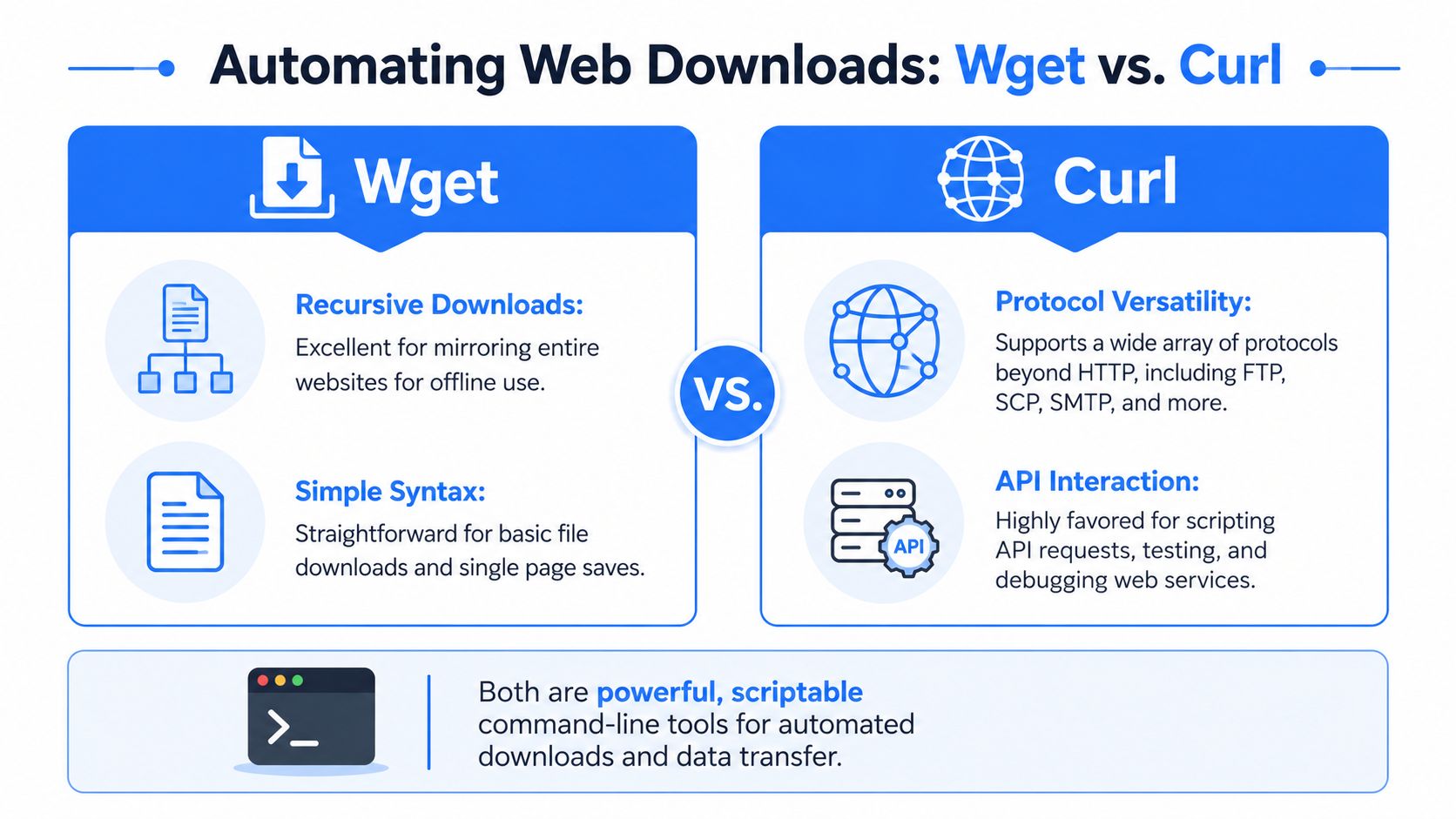
Web automation is common enough that web scraping scripts, often built on tools like curl and wget, account for an estimated 25% of all website traffic according to Imperva's bad bot report. That doesn't mean every use is abusive. It does mean these tools sit in the middle of a very real part of the modern web.
When wget is the right tool
wget shines when you want files written to disk with minimal fuss.
To download the raw HTML of a page:
wget https://example.com/pageThat will usually save a local file based on the URL path.
To save the page under a specific filename:
wget -O page.html https://example.com/pageTo download a page with supporting assets for offline viewing:
wget \
  --page-requisites \
  --convert-links \
  --adjust-extension \
  --no-parent \
  https://example.com/page
Those flags matter:
--page-requisitespulls assets needed to display the page, such as CSS and images.--convert-linksrewrites links for local browsing.--adjust-extensionhelps save HTML with sensible file extensions.--no-parentavoids climbing upward in the site structure.
This works best on straightforward public pages. It gets less reliable when content appears only after heavy client-side JavaScript runs.
Where curl fits better
curl is more request-oriented. It's excellent for grabbing source and piping it into other tools.
To fetch a page and print it to the terminal:
curl https://example.com/pageTo save it directly:
curl -o page.html https://example.com/pageTo follow redirects before saving:
curl -L -o page.html https://example.com/pageWhere curl becomes especially useful is chaining operations:
curl -L https://example.com/page > page.htmlOr passing the output into parsers, transformers, or scripts. If your workflow involves extraction, cleanup, or integration with a larger data process, that usually points toward curl.
If you're working on optimizing data scraping for analytics, this request-first mindset matters. Clean collection starts with controlling headers, redirects, output handling, and the shape of the response you keep.
What usually breaks in automated downloads
Terminal tools are powerful, but they don't magically solve every page.
Common failure points include:
- JavaScript-rendered content: If the server sends a thin shell and the browser builds the page later, your downloaded HTML may look empty or incomplete.
- Protected sessions: Logged-in pages often depend on cookies or tokens you haven't supplied.
- Relative asset paths: A page can download cleanly while its images and styles still point to remote or inaccessible locations.
- Messy output workflows: It's easy to collect files quickly and end up with formats that are awkward to share or archive.
That last problem shows up often. You pull source with curl, collect assets with wget, and end up needing to package or convert the output into something more usable. For desktop workflows that continue after the download, automating file conversions on Mac is one practical way to keep the next step from becoming manual cleanup.
Mirroring an Entire Website for Offline Archiving
Single-page saves stop being efficient when the goal is preservation. If you need a local copy of a documentation site, a personal blog, a portfolio, or a project archive, site mirroring tools are a better fit.
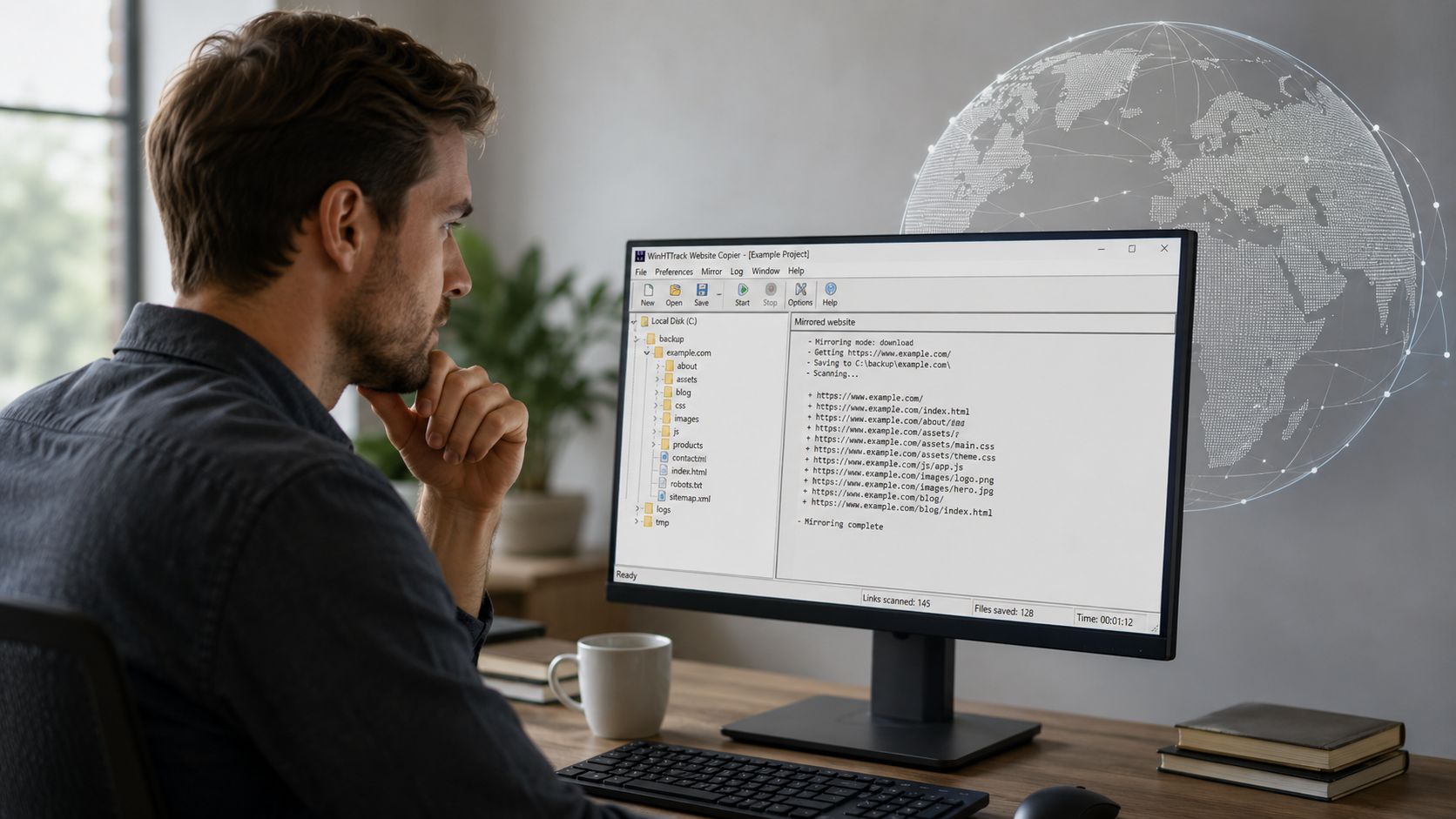
HTTrack is one of the most established options for this job. It's designed to create a browseable offline copy of a site by downloading pages, assets, and linked content, then rewriting links so they work locally.
How HTTrack handles full-site copies
HTTrack is easier to approach than many people expect because the interface is project-based. You name the project, choose a destination folder, enter the starting URL, and let the wizard walk through the crawl settings.
A typical run looks like this:
- Create a new project.
- Pick the local folder where the mirror will live.
- Enter the target website or section URL.
- Adjust scope if needed.
- Start the download and review the local output.
The result is usually a folder tree that mirrors the structure of the live site closely enough to browse it from an index.html file. That's the main advantage. You're not just collecting pages. You're preserving navigation.
Practical limits before you hit start
Mirroring tools work best when the target site is public, reasonably static, and linked in a crawlable way. They work less well on modern web apps where navigation depends on API calls, authenticated requests, or dynamic rendering after page load.
A few practical checks help:
- Start small: Mirror a subsection before trying the whole domain.
- Review exclusions: Skip areas that don't matter, such as search pages or account sections.
- Expect imperfect fidelity: Fonts, scripts, or embedded widgets may not behave the same offline.
The success test for a mirrored site isn't “is it identical.” It's “can I navigate and retrieve what I saved without the network.”
For larger collection pipelines, teams sometimes move beyond desktop mirroring and use a crawl website api when they need programmable crawling, extraction, and handoff into other systems. That's a different use case from personal offline archiving, but it matters when the archive is feeding a larger content workflow.
Managing Your Downloaded HTML and Assets
The download is only the first half of the job. After that, you have folders full of HTML, CSS, JavaScript, images, fonts, and odd modern formats that don't always cooperate with the rest of your tools.
That's where most offline workflows get messy. One saved article is simple. A batch of saved pages with nested asset folders, webp images, exported screenshots, and duplicated filenames isn't.
What a good offline folder looks like
If you plan to keep downloaded content, organize it immediately.
A clean structure usually includes:
- A root folder per project: Keep each site or topic isolated.
- Original HTML files: Preserve the raw output before editing.
- Assets in subfolders: Group images, CSS, scripts, and exports predictably.
- Derived outputs: PDFs, converted images, notes, and text extracts should live in their own folder.
That sounds basic, but it prevents the classic problem where you no longer know which index.html belongs to which asset directory.
Converting assets into usable formats
Downloaded content often arrives in forms that are correct for the web but inconvenient elsewhere. You may want to bundle a set of pages into a single PDF for review, convert modern image formats for a colleague, or shrink oversized graphics before sharing them internally.
That's usually where local file tooling matters more than the original download method.
- For reading and annotation: Converting related pages or image captures into a PDF makes long-form review easier.
- For compatibility: AVIF, WebP, HEIC, and similar formats may need conversion before older apps will open them cleanly.
- For handoff: Smaller, standardized image files are easier to email or attach to reports. If that's your bottleneck, guidance on making images smaller for website use applies just as well to downloaded asset folders you need to clean up.
Operational habit: Keep originals untouched, and create a second folder for converted versions. You'll want the untouched files later.
The teams that handle web content well don't just save pages. They create a repeatable path from download, to organization, to conversion, to sharing.
Ethical Considerations and Final Thoughts
Downloading public pages isn't a free pass to ignore the site owner's boundaries. Responsible use starts with robots.txt, especially when you automate requests or mirror sections of a site. It's not the whole legal story, but it is a clear signal about what the site owner wants crawlers to avoid.
Request pacing matters too. Don't hammer a server with rapid-fire fetches just because your script can. Slow, deliberate collection is less disruptive and usually easier to debug anyway.
Copyright is the final line people forget. Saving content for offline access, internal reference, or analysis doesn't give you ownership. It also doesn't grant the right to republish, resell, or redistribute someone else's work.
If you handle downloaded files locally because privacy matters, tools built around privacy-first file conversion fit that mindset better than upload-first workflows.
The practical takeaway is straightforward. Use the browser for fast one-offs, Developer Tools for targeted markup, wget and curl for automation, and HTTrack when you need a true offline archive. Choose the tool based on the output you need, then handle the files with the same care you'd use for any other working data.
If your offline workflow doesn't stop at saving pages, File Studio is worth a look. It's a privacy-first desktop app for macOS and Windows that helps you convert, compress, organize, and manage downloaded PDFs, images, SVGs, and spreadsheets locally on your device, without uploads or browser-based limits.