

How to Convert HEIC to PNG: A Step-by-Step Guide (2026)

Ayush Soni
Founder, File Studio

On this page
- Understanding HEIC vs PNG and Why You Need to Convert
- What each format is good at
- Why conversion solves the real problem
- Free HEIC to PNG Conversion Methods on Your Computer
- On Mac with Preview
- On Windows with Photos
- When native tools are the right choice
- The Hidden Dangers of Online File Converters
- File limits are more common than people expect
- The practical annoyances add up
- A Secure Way to Batch Convert HEIC to PNG Offline
- What an offline workflow looks like
- Why local conversion makes more sense for private files
- What to look for in a desktop converter
- When an offline batch tool is the right call
- Which Conversion Method Is Best for You
- A quick decision guide
- Don't assume PNG is always the right target
- Match the method to the use case
- Troubleshooting Common HEIC to PNG Conversion Errors
- File not supported
- The PNG looks blurry
- The site refuses the upload
- Metadata is missing
- A black or odd background appears
You take a photo on your iPhone, move it to your Windows PC, and then hit the same wall a lot of people hit. The image won't open in the app you expected, a website rejects it, or your editor treats it like an unsupported format.
That's usually the moment people search for how to convert HEIC to PNG. The basic part is easy. The harder part is choosing a method that doesn't waste time, strip quality, or send private photos through a random website.
If you only need to convert one or two images, the tools built into macOS or Windows may be enough. If you're handling family photos, work images, IDs, receipts, or a whole folder from an iPhone, the method matters a lot more.
Understanding HEIC vs PNG and Why You Need to Convert
You take a photo on your iPhone, send it to a Windows laptop, and the file suddenly becomes the problem. The image is fine. The format is not.
What each format is good at
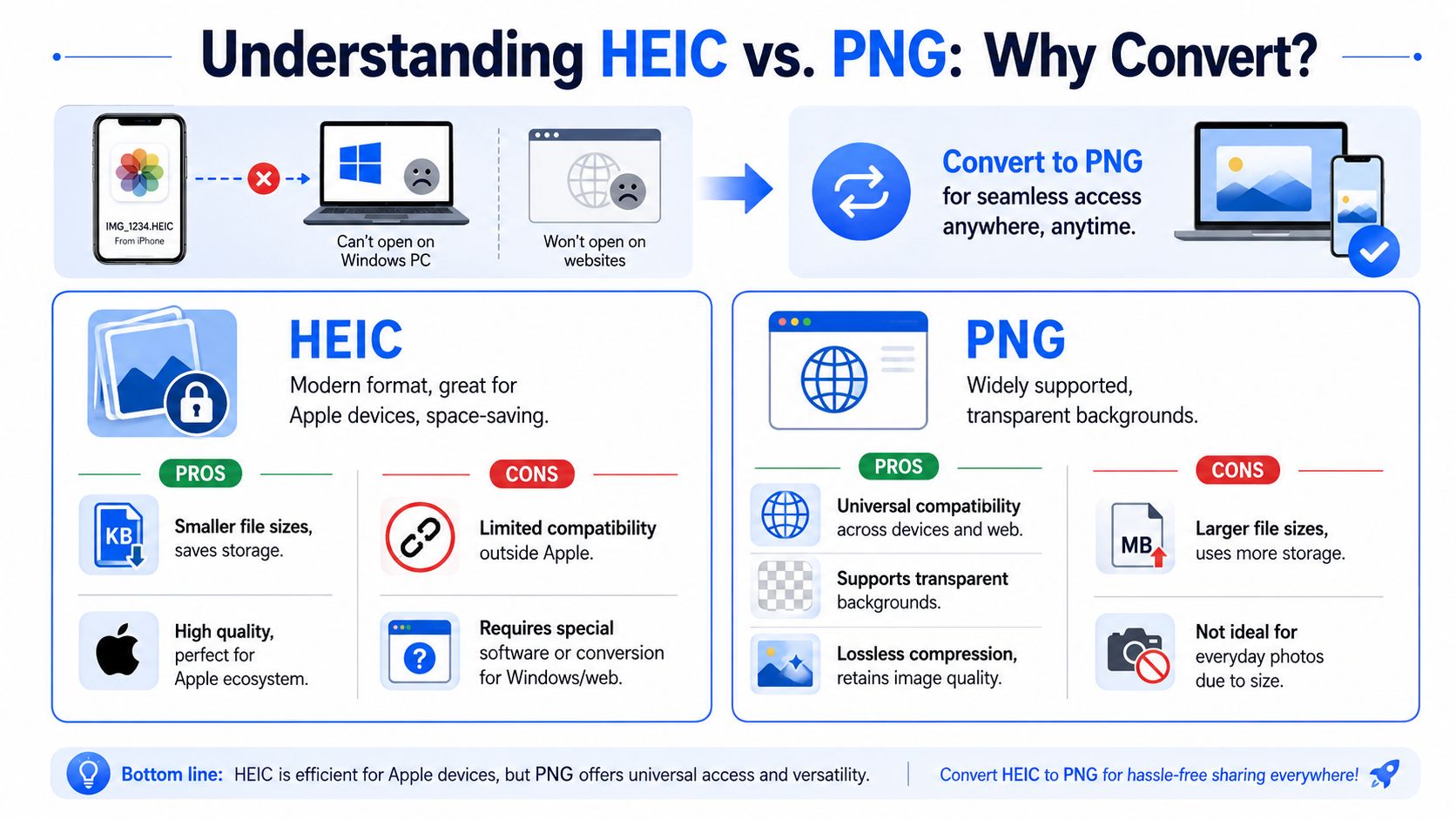
HEIC is Apple's efficiency-first image format. It keeps file sizes smaller while preserving strong visual quality, which makes sense on phones where storage and bandwidth matter. That efficiency is useful until the photo needs to leave the Apple ecosystem and work cleanly in older Windows software, web upload forms, shared folders, or design tools.
PNG solves a different problem. It is widely supported, lossless, and predictable across platforms. RecoveryTools explains in its HEIC to PNG format breakdown that PNG files are larger than HEIC, but they are often chosen when image detail and compatibility matter more than storage savings.
That trade-off is the whole decision. HEIC saves space. PNG saves time when compatibility matters.
Why conversion solves the real problem
Conversion usually happens because a workflow breaks. A client portal rejects the upload. A desktop app opens the file incorrectly. A coworker needs an image format their software can edit without extra codecs or extensions.
PNG is often the safer handoff format in those cases. It drops into presentations, websites, documents, and editing apps with far fewer surprises. If the immediate issue is getting iPhone photos to open properly on a PC, this guide on how to open HEIC files on Windows can help before you convert anything.
There is also a privacy angle that gets missed in generic conversion advice. Family photos, work screenshots, IDs, receipts, and product images often contain data you should not upload to a random browser-based converter just to make them usable. If you convert files often, or handle sensitive images, offline conversion is usually the better choice because it gives you control over both the files and the workflow.
Free HEIC to PNG Conversion Methods on Your Computer
If you only need to convert a small number of files, start with what you already have. Built-in tools are usually the fastest path.
On Mac with Preview
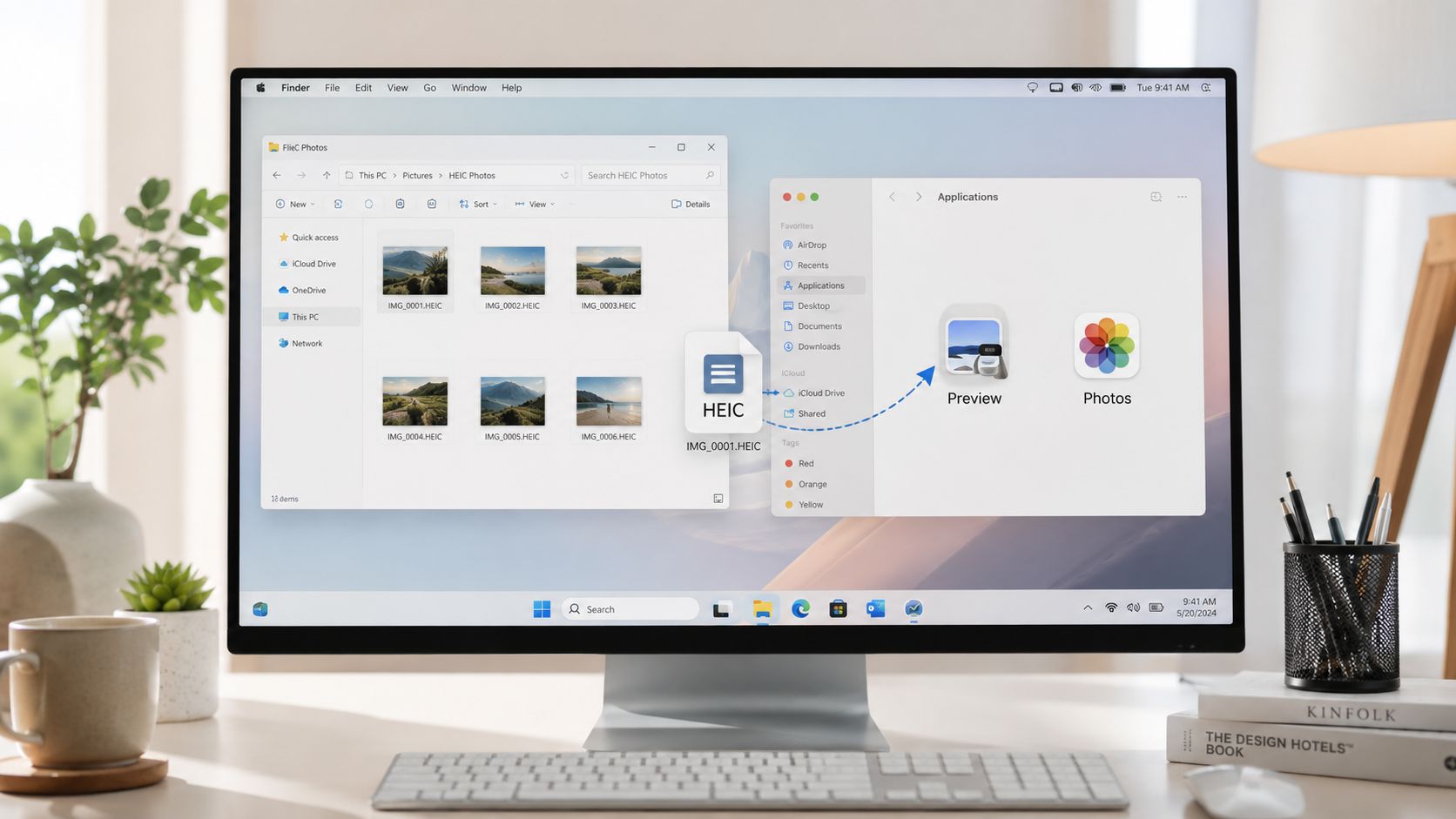
Preview is the simplest native option on macOS.
- Open the HEIC image in Preview.
- Click File.
- Choose Export.
- Set the format to PNG.
- Pick a save location and export the file.
That's it. For a one-off screenshot, scanned document image, or single photo you need to upload somewhere, Preview is hard to beat.
What doesn't work so well is repetition. If you're converting image after image, Preview starts to feel manual fast. It's fine for occasional use, not ideal for a large batch.
On Windows with Photos
Windows can handle HEIC too, but there's one common stumbling block. If the system doesn't have HEIF support installed, the image may not open properly.
Microsoft addressed HEIF support in Windows 10 through codec extensions in the Microsoft Store, reflecting how common the format became across major platforms, as noted in the earlier Microsoft community reference. Once support is in place, the basic workflow is straightforward:
- Open the image: Launch the HEIC file in Photos.
- Save a copy: Use the app's save or export option.
- Choose PNG: Pick PNG as the output format and save.
If Windows says the file isn't supported, check codec support before blaming the image itself.
When native tools are the right choice
Built-in apps are the best fit when your situation looks like this:
- You have one image: A single file doesn't justify extra software.
- You trust the device you're on: No uploads, no waiting for a website.
- You just need compatibility: The goal is opening or sharing the file, not building a repeatable workflow.
They're less useful when the job gets bigger.
| Situation | Native tools work well | Native tools start to struggle |
|---|---|---|
| One or two images | Yes | No issue |
| Entire iPhone album | Possible | Too manual |
| Sensitive files | Good | Still good |
| Repeated weekly use | Limited | Better with dedicated software |
The Hidden Dangers of Online File Converters
Online converters look convenient because they remove setup. Open browser, upload file, choose PNG, download result. For a throwaway image, that can work. For anything personal or repeated, the trade-offs show up quickly.
The privacy problem is the big one. People don't just convert vacation snapshots. They convert screenshots, receipts, IDs, forms, insurance documents, product photos, and internal work materials. Uploading those files to an unknown third-party server means giving up direct control over where the file goes and how long it stays there. That concern is similar to the broader issue of choosing secure developer workflows, where convenience often hides unnecessary exposure.
File limits are more common than people expect
Web tools also break on size and volume. Adobe Express documents a 40 MB per-file limit for its HEIC-to-PNG flow, which means files above that threshold won't convert unless you resize them first or use a desktop option, as stated in Adobe Express's HEIC to PNG conversion page.
That matters in real use. A converter may work perfectly in testing with one small file, then fail on the photo you need.
The practical annoyances add up
Even when privacy isn't your main concern, browser tools create friction:
- Uploads take time: Large images or weak connections slow the whole job down.
- Queues happen: Some sites make you wait before processing starts.
- Controls are limited: You often don't get meaningful say over output behavior.
- Ads get in the way: Free tools frequently bury the useful button behind clutter.
Browser conversion is best treated as a last-resort convenience, not a default workflow.
If you regularly deal with personal or business images, it's smarter to stick with privacy-first file conversion practices that keep processing on your own machine.
A Secure Way to Batch Convert HEIC to PNG Offline
A single HEIC file is easy to deal with. A few hundred iPhone photos from a trip, a client handoff, or a shared team folder is a different job. At that point, the best workflow is local, repeatable, and built for batch processing.
Offline conversion solves two practical problems at once. It keeps private images on your own machine, and it removes the friction that comes with uploading, waiting, and retrying large batches in a browser. For anyone handling sensitive photos or recurring image work, that trade-off usually favors desktop software.
What an offline workflow looks like
The process should be boring in the best way:
- Add one file, multiple files, or a full folder of HEIC images.
- Choose PNG as the output format.
- Set the export location.
- Run the conversion on your computer.
- Check the PNG files and move on.
That matters because bulk conversion is usually part of a larger task. You may be organizing photos for design review, preparing product shots, or standardizing files from several iPhones before upload. In those cases, speed is useful, but predictability matters more.
Why local conversion makes more sense for private files
HEIC images often include exactly the kind of material people should not send through a random web app. Family photos, insurance records, receipts, IDs, internal work images, and client documentation all show up in these folders.
With an offline tool, the files stay on your device. There is no upload step, no third-party processing queue, and no need to guess how long a site keeps your images after conversion.
That is the main reason I recommend desktop conversion for anything personal or business-related.
What to look for in a desktop converter
Good offline software should reduce manual work, not just replace the browser. Look for:
- True batch support: Add folders, not one file at a time.
- Clear output control: PNG should be easy to select and verify before export.
- Local processing: The app should work without sending files off-device.
- Simple export management: Output folders and filenames should be easy to control.
- Stable repeat use: The tool should handle the same job tomorrow without extra setup.
File Studio fits that pattern well, especially if you regularly need batch image conversion on Mac. It is a stronger option than one-off web converters when privacy, batch volume, and consistent output all matter in the same workflow.
When an offline batch tool is the right call
Use this method when conversion is part of ongoing work, not a one-time fix.
Common examples include:
- exporting a large set of iPhone photos to Windows or Mac
- converting staff-submitted HEIC images into a standard format for shared folders
- preparing screenshots, product photos, or reference images for design and documentation
- handling customer or catalog assets in an e-commerce workflow, where an e-commerce seller photo converter solution may also be relevant
- processing personal images that should stay off third-party servers
The trade-off is simple. Installing desktop software takes a minute. In return, you get control over privacy, batch handling, and output organization, which is usually the better deal once HEIC conversion becomes routine.
Which Conversion Method Is Best for You
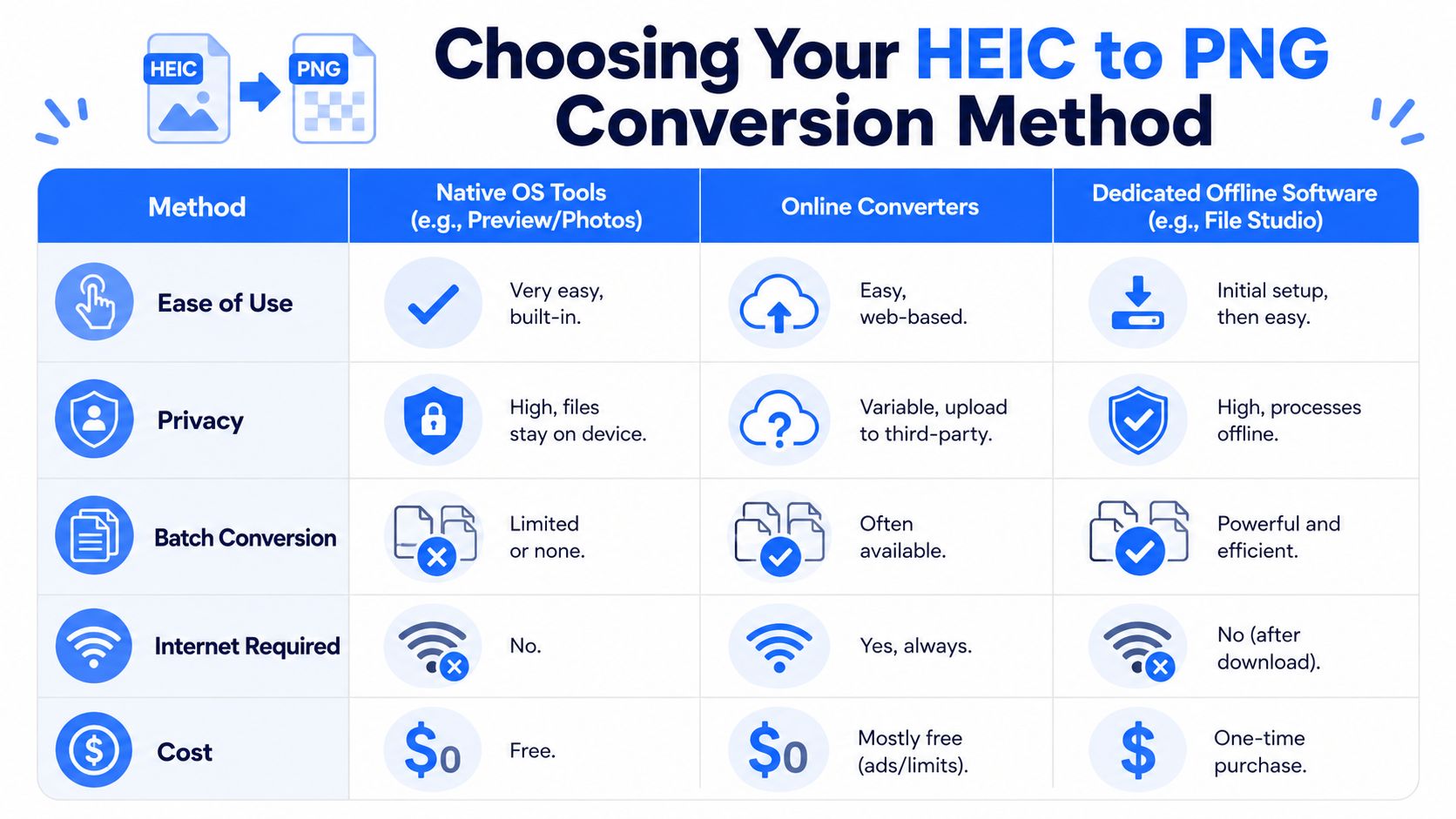
The best method depends less on the file format and more on the job in front of you. One screenshot is one thing. A folder of personal photos is another.
A quick decision guide
| Method | Best for | Main downside |
|---|---|---|
| Native OS tools | One or two files | Manual for repeat work |
| Online converters | Non-sensitive, occasional files | Privacy and file limits |
| Dedicated offline software | Batches and sensitive images | Requires installation |
If you're just trying to send one image and move on, the built-in tools are usually enough. If you're dealing with a bigger folder or anything private, local desktop software is the safer option.
Don't assume PNG is always the right target
One mistake people make is converting to PNG by default without thinking about where the file is going next. CloudConvert's documentation highlights an important trade-off: PNG files are often larger than JPEG or HEIC, which can create storage, sharing, and email-attachment problems, and it points users toward the bigger question of when PNG is the best output in this HEIC to PNG format choice guide.
That means PNG is a great choice when you need lossless output, broad compatibility, or transparent-background support in graphics workflows. It's not always the best choice for everyday photo storage.
Match the method to the use case
Use this thinking:
- Choose native tools if you have a tiny job and want the fastest built-in option.
- Choose an online converter only when the image is non-sensitive and convenience matters more than control.
- Choose offline software when privacy, scale, and repeatability matter.
If your work involves marketplace listings or catalog images, it also helps to think about the broader image pipeline, not just the HEIC step. This guide to an e-commerce seller photo converter solution is useful for that kind of workflow because format choice and final output quality affect listing readiness just as much as simple conversion does.
Troubleshooting Common HEIC to PNG Conversion Errors
A failed conversion usually comes down to one of a few issues. Most are easy to fix once you know what to check.
File not supported
If a Windows app won't open the HEIC file, check whether the system has HEIF support installed. If the file came from an iPhone but was renamed manually, the extension may also be misleading. Confirm that the source is HEIC before trying another converter.
The PNG looks blurry
PNG itself is lossless, so blur usually comes from the tool or export settings, not the format. Use a converter that clearly supports HEIC input and PNG output, and avoid generic uploaders that don't tell you what they're doing to the file.
The site refuses the upload
This often happens because of size caps. If you're using a web converter and the file is too large, switch to a desktop workflow instead of repeatedly retrying the same upload.
Metadata is missing
Some conversion paths don't preserve everything. If the date taken, location, or other image details matter, test one sample file first before converting a full folder.
A single test conversion can save you from repeating the wrong settings across an entire batch.
A black or odd background appears
This usually points to how the image was interpreted during export, especially if the original contained transparency or layered content. Try a different converter and inspect the result before processing the rest of your files.
If you need a private, repeatable way to convert HEIC to PNG without uploads, File Studio is built for exactly that. It runs offline on macOS and Windows, handles batch image conversion locally, supports modern formats including HEIC and PNG, and gives you a cleaner workflow for sensitive files than browser-based converters.