

How to Remove PDF Metadata for Complete Privacy in 2026

Ayush Soni
Founder, File Studio
On this page
- The Hidden Data in Your PDFs and Why It Matters
- Why this becomes a real privacy problem
- What people often miss
- Easiest Offline Removal with File Studio
- Why offline cleaning is the safer default
- A simple local workflow that scales
- Using Native and Common Desktop Tools
- What built-in tools can and can't do
- Adobe Acrobat Pro and deeper sanitization
- When print to PDF is the right trade-off
- Advanced Removal with Command-Line Tools
- When command-line tools are worth using
- Practical commands for inspection and cleanup
- How to Verify Your PDF Is Truly Clean
- Start with a quick human check
- Verify with an offline inspection tool
- Key Caveats and Final Privacy Recommendations
- What metadata removal does not fix
- A practical privacy checklist before sharing
You're probably staring at a PDF that looks harmless. Maybe it's a contract, a résumé, a policy update, or a file you've already redacted. The visible text looks fine, so the instinct is to attach it and send it.
That's where people get exposed.
A PDF can carry hidden details that never appear on the page: author names, software info, dates, comments, and other buried data that can survive multiple edits. If you handle legal, HR, finance, or internal admin documents, learning how to remove PDF metadata isn't a nice extra. It's part of basic document hygiene.
One more practical point before getting into methods. If your broader workflow already avoids cloud processing for sensitive files, keep that same standard for AI and document work too. Tools like LocalChat for private macOS AI are useful because they reflect the same privacy-first principle: sensitive work stays on your machine.
The Hidden Data in Your PDFs and Why It Matters
You export a PDF, glance at the pages, and send it. The text looks fine. The problem is that a PDF can carry a second layer of information you never see in the document window.
I run into this with contracts, HR files, internal proposals, and draft reports. The visible pages are only part of the file. The rest can include author names, company naming conventions, software details, timestamps, comments, revision clues, and metadata blocks that survive long after someone edits the obvious properties.
Metadata is information about the file rather than the page content. In a PDF, that often includes the title, author, subject, keywords, creation and modification dates, and data stored in the document info dictionary or XMP metadata. Some files also contain attachments, annotations, form data, or embedded objects that reveal more than the sender intended.
Why this becomes a real privacy problem
The main risk is false confidence. A PDF can look clean in the Properties panel and still expose hidden metadata underneath. That matters when the file is headed outside your organization, especially if it involves client names, employee records, legal review, or negotiation history.
I tell colleagues to separate two jobs that people often blur together. One job is editing what a PDF viewer shows in a simple properties box. The other is sanitizing the file so hidden metadata and leftover structures are removed, not just renamed.
That difference is the whole privacy issue.
What people often miss
A lot of office users stop after changing the Author field and saving the file. That is cosmetic cleanup. It may be enough for convenience, but it is not the same as privacy-focused sanitization.
Use this mental model:
- Property editing: changes visible fields such as title, author, or subject.
- Sanitization: removes or rewrites hidden metadata and other non-visible remnants inside the PDF structure.
- Regeneration: creates a fresh PDF, often by printing to PDF, to discard a wider set of original file elements, with some trade-offs in links, forms, tags, or accessibility features.
Offline handling matters here too. If a document is sensitive enough that metadata could cause a problem, uploading it to a web cleaner creates a second privacy risk. A local workflow keeps the file under your control, whether you use a desktop PDF editor for local document cleanup or pair document work with private on-device tools such as LocalChat for private macOS AI.
The practical takeaway is simple. Treat visible properties as the first check, not the final one. A PDF can look harmless and still disclose information you never meant to share.
Easiest Offline Removal with File Studio
The safest workflow is simple. Use a desktop tool that runs locally, clean the file on your own machine, save the sanitized copy, and verify it before sharing.
That approach avoids the biggest problem with web-based cleaners. You're not sending confidential contracts, employee records, or draft agreements to a third-party server just to strip a few metadata fields.
Why offline cleaning is the safer default
A local tool fits how sensitive document handling should work. The file stays under your control from start to finish. There's no upload queue, no browser tab with cached previews, and no uncertainty about where the file went.
That matters more as volume grows. Offline tools often support batch processing, which is critical because metadata issues scale with document volume. PDF24 says users can process multiple PDFs at the same time and describes the cleanup as taking only “a few seconds” per batch in its PDF metadata removal workflow.
If you're already using a local PDF utility for edits and conversions, keeping metadata cleaning in that same offline environment usually makes sense. A good example is a desktop PDF editor workflow on File Studio, where the practical value is having routine PDF handling and privacy-oriented cleanup in one place instead of bouncing across browser tools.
A simple local workflow that scales
The easiest way to remove PDF metadata in an offline app is usually some variation of this:
- Duplicate the original first. Keep an untouched source file in case you need to audit, compare, or regenerate later.
- Load one file or a full batch. If you're cleaning employment packets, signed agreements, or exported reports, batch support matters more than fancy settings.
- Choose the metadata removal action. Use the dedicated cleanup option rather than just editing visible properties.
- Export to a separate destination. Don't overwrite the original unless your retention policy explicitly allows it.
- Verify the result. Check both standard document properties and a deeper inspection method.
Local apps provide valuable assistance to office teams. The work is repeatable. Staff don't need command-line knowledge, and they don't need to guess which web tool is acceptable for confidential files.
A good sanitization workflow is boring on purpose. It should be repeatable, local, and easy for the next person on the team to follow without improvising.
A few operational habits make a big difference:
- Name cleaned copies clearly. Add a suffix like “-sanitized” so no one sends the wrong version.
- Separate source and output folders. This avoids accidental mix-ups during batch runs.
- Standardize before sending. If your team shares lots of PDFs, make metadata cleaning a final checklist step, not an optional cleanup.
For non-technical colleagues, that's usually enough. Use a local desktop tool, process the batch, save clean copies, and verify. It's faster than manual property editing and safer than uploading files you'd never want sitting on someone else's server.
Using Native and Common Desktop Tools
A lot of PDF metadata cleanup starts in the wrong place. Someone opens Document Properties, clears Author and Title, clicks Save, and assumes the file is safe to send. For low-risk internal use, that may be enough. For HR files, contracts, complaint records, or anything headed outside the company, it is only a partial cleanup.
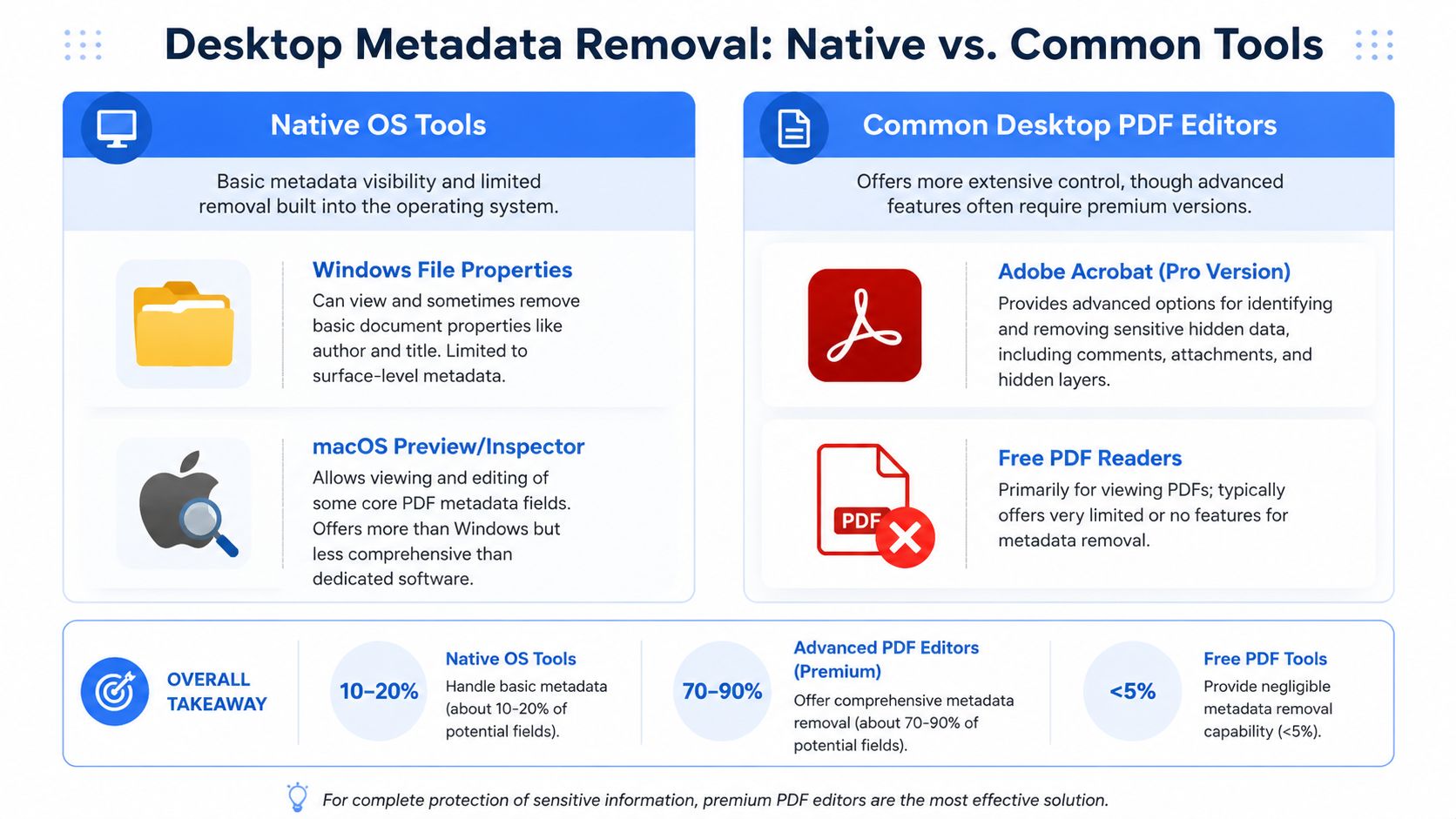
The practical distinction is simple. Property editing changes what a normal user sees in the file info panel. Sanitization aims to remove hidden data stored elsewhere in the PDF structure, including XMP metadata, comments, attachments, form remnants, and other embedded content that can survive a basic edit.
What built-in tools can and can't do
Native desktop tools are still useful. They help with inspection, quick triage, and low-risk cleanup when you need an offline option already sitting on the machine.
| Tool | Good for | Main limitation |
|---|---|---|
| Windows Properties | Checking visible file details | Does not sanitize internal PDF metadata |
| macOS Preview / Inspector | Quick review and light document edits | Limited control over hidden PDF data |
| Free PDF readers | Opening, reviewing, printing | Usually no meaningful cleanup tools |
| Adobe Acrobat Pro | Hidden data removal and document sanitization | More setup, and protected files can block changes |
| Print to PDF | Rebuilding a distribution copy | Can strip forms, signatures, links, and searchable text |
Windows and macOS tools are best treated as inspection tools first. If they let you edit a few fields, regard that as housekeeping, not proof of privacy. I tell colleagues to use those panels to spot obvious problems, then choose a stronger method if the file contains anything they would not want exposed in discovery, an access request, or a forwarded email chain.
If the PDF is locked against editing, deal with that before cleanup. An offline PDF password removal workflow can help you create an accessible working copy for sanitization, assuming you have permission to remove the restriction.
Adobe Acrobat Pro and deeper sanitization
Acrobat Pro is the common desktop tool that gets closest to real sanitization without dropping into the command line. The feature to look for is Remove Hidden Information. It is more useful than the basic Properties window because Acrobat scans for data categories the file info panel does not show.
That matters in practice. A PDF can keep comments, revision artifacts, attachments, layers, form data, and XMP metadata even after someone has cleared the obvious fields. Acrobat is one of the few mainstream desktop tools that exposes those categories in a way a non-technical user can review and remove.
A practical workflow looks like this:
- Open the PDF in Acrobat Pro.
- Check document restrictions first. If editing is blocked, stop and work from an authorized editable copy.
- Review the document properties if you want to clear visible fields such as Title or Author.
- Run Remove Hidden Information and inspect what Acrobat finds.
- Save the result as a new file, then reopen it and inspect again.
Acrobat is still not magic. Sanitization reduces exposure, but it does not retract files already shared, and it does not change what exists in email attachments, cloud sync history, or backups. For sensitive records, that operational context matters as much as the cleanup step.
When print to PDF is the right trade-off
Print to PDF is often the safest common fallback because it rebuilds the document instead of editing the original structure. In plain terms, you are creating a fresh rendered copy. That usually drops a large amount of metadata and hidden structure that survives ordinary property edits.
It also comes with a cost.
Printing to PDF can remove or break hyperlinks, fillable fields, bookmarks, tags, OCR text layers, accessibility structure, and digital signatures. If the recipient only needs a clean, read-only copy, that trade-off is often acceptable. If they need to search the text, complete a form, or validate a signature, it may be the wrong choice.
Use the method that matches the risk:
- Edit properties for low-risk documents where visible fields are the only concern.
- Use Acrobat sanitization when hidden data removal matters and you need a GUI workflow.
- Print to PDF when privacy matters more than preserving advanced PDF features.
If I had to give one rule to a non-technical coworker, it would be this: do not confuse a cleaned-up Properties panel with a sanitized file. Offline desktop tools can do the job, but only if you pick the method that matches the sensitivity of the document.
Advanced Removal with Command-Line Tools
If a PDF still feels suspicious after ordinary cleanup, command-line tools are where you move from convenience to control. They're especially useful when you need to inspect hidden metadata, clean batches in a repeatable way, or build the process into a script.

When command-line tools are worth using
Two names come up repeatedly for deeper PDF work: ExifTool and qpdf.
They matter because PDFs can retain hidden information in XMP metadata, the document info dictionary, and embedded objects that survive simpler edit-and-delete workflows. Technical discussions on PDF metadata removal specifically point to ExifTool and qpdf for deeper sanitization when ordinary property editing isn't enough.
Use this level of tooling when:
- You need certainty. A simple properties panel isn't enough for regulated files.
- You have many files. Scripts remove inconsistency from repetitive cleanup.
- You suspect hidden XMP data. GUI tools don't always show what remains.
Practical commands for inspection and cleanup
Start with inspection. ExifTool is excellent for that.
exiftool yourfile.pdfThat gives you a readable list of metadata fields ExifTool can see. If author, title, producer, dates, or XMP entries appear, you know the file still carries data worth reviewing.
To remove common metadata fields and write changes back:
exiftool -all= yourfile.pdfExifTool typically creates a backup copy unless you change that behavior, which is useful when you're testing.
For a folder of PDFs, a batch command looks like this:
exiftool -all= /path/to/folder/*.pdfqpdf is often used differently. It's strong for restructuring and rewriting PDFs, and technical users pair it with ExifTool when they want to rebuild file structure and then re-check metadata output.
Command-line cleanup is best when you need repeatability. One tested script is safer than ten people improvising in ten different apps.
These tools aren't the best first choice for non-technical staff. They are the right choice when you need automation, auditability, and a deeper look at what's still inside the file after basic cleaning.
How to Verify Your PDF Is Truly Clean
A common failure looks harmless. Someone clears the Author field, reopens the PDF, sees empty properties, and sends the file outside the company. The visible panel looks clean, but the file can still carry metadata elsewhere.
Verification needs to answer a stricter question. Did you hide a few fields, or did you remove the metadata another tool can still read? For privacy work, that distinction matters.
Start with a quick human check
Begin with the checks a colleague can do in a desktop app before you move to inspection tools:
- Document properties: Review title, author, subject, keywords, creator, producer, and dates.
- Comments and annotations: Remove review notes, replies, and markup history if the file passed through collaboration.
- Attachments and embedded files: Confirm the PDF does not include spreadsheets, images, or other files tucked inside it.
- Bookmarks and form fields: Look for labels or values that reveal names, internal project codes, or old workflow data.
- Permissions and security settings: Restricted PDFs can behave differently after editing, so confirm the file you are testing is the file you plan to share.
This first pass catches obvious misses. It does not prove sanitization.
Verify with an offline inspection tool
Use a local tool that reads metadata independently of the PDF viewer. ExifTool is a practical choice because it shows far more than a standard properties window.
A simple verification workflow looks like this:
- Inspect the original PDF with ExifTool.
- Save that output privately as your baseline.
- Clean the file with your chosen offline method.
- Inspect the cleaned copy with ExifTool.
- Compare the two results field by field.
What you are looking for is straightforward. If the cleaned file still shows XMP entries, producer details, unexpected timestamps, custom metadata, or old application traces, the cleanup was partial. At that point, property editing was cosmetic. The file should be rebuilt or sanitized with a stronger method before sharing.
An empty properties box is a convenience check, not proof.
For teams that handle sensitive documents regularly, verification should be repeatable and documented. That is the same discipline behind Beyond Surplus data sanitization guidance. PDFs are not hard drives, but the principle carries over well. Perform the cleanup, verify the result, and keep a process you can defend later.
If your policy is to avoid uploading confidential files to third-party websites during cleanup or verification, keep the entire workflow local and use tools with a clear local-processing position, such as the File Studio privacy approach for offline document handling.
Teach colleagues this step early. Cleaning without verification creates confidence without evidence, which is a poor trade if the document contains client names, staff details, or internal timestamps.
Key Caveats and Final Privacy Recommendations
A PDF often looks clean right before it leaves the building. Then a client opens Properties, or runs a metadata check, and sees the author name, company, software history, or old timestamps. I have seen that happen after someone thought they had "removed metadata" because the document summary looked blank.

What metadata removal does not fix
Property editing changes what a standard viewer shows. Sanitization aims to remove or rewrite the underlying data structures that can still identify the document's history. That distinction matters if the PDF contains client work, internal approvals, HR records, legal drafts, or anything else that should not expose who created it and how it moved through your systems.
A few limits matter in practice:
- Metadata cleanup does not remove visible page content. Names, comments, or numbers still shown on the page need proper redaction or a rebuilt document.
- It does not undo prior sharing. If the wrong copy was already emailed, uploaded, or synced externally, cleaning your local file does not retract it.
- It does not guarantee forensic erasure in every workflow. Some PDFs need to be regenerated, flattened, or exported into a fresh file to remove leftover structure and application traces.
- It can break useful features. Stronger cleanup methods may remove forms, bookmarks, links, tags, attachments, comments, or digital signatures.
That trade-off is the decision. If you only want to change a title before internal filing, light property edits may be enough. If the file is leaving your organization, especially for external review, legal exchange, or public posting, use a method you can verify and keep the work offline.
For teams that avoid third-party upload tools for confidential documents, choose software with a clear local-processing policy, such as File Studio's offline document privacy approach.
A practical privacy checklist before sharing
Use this quick check before sending a sensitive PDF:
- Keep the original untouched. Save a separate outbound copy so you never overwrite your source record.
- Match the method to the risk. Use full rebuild or sanitization for external sharing. Reserve simple property edits for low-risk internal use.
- Flatten only when the loss is acceptable. Printing to PDF often removes a lot, but it can also strip accessibility tags, form fields, links, and signatures.
- Verify the result, not the appearance. A blank Properties panel is not proof that the file is clean.
- Check the attachment twice. People often clean one copy and send another.
The safest habit is simple. Treat metadata removal as one control in your document-handling process, not the whole process.
If privacy matters, keep the workflow local, verify the output, and assume "looks clean" is not the same as "is clean."