

How to Rotate PDF Pages: 4 Secure & Fast Methods for 2026

Ayush Soni
Founder, File Studio
On this page
- Why Your PDF is Sideways and Why How You Fix It Matters
- A Quick Comparison of PDF Rotation Methods
- Built-in tools are fine for light use
- Online tools win on convenience
- Desktop apps handle the real office mess
- The Instant Fix Using Built-in Tools on Mac and Windows
- Rotate a PDF in Preview on Mac
- Rotate a PDF in Microsoft Edge on Windows
- The difference between viewing and permanently rotating
- Online PDF Rotators and Their Hidden Privacy Risks
- Why people use them
- What uploading actually means
- Secure Offline Rotation with a Desktop App Like File Studio
- Why desktop tools stay dependable
- What to look for in an offline rotator
- Advanced Tips and Troubleshooting for Flawless Rotations
- Batch jobs that save real time
- Common rotation problems and fixes
You open a scanned contract, invoice, or HR form, and it's sideways. One page is upside down. Another is fine. You fix it in the viewer, save, send it off, and ten minutes later someone replies: “It's still rotated wrong.”
That's the part most quick tutorials miss. Rotating a PDF isn't just about making it look right on your screen. It's about whether the change is temporary or permanent, whether the file leaves your computer, and whether you're handling a harmless handout or a document with names, signatures, account details, or internal notes attached as metadata.
The importance of that distinction is often underestimated. A 2025 Electronic Frontier Foundation report found that 68% of enterprise file-handling incidents involve unauthorized data exposure via cloud file converters, with PDF uploads the top vector, yet most top-ranking PDF rotation guides still skip offline alternatives and don't warn about metadata leakage during upload. If you work in legal, HR, finance, or admin, that should change how you decide what tool to use.
Why Your PDF is Sideways and Why How You Fix It Matters
Most sideways PDFs come from the same few places. A copier scans with the feeder turned the wrong way. A phone photo gets turned into a PDF with mixed orientation. Someone combines portrait forms and horizontally oriented attachments into one file and never checks the thumbnails.
In an office, this happens constantly. The messy part isn't the rotation itself. It's what happens after. If the file is a lunch menu, almost any method is fine. If it's a signed agreement, employee paperwork, or a scan of an ID, the wrong method creates a different problem than the one you started with.
A lot of people search for how to rotate PDF pages, land on a free website, upload the file, click rotate, download, and move on. That workflow is convenient, but it treats every PDF as if it has the same risk level. It doesn't.
A rotated PDF can be readable and still be mishandled if you had to upload a sensitive document to get there.
There's also a reliability issue. Some tools only rotate what you see in that app. The file looks fixed until you reopen it somewhere else and the page snaps back. That's why people think they “saved” the PDF but did not change it.
The practical rule is simple:
- Use a built-in viewer for a quick one-off check or a harmless file.
- Use an online tool only when the content isn't sensitive and convenience matters more than privacy.
- Use an offline desktop app when the document is confidential, large, or part of a repeat workflow.
That's the difference between a quick patch and a clean fix.
A Quick Comparison of PDF Rotation Methods
When someone asks me how to rotate PDF pages, I don't start with steps. I start with one question: What kind of file is it? That answer usually decides the method.
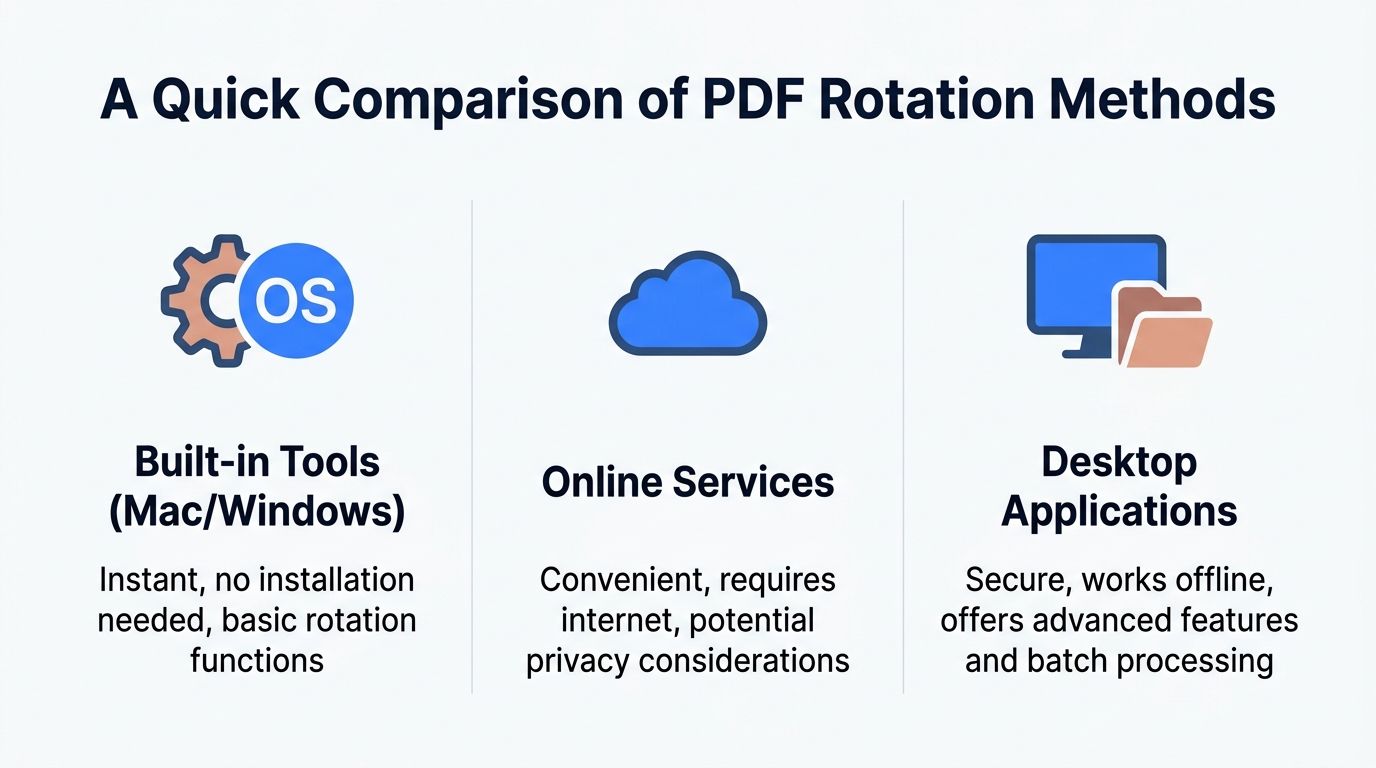
Here's the short version.
| Method | Best for | Privacy | Permanent rotation | Batch work | Typical downside |
|---|---|---|---|---|---|
| Built-in tools | Quick checks, simple personal files | Strong, since you stay on-device | Sometimes limited or inconsistent by app | Weak | Easy to mistake view rotation for saved rotation |
| Online services | Fast browser access on any device | Weak for sensitive files because upload is required | Usually available | Basic to moderate | You have to trust a third-party server |
| Desktop applications | Sensitive files, repeat work, larger jobs | Strong | Usually reliable | Strong | Requires installation |
Built-in tools are fine for light use
Preview on Mac and Microsoft Edge on Windows are good enough when you just need to make a readable copy or inspect a document quickly. They're already there, and that matters when you're rushing.
Online tools win on convenience
They're popular because they remove friction. By 2023, over 65% of PDF rotation tasks were performed with free online tools, and Adobe Acrobat Online, PDFgear, and PDF24 collectively handled more than 300 million rotation requests annually, reflecting a 45% increase from 2020. That same trend lined up with cloud-heavy admin work, where 78% of administrative staff in legal and HR departments use browser-based tools for routine PDF edits to avoid installs and subscriptions.
Desktop apps handle the real office mess
If you process stacks of scans, rotate selected pages, handle mixed files, or care about privacy, desktop tools are the most practical option. They're also better when a browser tab starts choking on a larger document.
Bottom line: The fastest method isn't always the best one. The right method depends on whether you need speed, privacy, permanence, or batch control.
The Instant Fix Using Built-in Tools on Mac and Windows
If you need to fix a sideways PDF right now, the built-in tools are the first place to look. They're quick, local, and good enough for basic jobs.
Rotate a PDF in Preview on Mac
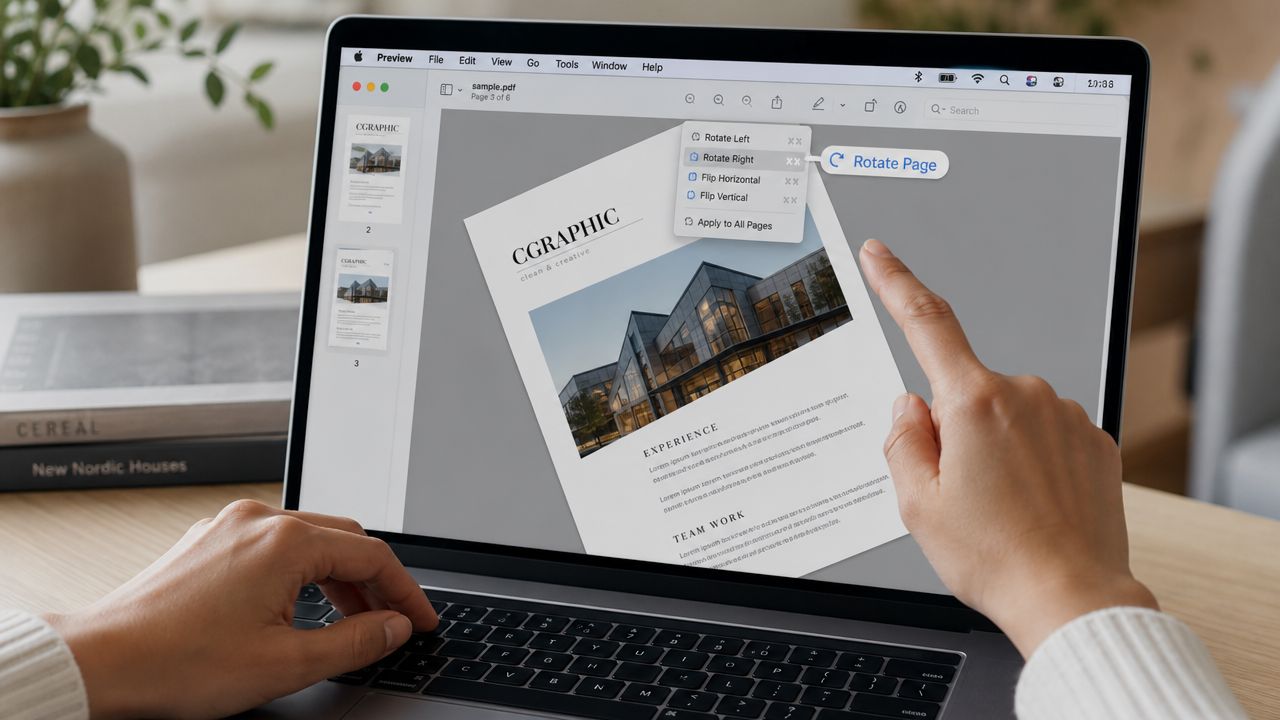
Preview is still one of the handiest Mac utilities for everyday PDF cleanup.
- Open the PDF in Preview.
- Turn on thumbnails if they aren't visible.
- Click the page you want to rotate, or select multiple pages from the thumbnail pane.
- Use the rotate button in the toolbar, or the menu command to rotate left or right.
- Save the file.
For single pages, this is usually enough. For mixed scans, selecting thumbnails first is the important part. If you don't, Preview may only affect the active page or your current view.
If you're also reorganizing pages after rotating them, a separate walkthrough on combining PDFs on Mac in Preview is useful because rotation problems often show up right after people merge files in the wrong order.
For Mac users who want a more dedicated walkthrough focused only on page rotation, this Mac PDF page rotation guide is worth bookmarking.
Rotate a PDF in Microsoft Edge on Windows
Edge can open PDFs without needing Acrobat or another reader, which makes it a solid first stop on Windows.
Use it like this:
- Open the PDF in Edge
- Find the rotate control in the PDF toolbar
- Rotate until the page displays correctly
- Save a copy if Edge gives you that option, rather than assuming the displayed state is now permanent
Edge is fine for quick corrections, but I wouldn't trust it blindly for a document that must stay fixed when opened elsewhere. Always reopen the saved file in another reader before sending it.
The difference between viewing and permanently rotating
This is the origin of most confusion.
The PDF format supports permanent page rotation by updating the page's internal /Rotate attribute. The specification only supports 90-degree increments, including ±90° and 180°, so if you need a small tilt correction like 5 degrees, that's not simple page rotation. That requires changing the actual content, not just the page attribute, as explained in this discussion of PDF page rotation behavior.
Practical rule: If the file looks fixed only inside one viewer, you probably changed the view, not the document.
That's why a PDF can seem solved on your machine and still be wrong for the next person. When the job matters, test the saved file in a second app before you call it done.
Online PDF Rotators and Their Hidden Privacy Risks
Online PDF rotators are the default recommendation almost everywhere. I understand why. They're fast, free, and available from any browser. If you're on a locked-down work computer or helping someone remotely, that convenience is hard to beat.
Why people use them
The numbers make that clear. More than 65% of PDF rotation tasks are done with online tools, but a 2024 EPIC survey found that 62% of users in finance and healthcare actively avoid them because of fears about data leakage on third-party servers.
That split tells you exactly what's going on. People like the convenience. They just don't trust it for the files that matter most.
What uploading actually means
Uploading a PDF isn't just sending the visible page. Depending on the file, you may also be handing over metadata such as author information, timestamps, document history, or other embedded details. That's a problem for contracts, HR packets, legal exhibits, invoices, ID scans, and anything with client data.
If your team handles those kinds of files, basic web security hygiene matters far beyond PDFs. A good general primer is Monro Cloud's website security best practices, because the same mindset applies here: reduce exposure, limit unnecessary transfers, and don't rely on convenience when the data is sensitive.
A few practical cases where I'd avoid online rotation entirely:
- Employee records with names, addresses, or payroll references
- Contracts and vendor paperwork that contain signatures or internal notes
- Healthcare or finance documents where upload alone can create compliance concerns
- Client-submitted IDs that should stay on-device from start to finish
For a deeper look at the decision, this guide to whether it's safe to upload PDFs online covers the trade-offs clearly.
If a document would make you nervous as an email attachment, don't send it through a browser converter either.
Online rotators still have a place. I'd use them for a recipe, a public brochure, or a school handout. I wouldn't use them for files that could become tomorrow's incident report.
Secure Offline Rotation with a Desktop App Like File Studio
When privacy matters, offline desktop software is the cleanest answer. No upload queue. No browser timeout. No wondering where the file sits after processing.
That's also how many of the better rotation tools work internally. The vast majority of PDF rotation tools use a metadata-based approach that changes the file's orientation attribute in under 0.5 seconds per page, rather than re-encoding the content itself. That's why rotation can be so quick when the tool is doing the right kind of operation.
Why desktop tools stay dependable
A good desktop app gives you a few advantages that browser tools usually don't.
- Your file stays local. That's the biggest one.
- Larger documents are less annoying. You're not waiting on upload speed first.
- Page-level control is clearer. You can rotate one page, all pages, or a selected range without guessing what was applied.
- Batch work is realistic. That matters in offices where the same scanning mistake happens all week.
Dedicated desktop tools also tend to be better at applying a true page rotation instead of only changing the display in a temporary viewer state. In daily admin work, that reliability is worth more than a flashy interface.
What to look for in an offline rotator
Not every desktop PDF app is equally practical. The ones worth keeping installed usually offer:
- Thumbnail-based page selection so you can spot the bad pages fast.
- Permanent save behavior that writes the change back to the file or to a clear exported copy.
- Batch support for multiple files or entire folders.
- Stable handling of mixed PDFs with scans, inserted images, and merged attachments.
- Metadata controls if you need to clean the file before sharing.
If you're comparing tools, this offline rotate and flip workflow page shows the kind of local-first workflow that's useful for routine PDF corrections.
There's another practical reason I prefer desktop tools for serious work. When a PDF includes scanned images, stamps, attachments, or odd page sizes, browser tools can behave unpredictably. A native app usually gives you more consistent page previews and fewer surprises when you save.
Keep one rule for sensitive files: if the document should stay in your filing cabinet, it should stay on your device too.
For everyday office use, that's the method I trust most. Especially when someone drops a folder full of upside-down scans on your desk and wants them fixed before lunch.
Advanced Tips and Troubleshooting for Flawless Rotations
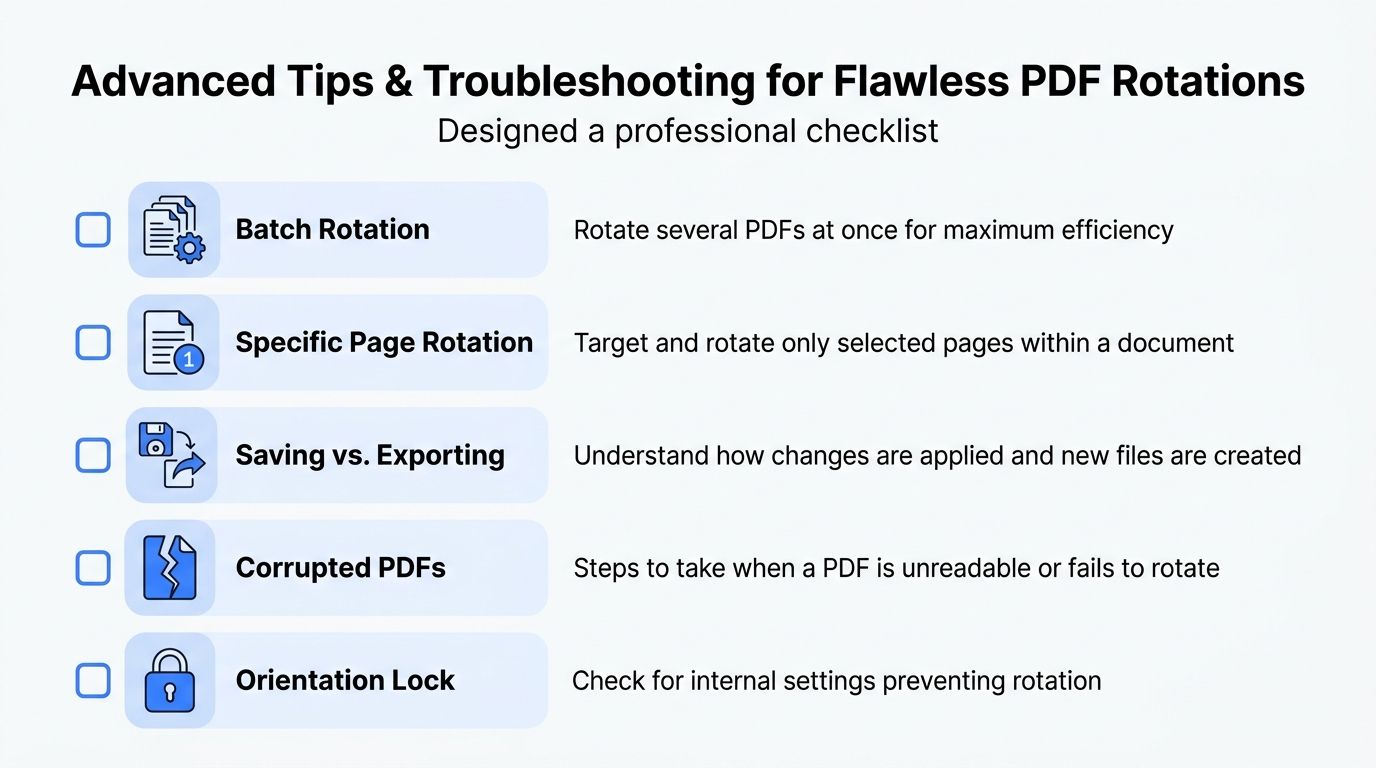
Most guides stop after “click rotate.” That's fine for one file. It doesn't help when you've got fifty invoices scanned backward, a merged PDF with alternating page orientation, or a document that looks fixed until another app opens it wrong again.
Batch jobs that save real time
Here, power users separate themselves from one-file-at-a-time habits. A 2024 survey found that 44% of office managers spend over 3 hours weekly reorganizing multi-file PDFs, yet only 12% use batch tools because the setup feels too complex, according to PDFsam's overview of PDF rotation workflows.
That's an avoidable time drain.
A better approach for recurring jobs:
- Rotate by pattern when the problem repeats. If every even page from a duplex scan is upside down, apply the fix to even pages only.
- Process whole folders when a scanner or mobile capture app creates the same mistake across many files.
- Use presets for common jobs like invoices, receipts, or reports with horizontal orientation.
- Check one output file first before running the full batch, especially when page sizes vary.
If you routinely handle scans, batch rotation isn't a luxury. It's standard office hygiene.
Common rotation problems and fixes
Here are the issues that come up most often.
- The rotation didn't stick
You probably changed the viewer state, not the file itself. Reopen the PDF in a different reader to confirm the saved result. - Only some pages are wrong
Work from thumbnails. Don't rotate the whole document unless every page needs it. - The page looks blurry after rotation
That usually points to content-level image handling rather than simple page rotation. If the PDF was built from raster images, rotate the source images before creating the PDF when possible. - The PDF won't edit at all
Check whether it's password-protected or restricted. Some files allow viewing but block changes. - The page alignment looks off
Make a backup first, then test again. Some files need manual cleanup after rotation if the original scan margins were sloppy.
Save a backup before changing anything important. Rotation is simple until you discover the wrong page order, odd margins, or a protected file halfway through the job.
One last office habit that helps more than people expect: rename the corrected file clearly. Add something obvious like “rotated” or “fixed-orientation” so no one grabs the original by mistake.
If you handle confidential PDFs, batch jobs, or daily scan cleanup, File Studio is worth a look. It runs offline on Mac and Windows, keeps files on-device, and gives you a cleaner way to rotate, organize, and manage PDFs without sending documents through a browser converter.