

PDF Password Remover: A Secure Offline Guide for 2026

Ayush Soni
Founder, File Studio
On this page
- That Locked PDF Might Be a Security Trap
- The first question to ask
- User Passwords vs Owner Passwords A Crucial Distinction
- Two locks that behave very differently
- What you can remove and what you usually cannot
- Why Offline Password Removers Win on Privacy and Security
- Uploading a PDF is the real risk
- What a privacy-first workflow looks like
- How to Remove PDF Passwords with an Offline Tool
- Single file workflow
- Batch workflow for large folders
- Troubleshooting Common PDF Unlocking Issues
- When the password is known but removal still fails
- When the password is forgotten
- A Final Word on Legal and Ethical Use
You're staring at a PDF that matters. It might be a signed contract, payroll records, a vendor invoice archive, or last year's board packet. You double-click it, and instead of the content, you get a password prompt or a notice that printing, copying, or editing is blocked.
That moment feels like a file-access problem. It isn't. It's a security decision.
A lot of people make the same mistake next. They search for a PDF password remover, click the first free online password remover, upload the file, and hope for the best. That shortcut can expose the very document you were trying to protect. If the PDF contains names, account details, signatures, internal notes, or hidden metadata, sending it to an unknown server is the wrong move.
The safer path is simple. Keep the file on your own computer, use an offline tool, and know whether you're dealing with an open password or a permissions password before you try anything.
That Locked PDF Might Be a Security Trap
A locked PDF often shows up at the worst time. Finance needs to reuse a statement package. HR needs to print onboarding forms. Legal needs to pull language from an old agreement. The pressure makes people rush, and rushing is how confidential files end up on systems they were never meant to touch.
The common pattern is easy to spot. Someone can view or locate the file but can't do what they need with it, so they search for a quick PDF password remover. A web tool promises instant results. The upload box looks harmless. The file goes out over the internet anyway.
That's the trap.
If the document contains private client data, employee records, or signed agreements, the lock on the PDF isn't the only issue. The bigger issue is whether you're about to hand that document to a third party without knowing where it goes, how long it stays there, or what else is captured with it.
Practical rule: Treat a locked PDF the same way you'd treat a spreadsheet full of salaries or a folder of passport scans. If you wouldn't upload those casually, don't upload the PDF either.
Security teams apply the same logic elsewhere. If your company is already reviewing vendor exposure and internal controls, resources on fast SaaS security audits can help frame why unvetted file tools create avoidable risk. The same privacy mindset applies to document handling.
A better workflow starts with one essential habit. Keep sensitive files local. Guidance on keeping sensitive documents private follows that principle closely, and it's the standard I'd use in any office that handles contracts, IDs, or regulated records.
The first question to ask
Before trying to remove password protection, ask one question: Is this file blocked from opening, or only blocked from editing, copying, or printing?
That distinction determines whether removal is realistic, routine, or not possible without the right credentials.
User Passwords vs Owner Passwords A Crucial Distinction
Most confusion around a PDF password remover starts here. People talk about “a password” as if every locked PDF works the same way. It doesn't.
Two locks that behave very differently
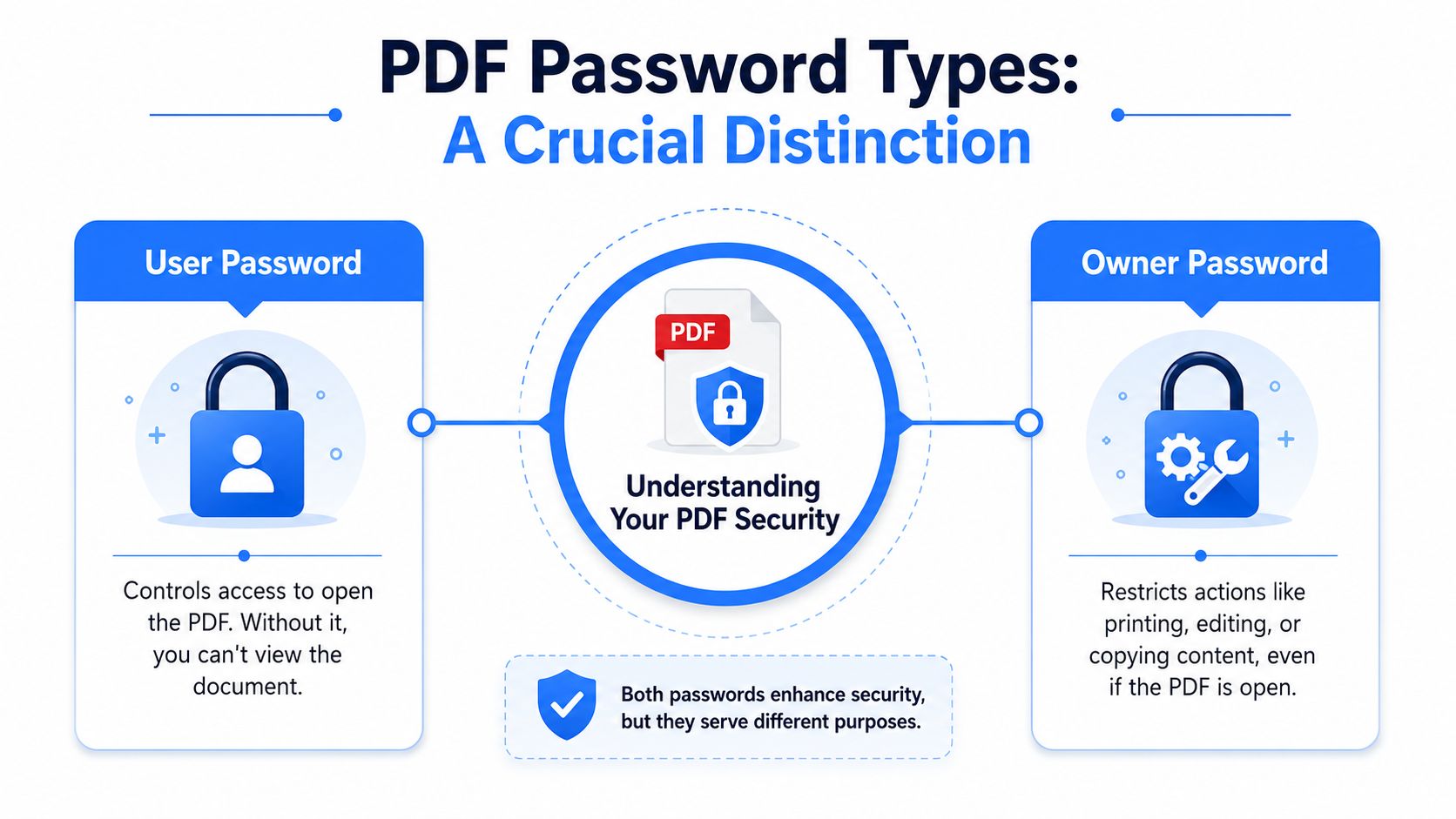
A user password, also called a Document Open password, blocks access to the file itself. If you don't know it, you usually can't even view the PDF. That's the front-door lock.
An owner password, also called a permissions password, works differently. You can often open the file and read it, but the PDF limits what you can do next. Printing may be disabled. Copying text may be blocked. Editing may be restricted. That's more like being allowed into the office but not into the records room.
This distinction matters because over 70% of user queries about “PDF password remover” involve forgotten passwords, yet most guides still blur the line between permissions restrictions and open-password protection. That confusion pushes people toward unsafe brute-force tools when a simpler permissions-removal path might exist.
What you can remove and what you usually cannot
If you know the correct password and you're authorized to change the file, removing security is straightforward. Adobe's documented method is to open the PDF in Acrobat Pro, choose the security tools, remove security, enter the required credential if prompted, and save the decrypted file. Adobe also states that the primary prerequisite is having the correct Document Open or Permissions password, because the PDF standard prevents removal without it in normal authorized workflows, as described in Adobe's guide to removing a password from a PDF.
That leads to a useful rule of thumb:
| PDF condition | What it means | Practical outcome |
|---|---|---|
| You can't open the file at all | User password | You usually need the actual open password |
| You can open it, but actions are blocked | Owner password | Restrictions may be removable with authorized access |
| The file opens and allows everything | No relevant lock remains | No remover needed |
The underlying cryptography also matters. PDF protection uses encryption standards including 40-bit and 128-bit RC4, plus AES with 128-bit and 256-bit key lengths, which are the security layers a remover tool must handle to be effective, according to the technical background described by VeryUtils in its discussion of PDF password removal and encryption support.
If a PDF won't open, think recovery, not removal. If it opens but limits actions, think permissions, not cracking.
That simple distinction saves time and avoids bad decisions.
Why Offline Password Removers Win on Privacy and Security
The strongest argument for an offline PDF password remover has nothing to do with convenience. It's about custody.
Uploading a PDF is the real risk
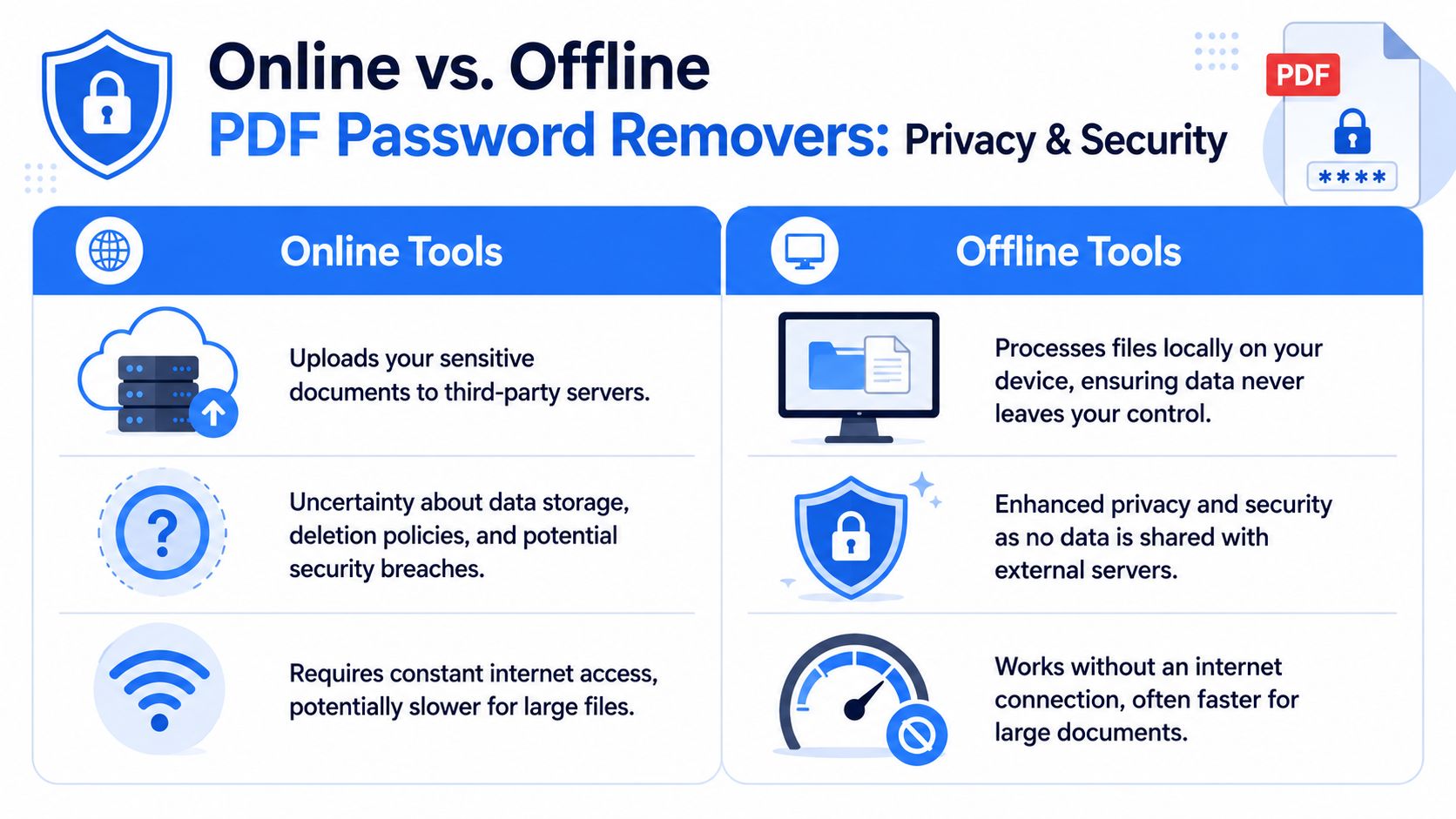
When you use an online password remover, you hand the file to someone else's infrastructure. That means the document is transmitted over the internet, processed on a remote server, and potentially stored outside your control. For a casual flyer, maybe that risk feels acceptable. For contracts, tax records, HR documents, IDs, or internal board files, it isn't.
Industry analysis confirms that offline tools are the most secure approach because files never leave the user's computer, which eliminates the exposure created by server uploads. The same analysis contrasts that with online services, where uploading sensitive documents to external servers creates significant privacy concerns for organizations handling confidential records, as noted in this review of offline versus online PDF password removal.
That's why I don't treat web-based password removal tools as a convenience tool. I treat them as an unnecessary transfer of sensitive material.
A desktop-first approach also fits broader security hygiene. Teams that already rely on vetted online safety solutions understand the principle. Reduce unnecessary exposure points. A PDF decryption workflow should follow the same rule.
What a privacy-first workflow looks like
A safe workflow is boring in the best way. You open the file locally. The tool processes it locally. The cleaned or password-free copy saves locally. Nothing gets uploaded, synced, or queued in a browser tab.
That matters for more than file contents. PDFs can contain metadata, revision history, embedded objects, annotations, and author details. A local-only process keeps that information under your control too. If your office is trying to standardize more secure document handling, a privacy-first file conversion workflow follows the same pattern of keeping processing on-device.
Here's the trade-off in plain terms:
- Online tools are easy to find, but they require trust you often can't verify.
- Command-line tools can be excellent, but they're not ideal for every office user.
- Offline desktop tools are the practical middle ground for professionals who need privacy without complexity.
Keep the document on the device you control. That single choice removes the biggest avoidable risk in PDF unlocking.
There's another advantage. Offline tools don't depend on the browser, upload limits, or a stable connection. In a locked-down office environment, on a plane, or while working from a client site, that reliability matters.
How to Remove PDF Passwords with an Offline Tool
Once you know the type of lock and you have the right authority to remove it, the process should be simple. A good offline PDF password remover shouldn't make you fight menus, ads, or browser uploads.
Single file workflow
Open your offline desktop PDF tool and import the document directly from your local drive. If the PDF has a permissions lock, the software should identify that the file is restricted rather than fully inaccessible. That distinction matters because it tells you whether you're removing restrictions from an already viewable document or dealing with an open-password problem.
From there, choose the password removal or security removal action. If the file asks for a known permissions credential, enter it. Then export a clean copy to a controlled output folder rather than overwriting the original immediately. In office settings, I prefer saving the password-free version with a clear naming pattern so the protected source file remains intact for records.
A clean workflow usually looks like this:
- Import locally: Add the PDF from your desktop or a secure network folder.
- Confirm the lock type: Check whether it's open-password protection or permissions-only restriction.
- Enter authorized credentials: Use the known password only if you're permitted to remove it.
- Save a new copy: Export the decrypted file to a designated location with a clear filename.
That's it. No upload queue. No waiting for a server to respond. No guessing where the file went.
Batch workflow for large folders
A substantial test arises when you have a whole set of files. Think monthly reports, archived statements, signed forms, or legal packets saved under the same restriction pattern. Doing those one by one is where people start looking for shortcuts.
A better option is a desktop tool with batch support. A key specification for efficient PDF password removal is the ability to process hundreds of documents in a single run, and GUI-based offline tools with batch handling offer much higher throughput than manual or web-based methods while also avoiding the bundleware risk that often comes with free alternatives, as discussed in this Reddit thread on batch removal of known PDF passwords.
In practice, batch work should feel controlled, not technical. Add a folder, apply the same password removal action to the entire queue, provide the known password if required, and send the output to a separate destination. If you're standardizing repeat document jobs, it also helps to build the rest of the workflow around secure local handling, similar to these approaches for converting files without uploading.
Workflow note: In a shared office, save unlocked PDFs into a restricted destination folder. Removing the password is only half the job. Storing the new copy safely matters just as much.
A careful batch process also makes review easier. You can compare source and output folders, verify filenames, and keep an audit trail of what was changed.
Troubleshooting Common PDF Unlocking Issues
Even with the right workflow, some PDFs won't cooperate. When that happens, the failure usually falls into a small number of buckets.
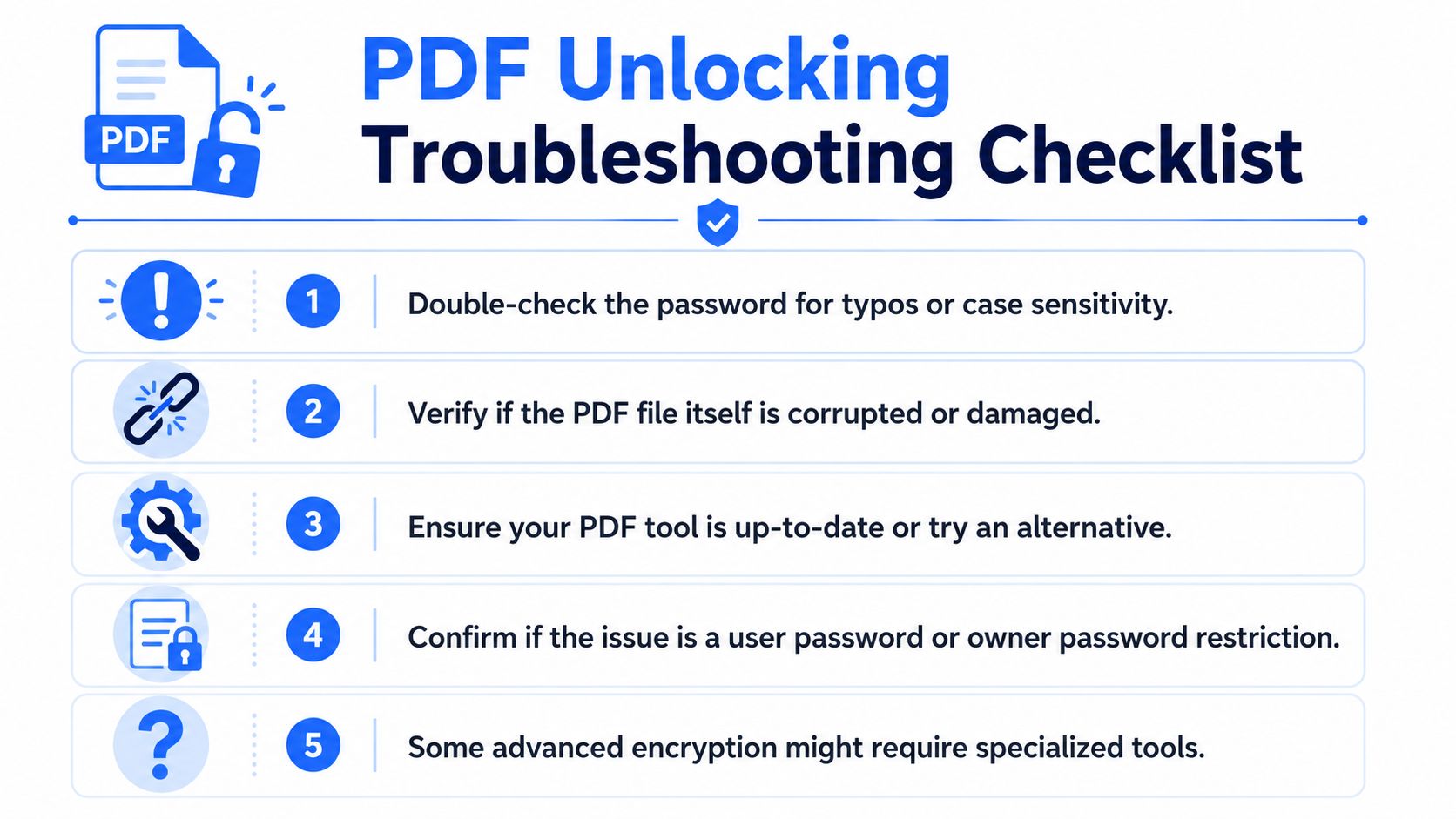
When the password is known but removal still fails
Start with the obvious. Re-enter the password carefully and check case sensitivity. Then confirm the file isn't damaged. A corrupted PDF can look like a password problem when the issue is the document structure itself.
If the password is correct and the file is healthy, the tool may be the limiting factor. PDF protection can use 40-bit RC4, 128-bit RC4, AES-128, or AES-256, and a remover only works if it can handle the specific cryptographic layer used on that file. If it can't, failure doesn't always mean the password is wrong. It can mean the software doesn't support the encryption scheme in front of it.
A quick troubleshooting checklist helps:
- Check the lock type: Make sure you aren't treating an open-password file like a permissions-only file.
- Try a second offline tool: Some utilities support more PDF variants than others.
- Inspect the file itself: If the PDF is partially corrupted, repair may be needed before any security change succeeds.
- Save to a new destination: Writing errors can sometimes look like decryption errors.
When the password is forgotten
Many guides become misleading. Forgetting a password doesn't automatically mean a PDF password remover can “remove” it. If the file is protected by a Document Open password and you don't know that password, you're no longer in straightforward removal territory. You're in recovery territory, and that's a different problem.
That's also where unsafe advice spreads fastest. Some users jump straight to brute-force or random web services without checking whether the PDF is only permissions-locked. In office environments, I'd stop before doing that. First verify whether you can already open the file. If you can, the problem may be manageable through authorized permissions removal. If you can't, your safest path is usually to locate the sender, check a password manager, search archived instructions, or find an earlier unprotected copy.
A failed unlock attempt often tells you something useful. Either the file uses stronger protection than the tool supports, or you're solving the wrong problem.
Honest troubleshooting beats magical promises every time.
A Final Word on Legal and Ethical Use
A PDF password remover is for authorized document management. That means your own files, your organization's files, or documents you've received with the right to access and modify them.
It is not a license to bypass someone else's security.
That line matters more than people think. In a normal office, legitimate use cases are common. You may need to remove restrictions from archived reports, simplify internal review, or make a password-protected file easier to process in a secure records workflow. Those are routine administrative tasks. Trying to access confidential material you were never authorized to open is something else entirely.
A good professional standard is simple:
- Use it on files you own or administer
- Get approval when the document belongs to a team or client
- Keep the workflow offline when the contents are sensitive
- Preserve originals so you can document what changed
The safest habit is also the most professional one. Know what type of lock you're dealing with, use a local desktop workflow, and don't send confidential PDFs to unknown servers just because a browser tool looks convenient.
If you need a practical tool for this kind of work, File Studio is built for exactly that privacy-first desktop workflow. It runs offline on Windows and macOS, keeps files on your device, and handles PDF password removal alongside other everyday file tasks without requiring uploads, accounts, or a browser-based workaround.