

How to Download Kindle Book as PDF in 2026

Ayush Soni
Founder, File Studio
On this page
- Why You Can't Just Download a Kindle Book as a PDF
- What Amazon allows and what users try instead
- The Quickest Method Print to PDF from Kindle Cloud Reader
- How to do it
- What works and what usually breaks
- Checking for Officially DRM-Free Books
- Where to look first
- Why this route is better when available
- The Advanced Path Using Calibre for Personal Backup
- What changed with Calibre 7.2.1
- A practical personal-backup workflow
- The trade-offs people usually skip
- Optimizing and Managing Your New PDF Files Offline
- Fix the PDF before you file it away
- A simple archive structure that stays clean
- Frequently Asked Questions About Kindle to PDF Conversion
- Legality of personal DRM removal
- Why a converted PDF can look wrong
- What to do if a plugin or conversion step fails
- Kindle Unlimited and borrowed titles
You bought a Kindle book, opened Amazon, and expected a simple export button. Instead, you found menus that let you deliver the book to a device, read it in the browser, or manage content, but not download a Kindle book as a PDF.
That frustration is normal. People usually want a PDF for practical reasons: long-term archiving, offline reference, printing sections, highlighting in another app, or keeping a personal library in one format. The hard part isn't making a PDF. It's getting one that still looks readable, stays searchable when possible, and doesn't turn your files folder into a mess.
A good workflow has two jobs. First, it gets the book out of the Kindle ecosystem in a way that works reliably. Second, it cleans up the result so your archive stays usable months later.
Why You Can't Just Download a Kindle Book as a PDF
Amazon doesn't give readers a native PDF export for standard Kindle purchases. As of 2025, Amazon's official policy explicitly prohibits downloading Kindle books in PDF format, which means 100% of Kindle-to-PDF conversions require external software because Amazon provides no built-in support (Amazon policy summary via YouTube walkthrough).
The core obstacle is DRM, short for Digital Rights Management. In plain terms, DRM is the lock on the file. You bought access to the book in Amazon's reading system, but the file itself is often packaged so ordinary converters can't open it like a normal document.
That explains why quick experiments usually fail. Renaming the file extension doesn't help. Browser save tools don't produce a proper ebook export. Random online converters often can't read Kindle formats at all, or they produce unusable output.
What Amazon allows and what users try instead
There are really three categories here:
| Route | Officially supported | Typical result |
|---|---|---|
| Reading in Kindle apps or Cloud Reader | Yes | Good for reading, not for PDF archiving |
| Browser print to PDF | A common workaround | Fast, but quality is inconsistent |
| Calibre with DRM-handling workflow | No native Amazon support | Best path for a personal offline archive when it works |
Most confusion comes from treating those paths as equivalent. They aren't. The browser route is quick and crude. The Calibre route takes more setup, but it can produce a more usable archive copy.
Practical rule: Decide what kind of PDF you need before you start. A quick reference copy and a clean archival copy are different jobs.
If your goal is a lightweight copy for one-time reading, the browser method may be enough. If you care about searchability, cleaner page structure, or keeping a long-term library, you'll want to look at the more deliberate options below.
The Quickest Method Print to PDF from Kindle Cloud Reader
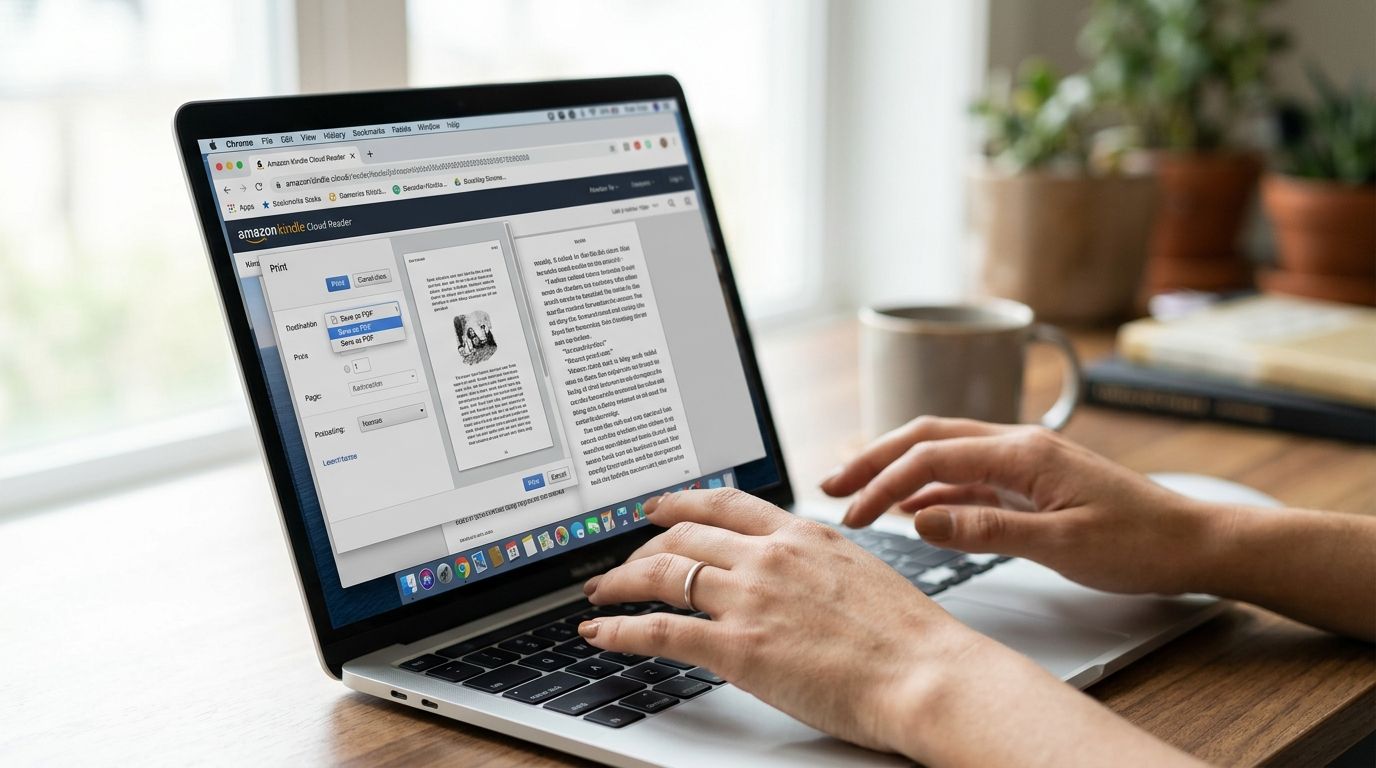
If you want the fastest possible answer, use Kindle Cloud Reader in a desktop browser and print from there. It doesn't require extra ebook software, and for simple books it can be good enough for reference.
How to do it
- Open Kindle Cloud Reader in your browser and sign in to your Amazon account.
- Open the book you want.
- Let the pages load fully before printing, as browser rendering can miss content that hasn't loaded.
- Press your browser's print shortcut.
- Choose Save as PDF or your system's Print to PDF option.
- Save the file with a clear name right away, ideally
Author - Title - Kindle Cloud Reader.pdf.
If you're planning to print the result later, it's worth reviewing a practical guide on preparing files for print so you catch margin and scaling issues early.
What works and what usually breaks
This method is attractive because it's immediate. You don't need Calibre, plugin setup, or file imports. For text-heavy books with basic formatting, the output can be acceptable for casual use.
The trade-off is quality. User reports on Amazon's forums say this approach is unreliable, with 65% of reports describing broken margins, missing images, or garbled text caused by Kindle's dynamic web rendering (Amazon forum discussion).
That lines up with real-world behavior. Cloud Reader is designed to display flowing ebook content in a browser, not to generate press-ready pages. Tables, illustrations, sidebars, and image-heavy layouts are where problems show up first.
For novels and plain nonfiction, browser PDF can be fine. For textbooks, art books, manuals, and anything with dense layout, it's often the wrong tool.
It's useful to understand that this isn't really an ebook conversion workflow. It's closer to printing what the browser can currently render. That's why it feels quick and why the result can feel rough.
Checking for Officially DRM-Free Books
Before you install anything, check whether the book is available without DRM or whether the publisher offers a direct PDF elsewhere. That's the cleanest path by far.
Over 90% of Kindle ebooks are protected by DRM, which is why direct conversion usually fails and why DRM-free titles are the exception rather than the norm (Good e-Reader summary). Even so, the exception is worth checking for because it can save a lot of time.
Where to look first
Start with your Amazon account's Content & Devices area. You're not looking for a hidden PDF button. You're trying to determine whether this specific title behaves more like a locked Kindle file or a flexible ebook.
Then check the book's product page and the publisher's site. Some publishers sell the same title directly in PDF, EPUB, or a bundle of formats. That's especially common for technical books, training materials, and independent nonfiction.
A few places to inspect:
- Amazon listing details: Look for clues that the title isn't tightly locked, including usage language that suggests fewer restrictions.
- Publisher storefront: Many publishers sell direct files with fewer limitations than marketplace editions.
- Author websites and bundles: Some authors include companion downloads or alternate formats after purchase.
Why this route is better when available
A publisher-supplied PDF usually beats a converted one. The layout is intentional, images tend to be sharper, and you avoid the cleanup that comes with homemade conversions.
It also simplifies archiving. You can store the original purchased PDF alongside your receipt, version notes, and related formats without wondering whether the file was rendered correctly.
If you find an official PDF, take it. If you don't, then it makes sense to move on to the more technical route.
The Advanced Path Using Calibre for Personal Backup
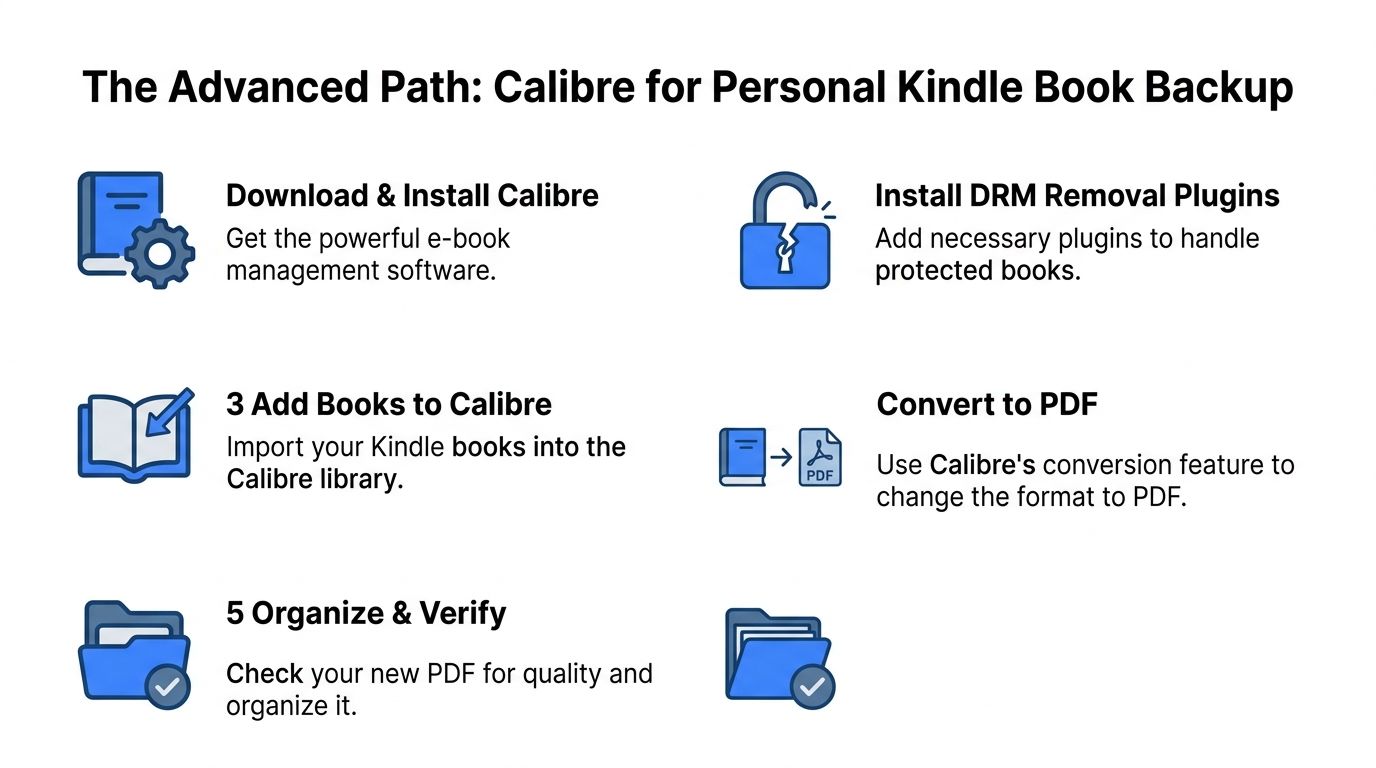
A common scenario looks like this. You bought a Kindle title years ago, you want a local archive copy, and the quick browser print method either mangles the layout or is too tedious for a long book. Calibre is the tool many careful readers use at that point because it handles both library management and conversion in one desktop workflow.
What changed with Calibre 7.2.1
Recent Calibre workflows became more predictable once Calibre 7.2.1 and updated DeDRM plugin setups aligned around the Kindle device serial number method for supported files, as outlined in this Wondershare guide on Calibre 7.2.1 workflow.
That detail matters because the hard part is rarely the PDF export button. The hard part is getting Calibre to read the Kindle file you downloaded. In practice, users working with compatible purchased files enter the serial number in the plugin's eInk Kindle Books settings so Calibre can process those files offline.
Treat this as a personal-backup workflow, not an official Amazon feature.
A practical personal-backup workflow
For personal archival use where local rules permit it, the process is usually:
- Install Calibre on Windows or macOS.
- Download the purchased Kindle book from Amazon in a format your setup can read.
- Install the matching DeDRM plugin for your Calibre version.
- Add your Kindle device serial number in the plugin settings for eInk Kindle books, if your file type requires it.
- Import the book into Calibre and confirm the metadata before converting anything.
- Convert to PDF with page size, margins, and font handling set deliberately instead of leaving every default in place.
- Review the output PDF page by page before you store it as your archive copy.
That last step deserves more attention than it usually gets. A PDF that technically opens is not automatically a good backup. Check headings, image placement, table of contents behavior, and whether chapter breaks land cleanly. If the first pass looks rough, adjust the conversion settings and run it again before you file it away.
If you work with ebooks professionally, not just as a reader, a broader resource on ebook conversion for publishers gives useful context on format handling, structure, and output planning.
Readers who prefer local processing for privacy reasons usually also prefer tools that convert files without uploading them to a server, which fits the same offline archiving approach.
The trade-offs people usually skip
Calibre works best on straightforward reflowable books such as novels and simple nonfiction. It gets less predictable with textbooks, comics, fixed-layout titles, dense footnotes, and books that depend on embedded fonts or careful spacing.
The PDF can end up readable but unattractive. Typical problems include odd margins, broken page breaks, substituted fonts, weak image scaling, and tables that spill across pages. Newer Kindle formats and newer device or app ecosystems can also complicate plugin compatibility, so a method that worked a year ago may need adjustment.
A better result usually comes from a few boring checks done up front. Verify the source format, confirm the plugin version matches your Calibre version, install any missing fonts on the computer, and test one representative chapter before converting the whole book.
That is the key advantage of Calibre for personal backup. It gives you control. The trade-off is that you have to use that control carefully if you want a PDF that is worth keeping.
Optimizing and Managing Your New PDF Files Offline
Getting the PDF is only half the job. A converted ebook can be too large, poorly named, split across multiple files, or packed with metadata you didn't intend to keep. That's where most guides stop, and it's where an archive usually starts getting sloppy.
Fix the PDF before you file it away
The first pass should be mechanical, not sentimental. Open the file and check whether page order, margins, images, and chapter breaks look right. Then clean the package itself.
A solid offline cleanup routine usually includes:
- Rename consistently: Use one filename pattern for every book. Author, title, year, and source are enough for most personal libraries.
- Compress oversized files: If the PDF is too large for storage or sharing, a focused guide on how to compress your PDF documents helps you reduce bulk without making the book unreadable.
- Delete junk pages: Browser-generated PDFs sometimes include blanks, clipped pages, or partial renders.
- Merge or split intelligently: Keep one master archive copy, then create smaller reading copies if needed.
- Inspect metadata: Titles, creator fields, software names, and timestamps can all be embedded in the document.
If metadata matters to you, it's worth learning how to remove PDF metadata before sharing or syncing files elsewhere.
A simple archive structure that stays clean
Mess usually starts with inconsistent storage, not bad conversion. Pick a structure and stick with it.
Here's one that works well for offline collections:
| Folder | What goes inside |
|---|---|
Library Master PDFs |
Final archive copies you don't edit casually |
Working Copies |
Annotated, split, or compressed versions |
Original Kindle Files |
Downloaded AZW, KFX, or source files kept for reference |
Conversion Notes |
Short text notes on plugin version, issues, and fixes |
This setup solves a common problem. Months later, you can still tell which file is the preservation copy and which one you shrank for a tablet or emailed to yourself.
A personal library stays useful when each book has one authoritative copy, one clear filename, and one predictable folder path.
For larger collections, add a lightweight note file per book if the conversion needed special handling, such as manually installed fonts or a re-run with different PDF settings. That's the kind of detail you won't remember later, and it's exactly what saves time when you revisit the archive.
Frequently Asked Questions About Kindle to PDF Conversion
You finish a conversion, open the PDF offline, and spot the underlying problem. The file exists, but the margins are off, headings wrap badly, or the book is now buried in a folder full of near-duplicates. Those are the practical issues that matter once the conversion step is done.
Legality of personal DRM removal
The answer depends on where you live and how you use the file. Copyright law, anti-circumvention rules, and exceptions for accessibility or personal archiving vary by jurisdiction.
The cautious approach is straightforward. Check your local law, keep any converted copy for personal use, and do not treat a backup as something you can share, upload, or redistribute.
Why a converted PDF can look wrong
Kindle formats were built for flexible screen reading, not faithful PDF export. Reflowable text, device-specific fonts, margin rules, and image handling do not always map cleanly into a fixed-page document.
That is why some books convert well and others need cleanup.
Plain-text novels usually survive the process with minor issues. Books with tables, code blocks, equations, sidebars, footnotes, or custom typography need closer review. If the PDF is meant to be a long-term archive copy, inspect page breaks, headings, image placement, and the table of contents before you file it away. A usable PDF is one thing. A good PDF you can still trust six months later takes a little checking.
What to do if a plugin or conversion step fails
Failures are usually procedural. Start with the basics. Confirm the source format, plugin version, Calibre version, and device details if your workflow depends on them.
If a method worked before and stopped working after a Kindle update, compatibility is a likely cause. In that case, the practical options are to try a different source file, revisit your plugin setup, or use an officially supported route such as Print to PDF from Kindle Cloud Reader when the book and browser setup allow it.
Keep notes when something finally works. One short text file with the book title, source format, settings used, and any cleanup steps will save time later.
Kindle Unlimited and borrowed titles
Subscription and borrowed books sit in a different category from purchased titles. Access through Kindle Unlimited or a library loan gives you reading rights for a limited period. It does not automatically give you the same archival footing as a book you bought outright.
For a tidy personal archive, separate borrowed material from purchased titles and avoid mixing them into the same permanent library folders. That keeps the collection cleaner and reduces confusion about what you are entitled to keep.
If you want the post-conversion part to be easier, File Studio is a practical fit for cleaning up and organizing PDFs offline. It runs on Windows and macOS, handles tasks like compression, page cleanup, splitting, merging, and metadata removal locally on your device, and keeps sensitive files out of browser-based upload tools.