

How to Convert AVIF to JPG: 5 Easy Methods for 2026

Ayush Soni
Founder, File Studio
On this page
- Why You Need to Convert AVIF Files
- Compatibility usually matters more than compression
- The failure point is usually outside your control
- Quick Conversions Using Your Operating System
- Windows 11 with Paint
- macOS with Preview
- The Secure Method for Batch and Sensitive Conversions
- Why local conversion should be the default for confidential files
- The risk isn't just exposure during upload
- Online Converters vs Offline Software
- Where online tools make sense
- Where offline software wins
- A simple decision rule
- Advanced Conversion with Command-Line Tools
- ImageMagick for fast bulk conversion
- FFmpeg for quality and metadata control
- When command-line tools are the right choice
- Troubleshooting and Quality Best Practices
- Expect the JPG to be larger
- Choose quality based on the destination
- Handle metadata deliberately
- Frequently Asked Questions About AVIF to JPG
- Does converting AVIF to JPG reduce quality
- Can I convert AVIF to JPG without uploading my files
- Why is the JPG larger than the AVIF
- Should I convert JPG back to AVIF later
- What if the image tool itself behaves strangely
You've probably hit this exact problem already. An image looks perfect on your computer, but the moment you try to upload it to a CMS, attach it to a form, drop it into a shared folder, or open it in an older app, the AVIF file becomes the blocker instead of the asset.
That's why those searching for how to convert AVIF to JPG aren't chasing image theory. They need a file that works everywhere, opens reliably, and doesn't create extra support tickets for the next person who touches it. The tricky part is choosing a method that fits the job. A quick one-off conversion has very different requirements from a folder full of client documents or internal HR files.
There's also a trade-off many guides skip: convenience versus privacy. Browser converters are fast for non-sensitive files, but they're not the right default when the images include IDs, contracts, invoices, or anything that shouldn't leave your device.
Why You Need to Convert AVIF Files
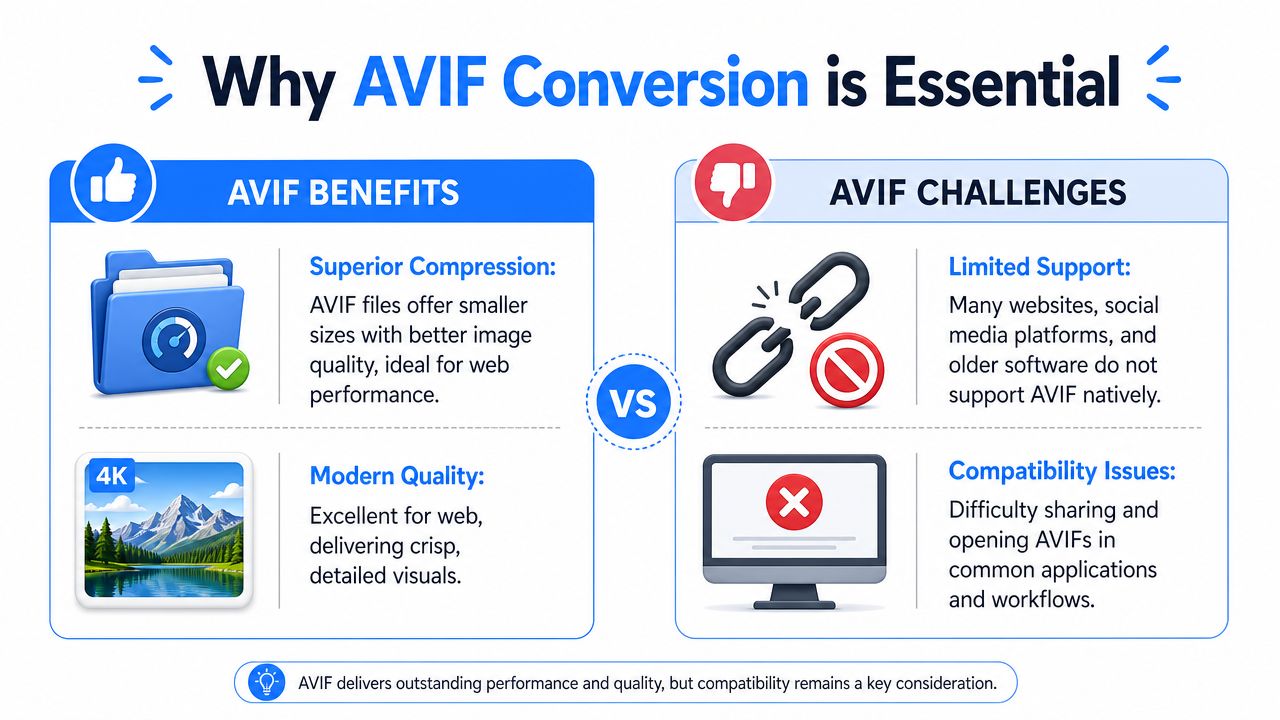
AVIF is a modern image format built for efficiency. The problem isn't quality. The problem is that efficiency doesn't help much when the site, app, or workflow you rely on won't accept the file.
At equivalent visual quality, AVIF files are typically 50 to 70 percent smaller than JPEG, which is why AVIF is attractive in the first place, but converting to JPG often means accepting a larger file in exchange for broad compatibility across platforms and browsers, as noted in this AVIF to JPG format overview.
Compatibility usually matters more than compression
If you work with websites, admin portals, print vendors, or social platforms, JPG is still the practical fallback. It opens everywhere, people recognize it instantly, and most file-handling tools are built around it.
That's why conversion comes up so often. You're not “downgrading” a file for no reason. You're translating it into a format that fits real-world systems.
A broader image format comparison for everyday workflows is useful if you're deciding which format to keep as your master file and which to export for sharing.
Practical rule: Keep AVIF when you control the environment. Convert to JPG when you need the image to work in other people's software, upload forms, and older systems.
The failure point is usually outside your control
A lot of AVIF friction shows up at the worst time. You download a product image, a designer exports a modern asset, or a teammate forwards a screenshot archive. Then the destination tool rejects it. That destination might be a website builder, document system, or an app with incomplete AVIF support.
In practice, JPG wins because it's predictable. You give up some compression efficiency, but you gain a file that almost nobody has to think about. For support teams, admins, marketers, and non-technical colleagues, that matters more than a theoretically better format that creates friction every few steps.
Quick Conversions Using Your Operating System
If you only need to convert one file, the fastest option is often the software you already have. That's especially true when the image isn't sensitive and you just need a compatible JPG in the next minute.
Windows 11 with Paint
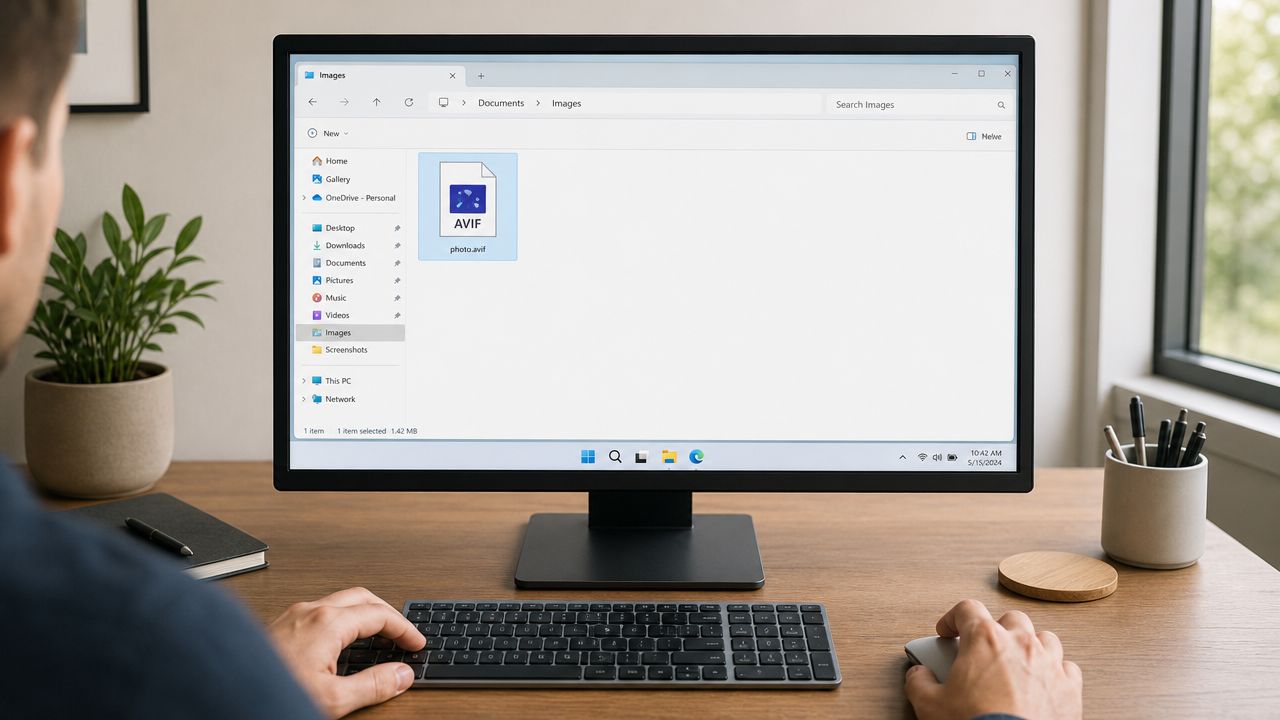
On Windows 11, the most reliable built-in method is Paint. Open the AVIF image in Paint, then use File > Save As > JPEG. That's the quickest native path when it works.
There are two catches. First, the default photo app may not open the AVIF correctly, so you may need an AVIF-capable extension or a workaround before you can even get the image into Paint. Second, this approach doesn't scale. The Windows guidance referenced in Microsoft's community notes that Paint is ineffective for batch processing, where manual repetition for each file leads to a 0% success rate for large volumes, and it can also introduce quality degradation in the process, according to this Windows 11 AVIF to JPG discussion.
Use Paint when:
- You have one image: A single logo, screenshot, or download is manageable.
- You need a fast fix: You're trying to upload something right now.
- The output isn't mission-critical: Minor quality changes won't cause problems.
Don't use it when:
- You have a folder full of files: Repeating the same save flow becomes tedious and error-prone.
- You care about consistency: Manual exports make it harder to keep settings aligned.
- The original file needs careful handling: Ad hoc workarounds can create avoidable quality loss.
macOS with Preview
On a Mac, Preview is usually the simplest route. Open the AVIF file in Preview, choose File > Export, then select JPEG as the format and save.
That makes Preview the macOS equivalent of Paint for quick one-file conversions. It's straightforward and familiar, which is why it works well for occasional tasks. It still has the same general limitation as any manual GUI method, though. Once you move from one file to many, or from casual images to sensitive material, “simple” stops being the same thing as “best.”
For one-file jobs, native apps are fine. For repeat work, they become a bottleneck fast.
The Secure Method for Batch and Sensitive Conversions
The moment the files become sensitive, the decision changes. A browser converter might be convenient for a harmless image you found online. It's a different story when the AVIF files contain passport scans, employee records, signed agreements, or internal financial documents.
That privacy concern isn't niche. Data from 2025 to 2026 industry reports shows that 78% of enterprise users in legal and HR sectors explicitly reject online converters for confidential work due to data leakage risks, even though search results still push browser tools first, as described in this privacy-focused review of AVIF to JPG methods.
Why local conversion should be the default for confidential files
When you convert locally, the files stay on your device. There's no upload queue, no waiting for a web service to process them, and no uncertainty about where the image is stored during or after conversion. That local-first approach is the safest baseline for regulated work and for anyone who doesn't want private images moving through third-party servers.
If the file would make you uncomfortable as an email attachment, it probably shouldn't go through a random online converter either.
A good offline workflow should let you:
- Convert entire folders at once: Batch processing matters more than people think once the count rises past a handful of files.
- Apply consistent output settings: Every exported JPG should follow the same rules.
- Review and clean metadata locally: Sensitive files often contain more than visible pixels.
- Work without internet access: That's useful in locked-down offices and on travel days.
For a practical explanation of what local-only processing looks like, this guide on converting files without uploading them maps out the privacy benefits clearly.
The risk isn't just exposure during upload
Sensitive image handling also includes what happens after conversion. Files can retain metadata, location information, timestamps, authorship details, and other embedded information. If the image involves a person, a client, or internal company activity, that extra data can create a second privacy problem even when the picture itself seems harmless.
That's one reason I recommend teams build a simple rule: public images can use convenience tools, confidential images stay local.
A format conversion can become a data-handling event. Treat it that way when the file contains personal or business-sensitive content.
If the conversion is part of a broader privacy response, such as removing or replacing an image that was shared improperly, the expert advice from ContentRemoval.com is worth reading because it focuses on the next steps after the image leaves your control.
Online Converters vs Offline Software
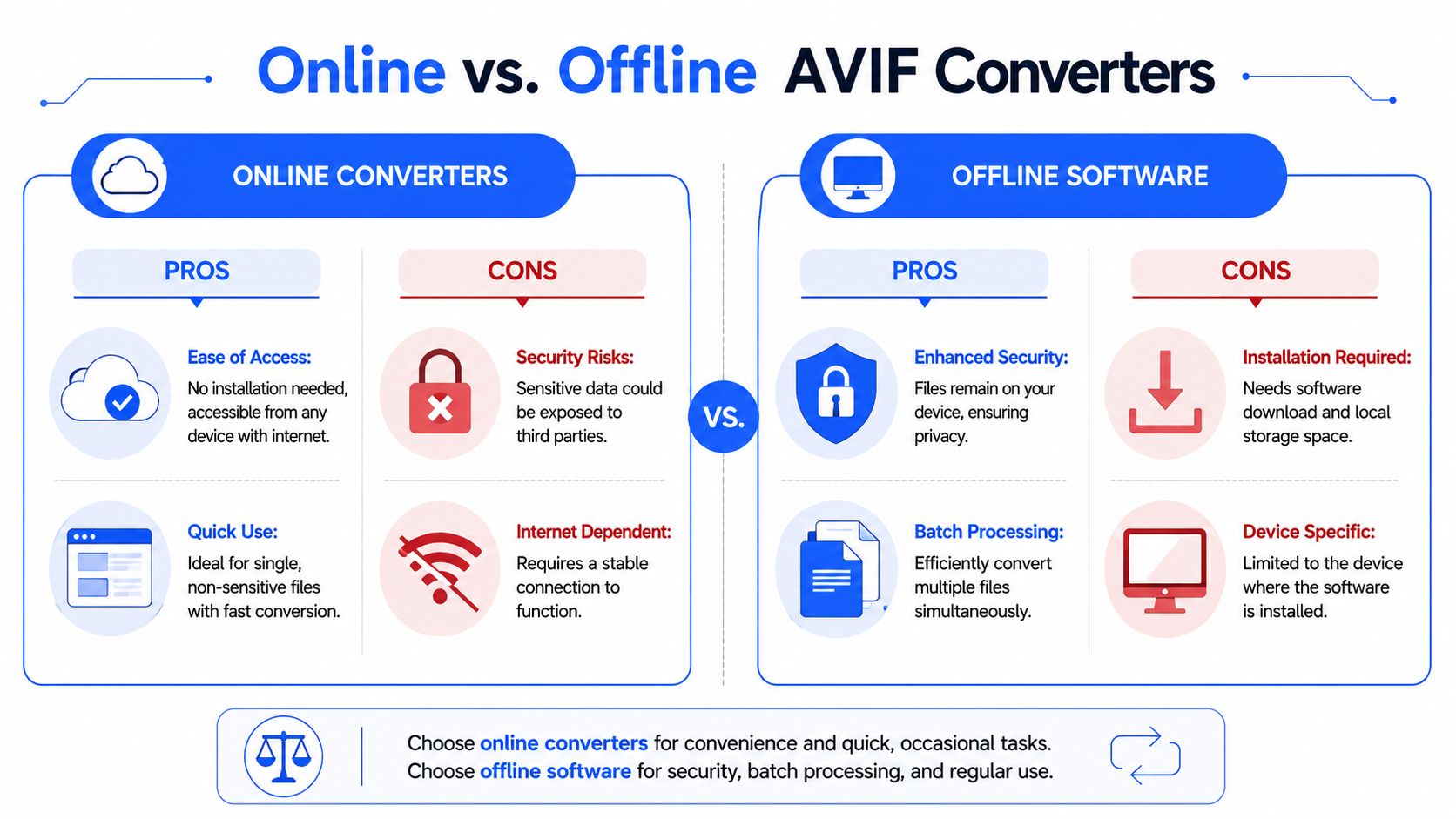
Users typically choose between two paths. They either open a browser-based converter because it's fast, or they install desktop software because they want control. Neither choice is automatically wrong. It depends on the files, the volume, and your tolerance for risk.
Where online tools make sense
Online converters are appealing because they remove setup. You open a page, upload a file, convert it, and download the JPG. For a one-time, non-sensitive image, that can be perfectly reasonable.
They're best suited to:
- Quick personal tasks: A downloaded wallpaper, a social image, or a simple screenshot.
- Cross-device convenience: You can use them from almost any modern browser.
- Low-importance files: If the file gets stripped down or re-encoded, the consequences are limited.
For adjacent document workflows, tools like ReceiptsAI's conversion utility show why browser tools remain popular. They solve a narrow task quickly when privacy and repeatability aren't the dominant concerns.
Where offline software wins
Desktop tools take a bit more commitment up front, but the trade-off is control. That matters when the conversion has to be repeatable, private, and reliable.
One reliability issue worth keeping in mind is that one out of 10 AVIF images cannot be loaded because of exceptions, based on statistics from loading 100+ images from the web, which points to AVIF processing issues before you even factor in the limitations of a specific online service, according to this AVIF loading discussion on Aspose's forum.
Here's the practical comparison:
| Approach | Best for | Main downside |
|---|---|---|
| Online converter | One-off, low-risk files | Privacy and handling are outside your control |
| Offline software | Sensitive files, bulk jobs, repeat workflows | Requires installation and local setup |
A simple decision rule
Use an online converter if the file is disposable, non-confidential, and you only need one output fast.
Use offline software if any of these are true:
- The file is sensitive
- You have multiple files
- You need consistent export quality
- You may need to preserve or inspect metadata
- You don't want internet dependency in the workflow
That decision rule saves a lot of rework. It also prevents the common mistake of treating all file conversions as equally low-risk.
Advanced Conversion with Command-Line Tools
If you're comfortable in a terminal, command-line tools give you the cleanest path to repeatable AVIF to JPG conversion. They're also the best option when you want to automate a folder, script the process, or keep settings consistent across many runs.
ImageMagick for fast bulk conversion
On Windows systems using WSL with Ubuntu, ImageMagick is a practical choice for directories full of files. Install it, move to the target folder, and run:
mogrify --format jpg *.avifThat command converts every AVIF file in the current directory to JPG. It's simple, fast, and good for bulk work when you don't need custom naming logic beyond the defaults.
A deeper batch image converter reference is helpful if you're building a repeat workflow and want to think in terms of folders, presets, and automation instead of one file at a time.
FFmpeg for quality and metadata control
FFmpeg is the better fit when you want more control over output handling. A strong baseline command is:
ffmpeg -i input.avif -q:v 92 output.jpgThat specific -q:v 92 setting matters. A key technical note from Convertio's AVIF-to-JPG documentation is that AVIF files often contain embedded metadata such as EXIF and XMP, and online converters may strip that data, while local tools like FFmpeg using -q:v 92 preserve metadata intact with a 99% success rate and avoid color profile mismatch issues common in GUI tools, as explained in this technical AVIF to JPG guide from Convertio.
For a batch loop in a Unix-like shell, use:
for f in *.avif; do
  ffmpeg -i "$f" -q:v 92 "${f%.avif}.jpg"
done
When command-line tools are the right choice
Terminal tools aren't necessary for everyone. They shine in a few situations:
- Developer workflows: You want conversion built into scripts or deployment prep.
- Large folders: A command beats hours of clicking.
- Metadata-sensitive jobs: You need to preserve embedded information intentionally.
- Color consistency: Scripted handling reduces the chance of GUI export surprises.
If you need the same result every time, script it once and stop trusting manual clicks.
For technical users, that's often the best answer to how to convert AVIF to JPG without losing control of the process.
Troubleshooting and Quality Best Practices
A converted JPG that opens everywhere can still be the wrong result if it looks washed out, loses detail, or exposes metadata you meant to keep private.
Expect the JPG to be larger
If your new JPG is much bigger than the AVIF, that's normal. AVIF is designed for stronger compression, so the compatibility win usually comes with a file-size penalty. That's not a failed conversion. It's the trade-off you accepted when you moved to a more universally supported format.
Choose quality based on the destination
For everyday sharing and uploads, use a JPG quality setting that keeps the image visually clean without chasing the smallest possible file. For photography, print work, approvals, or archives, lean toward higher quality and inspect the result at full size before sending it on.
A few practical checks help:
- Zoom in on edges: Text, line art, and product cutouts reveal compression problems quickly.
- Check skin tones and gradients: These areas often show banding or subtle shifts first.
- Compare file purpose, not just appearance: A web upload and a print-ready asset should not be exported the same way.
Handle metadata deliberately
Metadata can be useful or risky depending on the job.
Keep it when:
- You need authorship or capture information
- The image belongs to a managed photography workflow
- Your archive depends on embedded details
Strip it when:
- You're sharing externally
- The file contains location or identity-related information
- The image came from a phone or internal document process
If colors shift after conversion, use a local tool with better profile handling and test again. That's often a tooling issue rather than a problem with the AVIF itself.
Frequently Asked Questions About AVIF to JPG
Does converting AVIF to JPG reduce quality
Usually, yes, at least to some degree. JPG is a lossy format, so the conversion process can discard image information. In normal office and web use, the result may still look excellent. The visible difference depends on the export settings and the type of image.
Can I convert AVIF to JPG without uploading my files
Yes. Built-in desktop apps, offline image software, and command-line tools all let you convert locally. That's the better approach for confidential files or any workflow where you want tighter control over quality and metadata.
Why is the JPG larger than the AVIF
Because AVIF compresses more efficiently. A JPG version often takes more storage space even when the visual result looks similar. That's expected behavior.
Should I convert JPG back to AVIF later
You can, but it's usually better to keep an original or highest-quality source file instead of repeatedly converting between lossy formats. Re-encoding an already compressed JPG into another format doesn't restore lost detail.
What if the image tool itself behaves strangely
Sometimes the issue isn't the file. It's the viewer, browser, plugin, or rendering layer around it. If you're troubleshooting image behavior inside creative or canvas-based tools, this guide to fixing creative canvas problems is a useful companion resource because it focuses on environment-level issues rather than just file conversion.
If you regularly handle AVIF, JPG, PDFs, and other file formats, File Studio is worth a look. It runs offline on macOS and Windows, handles batch conversions locally, and gives you a cleaner workflow when privacy, metadata control, and repeatable exports matter more than the convenience of a browser tab.