

How to Convert PNG to PDF on Mac & Windows in 2026

Ayush Soni
Founder, File Studio
On this page
- Why You Need to Convert PNGs to PDFs
- The format mismatch that causes trouble
- Why PDF is usually the accepted format
- Using Built-in Tools on Windows and macOS
- Windows using Microsoft Print to PDF
- macOS using Preview
- When built-in tools are enough
- Advanced Conversions and Batch Processing with File Studio
- When built-in tools start slowing you down
- What a dedicated desktop workflow does better
- Why this matters for sensitive work
- Online Converters vs Offline Apps A Security-First Comparison
- Where online converters are convenient
- Why offline apps are the safer default
- Mastering Quality Transparency and File Size
- Quality starts before the export
- Transparency and page behavior
- File size without unnecessary damage
- Conclusion Choosing the Right Conversion Method
You've got a PNG that looks perfect on screen. Maybe it's a scanned ID, a signed form, a receipt, or a portfolio page. Then the upload portal rejects it because it only accepts PDF.
That's the point where users often open the first free converter they find, upload the file, and hope for the best. Sometimes that works. Sometimes the PDF comes back blurry, cropped, oversized, or handled by a service you know nothing about. If the file contains private information, that trade-off isn't minor.
The safest way to convert PNG to PDF is usually the simplest one: keep the job local, use the tools already on your computer when they're enough, and switch to a dedicated desktop app when you need more control over page order, compression, metadata, or batch work.
Why You Need to Convert PNGs to PDFs
A PNG is an image. A PDF is a document container. That difference is why so many systems accept one and reject the other.
If you're submitting paperwork, sending a contract, archiving receipts, or assembling a portfolio, the receiving side usually wants a file that preserves layout consistently. A PNG can show the content, but it doesn't behave like a document with predictable page dimensions, print handling, and multi-page structure.
According to Smallpdf's PNG to PDF guide, PDF was introduced in 1992 and became the standard for fixed-layout documents, while PNG was released in 1996 as a lossless image format that excels at transparency. That's why a clean screenshot or scan may still be the wrong format for an application portal, a filing workflow, or a printer.
The format mismatch that causes trouble
Many PNG files are created for screens, not paper. They often start life as screenshots, exported graphics, or phone scans optimized for web viewing rather than formal submission.
Practical rule: If the file needs to be printed, signed, archived, or uploaded to a form system, treat it like a document and convert it accordingly.
Smallpdf also notes that PNGs often use a 72 DPI web-oriented resolution, while 300 DPI is common for print or official submission in PDF workflows. That's one reason a PNG that looks sharp on your monitor can look soft once it's placed into a PDF for printing or review.
Why PDF is usually the accepted format
PDF solves three problems PNG doesn't solve well on its own:
- Consistent presentation. The page looks the same across devices and operating systems.
- Document handling. PDFs are easier to combine, annotate, sign, archive, and submit.
- Multi-page structure. A set of separate images can become one orderly file instead of a loose folder of scans.
For everyday users, this matters most in practical situations:
- Forms and portals. Government, HR, finance, and school systems often ask for PDF only.
- Receipts and records. One PDF is easier to store than a stack of image files.
- Portfolios and proposals. A PDF reads as a document, not as disconnected pictures.
Once you understand that converting PNG to PDF is really about packaging an image into a document format, the right workflow becomes much easier to choose.
Using Built-in Tools on Windows and macOS
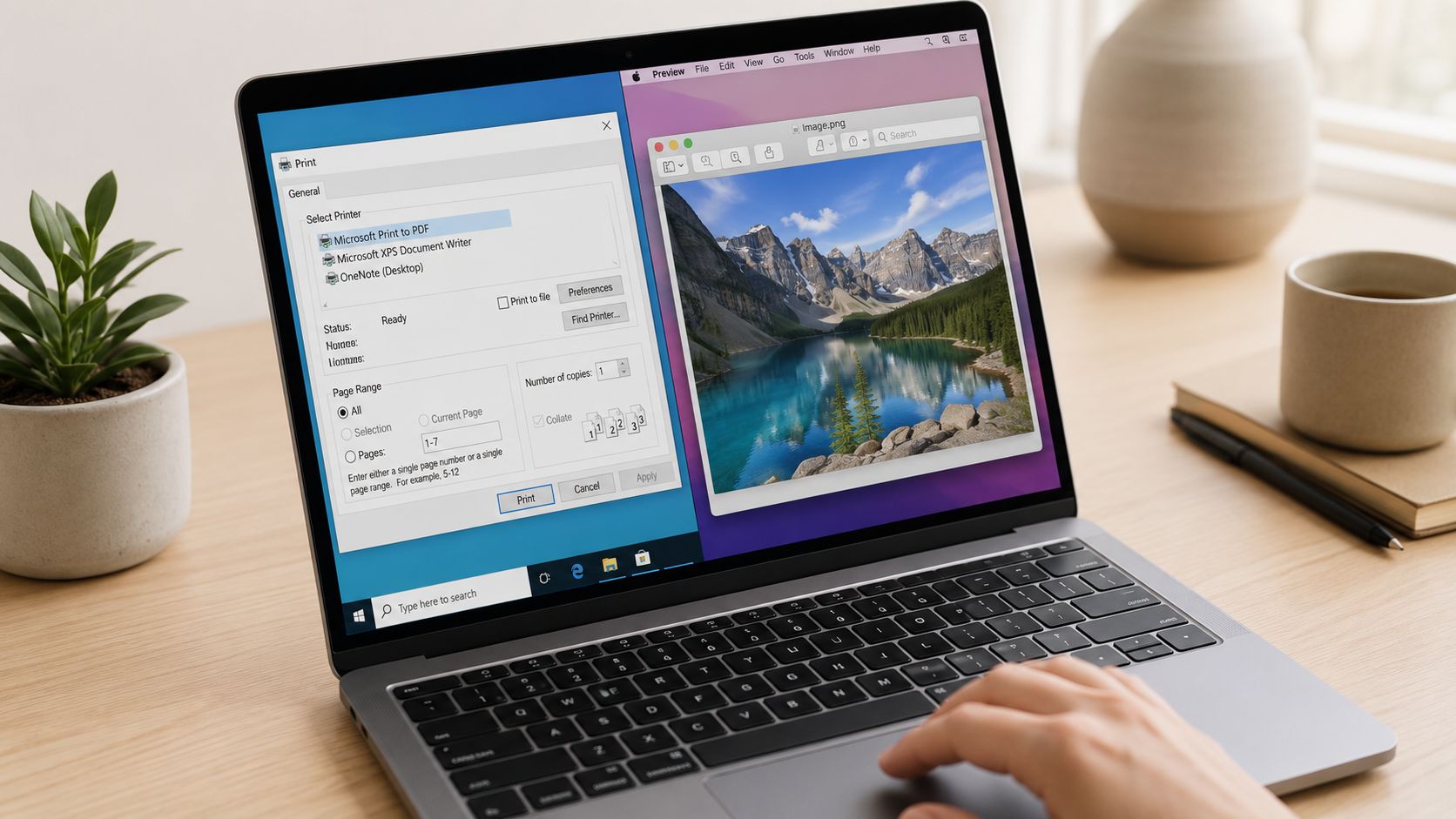
The first place to start is your own computer. Both Windows and macOS already include tools that handle basic PNG-to-PDF conversion well, especially when privacy matters and you don't want to upload anything.
Windows using Microsoft Print to PDF
On Windows, the fastest built-in option is Microsoft Print to PDF.
For a single PNG:
- Open the PNG in Photos or another image viewer.
- Press Ctrl + P.
- Choose Microsoft Print to PDF as the printer.
- Check paper size, orientation, and scaling.
- Click Print, then choose where to save the PDF.
For multiple PNGs:
- Select the image files in File Explorer.
- Right-click and choose Print.
- Pick Microsoft Print to PDF.
- Confirm image order and layout settings.
- Save the combined PDF.
The common failure point on Windows is page sizing. The image may be placed on a default Letter or A4 page even when your PNG has a very different shape.
According to IronPDF's guide to converting PNG to PDF, this can lead to unintended scaling or clipping when the PNG dimensions don't match the default paper size, and it affects roughly 30% of ad-hoc conversions when users skip paper size adjustment. The fix is simple: set a custom paper size or otherwise match the page to the image before exporting.
If your PDF looks cropped, don't reconvert blindly. Check the paper size first. Most bad exports come from page mismatch, not from the PNG itself.
That advice matters even more if you're converting scans. If you often scan receipts with your iPhone, getting the page size and orientation right on the desktop side will make those scans look far more intentional when you package them into a PDF.
macOS using Preview
On a Mac, Preview is the easiest local option.
For one PNG:
- Right-click the file.
- Choose Open With > Preview.
- Go to File > Export as PDF.
- Name the file and save it.
For several PNGs in one PDF, Preview is better than many people realize:
- Select the PNG files in Finder.
- Open them in Preview.
- Make sure the sidebar is visible.
- Drag thumbnails into the order you want.
- Use Print or export workflow to save them as a single PDF.
Preview is especially useful for small document sets, such as a handful of receipts, a short art sample, or a few signed pages you need in one file. It keeps everything on-device, and it's quick once you know where the sidebar controls are.
When built-in tools are enough
Built-in tools are usually the right choice when:
- You have only a few files
- The content is sensitive and should stay local
- You don't need detailed compression or metadata control
- You just need a clean PDF for upload or email
They become awkward when you have a large folder, need repeatable settings, or want tighter control over output quality and file size.
Advanced Conversions and Batch Processing with File Studio
Built-in tools are fine until volume shows up. Ten PNGs is manageable. A folder full of receipts, signed pages, design comps, or scanned records is where the friction starts.
That's the point where a dedicated offline app earns its place. Not because the basic conversion is impossible without it, but because the surrounding tasks start taking longer than the conversion itself.
When built-in tools start slowing you down
A real workflow usually involves more than “change file type.” You may need to:
- Combine a folder into one PDF in a specific order
- Reorder pages before export
- Keep page size consistent across images from different devices
- Balance clarity and file weight so the PDF is still easy to send
- Repeat the same process every week for invoices, applications, or reports
Windows print dialogs and Preview can do some of this, but they aren't built for repeated, high-volume document assembly. They work best for occasional jobs.
If you're preparing visual material for accessibility at the same time, it's also common to pair the PDF workflow with supporting asset cleanup. For example, when portfolio or content teams are generating descriptive text for exported images, a tool like this alt tag generator can help with image descriptions before final packaging.
What a dedicated desktop workflow does better
A desktop tool like File Studio changes the process from improvised to repeatable. You drag in the files, sort them, choose the output behavior once, and run the job locally.
That matters for three reasons.
First, privacy. IDs, legal forms, invoices, and internal documents don't leave the machine.
Second, control. You can decide how pages are ordered, whether output should prioritize quality or smaller size, and where the final files should go.
Third, throughput. Batch processing is the difference between handling a one-off task and clearing a folder efficiently. File Studio's batch file operations are built for that kind of repeated work.
A good batch workflow isn't about speed alone. It's about making the tenth run look exactly like the first.
Here's where dedicated software is usually the better fit:
| Workflow need | Built-in tools | Dedicated offline app |
|---|---|---|
| Single PNG to PDF | Good | Good |
| Combine many PNGs | Possible, but clumsy | Much easier |
| Reorder before export | Limited | Direct control |
| Reuse the same settings | Manual each time | Better for repeat jobs |
| Keep sensitive files local | Yes | Yes |
| Fine-tune output behavior | Basic | More flexible |
There's also a practical quality benefit. In mixed folders, one image may be portrait, another oriented horizontally, another much larger than the rest. A dedicated workflow makes it easier to normalize those differences before they turn into a messy PDF.
Why this matters for sensitive work
The privacy argument isn't theoretical. The more confidential the file, the less sense it makes to pass it through a browser upload just to save a minute.
That includes:
- HR paperwork
- Signed agreements
- Tax records
- Client deliverables
- Personal identity documents
For that category of work, a local conversion app is the professional default. It reduces exposure, cuts out browser friction, and gives you a cleaner result when the folder gets large.
Online Converters vs Offline Apps A Security-First Comparison
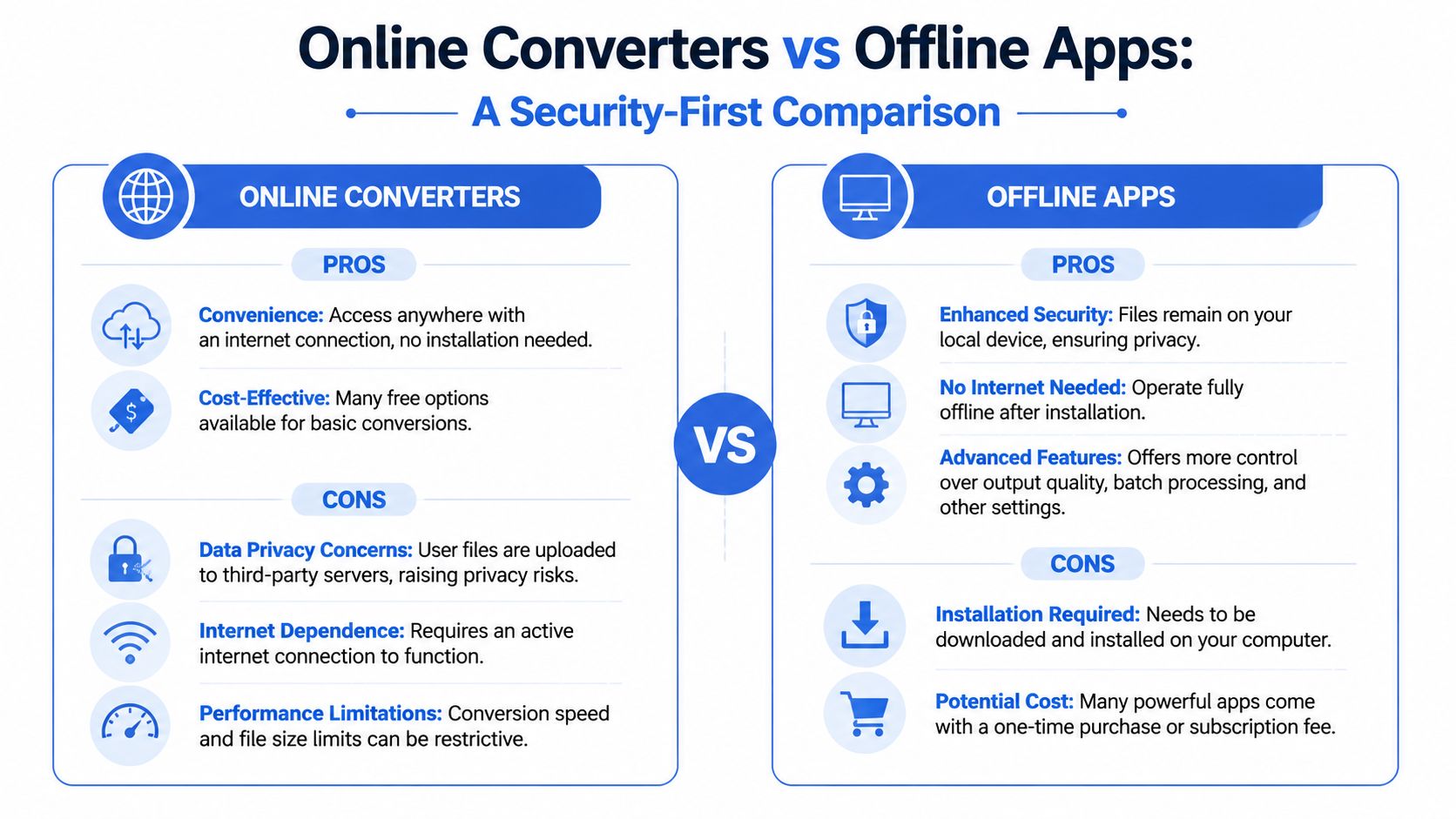
Online converters are popular for one reason: they're convenient. Open a browser, upload a file, download the PDF, move on.
That convenience is real. So are the trade-offs.
Where online converters are convenient
For a non-sensitive image, an online tool can be acceptable when:
- You're on a borrowed machine
- You only need one quick conversion
- You don't want to install anything
- The file contains nothing private
That's the narrow use case where the browser model makes sense. A public infographic, a simple screenshot, or a throwaway visual can fit that category.
The trouble is that many users start with convenience and forget to reassess when the file changes. The same upload habit that feels harmless for a logo mockup becomes a bad decision when the PNG contains a passport scan, bank information, a contract signature, or internal business records.
Why offline apps are the safer default
Offline apps flip the trust model. Your files stay on your device, and the conversion happens locally.
That gives you practical benefits beyond privacy:
| Factor | Online converter | Offline app |
|---|---|---|
| File privacy | Upload required | Local processing |
| Internet connection | Required | Not required after install |
| Large or repeated jobs | Often less comfortable | Better suited |
| Control over workflow | Usually basic | Usually stronger |
| Reliability in restricted environments | Limited by browser and network | More dependable |
For people who handle sensitive documents regularly, local tools are easier to justify than browser uploads. They also work better in offices with locked-down networks, on flights, or in places where connectivity is inconsistent.
If privacy is the first filter in your decision, start with tools that don't require uploads at all. File Studio's approach is built around converting files without uploading, which is exactly the model that makes sense for confidential records.
The question isn't only “Can this converter make a PDF?” It's also “Where is my file going while it does it?”
That's the part many free tools don't foreground. They market speed. You still have to think about exposure, retention, and whether you'd be comfortable sending that same file to a stranger.
Mastering Quality Transparency and File Size
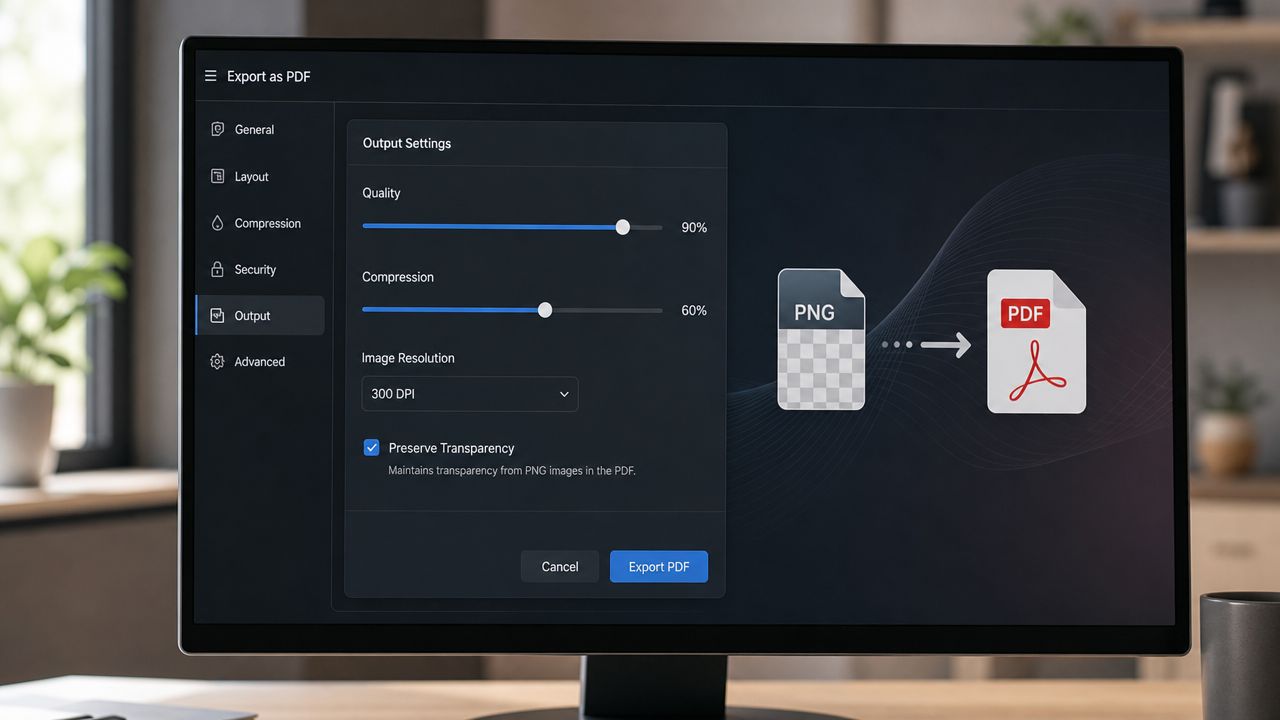
A successful PNG-to-PDF conversion isn't just readable. It fits the job. A document for an archive should behave differently from one you're emailing, and a logo with transparency needs different handling than a scanned receipt.
Quality starts before the export
If the source PNG is weak, the PDF won't rescue it. Start by checking the original image at full size before converting.
For document scans, look for fuzzy text, uneven lighting, or accidental resizing. For graphics, check that edges and small labels still look crisp.
A few habits help:
- Use the original PNG when possible instead of a copy pulled from chat or email.
- Avoid repeated conversions between image formats before making the PDF.
- Match the page to the image rather than forcing the image to fit a default page badly.
Transparency and page behavior
PNG supports transparency, which is one reason designers use it for logos, interface assets, and overlays. PDF can handle placed images well, but the result depends on the converter and export settings.
If the PNG has a transparent background, check the exported PDF on both light and dark viewing backgrounds. Some workflows flatten the image against white, which may be exactly what you want for forms and paperwork, but not for visual assets.
For formal submissions, a white background is often safer. For design assets, preserving transparency may matter more than visual familiarity.
File size without unnecessary damage
The smallest PDF isn't always the best PDF. Over-compression can make text jagged and graphics muddy.
A better approach is to decide what the file is for:
- Archive copy. Keep quality high and compression conservative.
- Email attachment. Reduce size, but inspect text and fine detail afterward.
- Portal upload. Aim for compatibility first, then optimize if needed.
If your exported PDF is larger than it needs to be, shrink it after conversion rather than crushing the image upfront. A guide like this one on how to shrink a PDF file size is useful when you want a smaller file without guessing at destructive settings.
Metadata matters too. Images and documents can carry hidden details such as author info, timestamps, software traces, or other embedded data. For sensitive work, cleaning metadata locally before sharing is part of quality control, not an afterthought.
Conclusion Choosing the Right Conversion Method
The best way to convert PNG to PDF depends on the file and the stakes.
If you need a quick one-off conversion, the built-in tools on Windows and macOS are usually enough. They're fast, local, and perfectly practical for everyday images. Just pay attention to page size and scaling so the PDF doesn't come out cropped or awkwardly padded.
Online converters are convenient, but they're best reserved for low-risk files you wouldn't mind sending through a third-party service. That's a much narrower category than generally assumed.
For sensitive documents, larger batches, or work that needs tighter control over page order, compression, and metadata, an offline desktop workflow is the stronger option. It keeps your files on your machine and gives you more predictable output.
That's the real decision point. Not just how to make a PDF, but how to make one without giving up privacy or image quality in the process.
If you want a local-first way to convert, compress, organize, and batch-process files on Mac or Windows, File Studio is built for exactly that kind of privacy-sensitive workflow. It runs offline, handles image-to-PDF jobs cleanly, and gives you more control than browser-based converters when the files matter.